Changing the screen saver on a Samsung cell phone sounds like a tiny job, right up there with changing a ringtone or pretending you will finally organize your photo gallery. Then you open Settings and discover Samsung has several related features: Screen saver, Lock screen wallpaper, Always On Display, Dynamic Lock Screen, Galaxy Themes, and sometimes even video wallpapers. Suddenly, your phone feels less like a phone and more like a very stylish spaceship with menus.
The good news is that changing your Samsung screen saver is easy once you know which feature you actually want. On Samsung Galaxy phones, the true Screen saver usually appears when your phone is charging and the display has turned off. Many people, however, use “screen saver” to mean the image on the Lock screen or Home screen. This guide covers both meanings clearly, so you can change the charging screen saver, update your Lock screen wallpaper, customize Always On Display, and avoid tapping through 42 menus like a confused detective.
Whether you own a Galaxy S series, Galaxy A series, Galaxy Z Fold, Galaxy Z Flip, or another Samsung Android phone, the steps are similar. Menu names may vary slightly depending on your Android version, One UI version, carrier, and device model, but the core process remains the same: go to Settings, find Display or Wallpaper and style, choose your preferred image or screen style, preview it, and save.
What Is a Screen Saver on a Samsung Cell Phone?
On older computers, a screen saver protected the display from burn-in by moving images around the screen. On modern Samsung phones, the term has a slightly different meaning. The built-in Samsung screen saver is usually a display mode that appears when the phone is idle and charging. It may show colors, a photo frame, a photo table, selected photos, or other available options depending on your model.
This is different from your wallpaper, which is the background image on your Home screen or Lock screen. It is also different from Always On Display, often shortened to AOD, which can show the clock, notifications, battery status, and other information while the phone is locked. If your goal is to see a nice picture while the phone is charging on your desk, change the Screen saver. If your goal is to see a new image every time you wake your phone, change the Lock screen wallpaper. If your goal is to make the clock look cooler when the phone is asleep, customize Always On Display.
Before You Start: Check Your Samsung Version
Before changing your Samsung screen saver, it helps to know that Samsung’s menus can vary by One UI version. A Galaxy S24 or S25 may show newer wallpaper tools, frames, effects, or AI-generated wallpaper options. An older Galaxy A phone may have a simpler layout. Some carrier models also hide or rename certain features. Do not panic if your menu says “Wallpaper” instead of “Wallpaper and style,” or “Lock screen and AOD” instead of simply “Lock screen.” Samsung likes personalization so much that even its menu names seem to enjoy dressing up.
For the smoothest experience, make sure your phone is updated. Go to Settings > Software update > Download and install. You do not always need the newest update just to change a screen saver, but updates can fix missing options, display bugs, and wallpaper issues.
How to Change Your Screen Saver on a Samsung Cell Phone: 15 Steps
Step 1: Unlock your Samsung phone
Start by unlocking your Samsung Galaxy phone using your PIN, password, fingerprint, face unlock, or whatever method you trust most. You need access to the Settings app, so the Lock screen is not enough. Think of this as getting backstage access to your phone’s personality closet.
Step 2: Open the Settings app
Find the Settings app. It usually looks like a small gear icon. You can open it from the app drawer, the Home screen, or the Quick Settings panel by swiping down from the top of the screen and tapping the gear.
Step 3: Tap Display
Inside Settings, tap Display. This section controls brightness, motion smoothness, screen timeout, navigation bar settings, dark mode, font size, and, on many Samsung phones, the Screen saver option.
Step 4: Scroll down and select Screen saver
Scroll toward the bottom of the Display menu and look for Screen saver. Tap it. If you do not see it immediately, use the search bar at the top of Settings and type “screen saver.” Samsung’s Settings search is your friend here, especially when menus move around after updates.
Step 5: Choose your preferred screen saver type
You may see options such as Colors, Photo frame, Photo table, or Photos. The exact list depends on your phone and installed apps. Colors gives you a simple animated color display. Photo options let your phone show images when the screen saver is active.
Step 6: Tap the settings icon for photo options
If you choose a photo-based screen saver, tap the small settings gear beside that option. This lets you pick where the images come from. You may be able to select albums from Gallery, Google Photos, or other photo sources available on your phone.
Step 7: Select the album or image source
Choose the album you want to display. For best results, select a clean, family-friendly, high-resolution album with horizontal and vertical photos. Avoid screenshots, blurry food pictures, or that one accidental photo of your ceiling fan unless your design goal is “chaotic museum exhibit.”
Step 8: Preview the screen saver
Use the preview option if your phone offers one. Previewing helps you confirm that the selected images display correctly. If the pictures look cropped, too dark, or too busy, go back and choose a better album.
Step 9: Plug in your Samsung phone
The Samsung screen saver typically appears when the phone is charging and the display has turned off. Connect your phone to a wired charger or wireless charger. Then leave the phone idle for a moment.
Step 10: Let the screen turn off
Wait for the normal screen timeout or press the Side button to turn the display off. The screen saver should appear when the phone enters its idle charging state. If nothing happens, check that Screen saver is enabled and that your phone is actually charging.
Step 11: Adjust screen timeout if needed
If your phone waits too long before showing the screen saver, go to Settings > Display > Screen timeout and choose a shorter time. A shorter timeout makes the phone sleep faster, which can trigger the charging screen saver sooner. Do not set it too short if you read long articles on your phone, unless you enjoy tapping the screen every few seconds like you are keeping it awake during a boring lecture.
Step 12: Change your Lock screen wallpaper if that is what you meant
If by “screen saver” you actually mean the picture you see before unlocking your phone, change the Lock screen wallpaper instead. Touch and hold an empty area on the Home screen, tap Wallpaper and style, then tap Change wallpapers. Choose an image from Samsung wallpapers, Gallery, colors, generative wallpaper, or other available categories.
Step 13: Apply the image to the Lock screen, Home screen, or both
After choosing an image, Samsung will usually ask where you want to apply it. Select Lock screen, Home screen, or Lock and Home screens. If you want the picture to appear when you wake the phone, choose Lock screen. If you want it behind your app icons, choose Home screen.
Step 14: Customize the clock and Lock screen layout
On many Samsung Galaxy phones, you can touch and hold the Lock screen to customize the clock style, font, color, widgets, and notification appearance. You may also find these options under Settings > Lock screen and AOD. This is useful if your new wallpaper is beautiful but the clock is sitting right on someone’s face like a poorly placed sticker.
Step 15: Save and test your new look
Tap Done, Apply, or Set, depending on what your phone displays. Lock your phone and wake it again to check the Lock screen. Then plug it in and let it idle to test the charging screen saver. If both look good, congratulations: your Samsung phone has officially received a tiny digital makeover.
How to Change the Lock Screen Wallpaper on Samsung
Because many users call the Lock screen image a “screen saver,” it deserves its own section. The fastest method is to press and hold a blank space on the Home screen, tap Wallpaper and style, choose Change wallpapers, and select an image. Samsung may offer featured wallpapers, Gallery images, colors, graphical wallpapers, video wallpapers, Dynamic Lock Screen, and AI-generated wallpapers on newer models.
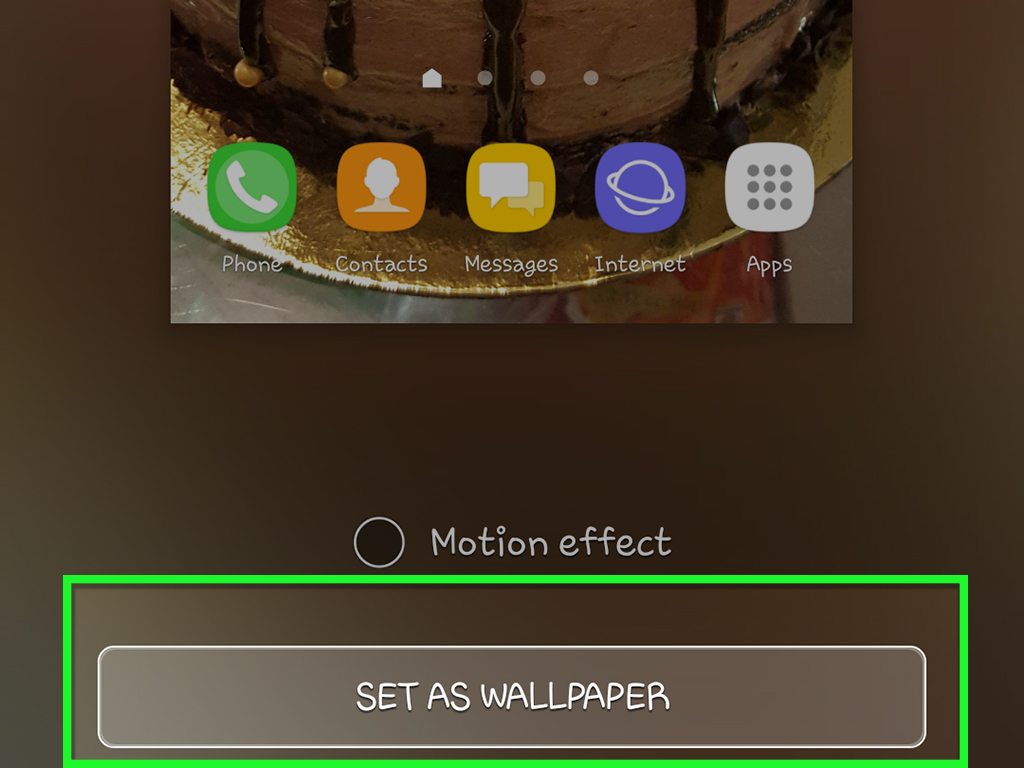
You can also change the wallpaper from the Gallery app. Open Gallery, select the photo you want, tap the three-dot menu, and choose Set as wallpaper. From there, select whether to use it for the Home screen, Lock screen, or both. This method is excellent when you already know the exact picture you want, such as a vacation photo, pet picture, family image, digital artwork, or a motivational quote that politely bullies you into being productive.
How to Customize Always On Display
Always On Display is another feature people sometimes confuse with a screen saver. AOD lets your Samsung phone show helpful information while the phone is locked, often including the clock, date, battery level, and notification icons. To adjust it, go to Settings > Lock screen and AOD > Always On Display. Depending on your One UI version, you may be able to choose when AOD appears, whether it shows continuously, and how the clock looks.
On newer Galaxy phones, Always On Display may share styling with the Lock screen clock. That means changing the Lock screen clock can also affect how the clock looks when AOD is active. If you cannot find older AOD clock styles, that may be because Samsung simplified some options in newer One UI versions. In plain English: your phone did not forget how to be fancy; Samsung just moved the furniture.
Using Dynamic Lock Screen
Samsung’s Dynamic Lock Screen automatically rotates Lock screen wallpapers from selected categories. It is useful if you get bored easily and want your phone to surprise you with fresh scenery, animals, art, landscapes, or other themed images. To find it, open Settings, go to Wallpaper and style, tap Change wallpapers, and look for Wallpaper services or Dynamic Lock Screen.
Once enabled, choose a category and allow updates. Your phone may download new images periodically. If you prefer one specific wallpaper that never changes, avoid Dynamic Lock Screen or turn it off. Otherwise, your carefully chosen beach sunset may mysteriously become a mountain goat by Tuesday.
Best Image Types for Samsung Screen Savers and Wallpapers
The best Samsung screen saver images are simple, bright enough to see, and not too cluttered. For a charging screen saver, albums with landscapes, family portraits, pets, artwork, or travel photos work well. For Lock screen wallpapers, choose images with empty space near the top or center so the clock and notifications remain readable.
Vertical images usually fit phone screens better than horizontal images. A wallpaper with a 9:16 or similar portrait-style ratio will often look cleaner. If you use a wide photo, Samsung may crop it. You can pinch, zoom, drag, or reposition the image before saving. Take a moment to preview it because nothing ruins a dramatic mountain photo faster than cropping the mountain into a mysterious gray triangle.
Common Problems and Easy Fixes
The Screen saver option is missing
If you cannot find Screen saver under Display, use the Settings search bar. Type “screen saver” or “screensaver.” If it still does not appear, your model, Android version, carrier software, or region may not show that feature. You can still customize the Lock screen wallpaper and Always On Display.
The screen saver does not appear while charging
Make sure your phone is charging, the screen is off, and Screen saver is enabled. Try a different charger if needed. Also check Power saving mode, because some display features may be limited when battery-saving settings are active.
The wallpaper looks blurry
Use a higher-resolution image. Pictures downloaded from messaging apps may be compressed. Screenshots and tiny web images often look soft when stretched across a modern Galaxy display. Choose original photos or high-quality wallpapers from trusted sources.
The clock is hard to read
Choose a simpler wallpaper or change the clock color and style. A bright white clock over a snowy mountain can become nearly invisible. A dark clock over a black cat at midnight has the same problem, plus extra mystery.
Dynamic Lock Screen keeps changing your wallpaper
Turn off Dynamic Lock Screen if you want a fixed image. Go to the wallpaper settings, open Wallpaper services or Dynamic Lock Screen, and choose a static wallpaper instead.
Privacy Tips Before Using Personal Photos
Using personal photos as a Samsung screen saver or Lock screen wallpaper can make your phone feel more personal, but remember that the Lock screen may be visible to others. Avoid using images that show private documents, school information, addresses, payment details, personal schedules, or anything you would not want a stranger to notice while your phone sits on a table.
If you love family photos, choose images that are meaningful but not too revealing. A vacation beach photo is usually better than a screenshot of your boarding pass. A pet photo is almost always safe, adorable, and emotionally powerful. In fact, most phones become 37 percent more charming when a dog or cat is involved. That statistic is not scientific, but your heart knows it is true.
Samsung Screen Saver vs. Wallpaper vs. Theme
A screen saver appears when the phone is idle, usually while charging. A wallpaper is the background image on the Lock screen or Home screen. A theme changes the broader look of the phone, including wallpapers, icons, colors, and sometimes system app styling. If you want a small change, update the wallpaper. If you want your phone to feel completely redesigned, explore Galaxy Themes.
Galaxy Themes can coordinate wallpapers, icons, and colors so your phone has a consistent style. This is helpful if you want a polished look without manually matching every detail. Just remember that some themes may change icons or colors in ways you do not expect. Preview before applying, especially if you rely on instantly recognizing app icons.
Real-World Experience: What Actually Works Best
After helping people customize Samsung phones, one pattern becomes obvious: most users are not really looking for the technical Screen saver setting. They are usually trying to change what appears when they pick up the phone. That means the Lock screen wallpaper is often the real target. The charging screen saver is useful, but it is more of a desk-friendly feature. The Lock screen is what you see dozens of times a day, so it has a bigger impact on how your phone feels.
The best experience usually comes from setting up three layers. First, choose a clean Lock screen wallpaper that looks good with the clock. Second, choose a Home screen wallpaper that is less busy, because app icons need contrast. Third, set a simple charging screen saver if you often place your phone on a stand. This gives your Samsung phone personality without turning it into a visual circus.
For example, a travel photo may look fantastic on the Lock screen but terrible behind app icons. A city skyline at night can make the Home screen look dramatic, but app labels may disappear into the lights. A soft gradient, simple texture, or darker image often works better for the Home screen. Meanwhile, a rotating album of vacation photos can be perfect for the charging screen saver because you are not trying to read app names over it.
One practical trick is to create a dedicated album just for screen saver photos. Name it something simple like “Screen Saver” or “Phone Display.” Add only your favorite vertical photos. This prevents random screenshots, memes, receipts, and blurry pocket photos from showing up while your phone is charging. Nobody wants their elegant bedside phone display interrupted by a grocery list from March.
Another useful habit is to test your wallpaper in both light and dark rooms. A wallpaper that looks beautiful at noon may be too bright at night. If you keep your phone near your bed, avoid extremely bright screen saver images. They can make the phone feel like a tiny billboard for your own camera roll. Softer photos, darker backgrounds, and simple colors are more comfortable in low light.
If you use Always On Display, do not overload the Lock screen with too many visual elements. AOD is meant to be glanceable. A clean clock, a few notification icons, and a readable layout are better than a design that makes you squint. Samsung gives you many customization options, but good design often means knowing when to stop. Your phone should look stylish, not like it is auditioning for a fireworks show.
For students, travelers, and busy users, a practical Lock screen can be more useful than a decorative one. You might choose a calm background and add a simple widget, clock, or notification layout. For creative users, Galaxy Themes and Good Lock can unlock deeper customization. But for most people, the built-in Wallpaper and style menu is enough to make the phone feel fresh in under five minutes.
The final lesson is simple: do not be afraid to experiment. Changing a Samsung screen saver or wallpaper is reversible. If one image looks awkward, choose another. If Dynamic Lock Screen feels too random, turn it off. If Always On Display drains more battery than you like, adjust when it appears. Personalizing a phone should feel fun, not stressful. After all, your Samsung phone is something you look at every day. It might as well greet you with something better than the default wallpaper equivalent of plain toast.
Conclusion
Changing your screen saver on a Samsung cell phone is simple once you understand the difference between Screen saver, Lock screen wallpaper, Always On Display, Dynamic Lock Screen, and Galaxy Themes. For the actual charging screen saver, go to Settings > Display > Screen saver, choose a style, select an album if needed, and test it while your phone charges. For the image you see when waking your phone, use Wallpaper and style and apply your chosen picture to the Lock screen.
The best setup is the one that matches how you use your phone. Want a calm desk display? Use a photo-based charging screen saver. Want a fresh look every day? Try Dynamic Lock Screen. Want a clean, useful locked display? Customize Always On Display and choose a readable clock. With a few taps, your Samsung Galaxy can go from “factory default” to “this actually feels like mine.”