If Netflix suddenly tells you your TV “isn’t part of the household,” it can feel a little dramatic. One minute you’re ready to watch a new thriller with popcorn in hand, and the next minute your television is acting like it has never met you before. Rude.
The good news is that this message usually has a clear reason behind it, and in many cases, it’s fixable without sacrificing your evening or your sanity. The short version: Netflix now treats your main home network as the anchor for your account, and if a TV or streaming device looks like it belongs somewhere else, the service may block playback until you verify it.
In this guide, I’ll break down why Netflix says your TV isn’t part of the household, what the message really means, and the fastest fixes that actually make sense. I’ll also cover common trouble spots like travel, moving, extra members, multiple Wi-Fi networks, and old sign-ins from hotels or someone else’s house. Because yes, your vacation can come back to haunt your streaming life.
What the Netflix Household message actually means
Netflix uses the term Netflix Household to describe the collection of devices connected to the internet at the main place where you watch Netflix. In plain English, that usually means the home Wi-Fi tied to your main TV.
When your TV or streaming box shows the message that it isn’t part of the household, Netflix is basically saying, “This device doesn’t look like it belongs to the home base for this account.” That can happen if you’re using the account at a second location, if your network setup changed, if the device hasn’t checked in properly, or if the account has lingering device activity from another place.
Netflix does not rely on magical mind-reading. It uses signals like your internet connection, device information, and account activity to decide whether a device fits your Netflix Household. So while the message feels personal, it’s really about network matching and account verification.
Why Netflix says your TV isn’t part of the household
1. Your TV is on a different network than your main Netflix home
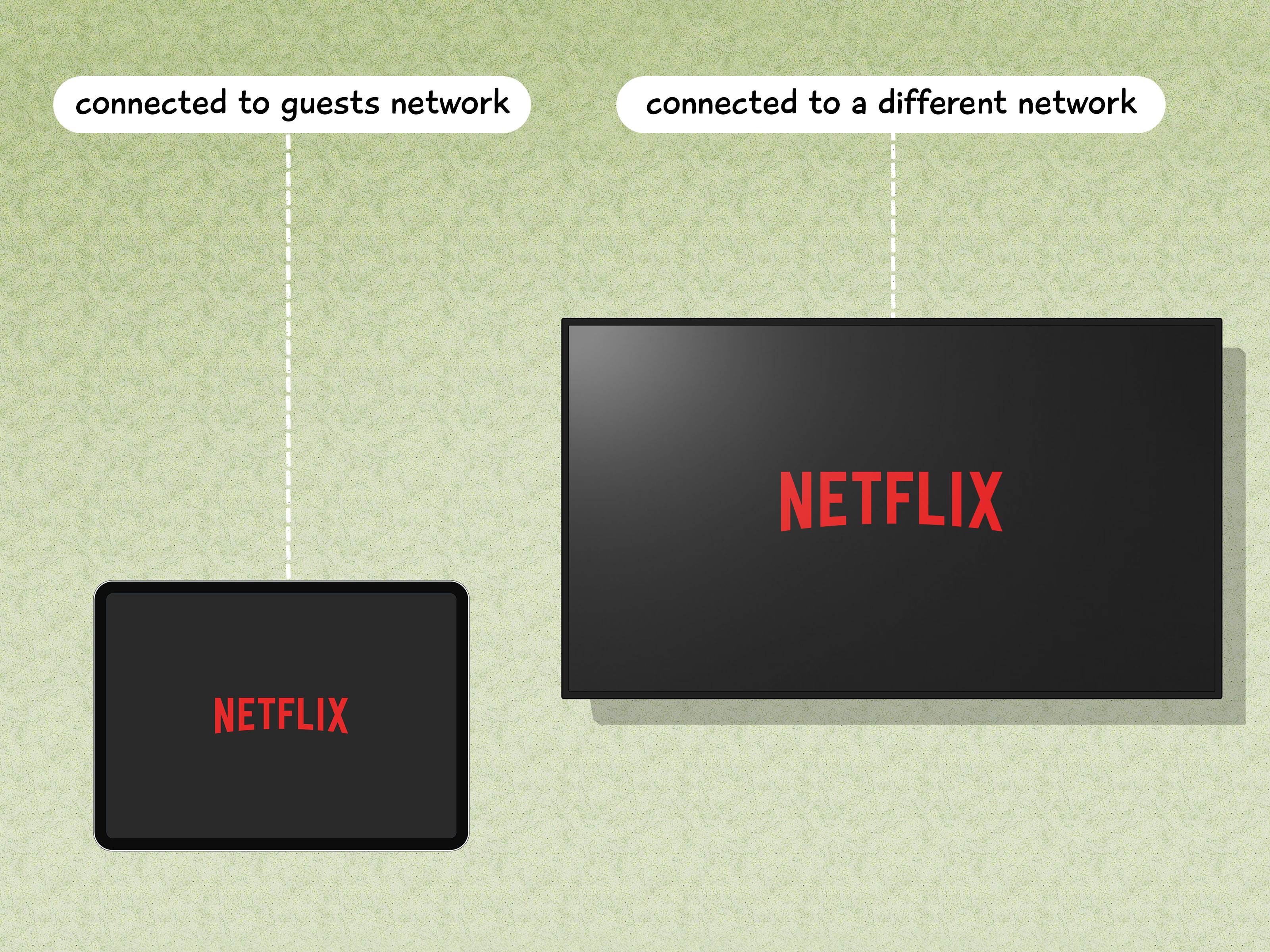
This is the most common reason. If your smart TV or streaming device is connected to a different Wi-Fi network than the one Netflix recognizes as your main household, the service may flag it. That includes a vacation home, an apartment you split time between, a dorm, or even a guest network that uses a different external connection.
2. You recently changed internet providers, routers, or Wi-Fi names
Home network changes can confuse the account’s household setup. A new modem, a new router, a mesh network, or a fresh Wi-Fi name can make your perfectly normal living room TV look like a stranger in a fake mustache.
3. You’re still signed in on devices from a hotel, Airbnb, or someone else’s house
If you used Netflix on a hotel TV, at a friend’s place, or on a family member’s streaming device and never signed out, Netflix may associate the wrong environment with the account. That can interfere with updating or confirming the right household later.
4. You moved
If you moved within the same country, you may need to update your Netflix Household so the service recognizes the new home network. If you moved to a different country, the situation gets more complicated because Netflix handles country changes differently than simple household updates.
5. You’re traveling and the TV is genuinely outside your household
This one isn’t really an error so much as Netflix doing exactly what it was designed to do. If you’re in a hotel or using a TV away from home, you may need to choose a temporary access option rather than trying to make that TV part of your household permanently.
6. Your app, TV software, or device data is acting up
Sometimes the issue isn’t the household policy itself. It can also be stale app data, a device that keeps asking for sign-in, an outdated firmware version, or a network hiccup that prevents Netflix from refreshing account information correctly.
How to fix the “not part of the household” error
Fix 1: Update Netflix Household from your TV
This is the big one. If this TV is really in your home, updating the household is usually the fastest fix.
On most TVs, go to the Netflix home screen, open the side menu, and look for Get Help or Settings, then Manage Netflix Household. Choose Update Netflix Household. Netflix will send a verification link to the account email, or sometimes a text to the phone number on file. Open the link, confirm it was you, and the TV should refresh.
If that works, congrats. Your TV and Netflix are speaking again.
Fix 2: Make sure the TV is connected to your main home internet
Before updating the household, double-check that the TV is on the correct Wi-Fi network. This sounds obvious until you realize the device connected itself to the guest network, the extender network, or that one mystery network with the nearly identical name you set up six months ago and forgot existed.
If your home uses multiple Wi-Fi networks or multiple ISP connections, Netflix may associate only one with the household. That means your living room TV and bedroom TV could technically be under the same roof but still look different to the service if they’re using different internet paths.
Fix 3: If you’re on mobile or desktop, use the same Wi-Fi as the home TV
If the message appears on a computer, phone, or tablet instead of the TV itself, Netflix’s guidance is simple: connect that device to the same Wi-Fi as the TV that belongs to the Netflix Household. If the problem sticks around, update the household from the TV and restart the mobile app or refresh the browser.
Fix 4: Use “I’m Traveling” or “Watch Temporarily” when you’re away
If you’re in a hotel, at a friend’s house, or on the road, don’t try to force that TV into your home setup unless it really is your new home. Use Netflix’s travel option instead. You’ll usually see something like I’m Traveling or Watch Temporarily, then request a temporary code sent to the account owner’s email or phone.
This is the smart move for legitimate travel because it gets you in without rewriting your whole Netflix Household around a random hotel television that has seen things.
Fix 5: Sign out of unfamiliar or old devices
If updating the household doesn’t work, clean house. Review devices recently active on the account and sign out of any you don’t recognize. If needed, sign out of all devices, then sign back in only where you actually use Netflix.
This is especially helpful if you forgot to log out from a hotel, Airbnb, former roommate’s TV, or that streaming stick you left at your cousin’s house during Thanksgiving. Netflix specifically points to old sign-ins like these as a possible reason the household update can fail.
Fix 6: Restart the TV, router, and Netflix app
It’s the oldest tech advice in the world, but it still works embarrassingly often. Turn off the TV or streaming device completely, wait a bit, and restart it. Then restart your modem and router. If Netflix still acts weird, sign out and back in.
If the problem is more about connectivity than household matching, this can refresh the device data and network path enough to get everything behaving normally again.
Fix 7: Update device software and the Netflix app
If your device keeps asking for sign-in or won’t properly hold the household verification, outdated software may be the problem. Update the TV firmware, streaming box software, and Netflix app if that option is available. On some devices, a reset to original settings may also be recommended by the manufacturer if the app won’t stay signed in correctly.
Fix 8: Check whether the device is old or unsupported
If Netflix says the device is no longer supported, that’s a separate issue from the household rule. In that case, the fix is not household verification. It’s usually using a supported device, updating the system if possible, or switching to a newer streaming stick or smart TV platform.
When an extra member makes more sense than constant fixes
If the person using the account does not live with you and uses Netflix regularly, repeated verification can become a full-time hobby nobody asked for. That’s where an extra member can make more sense.
Netflix allows eligible account owners on certain plans to add an extra member outside the household. That person gets their own login and can even keep their profile, recommendations, and viewing history through profile transfer. It’s cleaner, more stable, and far less annoying than treating every watch session like a border crossing.
That said, this isn’t available for every setup. Extra members generally require an eligible Standard or Premium plan, and some ad-supported or third-party billed arrangements may not support them. So before you count on this fix, check what your plan actually allows.
Common scenarios and the best fix for each one
You’re using Netflix in your actual home, but the TV got blocked
Use Update Netflix Household from that TV, make sure it’s on your main home Wi-Fi, and sign out of old or unfamiliar devices.
You’re staying in a hotel or at a friend’s house
Use I’m Traveling or Watch Temporarily and request a temporary access code. Don’t update the household unless this is truly your new main residence.
You moved to a new home in the same country
Connect your main TV to the new home internet and update the Netflix Household from there.
You changed internet equipment
Reconnect the TV to your preferred network, restart the router and device, then update the household again.
Your phone or laptop says it isn’t part of the household
Connect it to the same Wi-Fi as the household TV, then restart the app or refresh the site after updating from the TV if needed.
A relative outside your home uses the account all the time
Stop playing digital whack-a-mole. Consider an extra member setup or a separate subscription.
How to avoid seeing this message again
- Use Netflix on your home TV regularly while connected to your main household internet.
- If you travel, use the temporary access option instead of changing the household every time.
- Open the Netflix app on your home Wi-Fi at least once in a while, especially after travel.
- Sign out of hotel TVs, vacation rentals, and borrowed devices when you leave.
- Keep your device software and Netflix app up to date.
- If someone outside your home watches often, use a supported extra member option instead of endless verification loops.
Real-world experiences with the Netflix Household problem
What makes this issue so frustrating is that it rarely shows up when you have extra time and a cheerful spirit. It appears when everyone is already sitting down, snacks are open, and somebody has finally agreed on what to watch. Then Netflix pops up with the digital equivalent of, “Actually, I’m not sure I know you.” That’s a rough moment for household morale.
For a lot of people, the problem starts after something completely ordinary. Maybe you upgraded your router and gave the new Wi-Fi a cute name. Maybe you moved the TV from one room to another and reconnected it. Maybe you spent a weekend at an Airbnb, logged into Netflix there, and forgot to sign out because checkout was at 10 a.m. and your brain was already in the car. None of these feel like major life events, but to Netflix, they can look suspiciously like your account has wandered off.
Another common experience is the “but this is my house” situation. You’re standing in your own living room, staring at your own television, using your own account, and somehow the app is treating you like a mildly confusing intruder. In those moments, the issue is usually less about policy and more about setup. The TV may be on the wrong network, the router may have changed, or the account may still be tied to an older device environment. It feels absurd, but it’s usually fixable once you stop arguing with the screen and start checking the network details.
Travel brings its own special flavor of chaos. Hotel TVs, vacation rentals, and guest-room streaming devices can all trigger the household warning. And because no one wants to spend a weekend getaway doing account verification homework, the best experience usually comes from using the travel option and temporary code right away. The people who have the smoothest time are often the ones who know that not every blocked TV is meant to be added permanently.
Families also run into awkward moments when one person thinks sharing the account with an adult child, sibling, or parent in another home should still work the same way it used to. Emotionally, that makes sense. Technically, Netflix now treats that as a separate use case. That’s why some households keep bouncing between codes, blocked TVs, and confused text messages until they finally decide whether to add an extra member or split into separate subscriptions.
The most relatable part of all this is how small technical details can derail something that should be simple. You just want to watch a show, not perform network diplomacy. Still, once you understand how Netflix Household works, the mystery starts to fade. The fix is usually not random. It’s about matching the right TV to the right home connection, cleaning up old devices, and choosing the right option when you’re away from home. In other words, the app may be dramatic, but at least it’s consistently dramatic.
Conclusion
If Netflix says your TV isn’t part of the household, it usually means the device doesn’t match the home network Netflix recognizes for that account. The fastest fix is to update the Netflix Household from your main TV while connected to your preferred home internet. If you’re traveling, use the temporary access option instead. If old devices are cluttering your account, sign them out. And if someone outside your home watches all the time, an extra member or separate account is usually the least annoying long-term solution.
So no, your TV probably hasn’t developed trust issues. It just needs the right network, the right verification, and maybe a gentle reboot before movie night can continue.