Waze is the navigation app for people who believe traffic should be negotiated with, not merely endured. It watches live road conditions, driver reports, delays, crashes, construction, toll roads, and the occasional “why is everyone braking for no reason?” mystery. But one of its most useful features is also one many drivers overlook: the ability to switch your route before or during a drive.
Whether you want to avoid a toll, dodge a jam, take a more familiar road, skip a tricky intersection, or simply choose the route that feels less chaotic, learning how to switch routes on Waze can make your drive smoother and less stressful. The good news is that you do not need to be a traffic engineer, a rally driver, or someone who owns five phone mounts. You just need to know where Waze hides the route options.
This guide explains how to switch your route on Waze in five simple steps, plus how to customize route settings, compare alternatives, use route previews, and avoid common mistakes that make Waze behave like it has had too much coffee.
Why You Might Want to Switch Routes on Waze
Waze is designed to calculate efficient routes using live traffic data and community reports. That means the “best” route can change as conditions change. A route that looked perfect five minutes ago may suddenly include a crash, a lane closure, a slow-moving parade of brake lights, or a toll road you would rather not pay for.
Switching your route gives you more control. Sometimes the fastest route is not the most comfortable route. Sometimes the route with the best estimated arrival time includes stressful merges, confusing exits, or roads you know are packed at school pickup time. Waze can help you compare your choices so you are not blindly following the blue line like it is a sacred river.
How to Switch Your Route on Waze: 5 Steps
Step 1: Open Waze and Enter Your Destination
Start by opening the Waze app on your iPhone or Android device. Tap the search bar and type the name, address, or category of the place you want to go. For example, you can enter “Target,” “Los Angeles International Airport,” “coffee near me,” or a full street address.
Once Waze shows matching results, tap the correct destination. If you are starting a new drive, Waze may show a route preview or a button such as “View routes” or “Go now,” depending on your app version, device, and whether you are using Waze on your phone, Android Auto, Apple CarPlay, or an in-car display.
Before you hit the road, pause for a second. This is where many drivers accidentally accept the default route without checking alternatives. Waze may recommend the route it believes is best, but that does not always mean it is the route you personally prefer.
Step 2: Tap “View Routes” or the Alternative Routes Icon
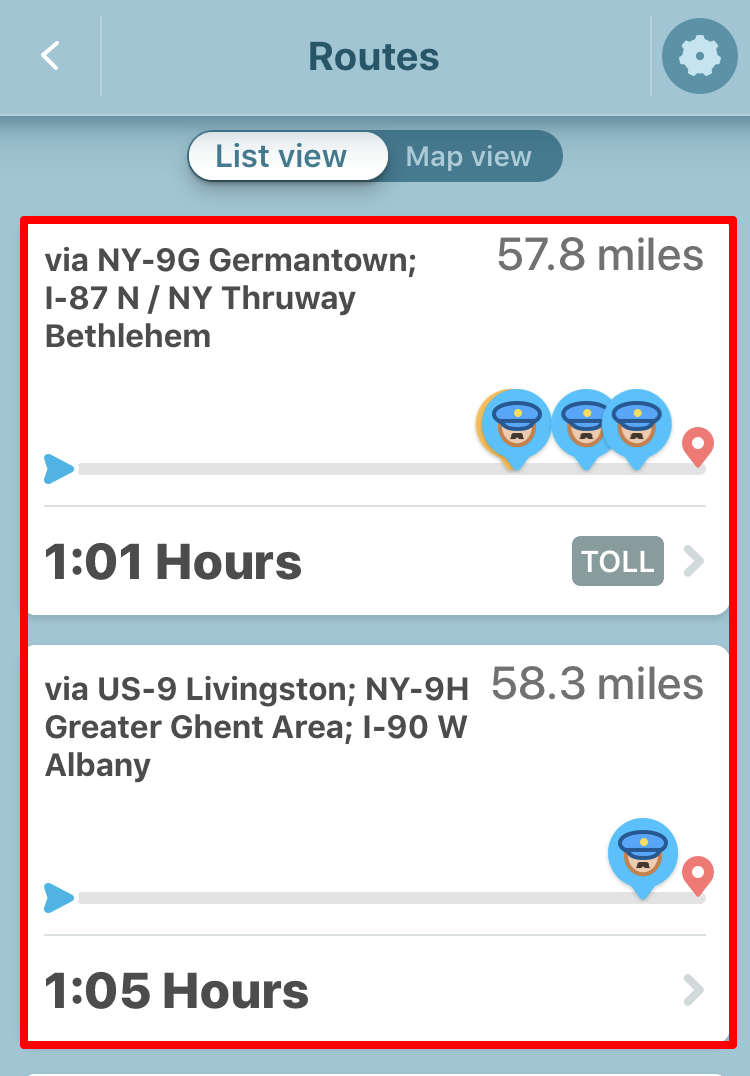
To switch your route before starting navigation, tap “View routes” if it appears. If you are already driving, look for the alternative routes icon, often shown as a branching route symbol. Waze may display several available route choices, each with an estimated arrival time, distance, and traffic context.
You may need to swipe up or scroll to see all available route options. This matters because Waze does not always show every possible route in one neat little row. Some alternatives may be lower on the screen, especially on smaller phones or car displays.
During a drive, Waze may also suggest a better route automatically if traffic changes. When that happens, it may offer a prompt such as changing routes or staying on the current one. If the new route makes sense, accept it. If you prefer your current road, decline it and continue. Your car, your ruleswithin legal speed limits, please.
Step 3: Compare Time, Distance, Tolls, and Road Type
Do not choose a route based only on the first number you see. A route that saves two minutes may include tolls, confusing exits, narrow streets, or an unpaved shortcut that makes your suspension send you a strongly worded letter.
When comparing routes in Waze, look at four things:
- Estimated arrival time: The fastest route may change as traffic updates arrive.
- Distance: A shorter route is not always faster, especially in city traffic.
- Tolls: Some routes may include toll roads or HOV lanes, depending on your settings and local road systems.
- Road comfort: Consider highways, difficult turns, unpaved roads, and familiar streets.
Waze can display toll information in supported areas, helping you decide whether saving time is worth paying extra. This is especially helpful for commuters, road trippers, rental car drivers, and anyone who has ever reached a toll booth and whispered, “Wait, how much?”
Step 4: Tap the Route You Prefer
Once you find the route you want, tap it. Waze should preview that route on the map. Take a moment to check the path visually. Look for major roads, exits, neighborhoods, bridges, toll symbols, and any traffic alerts that appear along the way.
If the preview looks good, start navigation or continue driving with the selected route. If it does not look right, go back to the route list and choose another option.
This is the simplest way to switch routes on Waze: destination, routes, compare, tap, go. The whole process can take less than a minute, and it can save you from a drive that feels like a group project where traffic did none of the work.
Step 5: Adjust Navigation Settings for Better Route Choices
If Waze keeps offering routes you dislike, your navigation settings may need attention. Open the Waze menu, go to Settings, and look for Navigation or Vehicle details. Depending on your region and app version, you may see options for toll roads, freeways, ferries, unpaved roads, difficult intersections, toll passes, HOV passes, and vehicle type.
For example, you can turn on “Avoid toll roads” if you do not want Waze to route you through paid roads. You can also set preferences for unpaved roads, which is useful if you drive a small sedan and would rather not pretend it is a monster truck. In some places, you can add toll or HOV passes so Waze understands which lanes or roads are available to you.
These settings influence the routes Waze offers. If your route options suddenly look strange, check your settings before blaming the app, the satellites, or Mercury retrograde. A forgotten “Avoid freeways” toggle can create a very scenic route, whether you asked for a scenic route or not.
How to Switch Routes While You Are Already Driving
Switching routes during navigation is similar, but safety comes first. Do not tap around on your phone while moving. Ask a passenger to help, use voice features when available, or pull over safely before changing route options.
While navigating, tap the route information panel or the alternative routes icon. Waze should show your current route and available alternatives. Swipe up if needed, review the choices, and tap the route you want. Waze will recalculate and guide you from your current position.
If Waze suggests a route change automatically, review the prompt quickly and decide whether to accept it. These suggestions usually appear because Waze has found a faster path based on real-time traffic. Still, faster is not always better. If the new option sends you through a maze of side streets or an area you prefer to avoid, staying on your current route may be the better call.
How to Avoid Tolls, Highways, Ferries, and Unpaved Roads
Route switching becomes much more useful when paired with route preferences. Waze lets you influence how it builds your drive. You can avoid toll roads if you are saving money, avoid ferries if you are not emotionally prepared for boat-based commuting, and avoid unpaved roads if your car makes suspicious noises every time it sees gravel.
To adjust these preferences, open Waze, tap the menu, go to Settings, and choose Navigation. From there, look for available avoid options. The exact labels may vary by region, but common choices include toll roads, ferries, freeways, unpaved roads, and difficult intersections.
After changing these settings, enter your destination again and view routes. Waze should calculate options based on your updated preferences. If no reasonable alternative exists, Waze may still show limited choices, especially in areas where a toll road, bridge, tunnel, or ferry is the only practical path.
Why Waze Sometimes Chooses a Longer Route
One thing that confuses many drivers is that Waze may recommend a route that looks longer on the map. That does not automatically mean Waze has lost its digital mind. A longer route can be faster if it avoids congestion, traffic lights, construction, crashes, or slow city streets.
For example, a 14-mile highway route may beat a 9-mile local route if the local roads are full of stoplights and school buses. Waze looks at live traffic conditions and historical patterns, not just distance. That is why “shortest” and “fastest” are not always the same thing.
When switching routes, think like a practical driver, not a ruler. The straightest line may look pretty, but the fastest drive often depends on flow, speed, lane closures, and how many other drivers had the same “secret shortcut” idea.
Using Waze on Android Auto and Apple CarPlay
If you use Waze through Android Auto or Apple CarPlay, the route-switching process may look different from the phone app. Car displays simplify the interface to reduce distractions, which is great for safety but occasionally annoying when you are trying to find one specific button.
On Android Auto, you can usually view alternative routes from the Waze interface on the car screen. On CarPlay, some settings may need to be adjusted on the phone before connecting, especially deeper navigation preferences. If you cannot find a setting on the car display, disconnect safely and check the Waze app on your phone.
The key rule is simple: set your preferences before you drive whenever possible. It is much easier to compare routes in a parking lot than while merging onto a freeway with a coffee in the cup holder and a podcast host yelling about economics.
Common Problems When Switching Routes on Waze
Waze Does Not Show Alternative Routes
Sometimes Waze may show only one route. This can happen when there are no practical alternatives, your settings are too restrictive, your data connection is weak, or Waze does not have enough live traffic information for the area. Try checking your navigation settings, updating the app, restarting Waze, or searching the destination again.
Waze Keeps Rerouting You Back
If you leave the selected route, Waze may recalculate and send you back to what it considers the best route. This is normal behavior for navigation apps, but it can feel stubborn. To reduce frustration, choose your preferred route from the route list before starting, and check whether settings like avoiding tolls or freeways are shaping the options.
The Route Includes a Toll Road You Wanted to Avoid
Go to Navigation settings and make sure “Avoid toll roads” is turned on. Also check toll and HOV pass settings, because Waze may route differently if it thinks you have access to certain lanes or roads. In some areas, a toll road may be difficult to avoid without a major detour.
The Route Looks Too Complicated
Sometimes the fastest route includes many turns, side streets, or neighborhood shortcuts. If that makes the drive stressful, choose a slightly slower but simpler route. A calm driver arriving three minutes later is often better than a tense driver arriving three minutes sooner with a steering wheel-shaped grip mark.
Smart Tips for Choosing the Best Waze Route
First, check routes before you start moving. This gives you time to compare without pressure. Second, review tolls and road types before long drives. A route that looks quick may be expensive or uncomfortable. Third, update Waze regularly so you have the latest routing features, bug fixes, and compatibility improvements.
Fourth, do not ignore local knowledge. Waze is powerful, but you may know that a certain left turn is terrible at 5 p.m. or that one road floods whenever it rains. Use Waze as a smart assistant, not an unquestioned ruler of your dashboard kingdom.
Finally, remember that Waze works best with a stable GPS signal and data connection. If you are driving in mountains, tunnels, rural roads, or dense downtown areas, routing updates may be delayed. Plan ahead when possible and keep your phone charged, because a navigation app with 2 percent battery is just a glowing source of anxiety.
Real-World Experience: What Switching Routes on Waze Feels Like
Using Waze in real life is not just about tapping buttons. It is about making small decisions under real driving conditions. Imagine you are heading to work on a Monday morning. Waze shows your usual freeway route at 38 minutes, but an alternate route through a major boulevard says 41 minutes. The freeway is technically faster, but the map shows heavy traffic near your exit. If you have been burned by that exit before, switching to the boulevard may be worth the extra three minutes. You trade speed for predictability, and sometimes predictability is the luxury option.
Another common situation happens on road trips. You enter a destination two hours away, and Waze offers a route with tolls that saves 12 minutes. Is it worth it? That depends. If you are late for a flight, pay the toll and thank modern infrastructure. If you are on a relaxed weekend drive, the non-toll route may be better. Switching routes lets you match the drive to the mood, budget, and purpose of the trip.
City driving is where route switching can feel especially valuable. Waze may suggest a clever shortcut through smaller streets, but clever is not always comfortable. Some drivers prefer major roads because they are easier to follow, better lit, and less stressful. In that case, choosing a route that stays on bigger roads can make the drive feel safer and simpler, even if the estimated arrival time is slightly longer.
Commuters often develop a rhythm with Waze. They check the recommended route, compare one or two alternatives, and then use personal experience to decide. Over time, you learn which Waze suggestions are brilliant and which ones are a little too adventurous. The app might know traffic speed, but you know whether a certain intersection has a left turn that feels like applying for a mortgage while people honk behind you.
The best experience comes from treating Waze as a decision tool. Let it show you live options, but do not be afraid to choose the route that fits your comfort level. A good route is not only the fastest line on a map. It is the route that gets you there safely, legally, calmly, and without making you question every life choice since breakfast.
Conclusion
Learning how to switch your route on Waze is one of the easiest ways to take control of your drive. Enter your destination, open route options, compare alternatives, choose the route you prefer, and adjust navigation settings so Waze understands your priorities. Whether you are avoiding tolls, escaping traffic, skipping unpaved roads, or choosing a calmer path, Waze gives you useful tools to make smarter driving decisions.
The best route is not always the shortest or the one Waze selects first. It is the route that fits your time, budget, comfort, and road conditions. Use route previews, check your settings, stay safe while interacting with the app, and remember that a slightly longer drive can sometimes be the better drive. Your destination matters, but so does arriving with your patience still intact.