If the Notes app suddenly says "Unable to Start Collaboration", it can feel like your iPhone has personally rejected teamwork. One minute you are trying to share a grocery list, project checklist, travel plan, study outline, or family to-do note. The next minute, Notes throws up a digital stop sign and refuses to cooperate.
The good news: this error is usually not permanent. In most cases, Notes collaboration fails because of a missing iCloud setting, an outdated device, a locked note, the wrong folder location, Apple Account issues, or a temporary iCloud service hiccup. The fix is often simple once you know where to look.
This guide walks you through practical ways to fix "Unable to Start Collaboration" in the Notes app on iPhone, iPad, Mac, and iCloud.com. We will keep it clear, useful, and only slightly dramaticbecause let’s be honest, a shared note refusing to share itself is already dramatic enough.
What Does "Unable to Start Collaboration" Mean in Apple Notes?
The message usually means Apple Notes cannot create or send a live collaboration invitation. This is different from sending a simple copy of a note. When you collaborate, other people can view updates, make edits if allowed, add attachments, and see changes in near real time. That live syncing depends on iCloud, Apple Account settings, supported software, and compatible note permissions.
In plain English, your note is not just being sent like a screenshot or text file. It is being connected through iCloud so multiple people can work on the same note. If one part of that chain breaks, Notes may show the collaboration error.
Common Reasons Notes Collaboration Is Not Working
Before you start tapping every button like you are defusing a tiny glass bomb, check the most common causes:
- Your iPhone, iPad, or Mac is not updated.
- You are not signed in to your Apple Account properly.
- Notes is not enabled in iCloud settings.
- The note is saved under "On My iPhone" instead of iCloud.
- The note or folder is locked.
- You selected "Send Copy" instead of "Collaborate."
- The recipient is not using an Apple Account with iCloud Notes enabled.
- Your iCloud storage or syncing is stuck.
- Apple’s iCloud Notes service is temporarily unavailable.
- The note contains features not supported on an older device.
Now let’s fix each one in a clean order, from easiest to more advanced.
1. Make Sure the Note Is Stored in iCloud
Apple Notes collaboration works through iCloud. If your note is stored locally under On My iPhone or On My iPad, collaboration may fail because the note is not available in iCloud for live sharing.
How to check the note location on iPhone or iPad
- Open the Notes app.
- Tap the back arrow until you reach the Folders screen.
- Look for the note under iCloud, not On My iPhone.
- If the note is local, open it, copy its contents, and create a new note inside an iCloud folder.
Once the note lives in iCloud, try sharing it again. This one fix solves a surprising number of collaboration problems. Local notes are great for privacy and offline storage, but for collaboration, they are like trying to host a group meeting in a room with no door.
2. Turn On Notes in iCloud Settings
If iCloud Notes syncing is disabled, your device cannot properly start collaboration. You might still see notes on your device, but Apple cannot sync the shared version through iCloud.
On iPhone or iPad
- Open Settings.
- Tap your name at the top.
- Tap iCloud.
- Under apps using iCloud, find Notes.
- Turn on Sync this iPhone or Sync this iPad.
On Mac
- Open System Settings.
- Click your name or Apple Account.
- Select iCloud.
- Make sure Notes is turned on.
After turning Notes syncing on, wait a moment for iCloud to catch up. If you have many notes, attachments, scans, or drawings, syncing may take longer than expected. Give it a minute before declaring war on your phone.
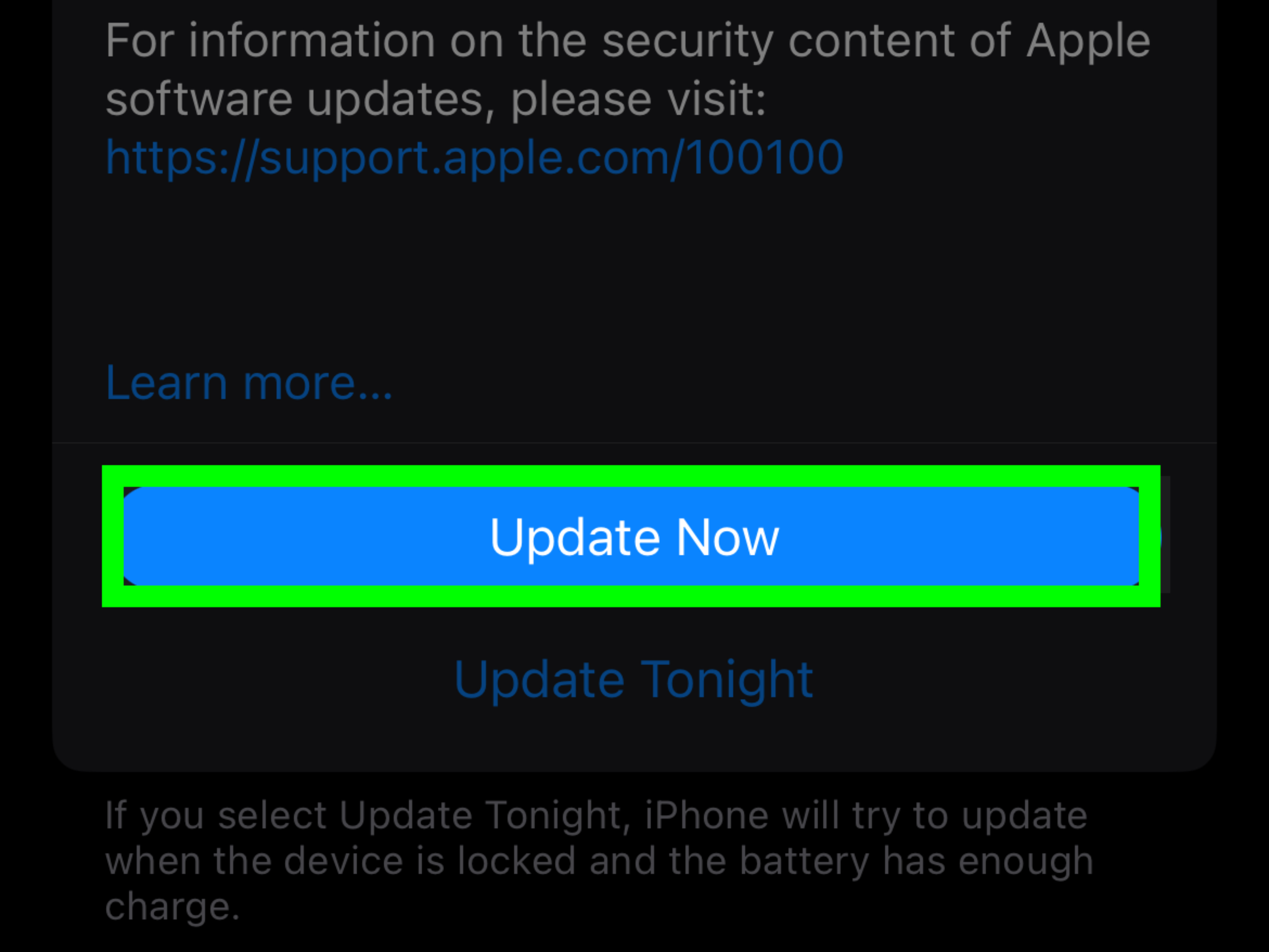
3. Update iOS, iPadOS, or macOS
Apple Notes collaboration works best when everyone involved uses current software. If you are on a much older version of iOS, iPadOS, or macOS, collaboration features may be missing, buggy, or incompatible with newer note features.
Update iPhone or iPad
- Open Settings.
- Go to General.
- Tap Software Update.
- Install any available update.
Update Mac
- Open System Settings.
- Go to General.
- Click Software Update.
- Install available macOS updates.
Ask the other person to update too. Notes collaboration is a two-person dance, and if one device is doing the 2026 version while the other is stuck in 2019, someone is going to step on a digital foot.
4. Confirm You Are Signed In to the Correct Apple Account
Collaboration requires an Apple Account. If your device is signed out, signed into the wrong account, or stuck waiting for account verification, Notes may not start collaboration.
Open Settings on iPhone or iPad and check the name at the top. On Mac, open System Settings and check the Apple Account section. Make sure you are signed in with the account you actually use for iCloud Notes.
Also check whether there are any prompts asking you to accept updated iCloud terms, verify account details, enter a password again, or approve a sign-in. These small account alerts can quietly break syncing until handled.
5. Remove the Lock from the Note
You cannot collaborate on a locked note. You also cannot collaborate on a folder that contains locked notes. This is a security limitation, not a bug. Apple does not allow live collaboration on locked notes because those notes are protected differently.
How to unlock a note
- Open the locked note.
- Unlock it with Face ID, Touch ID, passcode, or password.
- Tap the more options button.
- Choose the option to remove the lock.
- Try sharing the note again using Collaborate.
If you are trying to share a folder, check every note inside that folder. One locked note can block folder collaboration. It is the tiny padlocked gremlin hiding in your productivity system.
6. Choose "Collaborate" Instead of "Send Copy"
Apple Notes offers two sharing styles: Send Copy and Collaborate. Send Copy sends a static version of the note. Collaborate creates a shared note that others can update.
If you accidentally choose Send Copy, the other person will not be able to edit the original note with you. If you choose Collaborate and still see the error, then the problem is likely related to iCloud, account settings, permissions, or the note itself.
Correct sharing steps on iPhone
- Open the note in the Notes app.
- Tap the Share button.
- Under the note title, choose Collaborate.
- Set permissions, such as who can access and whether they can edit.
- Send the invitation through Messages or Mail.
If you only need to send information once, Send Copy is fine. If you want teamwork, edits, updates, and shared checklists, choose Collaborate.
7. Check the Recipient’s iCloud Notes Settings
The problem may not be on your device. The person you are inviting also needs to be signed in to an Apple Account and have Notes turned on in iCloud. If their setup is incomplete, they may not receive or open the collaboration invitation properly.
Ask them to check:
- They are signed in to their Apple Account.
- Notes is enabled under iCloud settings.
- Their device software is updated.
- They are opening the invitation with the email address or phone number linked to their Apple Account.
- They have accepted any pending Apple Account or iCloud prompts.
This is especially important when sharing through Messages or Mail. If the invitation is sent to an email or phone number that is not connected to the recipient’s Apple Account, access can fail.
8. Move the Content to a Fresh iCloud Note
Sometimes a specific note gets stuck. Maybe it contains old formatting, imported content, scans, attachments, copied web data, or a mysterious invisible gremlin from three iOS versions ago. Instead of troubleshooting the note forever, create a clean one.
Try this quick rebuild
- Create a new note inside an iCloud folder.
- Copy the text from the old note.
- Paste it into the new note.
- Add attachments again only if needed.
- Try starting collaboration from the new note.
This is one of the most practical fixes when everything looks correct but collaboration still fails. A fresh note gives iCloud a clean object to share.
9. Toggle iCloud Notes Off and Back On
If iCloud Notes syncing is stuck, toggling it off and back on can restart the connection. Before doing this, make sure your important notes are backed up or visible on iCloud.com. You do not want to accidentally remove local copies before confirming they are safe.
On iPhone or iPad
- Open Settings.
- Tap your name.
- Go to iCloud.
- Tap Notes.
- Turn syncing off, wait briefly, then turn it back on.
After toggling Notes syncing, reopen the Notes app and wait for folders to reload. Then try collaboration again. This works like giving iCloud a polite nudge instead of throwing your phone into a pillow.
10. Check Apple System Status
Sometimes the issue is not your iPhone, your note, your Wi-Fi, or your questionable habit of keeping 487 checklist items in one note. Apple’s iCloud Notes service may be experiencing a temporary problem.
Check Apple’s System Status page and look for iCloud Notes. If there is an outage or service issue, wait until Apple resolves it. No amount of restarting your phone will fix a server-side problem.
11. Check Your Internet Connection
Notes collaboration needs a stable internet connection. If your Wi-Fi is weak or your cellular connection keeps dropping, the collaboration request may fail before it can complete.
Try these simple steps:
- Switch from Wi-Fi to cellular data, or from cellular data to Wi-Fi.
- Turn Airplane Mode on for 10 seconds, then turn it off.
- Restart your router if other apps are also slow.
- Disable VPN temporarily to test whether it is interfering with iCloud syncing.
If Notes works on one network but not another, the issue is likely connection-related rather than account-related.
12. Restart the Notes App and Your Device
It sounds basic because it is basicbut basic fixes often work. Force quit Notes, reopen it, and try sharing again. If that does not help, restart your iPhone, iPad, or Mac.
A restart can clear temporary glitches with iCloud syncing, account authentication, and app memory. Think of it as telling your device, "Please stop being weird and try again."
13. Check iCloud Storage
If your iCloud storage is full, syncing can become unreliable. Notes with images, document scans, PDFs, sketches, and attachments can take more space than expected.
How to check iCloud storage
- Open Settings.
- Tap your name.
- Tap iCloud.
- Review your available storage.
If storage is full, delete unnecessary iCloud backups, large files, old attachments, or upgrade your iCloud storage plan. Then allow time for Notes to sync again.
14. Use iCloud.com as a Test
If collaboration fails on your iPhone, try using Notes on iCloud.com from a tablet or computer browser. This can help you figure out whether the issue is with the note, your device, or your iCloud account.
If you can share the note from iCloud.com, your account and note are probably fine, and the issue may be with your iPhone or iPad. If sharing also fails on iCloud.com, the problem may involve your Apple Account, the note itself, or iCloud service status.
15. Make Sure You Are Not Sharing an Unsupported Folder
Sharing a single note is usually simpler than sharing a whole folder. If folder collaboration fails, inspect the folder carefully. A folder with locked notes may not be shareable. A folder with older migrated content or unusual attachments may also behave unpredictably.
As a workaround, create a new iCloud folder, move only the notes you need into it, and try sharing that new folder. Keep it clean, unlocked, and simple.
16. Sign Out and Back In Only as a Last Resort
Signing out of your Apple Account can refresh iCloud services, but it is more disruptive than the other fixes. Before trying it, make sure your notes, photos, contacts, and other iCloud data are safely synced.
If you decide to proceed, go to Settings, tap your name, scroll down, and choose Sign Out. Restart the device, sign back in, turn on iCloud Notes, and test collaboration again.
Use this step only after simpler fixes fail. It is effective sometimes, but it is not the first hammer you should grab from the toolbox.
Best Fix Order for "Unable to Start Collaboration"
If you want the fastest path, follow this order:
- Check that the note is in iCloud.
- Turn on Notes in iCloud settings.
- Remove any lock from the note or folder.
- Update iOS, iPadOS, or macOS.
- Confirm both people are signed in to Apple Accounts.
- Create a fresh iCloud note and try again.
- Check Apple System Status.
- Toggle iCloud Notes off and back on.
- Restart the device.
- Try iCloud.com.
This order avoids wasting time. There is no point signing out of your Apple Account if the note is simply locked or stored under "On My iPhone." That would be like replacing your car engine because the cup holder is sticky.
Example: Fixing a Shared Grocery List That Will Not Collaborate
Imagine you have a note called "Weekly Groceries" and you want to share it with your partner. Notes says "Unable to Start Collaboration." Here is how a real fix might look:
First, you check the folder list and discover the note is under On My iPhone. That means it is local, not in iCloud. You create a new note under iCloud > Notes, paste the grocery list into it, tap Share, choose Collaborate, and send it through Messages. This time, it works.
In another case, your note might already be in iCloud, but it has a lock. You remove the lock, tap Share again, and the Collaborate option works immediately. The fix depends on the cause, but the pattern is the same: Notes collaboration needs iCloud, compatible settings, and an unlocked note.
Extra Experience: What Usually Works in Real Life
After dealing with Notes collaboration problems across iPhones, iPads, Macs, family accounts, work devices, and the occasional "I swear I didn’t change anything" situation, one pattern becomes clear: the error message is vague, but the cause is usually ordinary. Apple Notes is not trying to ruin your afternoon. It is normally waiting for one missing condition to be corrected.
The most common real-world fix is moving the note into iCloud. Many people do not realize they have two different note areas: iCloud notes and local device notes. They open Notes, see their text, and assume everything is synced. But if the note lives only on the device, collaboration cannot start properly. This is especially common on older iPhones, phones restored from backups, or devices where Notes was once used without iCloud.
The second most common fix is removing the lock. Locked notes are useful for private information, but they are not designed for live collaboration. If a note contains passwords, personal documents, financial details, or private information, it is better not to share it as a collaborative note anyway. For shared household information, make a separate unlocked note with only the details others actually need.
Another practical lesson: both people matter. The sender can do everything right and still fail if the recipient has iCloud Notes turned off, is signed into the wrong Apple Account, has not accepted account prompts, or is using an outdated device. When troubleshooting, do not only inspect your own phone. Ask the other person to check their settings too. Collaboration is a bridge, and both ends need to exist.
Creating a fresh note is also underrated. When a note has been edited for years, copied between devices, filled with scans, images, tables, links, and pasted content from websites, it can behave strangely. Copying the important text into a brand-new iCloud note often works faster than trying to diagnose the old note’s history. It is not fancy, but it is effective. Sometimes the cleanest fix is simply giving Notes a fresh page and pretending the old one never hurt you.
For work or school notes, permissions are worth checking carefully. If you want others to edit, make sure they have permission to make changes. If you only want them to read, choose view-only access. Also, be thoughtful about "Anyone with the link" settings when available. Convenience is nice, but shared notes can contain more personal information than people realize.
Finally, patience helps. iCloud syncing is usually quick, but it is not magic. After changing iCloud settings, updating software, or moving notes between folders, wait a little before testing again. Open Notes, let folders refresh, and make sure the note appears across your devices. If your iPhone, iPad, and Mac can all see the note in iCloud, collaboration has a much better chance of working.
In everyday use, the best habit is simple: keep important shared notes in iCloud, avoid locking notes you plan to collaborate on, keep devices updated, and use clear names for shared folders. A note called "Trip Plan – Shared" is easier to manage than five mysterious notes called "New Note," "New Note 2," and "Actually Use This One." Your future self will thank you, probably while standing in a grocery store wondering why the shared list says only "cheese??"
Conclusion
The "Unable to Start Collaboration" error in Notes is annoying, but it is usually fixable. Start with the basics: make sure the note is in iCloud, Notes syncing is enabled, your device is updated, and the note is not locked. Then check the recipient’s Apple Account and iCloud Notes settings. If the note still refuses to cooperate, create a fresh iCloud note, check Apple System Status, restart your device, or test sharing from iCloud.com.
Apple Notes collaboration is a powerful feature when it works. With the right settings, it can handle shared lists, planning notes, study guides, project outlines, and family reminders without turning your group chat into a chaotic scroll of half-finished thoughts. Fix the iCloud connection, clean up the note, and your collaboration should be back in business.
Note: This article is written for web publication in standard American English and focuses on practical troubleshooting for Apple Notes collaboration errors.