Note: This guide is based on Tumblr’s current web workflow and practical cleanup habits for managing old posts safely. Tumblr menus can change, but the core idea remains the same: use the Mass Post Editor on a web browser, review carefully, and delete only what you truly want gone.
“`
Introduction: Time to Declutter Your Tumblr Without Losing Your Mind
Tumblr is a wonderfully chaotic scrapbook of internet history. One minute it is fan art, poetry, memes, playlists, late-night thoughts, and oddly specific GIFs. The next minute, it is a digital attic full of posts you no longer want visitors, followers, future employers, or your present-day self to trip over. If your blog has been around for years, deleting posts one by one can feel like cleaning a stadium with a toothbrush.
The good news is that Tumblr gives you a built-in tool for bulk cleanup: the Mass Post Editor. It lets you select multiple published posts and delete them in batches from a web browser. The less-good news is that deletion is permanent, so you should not treat the delete button like a confetti cannon. This guide explains how to delete multiple posts on Tumblr in eight easy steps, plus how to avoid common mistakes, protect posts you still care about, and decide when deleting, tagging, exporting, or starting fresh makes the most sense.
Whether you want to remove old reblogs, clean up outdated personal posts, tidy a niche blog, or prepare a Tumblr account for a new creative direction, this tutorial will help you do it carefully. Think of it as spring cleaning for your blog, except instead of dust bunnies, you are dealing with 2014 opinions, blurry concert photos, and that one post you made at 2:13 a.m. with way too many emotions.
Before You Delete: What Tumblr Users Should Know
Before jumping into the steps, understand three important rules. First, Tumblr post deletions are final. Once a post is deleted from your blog, you cannot restore it from Tumblr like pulling a file out of a recycle bin. Second, the Mass Post Editor is available on the web, not inside the iOS or Android app. You can delete single posts from the mobile app, but bulk deletion is a browser job. Third, deleting your original post does not delete reblogs that other users already made. Those reblogs belong to the users who reblogged them.
That means bulk deleting is best for cleaning your own blog, improving privacy, changing your brand, or reducing clutter. It is not a magic eraser for every copy of a post across Tumblr. If someone else reblogged your content, your deletion may remove the post from your blog, but the reblog can still exist on theirs. That little fact has surprised many Tumblr users, usually followed by a dramatic sigh worthy of a black-and-white movie.
When should you delete multiple Tumblr posts?
Bulk deletion makes sense when you want to remove outdated posts, personal information, low-quality reblogs, old promotional content, off-topic material, or posts that no longer match your blog’s purpose. It can also help if you are turning a personal Tumblr into a portfolio, fan blog, art archive, writing hub, or small brand page.
When should you not delete posts?
Do not delete in a rush if the posts contain original writing, artwork, commissions, personal milestones, rare fandom resources, or content that still brings traffic. Export your blog first if you might want a backup. Old posts may be embarrassing, but sometimes they are also receipts, memories, or proof that your creative journey had a very dramatic season.
How to Delete Multiple Posts on Tumblr: 8 Easy Steps
Step 1: Log in to Tumblr on a web browser
Open Tumblr in a desktop or mobile browser and log in to the account that owns the blog you want to clean. A desktop browser is usually easier because the Mass Post Editor displays your posts in a visual grid, and selecting many posts on a larger screen is less annoying. You can use Chrome, Safari, Firefox, Edge, or another modern browser.
If you manage more than one Tumblr blog, double-check that you are logged into the correct account. This sounds obvious, but bulk deletion is exactly the kind of task where one careless click can turn “I cleaned my sideblog” into “Where did my main blog go?” Nobody wants that plot twist.
Step 2: Choose the blog you want to clean
From your Tumblr dashboard, click the account icon or account area and select the blog you want to manage. If you have a primary blog and several secondary blogs, make sure the correct blog name appears before you continue. Each Tumblr blog has its own posts, tags, archive, and settings, so you need to work inside the right one.
This is especially important for creators who separate personal posts, fandom content, art portfolios, and business updates across different blogs. Deleting old memes from a personal blog is one thing. Accidentally deleting product announcements, poetry drafts, or client-facing portfolio posts is a whole different flavor of regret.
Step 3: Open the Mass Post Editor
Look for the Mass Post Editor option in the blog management menu on the web. Tumblr describes this tool as an archive-style view where you can make changes to several posts at once, including deleting multiple posts. Once opened, the editor displays your posts as tiles, usually arranged by date.
The Mass Post Editor is the main tool for bulk deleting Tumblr posts. It is faster than opening each post individually, clicking the three-dot menu, choosing delete, confirming, and repeating the process until your coffee goes cold and your patience applies for another job.
Step 4: Use dates, months, and visual scanning to find posts
Once you are inside the Mass Post Editor, browse through your posts and locate the items you want to delete. Depending on your blog size, you may need to scroll or jump through older months. Many users clean Tumblr in date-based chunks, such as removing posts from a specific year, a former fandom era, a discontinued project, or a period when they reblogged everything with the energy of a caffeinated raccoon.
If you are searching for a specific post, Tumblr’s archive view can also help. Adding /archive to a blog URL can show a broader visual archive, and Tumblr’s archive tools can help narrow posts by month, year, or post type. This is useful when you remember the approximate date but not the exact title, tag, or wording.
Step 5: Select the posts you want to delete
Click each post tile you want to remove. Selected posts should show a visual indicator, such as an overlay or check mark. Take your time here. Bulk deletion is powerful because it saves clicks, but that same power can create trouble if you select too quickly. Review each selected tile before moving forward.
A smart method is to work in small batches. Instead of trying to remove hundreds of posts at once, select a manageable group, review it, delete it, then continue. This makes the process easier to control and reduces the chance of deleting something important. If your blog has thousands of posts, treat the cleanup like laundry: one basket at a time, not the entire house thrown into the washer.
Step 6: Click the delete button
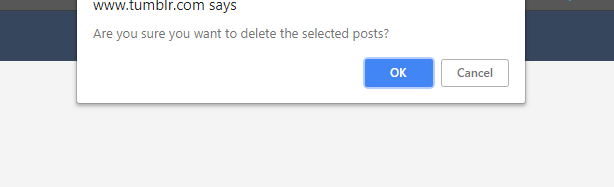
After selecting the posts, click the Delete button in the upper area of the Mass Post Editor. Tumblr will ask you to confirm the deletion. This confirmation step matters because deleted posts cannot be restored. Pause for a moment and scan the selected posts again before confirming.
If you suddenly feel unsure, cancel instead of continuing. There is no shame in backing out. In fact, hesitation is your brain doing its job. The delete button should be treated like hot sauce: useful, powerful, and best applied with awareness.
Step 7: Confirm the deletion
When you are certain, confirm the deletion. Tumblr will remove the selected posts from your blog. Depending on the number of selected posts and the speed of your connection, the page may take a moment to update. Avoid refreshing aggressively while deletion is processing because that can make it harder to tell what has already been removed.
Once the batch is gone, continue with the next set if needed. For large blogs, repeat the process by month, year, tag group, or content type. A steady rhythm is safer than frantic clicking. Your goal is not just to delete fast; your goal is to delete correctly.
Step 8: Review your blog after cleanup
After deleting a batch, visit your public blog, archive, and tagged pages to make sure the cleanup looks the way you expected. Check important tags, pinned posts, navigation links, and any pages that referenced deleted posts. If you removed a lot of older content, you may also want to update your bio, featured tags, custom pages, or theme links.
This final review is where your blog starts to feel fresh again. Instead of a digital attic, it becomes a curated space. Maybe still weird, because it is Tumblr, but now weird on purpose.
Can You Delete All Tumblr Posts at Once?
Tumblr does not provide a simple “delete every post on this blog” button in the standard interface. The official method is to use the Mass Post Editor and select posts in batches. Some third-party tools and scripts claim to automate Tumblr deletion, but they come with risks. They may require account access, browser console commands, paid subscriptions, or permissions you may not feel comfortable granting.
For most users, the safest route is Tumblr’s own Mass Post Editor. It is slower than a one-click wipeout, but it keeps you in control. That control matters when you want to preserve original artwork, popular posts, old writing, or anything with sentimental value. Automation can be convenient, but convenience is not very comforting after the wrong posts disappear.
What about queued posts and drafts?
The Mass Post Editor is mainly for published posts. Drafts, queued posts, and scheduled posts may need to be managed from their own Tumblr sections. If your goal is a total cleanup, remember to check your drafts, queue, scheduled posts, submissions, and private posts separately where applicable. A blog can look clean on the surface while still hiding a queue full of “future you” surprises.
Backup First: How to Save Your Tumblr Content Before Deleting
If there is even a small chance you will want your old Tumblr content later, export your blog before bulk deletion. Tumblr offers a blog export tool on the web that packages your blog content into a downloadable ZIP file. Exports can include posts, media files, and HTML representations of your content. Each blog export has to be started separately, so repeat the process for each blog you want to preserve.
Backing up is especially useful for artists, writers, fandom archivists, roleplay blogs, long-running personal blogs, and anyone who has used Tumblr as a creative notebook. You may not want every post online anymore, but you might still want a private record. Deleting without exporting is like throwing away a notebook because one page made you cringe. Understandable? Yes. Ideal? Not really.
Simple backup checklist
- Export the blog from Tumblr settings before deleting large batches.
- Save important images, GIFs, poems, essays, and original posts separately.
- Write down key tags you may want to reuse later.
- Check whether deleted posts are linked from pages, menus, or pinned posts.
- Download the backup promptly when Tumblr finishes preparing it.
How Tags Help You Delete Smarter
Tags are not just decoration on Tumblr. They help organize posts on your blog and make content easier to find. If you have used consistent tags, cleanup becomes much easier. For example, you might search or browse posts tagged #personal, #old art, #queue, #2018, #my writing, or #delete later. If your past self tagged responsibly, please take a moment to thank that rare and organized creature.
If your tags are chaotic, you can still use dates and visual scanning. However, after cleanup, consider creating a better tagging system going forward. Tags like #my art, #personal, #resources, #answered asks, and #archive can help you manage posts later. Future you will appreciate it. Future you may even send a small imaginary fruit basket.
Common Mistakes When Bulk Deleting Tumblr Posts
Mistake 1: Forgetting that deletion is permanent
The biggest mistake is assuming you can undo a deletion. You cannot rely on Tumblr to restore deleted posts. Always review your selections and export your blog if the content matters.
Mistake 2: Thinking deleted posts remove all reblogs
Deleting a post from your blog does not delete reblogs made by other users. If your goal is privacy, remove sensitive information as early as possible and avoid posting private details in the first place. Once content spreads through reblogs, your control becomes limited.
Mistake 3: Using risky scripts without understanding them
Some online guides suggest browser console scripts or third-party apps for faster deletion. These may work for some users, but they can also break, select the wrong posts, or require permissions. If you are not comfortable reading code or trusting a tool, stick with Tumblr’s built-in method.
Mistake 4: Cleaning the wrong blog
Always confirm which blog you are editing. Tumblr users often run multiple blogs, and the Mass Post Editor applies to the selected blog. A quick name check can prevent a very bad afternoon.
Mistake 5: Deleting before updating links
If your blog has custom pages, masterlists, navigation menus, or pinned posts, deleting old posts may create broken links. After cleanup, review your theme and navigation so visitors do not land on missing content.
Should You Delete, Private, Untag, or Start Over?
Deleting is not the only way to clean up a Tumblr presence. Sometimes a softer approach works better. If a post is useful but too visible, you might edit its tags. If a post is outdated but historically important, you might keep it and add a note. If your blog has drifted too far from its original purpose, you might create a new sideblog instead of wiping the old one.
Here is a practical way to decide:
- Delete posts that are irrelevant, embarrassing, outdated, low-quality, or privacy-sensitive.
- Edit posts that are still useful but need better wording, updated tags, or corrected links.
- Untag posts that you want to keep but no longer want appearing in certain tag pages.
- Export posts if you want a private backup before removal.
- Start a new blog if your old blog has a completely different audience or identity.
The best option depends on your goal. A creator polishing a portfolio may delete reblogs and keep original work. A casual user may remove old personal posts but keep fandom content. A brand may archive everything and relaunch with a focused content plan. Tumblr cleanup is not one-size-fits-all; it is more like choosing which goblins get to stay in the house.
Privacy Tips for Tumblr Cleanup
If privacy is your main reason for deleting multiple Tumblr posts, search your blog for personal information before bulk deleting randomly. Look for names, school references, workplace mentions, locations, old usernames, phone numbers, email addresses, personal photos, and posts that reveal too much about your routine. Also check asks, captions, tags, and reblog comments because private details often hide in places you forgot existed.
After deleting sensitive posts, review your blog settings. Consider whether your blog should appear in search, whether your archive should be easy to browse, and whether your current bio reveals more than you intend. Deleting posts helps, but good privacy is a habit, not a one-time bonfire.
Troubleshooting: Why Can’t I Find the Mass Post Editor?
If you cannot find the Mass Post Editor, first make sure you are using Tumblr on the web rather than the mobile app. The feature is not available in the apps. Next, confirm that you are viewing the correct blog management area. If Tumblr has changed the menu layout, look for options related to posts, blog settings, or post management.
If the page loads slowly, try refreshing, disabling aggressive browser extensions, or switching browsers. Very large blogs can take time to display older posts. If you are working through years of content, patience is part of the process. Tumblr archives can be deep, mysterious caves, and sometimes the cave needs a minute to load.
What if selected posts do not delete?
Check your internet connection, reload the Mass Post Editor, and try a smaller batch. If the problem continues, wait and try again later. Platform tools occasionally glitch, especially when handling many posts at once.
What if I deleted the wrong post?
If you exported your blog, check your backup. If not, you may be able to recreate the post manually if you still have the original text, image, or media file. Otherwise, the deleted post is likely gone from your blog permanently.
Practical Example: Cleaning a Tumblr Blog by Year
Imagine you have a Tumblr blog with 6,000 posts. You want to keep your original art but remove old reblogs from 2015 to 2018. A smart cleanup plan would look like this:
- Export the blog first.
- Make a list of tags used for original work, such as
#my artor#portfolio. - Open the Mass Post Editor on the web.
- Go month by month through 2015.
- Select obvious reblogs and off-topic posts.
- Avoid posts that appear to contain original artwork.
- Delete in small batches.
- Repeat for 2016, 2017, and 2018.
This approach takes longer than smashing delete across everything, but it protects valuable content. Good cleanup is not just removal; it is curation. You are not destroying your blog. You are editing it with a broom, a flashlight, and maybe a tiny bit of emotional growth.
Experience Notes: What It Feels Like to Delete Multiple Tumblr Posts
Anyone who has cleaned an old Tumblr knows the experience is part technical task, part archaeology, and part comedy show starring your former self. You open the Mass Post Editor expecting a simple cleanup, and suddenly you are face-to-face with old fandom jokes, abandoned aesthetics, dramatic text posts, and tags that read like whispered diary entries. It is humbling. It is also useful.
The first lesson is that deleting multiple posts is easier when you have a clear reason. “I want my blog to look cleaner” is a start, but “I want to remove old personal posts before turning this into an art blog” is much better. A specific goal helps you decide what stays and what goes. Without a goal, every post becomes a tiny debate. Should you keep the blurry photo of coffee from 2017? Was it important? Did it define an era? Probably not, but Tumblr has a way of making everything feel like a cultural artifact.
The second lesson is to go slower than you think you need to. The Mass Post Editor makes selection easy, but easy selection can lead to careless deletion. Many experienced users prefer working month by month because it gives the cleanup a rhythm. You can review a period of your blog, remove what no longer fits, and then move on. It feels less overwhelming than staring at years of posts as one giant digital mountain.
The third lesson is that old tags are surprisingly helpful. Even messy tags can reveal what a post meant to you at the time. A post tagged #personal, #vent, #old writing, or #reference may deserve a second look before deletion. On the other hand, tags can also confirm that a post is ready to go. If you find fifty reblogs tagged only with #lol and none of them are funny anymore, congratulations: the delete button has entered the chat.
The fourth lesson is to expect mixed feelings. Cleaning a Tumblr blog can feel refreshing, but it can also feel strange. Blogs often capture years of changing interests, friendships, fandoms, jokes, and personal growth. Removing posts may feel like erasing a version of yourself. That is why exporting a backup can be comforting. You can remove content from public view while keeping a private copy for memory, research, or future nostalgia.
The fifth lesson is that your blog will feel better after a thoughtful cleanup. A smaller, more focused archive is easier for visitors to explore and easier for you to manage. If you are a writer, artist, collector, fan creator, or small business owner, deleting outdated Tumblr posts can make your best work easier to find. It can also make posting again feel less awkward. Sometimes a cluttered archive quietly discourages new creativity because everything feels messy before you even begin.
Finally, the most practical experience-based advice is this: make cleanup a routine instead of a crisis. Review your posts every few months. Delete what no longer fits. Improve tags. Update links. Save important work. Tumblr is built for expression, and expression changes over time. Your blog does not need to remain frozen in the exact shape of your past. You can prune it, polish it, and let it grow into something that matches who you are now.
Conclusion: Delete Carefully, Curate Confidently
Learning how to delete multiple posts on Tumblr is simple once you know where the Mass Post Editor lives. Log in on the web, choose the right blog, open the Mass Post Editor, select the posts you want to remove, click delete, confirm, and review your blog afterward. The process is easy, but the decision deserves care because Tumblr deletions are permanent and reblogs made by other users may remain outside your control.
The smartest cleanup strategy is not wild deletion. It is thoughtful curation. Export your blog if the content matters, work in small batches, use dates and tags to guide your choices, and review your blog after each major round. Done well, bulk deleting Tumblr posts can make your blog cleaner, safer, more focused, and more enjoyable to use. Your old posts had their moment. Some deserve a museum. Some deserve a quiet retirement. Some deserve to be launched directly into the sun. Choose wisely.