Copying a YouTube video URL on an iPhone or iPad sounds like one of those tiny tech tasks that should take three seconds. And usually, it does. But the moment you are trying to send a tutorial to a friend, save a recipe before dinner, cite a video for school, or share a hilarious cat clip before the cat becomes yesterday’s celebrity, suddenly every button on the screen looks like it joined a witness protection program.
The good news: getting a YouTube link from an iPhone or iPad is simple once you know where to tap. You can copy the video URL directly from the YouTube app, or you can copy it from a web browser such as Safari or Chrome. Both methods work for regular YouTube videos, Shorts, music videos, livestream replays, tutorials, product reviews, and most public videos.
This guide explains the two easiest ways to copy a YouTube video URL on iPhone or iPad, how to paste it into Messages, Mail, Notes, social media, or a document, and what to do when the Copy Link button seems to be hiding like it owes you money.
What Is a YouTube Video URL?
A YouTube video URL is the web address that points directly to a specific video. It usually looks something like this:
When you copy a YouTube video URL, you are not downloading the video. You are simply copying the link so you can share it, save it, bookmark it, or paste it somewhere else. Think of the URL as the video’s digital street address. You are not moving the house; you are just giving someone directions.
On an iPhone or iPad, copied links are temporarily stored on the device clipboard. After you copy the YouTube link, you can paste it into another app by tapping a text field and choosing Paste.
Method 1: Copy a YouTube Video URL Using the YouTube App
The YouTube app is the fastest way to copy a video link on an iPhone or iPad. This method is ideal if you normally watch YouTube inside the app rather than in Safari.
Step 1: Open the YouTube App
Unlock your iPhone or iPad and open the YouTube app. If you do not have the app installed, you can download it from the App Store, but you do not need the app to copy YouTube links. The browser method below works too.
Step 2: Find the Video You Want to Share
Use the search bar, Home feed, Subscriptions tab, Library, History, or a playlist to find the video. Tap the video so it opens on the watch page. You do not need to play the entire video. You only need to open it far enough to see the sharing options.
Step 3: Tap the Share Button
Under the video player, tap Share. On some screens, the Share button may appear as a curved arrow. On iPad, depending on your screen size and layout, you may see it below or near the video title and action buttons.
Step 4: Tap Copy Link
In the sharing menu, tap Copy link. The YouTube video URL is now copied to your iPhone or iPad clipboard. You may see a small confirmation message, but even if you do not, the link is usually ready to paste.
Step 5: Paste the Link Wherever You Want
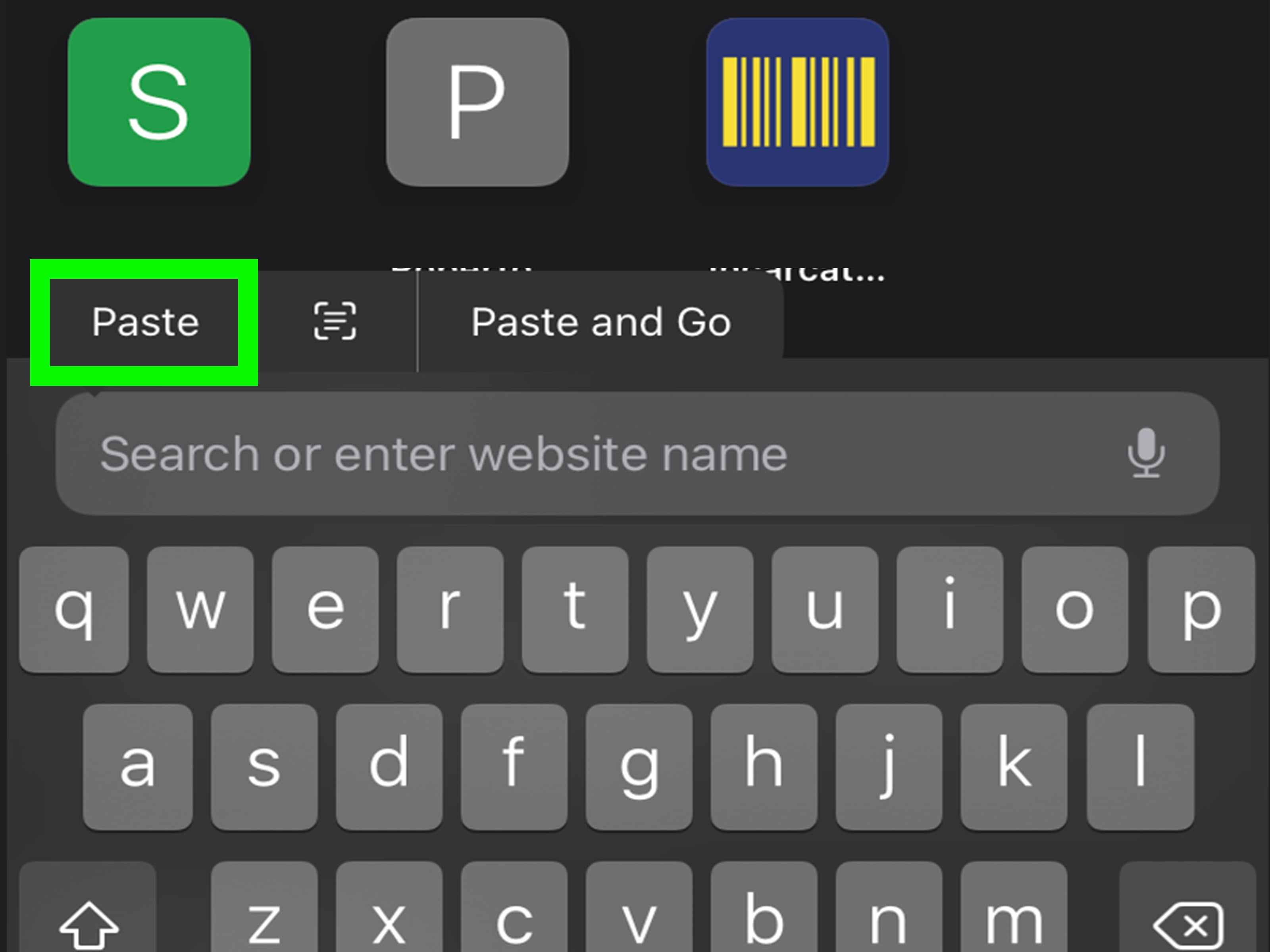
Open the app where you want to use the link, such as Messages, Mail, Notes, Facebook, X, WhatsApp, Slack, Google Docs, or Pages. Tap inside the text field, then tap Paste. Your copied YouTube video URL should appear.
Quick Example
Let’s say you found a video called “How to Make Pancakes Without Burning Down the Kitchen.” You want to send it to your sibling, who believes smoke alarms are kitchen timers. Open the video in the YouTube app, tap Share, choose Copy link, open Messages, tap the conversation, press the text box, tap Paste, and send. Breakfast diplomacy achieved.
Method 2: Copy a YouTube Video URL from Safari or Chrome
If you are watching YouTube in a browser on your iPhone or iPad, you can copy the video URL directly from the address bar. This method works well in Safari, Chrome, Edge, Firefox, and other mobile browsers.
Step 1: Open YouTube in Your Browser
Open Safari or your preferred browser and go to YouTube. Search for the video you want, then tap it to open the watch page.
Step 2: Tap the Address Bar
Tap the browser address bar at the top or bottom of the screen, depending on your Safari settings. On newer versions of Safari, the address bar may appear at the bottom unless you have moved it back to the top.
Step 3: Copy the URL
After tapping the address bar, you should see the full YouTube link. Tap and hold the URL if needed, then choose Copy. In some browsers, tapping the address bar may automatically select the entire link, making it easy to copy with one more tap.
Step 4: Paste the Link
Go to the app where you want to share or save the URL. Tap and hold in a text field, then choose Paste. The YouTube video URL should appear.
Quick Example
Suppose you are researching a repair tutorial on an iPad in Safari. You find the perfect video explaining how to fix a leaky faucet without accidentally creating an indoor fountain. Tap the Safari address bar, copy the YouTube URL, then paste it into Notes under a checklist titled “Things I will bravely attempt this weekend.”
Which Method Is Better?
Both methods work, but the best choice depends on how you use YouTube.
Use the YouTube App If:
- You usually watch videos in the YouTube app.
- You want the fastest sharing option.
- You are copying links from Shorts, playlists, or recommendations.
- You want to share directly to another app from the YouTube share menu.
Use Safari or Chrome If:
- You are already watching YouTube in a browser.
- You want to see or edit the URL before sharing.
- You are copying links for a document, citation, blog post, or research note.
- The YouTube app is not installed or is not working correctly.
For most people, the YouTube app method is easier. For writers, students, researchers, bloggers, and people who like to keep links organized, the browser method gives a little more control.
How to Copy a YouTube Shorts Link on iPhone or iPad
YouTube Shorts can also be shared by copying the video link. Open the Short in the YouTube app, tap the Share button, then tap Copy link. The process is almost identical to copying a regular YouTube video URL.
If you are viewing Shorts in a browser, tap the address bar and copy the URL the same way you would with a standard YouTube video. The link may include “shorts” in the URL, but it still sends people directly to that Short.
How to Copy a YouTube Link at a Specific Time
On desktop, YouTube makes it easy to share a video starting at a specific timestamp. On iPhone and iPad, this option is not always as visible in the YouTube app. However, you can still share a moment manually by adding a timestamp to the end of the link.
For example, if you want the video to start at 1 minute and 30 seconds, you can add:
Or, if the URL already looks short and does not contain a question mark, you may use:
So a link might look like this:
This is useful when you want someone to jump straight to the important part instead of saying, “Watch from 1:30,” which everyone says they will do and then absolutely does not do.
How to Paste a Copied YouTube URL on iPhone or iPad
After copying the YouTube video URL, you can paste it almost anywhere that accepts text. Here is the basic process:
- Open the app where you want to place the link.
- Tap the message box, note, email body, search field, or document area.
- Tap again or press and hold until a menu appears.
- Tap Paste.
If Paste does not appear, make sure you copied the link first. Also check whether the app allows text entry in that field. Some apps have search boxes, captions, comments, or protected areas that behave differently.
Where Can You Share a Copied YouTube Video URL?
Once you have the URL, you can paste it into many different places. Common options include:
- Messages: Send the video to friends, family, or coworkers.
- Mail: Include the link in a personal or professional email.
- Notes: Save videos for later reference.
- Reminders: Add a video link to a task or study list.
- Google Docs or Pages: Use the URL in an article, essay, or project.
- Social media: Share videos on Facebook, X, LinkedIn, Reddit, or other platforms.
- Messaging apps: Paste the link into WhatsApp, Messenger, Telegram, Discord, or Slack.
Copied YouTube URLs are flexible. You can save them for personal use, send them to a group chat, add them to a content calendar, or keep them in a research folder. Tiny link, big possibilities.
Troubleshooting: Why Can’t I Copy a YouTube Video URL?
Most of the time, copying a YouTube link is smooth. But if something goes wrong, try the fixes below.
The Copy Link Button Is Missing
If you do not see Copy link in the YouTube app, swipe across the sharing options or look for a More option. App layouts can change slightly depending on updates, device size, account settings, and whether you are watching a regular video, Short, live stream, or playlist.
The Share Button Is Hard to Find
Rotate your iPad, close full-screen mode, or tap the video once to reveal controls. On iPhone, scroll slightly below the video title if needed. YouTube sometimes changes button placement, but the Share option usually remains near the video action buttons.
The Link Won’t Paste
Copy the link again, then immediately switch to the destination app and paste it. Your clipboard usually keeps the most recent copied item, so if you copied something else afterward, the YouTube URL may have been replaced.
The App Opens Instead of Copying the Link
If you tap a YouTube link in Safari and it opens the YouTube app, that is normal iOS behavior. To copy the link from the browser, stay on the webpage, tap the address bar, and copy the URL directly before switching apps.
The Video Is Private or Unavailable
You can often copy a link to a private, deleted, age-restricted, region-blocked, or unavailable video, but other people may not be able to watch it. A copied URL does not bypass privacy settings, copyright restrictions, account limits, or location rules.
Helpful Tips for Sharing YouTube URLs
Check the Video Before Sending
Before sharing a link professionally, open it once to make sure it goes to the correct video. This is especially important if you are sending a video to a client, teacher, employer, or group. Nobody wants to send a business presentation link and accidentally share “10 Hours of Ducks Honking.” Unless that is the business presentation, in which case, bold choice.
Use Notes to Organize Links
If you save lots of videos, create folders in Notes such as “Recipes,” “Work Tutorials,” “Workout Videos,” “Study Resources,” or “Videos I Pretend I’ll Watch Later.” Paste each copied YouTube URL with a short description so you can find it again.
Use Universal Clipboard Across Apple Devices
If your iPhone, iPad, and Mac use the same Apple ID and have features like Wi-Fi, Bluetooth, and Handoff enabled, you may be able to copy a YouTube link on one Apple device and paste it on another. This is helpful when you find a video on your iPhone but want to use the link in a document on your Mac or iPad.
Be Careful with Shortened Links
YouTube links may appear in different formats, including full YouTube URLs and shorter youtu.be links. Both can work. However, when sharing links in professional content, a full URL may look clearer, while a shortened URL may be easier to text.
Copying a YouTube URL vs. Sharing Directly
When you tap Share in the YouTube app, you may see app icons for Messages, Mail, WhatsApp, Facebook, and more. Choosing one of those apps sends the video directly through that app. Tapping Copy link, however, gives you more control because you can paste the URL wherever you want.
Copying the URL is better when you want to:
- Save the link for later.
- Edit text around the link before sending.
- Use the link in a blog post or article.
- Add it to a spreadsheet, document, or content plan.
- Send the same link to multiple apps.
Direct sharing is faster for quick messages. Copying the link is better for control, organization, and reuse.
Common Questions About Copying YouTube Video URLs on iPhone or iPad
Can I copy a YouTube URL without signing in?
Yes. In most cases, you can copy a public YouTube video URL without being signed in to a YouTube account. However, age-restricted or private content may require sign-in to view.
Can I copy a YouTube playlist URL on iPhone or iPad?
Yes. Open the playlist in the YouTube app or browser, tap Share, then choose Copy link. A playlist URL sends people to the playlist rather than only one video.
Can I copy a YouTube channel URL?
Yes. Open the channel page, tap the menu or Share option, then choose Copy link. This is useful when recommending a creator rather than a single video.
Can I copy a link from a YouTube comment?
Sometimes, but YouTube comments on mobile do not always allow normal text selection. If a creator places links in the video description, those are often easier to open or copy than links inside comments.
Does copying a YouTube URL save the video offline?
No. Copying a URL only saves the link temporarily to your clipboard. It does not download the video or make it available offline. To watch offline, you need an official download option where available, such as through YouTube Premium or YouTube’s supported offline features.
Extra Experience: Real-Life Lessons from Copying YouTube Links on iPhone and iPad
After copying hundreds of YouTube links across iPhones, iPads, laptops, notes apps, messaging threads, and content drafts, one lesson becomes clear: the easiest tech tasks are only easy after someone points to the exact button. Copying a YouTube video URL is a perfect example. The feature is simple, but because YouTube updates its layout and iOS changes its sharing menu from time to time, people often waste more time looking for the link than actually watching the video.
One practical habit that helps is copying the link before you need it urgently. For example, if you are building a study guide, planning a presentation, writing a blog post, or collecting tutorials, paste every YouTube URL into Notes with a short label. Do not rely on memory. “That one video with the guy explaining the thing near the whiteboard” is not a filing system. It is a cry for help with Wi-Fi.
Another useful experience: when sharing a video in a professional setting, copy the link and paste it into a draft first. This gives you a chance to add context. Instead of sending a naked URL, write something like, “This video explains the setup process clearly. Start around the two-minute mark.” That small note makes the link more useful and saves the recipient from guessing why you sent it.
For iPad users, Split View can make the process smoother. You can keep YouTube open on one side and Notes, Mail, or Google Docs open on the other. Copy the video URL from YouTube, tap into the other app, and paste. This is especially convenient for students, bloggers, teachers, researchers, and anyone who collects references. It turns the iPad into a tidy little research station instead of a shiny rectangle of distractions.
For iPhone users, the biggest challenge is often screen space. Buttons may shift, video descriptions collapse, and the Share option may look different depending on whether you are viewing a regular video or a Short. If you cannot find the Share button immediately, tap once on the video, exit full-screen mode, or scroll around the title area. The button is usually there; it just occasionally has the personality of a house cat and refuses to come when called.
It is also smart to test links when sharing important videos. YouTube URLs can include playlist data, timestamps, tracking parameters, or Shorts formatting. Most of these are harmless, but if you need a clean link for a website, newsletter, or article, open the link after pasting it to make sure it points to the exact video you intended. For public publishing, clean and accurate links improve user experience and reduce confusion.
Finally, remember that copying a YouTube URL is not the same as owning or downloading the content. If you are embedding, quoting, reviewing, or referencing a video in published work, respect copyright, attribution, privacy, and platform rules. Sharing a link is usually fine for everyday use, but reusing the actual video content is a different matter. In plain English: sending someone the address of a bakery is not the same as stealing the cupcakes.
Once you understand the two main methodsthe YouTube app Share button and the browser address baryou can copy YouTube video URLs on an iPhone or iPad confidently. Whether you are saving tutorials, sharing entertainment, building a resource list, or sending a must-watch video to a friend, the process takes only a few taps.
Conclusion
Copying a YouTube video URL on an iPhone or iPad is easy when you know where to look. The quickest method is to open the video in the YouTube app, tap Share, and choose Copy link. The second method is to open YouTube in Safari or another browser, tap the address bar, and copy the URL directly. After that, you can paste the link into Messages, Mail, Notes, social media, documents, or almost any app that accepts text.
For casual sharing, the YouTube app is usually the fastest route. For research, writing, editing, and link organization, the browser method can be more precise. Either way, you now have the digital equivalent of a tiny YouTube treasure mapand thankfully, no shovel is required.
SEO Tags
Note: This article is written in standard American English and reflects current YouTube app and iPhone/iPad sharing behavior for practical web publishing.