Steam is great at many things: selling games during suspiciously irresistible sales, tracking your playtime with terrifying honesty, and letting your friends know exactly when you launch a game. That last part is helpful when you want company in a co-op lobby. It is less helpful when you want a quiet solo night, a surprise gift to stay secret, or your 147th hour in a comfort game to remain between you and your keyboard.
The good news is that you can hide your Steam activity without deleting your account, unfriending everyone, or moving to a cabin with no Wi-Fi. Steam gives you several privacy tools: you can make your game details private, appear invisible or offline, and mark specific games as private. Each option solves a slightly different problem, so the smartest approach is knowing which switch to flip and when.
This guide explains three easy ways to hide your Steam activity, what each setting actually does, and where users often get confused. Because yes, “Hide this game,” “Mark as Private,” “Invisible,” and “Game Details: Private” sound like four cousins who all went to the same privacy school but graduated with different majors.
Why You Might Want to Hide Steam Activity
There are plenty of perfectly normal reasons to hide activity on Steam. Maybe you are testing a game before gifting it. Maybe you do not want friends to get a pop-up every time you open a single-player title. Maybe you share a household and want fewer questions about your library. Or maybe you simply prefer privacy, which is a complete sentence.
Steam activity can include your current in-game status, recently played games, total playtime, achievements, owned games, wishlist visibility, and profile activity. Depending on your settings, friends or public visitors may be able to see more than you intended. The goal is not to become a secret agent in a hoodie. The goal is to control what others see.
Method 1: Set Your Steam Game Details to Private
The broadest and most useful option is changing your Steam profile privacy settings, especially the setting called Game details. This is the setting to use when you want to hide your owned games, playtime, achievements, wishlist, and current game activity from people viewing your profile.
How to make Steam game details private
- Open Steam and sign in.
- Click your profile name or avatar.
- Select View my profile.
- Click Edit Profile.
- Choose Privacy Settings.
- Find Game details.
- Set it to Private.
You may also see options such as Public, Friends Only, and Private. Public means anyone can view the information. Friends Only limits it to Steam friends. Private hides it from everyone except you.
This method is ideal if you want a clean, all-purpose privacy setting. It is also useful if you do not want to manage privacy on a game-by-game basis. Once game details are private, your gaming habits become far less visible from your profile. Your friends do not need a live broadcast of every game you launch. They will survive. They may even go outside. Maybe.
What this hides
Setting Game details to Private can hide your game library, recently played games, playtime, achievements, wishlist, and current in-game activity from other people. It is a strong privacy shield for your Steam profile.
What it does not necessarily do
This does not remove games from your own library, erase playtime, delete achievements, or make your Steam account vanish from existence. You can still see your own games and stats. Steam still knows what you play. The setting is mainly about what other users can see.
Also remember that Steam menus may look a little different depending on whether you use the desktop client, browser, mobile app, or Steam Deck. The privacy concept is the same, even if the button placement moves around like it is trying to win hide-and-seek.
Method 2: Go Invisible or Offline on Steam
If your main goal is to stop friends from seeing that you are currently online or playing something right now, use Steam’s status controls. This is the quickest method when you want a quiet gaming session without changing your whole profile privacy setup.
How to appear invisible on Steam
- Open Steam.
- Click Friends & Chat in the bottom-right corner.
- Click the arrow next to your username.
- Select Invisible.
Invisible mode makes you appear offline to other users while still letting you use many online Steam features. It is the classic “I am not here, but I am absolutely here” setting. You can browse, play, and sometimes chat without waving a neon sign that says, “Look who just launched a game.”
How to appear offline on Steam
- Open Friends & Chat.
- Click the status menu near your name.
- Select Offline.
Offline mode disconnects you from Steam Friends and shows you as offline. It is more restrictive than Invisible, but it is useful when you want fewer social features running in the background.
Invisible vs. Offline: which should you use?
Choose Invisible if you want to keep using Steam normally while appearing offline. Choose Offline if you want to step away from Steam Friends more completely. For most users, Invisible is the better everyday privacy button because it is fast, reversible, and convenient.
However, do not confuse status privacy with profile privacy. Appearing invisible may hide your live presence from the normal friends list view, but it is not the same as making your profile game details private. If you want deeper privacy, combine Invisible mode with private Game details.
Method 3: Mark Specific Steam Games as Private
Sometimes you do not want to hide your entire Steam library. Maybe most of your games are fine for friends to see, but one or two titles need to sit quietly in the corner wearing sunglasses. That is where Steam’s Mark as Private feature comes in.
Marking a game as private hides that specific game’s ownership, in-game status, playtime, and related activity from other people. This is more precise than making all Game details private. It lets you keep your Steam profile social while keeping selected games private.
How to mark a game as private
- Open your Steam Library.
- Find the game you want to make private.
- Right-click the game.
- Select Manage.
- Click Mark as Private.
- Confirm the change if Steam asks you to.
You can also mark some games as private during purchase, which is useful if you do not want a newly purchased game to appear in public-facing activity from the start. That is especially handy for gifts, surprise plans, or games you simply prefer not to advertise.
Private game vs. hidden game: do not mix them up
This is one of the biggest Steam privacy misunderstandings. Hiding a game from your library view is not the same as marking a game as private.
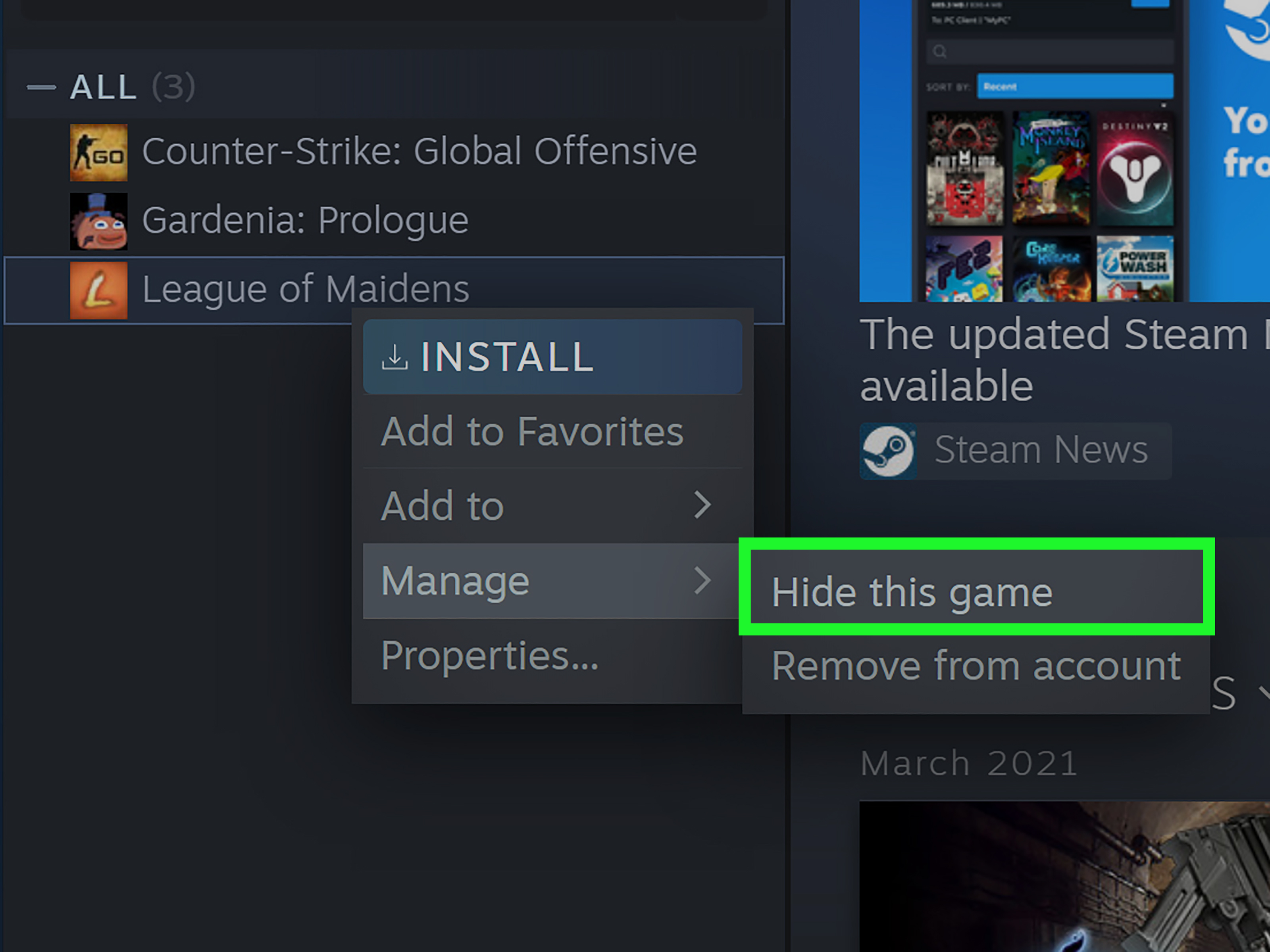
When you hide a game in your library, you are mainly cleaning up your own Steam interface. The game moves out of your normal library view, but that does not automatically hide its achievements, playtime, or activity from your profile. It is like putting a box in your closet; your room looks cleaner, but the box still exists.
When you mark a game as private, you are controlling what other people can see about that specific title. If privacy is your goal, use Mark as Private, not just Hide Game.
Best Privacy Setup for Different Situations
If you want to hide everything
Set your profile Game details to Private. This is the simplest all-in-one setting for users who want their Steam activity, playtime, achievements, and library details hidden from others.
If you only want to hide what you are playing right now
Use Invisible mode. It is quick, easy, and perfect for a quiet session when you do not want friends to see you online.
If you only want to hide one game
Right-click the game in your library and choose Manage > Mark as Private. This keeps the rest of your profile more open while hiding that specific title.
If you want maximum privacy
Use all three: set Game details to Private, go Invisible, and mark sensitive games as Private. This layered setup gives you the most control. Think of it as the Steam privacy sandwich: profile privacy on one slice, invisible status on the other, and private games in the middle.
Common Mistakes When Hiding Steam Activity
Mistake 1: Only hiding the game in your library
Hiding a game from your library view does not necessarily hide it from your profile activity. If you want other people not to see it, use Mark as Private or set Game details to Private.
Mistake 2: Thinking Invisible mode hides everything
Invisible mode is useful, but it mainly changes your presence status. It is not a complete profile privacy tool. Your profile settings still matter.
Mistake 3: Forgetting about achievements and playtime
Achievements and playtime can reveal what you have played even after the moment has passed. If you care about long-term privacy, change Game details rather than relying only on temporary status changes.
Mistake 4: Assuming friends and public visitors see the same thing
Steam privacy settings often let you separate public visibility from friend visibility. A profile that looks private to strangers may still show details to friends if you choose Friends Only. Review the exact setting before assuming everything is hidden.
Extra Tips to Keep Your Steam Profile More Private
Review your Steam profile the way another person would see it. You can ask a trusted friend to check what is visible, or open your profile in a browser where you are not signed in. This helps you catch anything you missed.
Check your wishlist privacy too. A wishlist can reveal future buying plans, gift ideas, or interests you might not want public. If you are planning a surprise, do not let your wishlist spoil the plot twist like a bad movie trailer.
Be careful with screenshots, reviews, badges, groups, and comments. Even if your game details are private, public posts can still reveal what you play. Privacy settings help, but your own activity can still leave breadcrumbs.
Finally, revisit your settings after major Steam updates. Valve occasionally changes features, layout, and privacy controls. A quick privacy check every few months is easier than discovering your profile has been oversharing like a relative on social media.
Final Thoughts: Hiding Steam Activity Is About Control
Hiding your Steam activity is not about being suspicious. It is about choosing when gaming is social and when it is personal. Steam is a community platform, but not every session needs an audience. Sometimes you want friends to join. Sometimes you want silence, snacks, and zero notifications.
The best method depends on your goal. Use Game details: Private for broad profile privacy. Use Invisible or Offline when you want to hide your current presence. Use Mark as Private when only specific games need privacy. Once you understand the difference, Steam privacy becomes much easier to manage.
In other words, you do not need to abandon your account or pretend you have taken up birdwatching. A few clicks are enough to make your Steam activity quieter, cleaner, and more under your control.
Personal Experiences and Practical Scenarios: When Steam Privacy Really Helps
One of the most common real-life reasons people hide Steam activity is not embarrassment. It is focus. Imagine you finally get one free evening after work or school. You open a single-player game, hoping to decompress, and within thirty seconds a friend messages, “Want to play ranked?” Now you are no longer relaxing. You are negotiating. Invisible mode is perfect for moments like this. It lets you enjoy your time without explaining why you are not joining a multiplayer lobby.
Another situation involves surprise gifts. Suppose you plan to buy a game for a friend, test it, or check whether it runs well before recommending it. If your profile activity is visible, the surprise can collapse faster than a poorly built survival-game shelter. Marking a game as private during purchase or immediately afterward can help keep the secret intact. It is a small step, but it can save the fun of a reveal.
Privacy settings also help people who share gaming spaces with family members, roommates, coworkers, or classmates. Not every game in a library needs to become a conversation topic. Some people play cozy farming games after midnight. Some play horror games and then regret every sound in the house. Some install experimental indie titles with names that are impossible to explain quickly. Keeping certain games private reduces awkward questions and lets your library feel like your own space.
There is also the issue of playtime. Steam’s hour counter is brutally honest. It does not care that you left a game paused while eating dinner. It does not care that a launcher stayed open overnight. It simply records time like a tiny accountant with no social awareness. Making Game details private can prevent others from turning your playtime into a joke, judgment, or unwanted discussion.
For content creators, reviewers, and testers, hiding Steam activity can be part of workflow management. You may want to test a game before publishing a review, compare versions quietly, or avoid revealing upcoming content plans. Private games and profile privacy settings help separate research from public activity.
Still, the best experience comes from using privacy tools intentionally. Do not wait until after something appears on your profile to start clicking around in panic. Decide your comfort level first. If you want a social profile, keep most things visible and mark only selected games private. If you prefer a quiet account, set Game details to Private and use Invisible mode by default. Steam gives you enough flexibility to create your own balance.
The biggest lesson is simple: Steam privacy is not one magic button. It is a toolbox. Invisible mode handles your live presence. Game details privacy handles your broader profile. Mark as Private handles individual games. Once you know which tool does what, you can stop worrying about who sees what and get back to the important business of gaming, collecting achievements, ignoring your backlog, and buying one more game during a sale because this time you will definitely play it. Probably.
Note: Steam features and menu names may change over time, but the privacy principles in this guide are based on current Steam profile privacy, private game, and friends status controls.