Need to tell eight people the same thing without copy-pasting your life away? Same. Whether it’s “practice moved to 6,” “grandma’s surprise party is still a surprise,” or “stop replying ‘K’ like it’s a personality,” texting multiple people at once can be fast and politeif you choose the right method.
This guide breaks down the best ways to message multiple people on iPhone and Android (plus a few “more” options like WhatsApp and Signal), explains the difference between group texts and mass texts, and shows you how to avoid the classic pitfalls: broken threads, random “MMS” settings drama, and the dreaded “why is my number visible to strangers?” moment.
First, pick your strategy: Group text vs. mass text
Option A: Group text (everyone sees everyone)
A group text is one conversation thread shared by everyone. Replies go to the whole groupgreat for coordination, chaos, and comedy. On iPhone, that might be an iMessage group or an SMS/MMS/RCS group. On Android, it could be an RCS group chat or MMS group messaging.
Best for: planning, updates, group decisions (“tacos or pizza?”), and anything where replies matter to everyone.
Option B: Mass text (everyone gets your message, but replies come back individually)
A mass text sends the same message to multiple people as separate one-to-one conversations. People don’t see each other’s names or numbers, and replies come back to you privately. Some Android messaging apps can do this natively, and some third-party apps do it well.
Best for: announcements, reminders, invitations, or anything where recipients shouldn’t be “Reply All” tempted.
Quick rule: If your message is “FYI,” consider mass text. If your message is “Let’s decide,” use a group chat.
How to text multiple people at once on iPhone (Messages app)
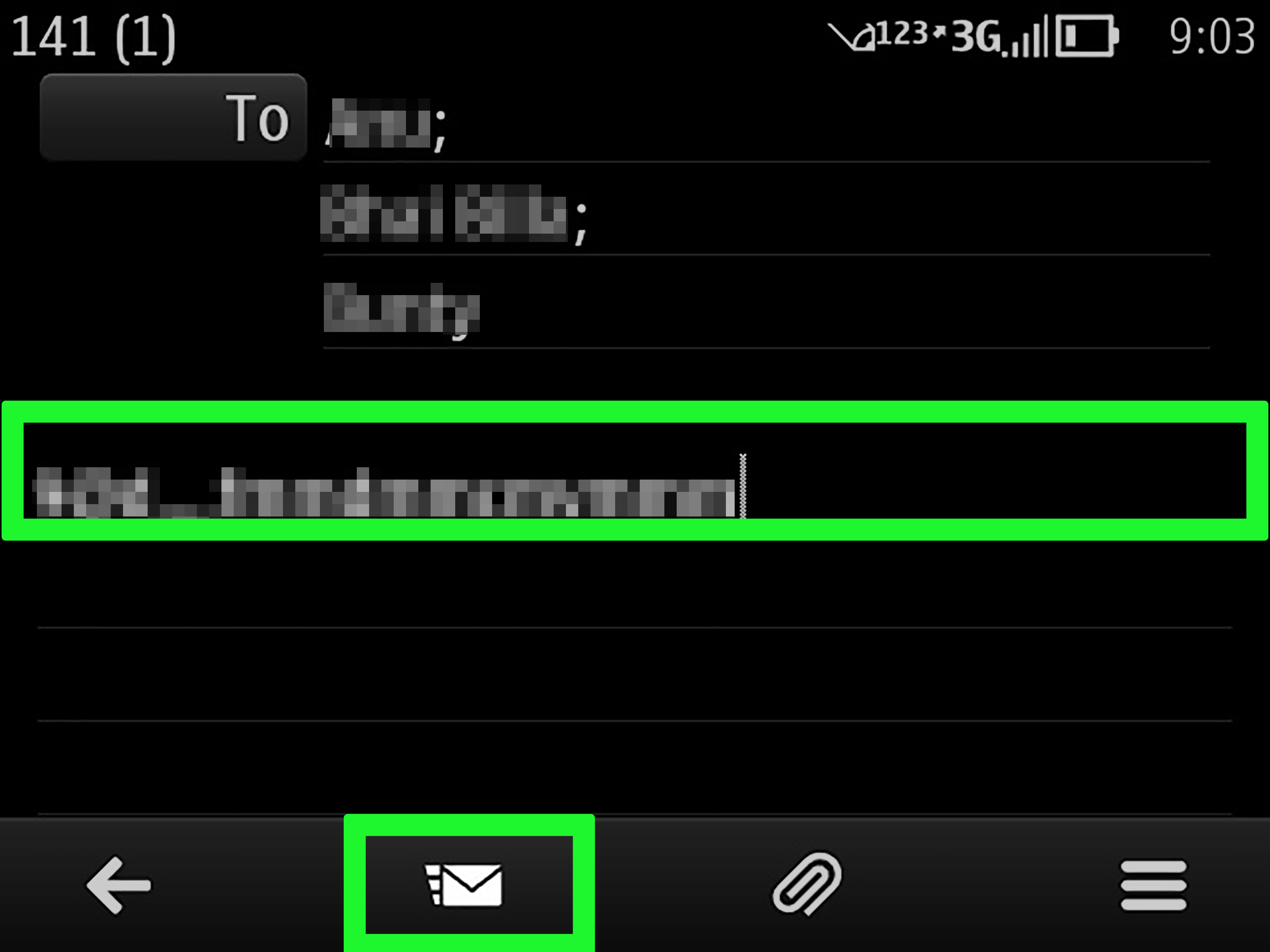
Start a new group message
- Open Messages.
- Tap the Compose button (new message icon).
- Tap the To: field and add multiple recipients (type names, numbers, or tap the add contact button).
- Type your message and hit Send.
That’s it. You just texted multiple people at once. Congratulationsyou have officially outgrown the copy/paste era.
Understand what kind of group you created (iMessage vs. SMS/MMS vs. RCS)
On iPhone, the type of group chat depends on who’s in it and what your carrier supports:
- All Apple users + iMessage on: You get an iMessage group (usually the smoothest experience). You can typically name the group, add/remove people (with limits), use reactions, and leave the chat.
- Mixed iPhone + Android (or iMessage off): Your chat may fall back to SMS/MMS or RCS depending on settings and carrier support.
- RCS on iPhone (iOS 18+): If your carrier supports it and it’s enabled, cross-platform chats can feel more modern (better media sharing, read receipts/typing indicators in some cases), though features still vary.
Turn on Group MMS (if group texts fail)
If group messages won’t send to non-iPhone users, the culprit is often MMS settings. Check:
- Go to Settings > Apps > Messages (menu names can vary slightly).
- Make sure MMS Messaging (and/or Group Messaging) is turned on.
- If you don’t see the option, your carrier plan may control it.
Turn on (or off) RCS on iPhone (iOS 18+)
If you’re on iOS 18 or later and your carrier supports it, you may see an RCS Messaging option:
- Go to Settings > Apps > Messages.
- Scroll to RCS Messaging.
- Toggle it on (or off) depending on what you’re troubleshooting.
If you don’t see the toggle, it may not be available for your carrier or region yet.
Name the group, add people, remove people (when available)
Group customization works best when everyone is using iMessage (Apple devices). In an iMessage group:
- Name the chat: Open the conversation, tap the group icon at the top, then edit the name/photo.
- Add people: Open group details and choose “Add Contact” (usually requires an existing group of 3+).
- Remove people: Typically only possible when everyone is on Apple devices and the group is large enough.
Leave (or mute) a group conversation
Sometimes the healthiest thing you can do is quietly exit a chat that has turned into 47 “lol” messages in a row. On iPhone, the Leave This Conversation option usually appears only for certain group types (commonly iMessage groups), and only when there are enough participants.
If you can’t leave, you can still protect your peace:
- Mute notifications for the conversation.
- Hide alerts or use Focus modes so your phone doesn’t throw a party every time someone posts a GIF.
- Delete the thread if you just want it off your screen (note: it doesn’t remove you from the group).
How to text multiple people at once on Android (Google Messages & Samsung Messages)
Google Messages: start a group conversation
Many Android phones use Google Messages (especially Pixels), and it supports both group chats and “mass text” behavior depending on settings.
- Open Messages (Google Messages).
- Tap Start chat (or the compose button).
- Add multiple recipients.
- Type your message and tap Send.
Choose “mass text” vs. “group MMS” (this matters!)
If your goal is: “Send the same message, but keep replies private,” check your group messaging setting:
- Open Google Messages.
- Tap your profile icon > Messages settings > Advanced > Group messaging.
- Choose Mass text (individual threads) or Group MMS (one shared thread).
This is one of the most underrated settings on Androidlike discovering your car has heated seats after you’ve suffered through winter.
Turn on RCS (Chat features) in Google Messages
For a more modern group chat experience (especially with media), enable RCS if available:
- Open Google Messages.
- Go to Settings > RCS chats (or Chat features).
- Toggle RCS on and review options like read receipts and typing indicators.
RCS features can depend on your carrier, device, and whether the other person has RCS enabled too.
Rename a group and manage members (Google Messages)
In many versions of Google Messages, you can name a group for your own organization and add people later:
- Open the group conversation.
- Tap the menu (often three dots) > Group details.
- Use options like Add people or edit the Group name (what you see).
Samsung Messages: send a group text
If your Galaxy uses Samsung Messages, the workflow is very similar:
- Open Samsung Messages.
- Tap Compose.
- Select multiple recipients (or type names/numbers).
- Write your message and tap Send.
Samsung also supports group chat features, attachments, and other messaging toolsexact options vary by model and carrier.
Cross-platform group texts (iPhone + Android): what to expect in 2026
Mixed-device group chats used to be where joy went to die: blurry videos, broken threads, and reactions that showed up as “Loved ‘Okay’.” With broader RCS support (including iPhone on iOS 18+), things can be noticeably betterbut it’s not magic.
- If everyone has RCS enabled: group chats may support better media and modern features.
- If some people don’t: the chat can downgrade to SMS/MMS, and you’ll lose advanced features.
- Carrier support matters: you might see RCS options on one network and not another.
Practical tip: if a mixed group chat is acting weird (splitting into multiple threads, failing to send photos, etc.), try either (1) turning RCS off and on, (2) confirming group MMS is enabled, or (3) switching the group to a third-party app everyone uses.
"More" ways to text multiple people at once (without carrier drama)
WhatsApp: Broadcast Lists (send one message, private delivery)
Want the “mass text” effect without exposing everyone’s numbers or creating a noisy group chat? WhatsApp Broadcast Lists are built for that.
- What it does: sends one message to many people as individual chats, so replies come back privately.
- When it works best: announcements, reminders, invites, family updatesanything that doesn’t need group discussion.
Just remember: recipients may need to have your number saved (depending on WhatsApp rules) for broadcasts to deliver reliably.
Signal: groups with privacy-first features
If your friend group is into privacy (or just tired of ads and algorithm nonsense), Signal makes it easy to create groups, add members, mute chats, and share group links or QR codes (depending on settings).
Google Chat / other chat apps (when you don’t need SMS)
If your group already lives in a chat app (Google Chat, Messenger, etc.), it’s often easier to keep multi-person conversations there especially when you want message search, pinned messages, and fewer “why did my phone split this thread?” surprises.
Examples you can copy (without being annoying)
Here are a few templates that work in group chats and mass texts:
- Schedule update: “Quick update: practice is at 6:00 PM today (not 5:30). See you there.”
- Ask for votes: “Dinner plan: tacos 🌮 or pizza 🍕? Reply with your pick.”
- Polite nudge: “Friendly reminder: please RSVP by Friday so I can finalize plans.”
- Group boundaries: “FYI I’ll be offline during classif it’s urgent, call.”
Group texting etiquette (aka: how to stay liked)
1) Don’t add people who don’t know each other without a heads-up
If your group includes people who haven’t met (or shouldn’t have each other’s numbers), use mass text or a broadcast list instead. Nobody wants to discover they’re in a random 18-person thread called “Party People 😈” at 11:47 PM.
2) Name the group like a functional adult (or at least a helpful gremlin)
“Soccer carpool” beats “AAAAAAAAA” every time. A clear name reduces confusion and helps people find info later.
3) Keep the first message clear
Start with context: who you are, why you’re texting, and what you need. Your recipients shouldn’t have to solve a mystery novel just to answer “Are you coming?”
4) Use @mentions sparingly
Mentioning someone is useful for action items (“@Jordan can you bring cones?”), but don’t weaponize it. Your phone should not become a tiny courtroom summons.
Troubleshooting: why group texts sometimes break
Problem: "My group text split into separate conversations"
This can happen when the chat downgrades between iMessage, RCS, and MMSor when someone’s settings differ from the group’s capabilities. It’s especially common in mixed iPhone/Android groups.
Fixes to try:
- Confirm everyone has a stable data connection (RCS needs data; MMS often needs mobile data too).
- On iPhone: verify MMS/Group Messaging is enabled; check RCS toggle if available.
- On Android: confirm Group messaging settings (mass text vs group MMS) and check RCS settings.
- If the thread is already messy: start a fresh group chat once settings are corrected.
Problem: "I can’t add/remove people or rename the group"
Some features only work in certain chat types. iMessage-only groups tend to allow more control on iPhone. Mixed-device chats may have fewer options depending on SMS/MMS/RCS behavior and carrier rules.
Problem: "Photos look terrible"
If the chat is using old-school MMS, media quality can drop fast. If possible, use RCS, iMessage, or a third-party app like WhatsApp/Signal for high-quality photos and video.
Problem: "How many people can I add?"
Group size limits vary by carrier and by message type (iMessage vs RCS vs MMS). As a real-world example, some carriers note that mixed iPhone/Android groups may cap around 20 participants unless everyone is using an advanced messaging standard. If you’re trying to message a big crowd (team, club, event), a broadcast list or chat app is usually the smoother route.
Real-world experiences (the stuff nobody tells you until it happens)
Let’s talk about the practical “been there” moments people run into when they start texting multiple people at once. Not the clean, perfect tutorial versionthe real world version where someone’s phone is on airplane mode, someone’s carrier is living in 2011, and someone replies “sounds good” to the entire group at 6:03 AM.
Experience #1: The "Why is this person here?" panic.
This one happens when you create a group text for a simple announcement, and suddenly it turns into a full conversation with people who don’t actually need to meet each other. It’s not even malicioussomeone just replies with a question, and boom, you’ve created a surprise social network. The fix is simple: if the message doesn’t require group discussion, use mass text (Android setting) or a broadcast list (WhatsApp) so replies come back privately. Your future self will thank you. Your recipients will also thank you, even if only silently.
Experience #2: The group chat splits in half like it’s auditioning for a soap opera.
Mixed iPhone/Android groups are the most likely to go off the rails when messaging standards don’t line up. People report the same pattern: half the group is replying in one thread, and the other half is replying somewhere else, like parallel universes with slightly different memes. Usually it’s caused by a mismatch between RCS, MMS group messaging, and older SMS behavior. The fastest “real life” reset is: confirm settings (RCS on where possible, group MMS enabled if needed), then start a brand-new group chat once everyone is aligned. It feels dramatic, but it’s faster than playing detective for two hours.
Experience #3: "Can you resend that? It was blurry."
If someone’s device or carrier forces the group into MMS, photo and video quality can drop hard. This is why many families and friend groups eventually adopt a backup app for media-heavy moments: WhatsApp, Signal, or any platform where sharing photos doesn’t look like it went through a fax machine. A common compromise is: use standard texting for quick coordination, but switch to a chat app for photos, videos, and longer threads.
Experience #4: The notification avalanche.
Group chats can be efficient, but they can also become a 300-message bonfire because two people decided to debate pineapple on pizza. People who enjoy group chats the most usually do three small things: (1) they name the chat clearly so it’s easy to find later, (2) they mute it when it’s not relevant, and (3) they use mentions only for action items. These tiny habits keep group messaging from turning into a digital endurance sport.
Experience #5: The "big audience" mistake (teams, clubs, events).
If you’re messaging more than ~15–20 people, regular texting starts to feel fragile: limits, carrier quirks, replies-to-all, and chaos. In real-world use, large groups run smoother with a broadcast-style tool (WhatsApp broadcast lists), a dedicated group chat app, or even an organized space in a collaboration tool. The goal isn’t to be fancyit’s to make sure your message lands once, clearly, without turning your phone into a popcorn machine of notifications.
Bottom line: texting multiple people at once is easy. Texting multiple people at once well is a small superpower. Pick the right method (group vs mass vs broadcast), set up your settings once, and you’ll save timeplus avoid accidentally starting the longest group chat thread in human history.