OneDrive syncing sounds wonderfully simple: put a file in a folder, open another computer, andta-dait appears. Then reality arrives with a low-storage warning, a missing folder in Finder, or a cloud icon that seems personally disappointed in you.
The good news is that syncing a OneDrive folder on a Windows PC or Mac is easy once you understand the difference between syncing cloud folders to a computer, moving local folders into OneDrive, and backing up important folders such as Desktop and Documents.
This guide explains how to sync OneDrive folders, choose which files stay on your computer, save disk space with Files On-Demand, and fix common sync problems before they become a full-blown digital soap opera.
What Does It Mean to Sync a OneDrive Folder?
When a OneDrive folder is synced, changes move both ways. Add, edit, rename, or delete a file in the OneDrive folder on your computer, and that update is reflected in OneDrive online and on your other connected devices.
That is different from uploading a folder through a web browser. Uploading creates a cloud copy, but it does not turn the original local folder into a continuously synced workspace. Likewise, copying a folder out of OneDrive creates a separate version that will not automatically update online.
Three OneDrive features people often confuse
- Selective sync: Choose which folders already stored in OneDrive appear on a particular computer.
- Folder sync: Put a folder inside your OneDrive directory so future changes sync automatically.
- Folder backup: Protect supported folders such as Desktop, Documents, and Pictures without changing where you normally save files.
For example, you might sync your current work projects to a laptop, keep old video files online-only, and back up Documents so an accidental coffee spill does not become a data-loss memoir.
Before You Sync Anything
First, make sure you know which Microsoft account you are using. Many people have both a personal OneDrive account and a work or school OneDrive account. These are separate storage locations, even when both appear on the same device.
Next, confirm that the OneDrive desktop app is installed, signed in, and running. Windows usually includes OneDrive already, while Mac users normally install the OneDrive app before signing in. Once setup is complete, OneDrive appears in File Explorer on Windows or Finder on macOS.
Finally, check your storage. A cloud folder may be larger than your laptop’s available disk space. That is where Files On-Demand becomes useful: it lets you see your files without downloading every vacation photo, presentation draft, and mysterious folder named “Old Stuff 2019.”
How to Sync a OneDrive Folder on a Windows PC
Sign in and find your OneDrive folder
Click the OneDrive cloud icon near the Windows clock. You may need to select the small arrow in the notification area to reveal hidden icons. If OneDrive is not signed in, follow the setup prompts and choose where the OneDrive folder will live on your PC.
After setup, open File Explorer and find OneDrive in the left sidebar. This folder is your main synced workspace. Anything stored inside it can sync with OneDrive online.
Sync an existing local folder
To sync a folder that already exists elsewhere on your PC, move it into the OneDrive folder. For example, move:
C:\Users\YourName\Projects\Client Files
into:
C:\Users\YourName\OneDrive\Projects\Client Files
From that point forward, work from the new OneDrive version of the folder. Simply creating a shortcut to an outside folder does not reliably sync that folder. A shortcut is a signpost, not a moving truck.
Choose which OneDrive folders appear locally
Selective sync is useful when your OneDrive contains more files than your computer can comfortably hold.
- Click the OneDrive cloud icon in the notification area.
- Open Help & Settings or the settings gear.
- Select Settings.
- Open the Account tab.
- Select Choose folders.
- Clear the check boxes beside folders you do not want on this PC.
- Select OK.
Unchecked folders stay in OneDrive online. They are not deleted; they simply stop appearing on that particular computer.
Back up Desktop, Documents, and Pictures
If you want to protect the folders you use every day, open OneDrive settings and find Sync and backup or Backup. Select Manage backup, then choose the supported folders you want protected.
This is especially useful when setting up a new computer. Your important Documents, Pictures, and Desktop files can follow you to another PC when you sign in with the same account.
Do not use folder backup for everything. Game libraries, app folders, system files, databases, temporary video-render folders, and massive cache directories can create unnecessary sync traffic and file conflicts.
Make files available offline or online-only
Right-click a OneDrive file or folder in File Explorer. Choose Always keep on this device when you need it without an internet connection. Choose Free up space when you want the file stored online but still visible in File Explorer.
This feature is called Files On-Demand. It is the reason a folder can appear on your computer without quietly consuming half your drive. A rare example of software doing exactly what you hoped it would do.
How to Sync a OneDrive Folder on a Mac
Install OneDrive and sign in
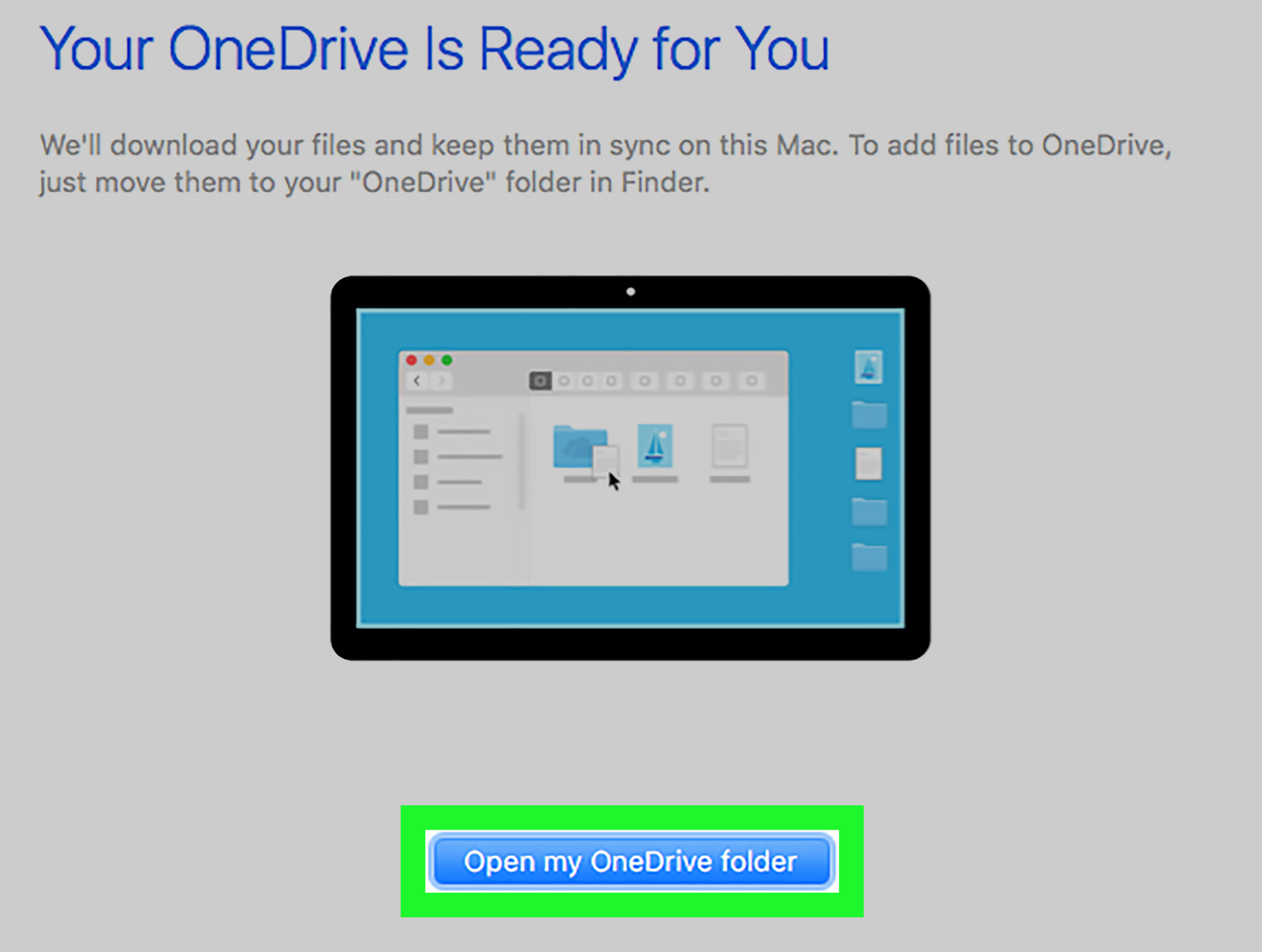
Install the OneDrive desktop app on your Mac, open it, and sign in with your Microsoft account. During setup, OneDrive will show where its folder will be stored. Finish the prompts, then open Finder.
You should see OneDrive in Finder’s sidebar. Depending on your account type, it may appear as something similar to OneDrive – Personal or OneDrive – Company Name.
Sync a local Mac folder
To sync an existing folder, drag or move it into your OneDrive folder in Finder. For example, move a folder named Freelance Invoices into OneDrive, then continue working from that OneDrive location.
Give OneDrive time to finish uploading large folders. A few hundred scanned receipts, high-resolution photos, or a decade of tax PDFs may take longer than expected. The sync icon will show activity while OneDrive works.
Use Selective Sync on macOS
- Click the OneDrive cloud icon in the macOS menu bar.
- Open the settings menu and choose Preferences.
- Open the Account tab.
- Select Choose Folders.
- Clear folders you do not want stored on the Mac.
- Select OK.
The folder remains available online and on other devices. It simply stops taking up space on that Mac.
Use Files On-Demand in Finder
On modern macOS versions, Files On-Demand is part of the OneDrive experience. Control-click a file or folder in Finder and choose Always Keep on This Device for offline use. Choose Free Up Space to remove the local copy while keeping the file in OneDrive.
Before a trip, make your essential files available offline. Airport Wi-Fi has a long and proud tradition of becoming unreliable precisely when a presentation is due.
Back up important Mac folders
OneDrive for Mac can also back up key folders such as Desktop and Documents. Click the OneDrive cloud icon, open Preferences, choose Backup, and select Manage backup.
If macOS reports a permissions issue, open System Settings > Privacy & Security. OneDrive may need permission to access protected folders before it can sync them correctly.
Understand OneDrive File Status Icons
OneDrive status icons are not decorative. They tell you what is happening with a file or folder.
- Cloud icon: The file is online-only and may need an internet connection to open.
- Green check: The file is stored locally and available offline.
- Sync arrows: OneDrive is uploading or downloading changes.
- Red X or warning icon: OneDrive needs attention.
When something looks wrong, click the OneDrive cloud icon first. The activity panel often explains whether a file is uploading, paused, blocked by a name issue, or waiting for you to sign in.
Which OneDrive Method Should You Use?
| Situation | Best option |
|---|---|
| You want a work folder on multiple devices | Move the actual folder into OneDrive and work from there. |
| You want Desktop and Documents protected automatically | Use OneDrive folder backup. |
| Your laptop is low on storage | Use Selective Sync and Files On-Demand. |
| You need files during travel or outages | Choose Always Keep on This Device before leaving. |
| You want to sync a folder outside OneDrive | Move it into OneDrive or use a supported backup folder. |
Common OneDrive Sync Problems and Fixes
A folder is missing
Make sure you are signed in to the correct OneDrive account. Then check Choose Folders to see whether the folder was unchecked. On a work computer, your organization may also control sync settings.
OneDrive is stuck on “Processing changes”
A large first-time upload or recent folder move can take time. Click the OneDrive cloud icon to identify the file causing the delay. Long file paths, unusual names, hidden temporary files, and files locked by another app can interrupt syncing.
Keep folder names reasonably short. A path like Projects\Clients\North America\Marketing\Version 19\Final\Final Revised\Final Final Please Use This One may be funny once, but it is not a stable filing system.
Conflict copies appear
Conflict files usually appear when the same document is edited on multiple devices before changes can sync. Save and close a file on one device before editing it on another when possible. Compare timestamps and content before deleting a conflict copy.
Files seem missing after stopping backup
Stopping folder backup does not automatically move files back to their old local locations. Files may remain in the OneDrive folder. Open OneDrive, confirm the files are present, and move copies manually only when you truly want them outside OneDrive again.
Nothing syncs at all
Check your internet connection, available cloud storage, and OneDrive sign-in status. Pause and resume syncing, restart the OneDrive app, and try again. If the issue continues, unlink and relink the account. Resetting OneDrive is a later troubleshooting option because it resets sync settings and triggers a full resync.
Practical Experiences: What Smooth OneDrive Syncing Looks Like in Real Life
The best OneDrive setups are usually boring. That is a compliment. When syncing works well, people stop thinking about it because their files show up where they need them without filling every device with old projects and random screenshots.
Consider a freelance designer with a 512 GB laptop and nearly 1 TB of past client work. Downloading every project locally would turn the laptop into a stressed-out suitcase. A better approach is to keep active client folders, templates, and current reference images available offline while leaving old exports and completed projects online-only.
Before traveling, the designer marks the current project folder as Always Keep on This Device. That quick habit prevents the classic hotel-lobby disaster: a client calls, a presentation is due, and the only available internet connection is moving at the speed of a sleepy snail.
Another common experience happens when setting up a new Windows PC. It is tempting to accept every backup prompt immediately. Later, the Desktop contains files from three old computers, including forgotten screenshots, duplicate downloads, and possibly a recipe for banana bread from 2021.
Folder backup works better after a little cleanup. Decide whether you want the same Desktop on every device or whether you prefer each computer to have its own clean workspace. Many people choose to sync Documents and Pictures while keeping their Desktop more device-specific. Neither approach is wrong; one simply creates fewer duplicate icons shaped like regret.
Mac users often learn about online-only files during a bad internet moment. A folder can appear in Finder, but some files may still need to download before opening. The smart move is to test important folders before travel. Create a compact OneDrive folder for presentations, flight details, spreadsheets, client PDFs, and anything else you cannot afford to lose access to. Mark it for offline availability, disconnect from Wi-Fi at home, and open a few files as a test.
Teams sharing OneDrive folders benefit from a simple rule: do not reorganize thousands of files five minutes before a deadline. Renaming a few folders is fine. Moving an entire project archive while someone else edits a spreadsheet in the same folder can create sync delays and confusing duplicate files. Tell collaborators before major changes, let syncing finish, and confirm that the folder looks correct online before celebrating.
Finally, experienced users do not treat OneDrive as their only backup. Syncing is excellent for access and collaboration, but it can also spread a mistaken deletion quickly. Keep another backup for irreplaceable photos, financial records, creative work, or business files. An external drive or a separate backup service provides a second layer of protection when life decides that “final-final-actual-final.docx” should disappear.
Conclusion: Keep Sync Useful, Not Overgrown
To sync a OneDrive folder on a PC or Mac, sign in to the desktop app, use the OneDrive folder as your synced workspace, and choose which cloud folders each device really needs. Use folder backup for Desktop, Documents, and Pictures when those are your natural working locations. Use Files On-Demand to balance storage space with offline access.
The goal is not to sync absolutely everything. The goal is to keep active work available, protect important files, and leave enough storage space for your computer to act like a computer instead of an expensive cloud-storage coaster.
Note: OneDrive menu names can vary slightly depending on your app version, account type, macOS or Windows version, and workplace policies. Before moving or deleting a large folder, check the OneDrive activity panel and confirm that the expected files appear online.