Your PS4 controller has survived boss battles, overtime losses, rage-inducing platform jumps, and at least one suspicious encounter with a snack-covered couch cushion. Now it refuses to charge. You connect the Micro-USB cable, wait for the familiar orange light, and get absolutely nothing. Not even a polite blink.
Fortunately, a DualShock 4 that will not charge is not automatically a dead controller. The problem may be a worn cable, an unpowered USB port, compacted debris, incorrect Rest Mode settings, a temporary controller glitch, or an aging internal battery. The best approach is to test the simplest possibilities first and save controller surgery for last.
This guide explains seven practical ways to fix a PS4 controller that is not charging, along with diagnostic clues that can help you identify the failing part without buying a drawer full of unnecessary replacement components.
Why Is My PS4 Controller Not Charging?
The DualShock 4 contains a rechargeable lithium-ion battery and normally charges through the Micro-USB port on top of the controller. Sony states that a fully depleted controller generally takes approximately two hours to charge under suitable conditions. It can charge from a powered PS4, a properly configured console in Rest Mode, a computer, or certain other USB devices. However, not every USB source or cable will work reliably.
Common causes of PS4 controller charging problems include:
- A damaged or charge-only Micro-USB cable
- A loose connection at either end of the cable
- A PS4 USB port that is dirty, damaged, or not receiving power
- Rest Mode settings that disable USB power
- Dust or bent contacts inside the controller’s charging port
- A software or pairing glitch
- A worn-out internal battery
- A failed charging board, ribbon cable, or motherboard component
The symptom provides a useful clue. No light at all often points toward the cable, power source, or charging port. An orange light that appears briefly and disappears may indicate an unstable connection. A controller that works while connected but immediately dies when unplugged usually has a weak battery or an internal power problem.
Before You Start: Perform a 60-Second Charging Check
Turn off the controller and connect it directly to a powered-on PS4. Push the plugs firmly into both ends without forcing them. Leave the controller untouched for at least 10 minutes, since a deeply discharged battery may not respond instantly.
Watch the light bar. A slowly pulsing orange or amber light normally indicates charging. You can also hold the PS button while the controller is connected and check the battery icon in the Quick Menu.
If there is no charging response, move through the following tricks in order. This sequence isolates one variable at a time and prevents the classic troubleshooting mistake of changing five things, fixing the problem, and having no idea which change actually worked.
Trick 1: Replace the Micro-USB Cable
The charging cable is the first suspect because it bends, twists, gets stepped on, and is frequently borrowed for gadgets that never return it. A cable may look perfect on the outside while its internal wires are broken.
Test the cable properly
- Disconnect the current cable from the controller and PS4.
- Try another known-working Micro-USB cable.
- Connect it directly to the console instead of using a hub or extension.
- Leave the controller connected for at least 10 minutes.
- Gently move the plug near the controller to check for an intermittent connection.
Use a cable that supports both charging and data transfer. A power-only cable may charge the battery but fail when you need to re-pair the controller after a reset. If the replacement cable works immediately, retire the old one before it returns disguised as a “backup.” Cable failure is one of the most widely reported causes of a PS4 controller not charging.
Trick 2: Try Another USB Port or Power Source
A working cable cannot help if the USB port supplying power is faulty. Test both front USB ports on the PS4. PS4 Pro owners may also have an additional rear port available, depending on the model.
Use a process of elimination
- Connect the controller to the first PS4 USB port.
- Wait several minutes and check for the orange charging light.
- Move the same cable to another console port.
- Test the controller through a powered computer USB port.
- Test another controller or USB device on the original PS4 port.
If the controller charges from a computer but not from the PS4, the console port or its power settings may be responsible. If neither controller charges through one particular console port, that port probably needs cleaning or repair.
Sony lists the DualShock 4 input rating as 5 volts and 800 milliamps, but it also warns that some USB devices may not charge the controller. For the cleanest diagnosis, begin with the PS4 itself or a standard computer USB connection rather than an unknown bargain-bin charging adapter.
Trick 3: Enable USB Power in PS4 Rest Mode
A controller connected to a fully powered-down PS4 will not charge. It can charge while the console is on or in Rest Mode, but Rest Mode must be configured to supply power to the USB ports.
Change the Rest Mode setting
- Open Settings on the PS4 home screen.
- Select Power Save Settings.
- Choose Set Features Available in Rest Mode.
- Select Supply Power to USB Ports.
- Choose Always or 3 Hours.
With the three-hour option, the console supplies USB power for three hours after entering Rest Mode and then reduces power consumption. That is normally enough time for a depleted DualShock 4, which Sony says takes about two hours to charge.
After changing the setting, connect the controller and place the PS4 in Rest Mode. The console light should turn orange, and the controller’s light bar should begin pulsing orange if charging starts.
Trick 4: Clean and Inspect the Controller’s Charging Port
The Micro-USB port is positioned where it can collect lint, dust, pet hair, crumbs, and mysterious particles that appear to exist only inside electronic devices. Even a small obstruction can keep the plug from reaching the contacts correctly.
Clean the port safely
- Turn off the PS4 and disconnect the controller.
- Shine a flashlight into the Micro-USB port.
- Use short bursts of compressed air to remove loose debris.
- Use a clean, soft, dry brush around the opening if necessary.
- Reconnect the cable and check whether it now sits firmly.
Avoid inserting needles, metal pins, wet cotton swabs, or screwdrivers into the port. These can bend the contacts, create an electrical short, or transform a five-minute cleaning job into a full replacement project.
Inspect the port for bent pins, corrosion, discoloration, or looseness. If the cable must be held at a particular angle to charge, the connector may be worn or detached from the small charging board inside the controller. Cleaning can remove debris, but it cannot restore a physically broken socket.
Trick 5: Reset and Re-Pair the DualShock 4
A controller can occasionally stop responding because of a pairing or software glitch. Resetting it clears the existing connection and forces it to establish a fresh link with the PS4.
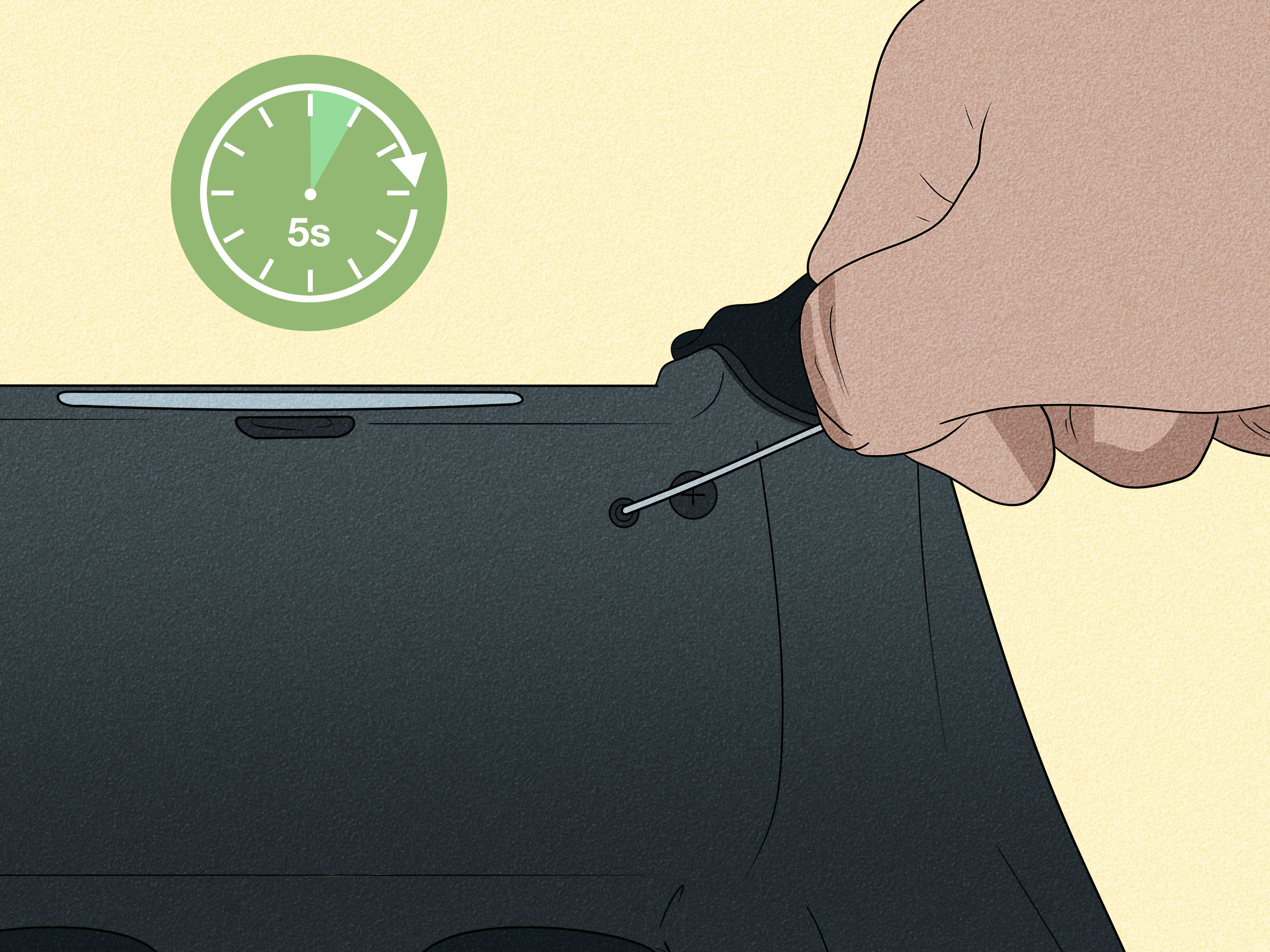
How to hard-reset a PS4 controller
- Turn off and unplug the PS4 console.
- Disconnect the controller’s USB cable.
- Find the small reset hole on the back near the L2 button.
- Insert a straightened paper clip or similarly small tool.
- Press and hold the internal button for at least five seconds.
- Reconnect the PS4 to power.
- Connect the controller with a data-capable Micro-USB cable.
- Turn on the console and press the PS button.
The light bar should turn blue when the controller successfully pairs. This procedure will not repair a broken battery, but it can resolve charging behavior caused by a temporary controller or connection error. It is also one of Sony’s recommended troubleshooting steps when a DualShock 4 does not charge correctly.
Trick 6: Use a DualShock 4 Charging Dock
A compatible charging dock can provide an alternative path to the battery. Many DualShock 4 docks charge through the EXT connector on the bottom of the controller instead of the Micro-USB socket on top.
This makes a dock especially useful as a diagnostic tool. If the controller charges through the EXT port but not through Micro-USB, the battery is probably capable of accepting power, while the cable, top charging socket, internal USB board, or connecting ribbon cable is more likely to be at fault.
Test with a dock
- Use a dock specifically designed for your DualShock 4 version.
- Connect the dock to its recommended power source.
- Seat the controller carefully on the charging contacts.
- Check the dock indicator and controller light.
- Leave it charging for at least 30 minutes before testing.
A dock is not a magical cure for a dead battery or motherboard failure. However, it can bypass a damaged Micro-USB connection and may keep an otherwise functional controller in service.
Trick 7: Replace the Battery or Charging Port
If different cables, power sources, settings, cleaning, resetting, and dock charging do not solve the problem, an internal component may have failed.
Signs of a worn-out battery
- The controller works while plugged in but shuts off immediately when disconnected.
- The battery reports a full charge but lasts only a few minutes.
- Charging finishes suspiciously quickly.
- The controller is several years old and battery life has gradually declined.
Signs of charging-port damage
- The plug feels loose or falls out easily.
- The controller charges only when the cable is held at an angle.
- The port contains bent, burned, or corroded contacts.
- The controller charges through a dock but not through Micro-USB.
Battery replacement is usually easier than charging-port repair, but DualShock 4 revisions use different internal parts. Check the model number on the back of the controller and purchase a battery with the correct connector, voltage, and dimensions.
Replacing the USB charging board may require opening the case, disconnecting a delicate ribbon cable, and transferring model-specific parts. Follow a repair guide for your exact controller revision. If you are uncomfortable working around lithium-ion batteries or small connectors, a professional repair shop is the safer choice.
How to Identify the Faulty Part
| Symptom | Most Likely Cause | Best Next Test |
|---|---|---|
| No light with one cable | Faulty cable | Try a known-working data cable |
| No light from one PS4 port | Console USB port issue | Use another port or computer |
| Charges only when PS4 is on | Rest Mode USB power disabled | Enable Supply Power to USB Ports |
| Charges only at an angle | Loose cable or damaged port | Inspect the Micro-USB socket |
| Charges on a dock only | Micro-USB board or ribbon problem | Repair or replace the charging board |
| Works plugged in but dies unplugged | Weak battery or internal power fault | Test or replace the battery |
| No response from any charging method | Battery, board, or motherboard failure | Seek component-level diagnosis |
Frequently Asked Questions
How long should a completely dead PS4 controller charge?
A fully depleted DualShock 4 normally takes about two hours to charge. If it has been stored for months, leave it connected to a known-good power source for at least 30 minutes before deciding that it is completely dead.
Why does my PS4 controller flash orange once and stop?
A brief orange flash can result from a loose cable, an unstable USB port, dirty contacts, a nearly full battery, or an internal charging problem. Test another cable and power source before opening the controller.
Can I charge a PS4 controller with a phone charger?
Some standard USB chargers work, but compatibility varies. Sony notes that the controller may not charge from every USB device. For troubleshooting, use the PS4 or a computer USB port so the power source is easier to rule out.
Can temperature stop a PS4 controller from charging?
Yes. Sony recommends charging the controller in an environment between 50°F and 86°F, or 10°C and 30°C. Charging may become less effective outside that range. Let an unusually hot or cold controller return to room temperature before testing it again.
Should I replace the controller or repair it?
A cable, battery, or removable charging board may be economical to replace. Motherboard damage, extensive corrosion, or multiple worn components can make replacement more sensible. Compare the repair cost with the price and condition of a reliable replacement controller.
A Realistic PS4 Controller Charging Experience
The most useful lesson from real-world controller troubleshooting is that the dramatic-looking problem is often caused by the least dramatic component. A controller can appear completely dead simply because a worn cable is making partial contact. The plug still fits, the cable still charges another low-power gadget, and nothing looks broken. That makes the controller seem guilty even though the cable is quietly committing the crime.
Consider a common scenario. A player connects a DualShock 4 overnight and finds it empty the next morning. The controller shows no orange light, so the first assumption is a dead battery. A replacement battery is ordered, the controller is opened, several plastic clips are offended, and the new battery changes nothing. Only afterward does the player test another cable and discover that the original cable had failed near the Micro-USB plug. A two-minute test would have prevented an unnecessary operation.
Another frequent experience involves Rest Mode. The controller charges perfectly while the PS4 is running but stops as soon as the console enters its low-power state. Because the cable remains connected, it looks like the controller is refusing to charge overnight. In reality, the console’s USB power option is set to Off. Changing one menu setting solves the problem without touching the hardware. The controller was innocent; the settings menu was merely being unhelpful in a very organized manner.
Loose ports create a different pattern. The controller begins charging when placed on a table, but the light goes out whenever someone picks it up. Moving the cable makes the orange light flicker. That behavior strongly suggests a worn cable end or damaged Micro-USB socket. Testing a second cable helps separate the two. If every cable moves loosely, a compatible charging dock can be a useful experiment because it bypasses the top port and supplies power through the EXT connection.
The final lesson is to observe before replacing parts. Note whether the controller works while wired, whether it charges from a computer, whether a second controller charges from the same console port, and whether the cable must be positioned at an angle. Each observation removes possibilities. By the time the controller is opened, there should be a specific reason for suspecting the battery, charging board, or ribbon cablenot merely the understandable desire to attack the problem with a screwdriver.
Experienced troubleshooters also know when to stop. A swollen battery, burning smell, excessive heat, liquid damage, or visible corrosion is not an invitation to keep experimenting. Disconnect the controller and have it professionally inspected. Saving a game controller is satisfying; turning it into a smoke-generating special effect is considerably less so.
Final Thoughts
When a PS4 controller is not charging, start with the cable and power source, verify the Rest Mode settings, clean the port, and reset the controller. These low-risk fixes solve many charging problems without replacement parts. If the controller still refuses to cooperate, test a charging dock and use the symptoms to decide whether the battery, Micro-USB board, or another internal component needs repair.
The key is disciplined troubleshooting. Change one thing at a time, observe the result, and work from the outside inward. Your DualShock 4 may not be dead. It may simply be waiting for a better cable and a sincere apology.