Note: If you came here hoping to find the magic “defrag Android phone” button, the honest answer is simple: modern Android phones do not need traditional defragmentation. In fact, trying to force it with shady apps is a bit like polishing a touchscreen with sandpaperdramatic, unnecessary, and probably not great for the device.
For years, computer users were told that defragmenting a hard drive could make an old PC feel younger, faster, and slightly less grumpy. So it makes sense that Android users ask the same question: can you defragment an Android phone to improve performance? After all, phones slow down. Apps stutter. Storage fills up. Photos multiply like rabbits at a birthday party. Surely the phone needs a deep digital comb-through, right?
Not exactly. Android phones use flash storage, usually eMMC or UFS, not the spinning hard disk drives that made defragmentation famous. That difference changes everything. A traditional hard drive has a physical arm that moves across spinning platters to find pieces of a file. If those pieces are scattered, the drive wastes time hunting them down. Defragmentation reorganizes the pieces so the drive can read them more efficiently.
Flash storage does not work that way. There is no spinning platter, no mechanical arm, and no tiny librarian sprinting through magnetic shelves. Your Android phone reads data electronically, so the old Windows-style idea of lining files up in neat rows does not deliver the same benefit. Android, the storage controller, and the file system already handle storage maintenance in ways designed for flash memory.
So, Can You Defragment an Android Phone?
The practical answer is no. A normal Android user cannot and should not defragment an Android phone in the traditional desktop-computer sense. Most Android phones do not include a defragmentation tool because they do not need one. Apps that claim to “defrag Android storage” are usually misleading, unnecessary, or simply performing ordinary cleanup tasks under a fancy label.
That does not mean Android storage is magical or immune to slowdowns. Phones can absolutely become sluggish. However, the cause is usually not classic file fragmentation. More often, the real culprits are low free storage, bloated app caches, too many background processes, outdated apps, old downloads, overloaded media folders, or a battery that has aged into retirement mode.
Think of it this way: if your kitchen is a mess, alphabetizing the spice rack will not help if the sink is full, the trash is overflowing, and someone stored a bowling ball in the fridge. Android performance works the same way. Defragging sounds technical and powerful, but the useful fix is usually basic storage management.
Why Defragmentation Helped Old Hard Drives
To understand why Android defragging is not useful, it helps to understand what defragmentation actually does. On an old mechanical hard drive, a file might be stored in pieces across different parts of the disk. When the computer opens that file, the drive head must physically move from one location to another. That movement takes time.
Defragmentation rearranges file pieces so they sit closer together. On a hard drive, that can reduce physical movement and improve read speed. This made more sense when PCs relied heavily on slow mechanical drives and large local files.
But Android phones do not rely on spinning disks. They use flash memory, which can access scattered data much more efficiently. In other words, your phone is not waiting for a tiny record player needle to hop around. It is accessing memory electronically, and that changes the performance equation.
How Android Storage Really Works
Android storage is organized through a combination of hardware, file systems, app storage rules, and system-level maintenance. On many modern devices, the file system may be EXT4 or F2FS. F2FS, short for Flash-Friendly File System, was designed specifically with NAND flash memory in mind. That alone should tell you something important: Android storage is not just an old PC drive wearing a phone case.
Android also separates data into categories. Apps may store private app-specific files, shared media, documents, preferences, and databases. This structure helps the system manage access, privacy, and cleanup. When you delete a file or remove an app, Android does not need a user-facing defrag tool to put everything back in a perfect line. It relies on storage management features that are better suited to flash memory.
What About TRIM and Garbage Collection?
Instead of defragmentation, flash storage depends on features like TRIM and garbage collection. TRIM helps the operating system tell the storage device which blocks are no longer needed. Garbage collection helps prepare storage areas for future writes. Wear leveling spreads write and erase cycles across memory cells so the same cells are not worn out too quickly.
That sounds less glamorous than a giant “Optimize Everything” button, but it is much more relevant to flash storage. Android devices can perform maintenance during idle periods, and storage firmware also plays a role in keeping things healthy. The goal is not to place every file in a neat row. The goal is to manage free blocks, reduce unnecessary writes, and protect the life of the storage.
Why Defrag Apps for Android Are a Bad Idea
Many Android “defrag” apps use dramatic language: boost speed, repair memory, clean fragments, revive performance, turbocharge storage. Some of them sound like they were written by a race car mechanic after three energy drinks. The problem is that traditional defragmentation is not appropriate for flash storage.
At best, these apps may clear cache, close background apps, delete junk files, or show storage usage. Those tasks can be useful, but they are not defragmentation. At worst, a questionable app may ask for unnecessary permissions, show aggressive ads, collect data, or push users toward paid “optimization” plans that do little more than make the wallet lighter.
Flash storage has a limited number of write and erase cycles. Modern storage is durable, and normal use is fine, but intentionally rewriting large amounts of data for no real benefit is not smart maintenance. If an Android defrag app claims it can reorganize your phone like an old PC hard drive, treat that claim with suspicion.
Signs Your Android Phone Needs Cleanup, Not Defragging
If your Android phone feels slow, you are not imagining things. A messy phone can feel like it is walking through peanut butter. But instead of searching for “how to defragment Android phone,” look for these more realistic signs:
- Your storage is almost full.
- Apps take longer to open than they used to.
- The camera refuses to record video because storage is low.
- Updates fail because there is not enough space.
- Social media, messaging, or streaming apps are using huge amounts of cache.
- The phone gets warm during simple tasks.
- Background apps constantly reload.
These issues usually point to storage pressure, app overload, software bugs, or aging hardware. Defragmentation will not fix them. A smarter cleanup routine will.
What to Do Instead of Defragmenting an Android Phone
Good Android maintenance is not about chasing fake defrag buttons. It is about removing clutter, giving the system breathing room, and keeping software healthy. Here are the practical steps that actually help.
1. Free Up Internal Storage
Internal storage matters more than many people realize. When your phone is nearly full, Android has less room for app updates, temporary files, downloads, camera files, and system processes. A phone with only a few hundred megabytes free can feel much slower than the same phone with several gigabytes available.
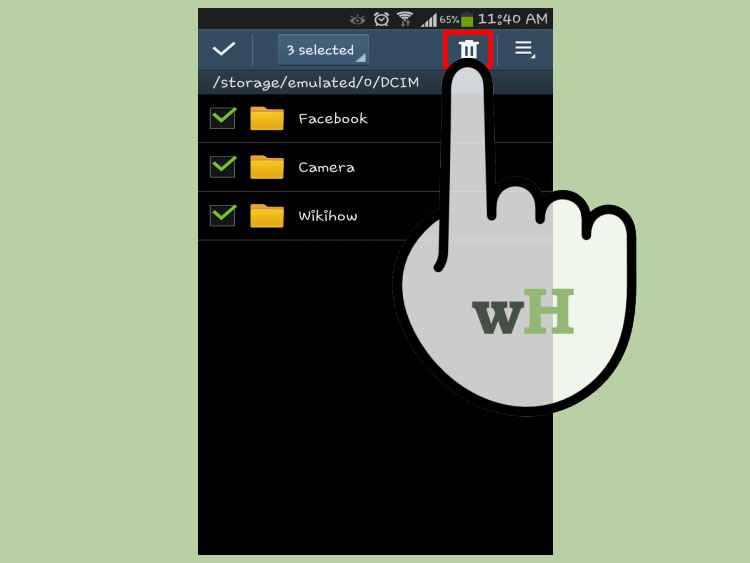
Start by going to Settings > Storage. The exact menu name may vary by brand, but most Android phones show a breakdown of apps, images, videos, audio, documents, and system files. Look for the obvious storage hogs. Large videos, forgotten downloads, duplicated photos, offline playlists, and old chat media are common suspects.
2. Clear App Cache Carefully
Cache is temporary data that helps apps load faster. It is not evil. In fact, cache is the reason some apps feel smooth instead of constantly downloading the same information again. However, cache can grow too large or become messy.
To clear cache for a specific app, go to Settings > Apps, choose the app, tap Storage, then tap Clear cache. Do not confuse this with Clear storage or Clear data, which can remove app settings, logins, downloaded content, and other personal app data. Cache is usually safe to clear. App data is a much bigger hammer.
3. Remove Apps You Never Use
Unused apps take up storage, collect cache, run background tasks, and sometimes keep permissions you forgot you granted. If you have not opened an app in six months, it may be time to say goodbye. The app will survive. It may even write a song about you.
Android also supports app archiving on newer versions and compatible devices. Archiving can remove much of an app’s installation footprint while keeping the app icon and user data available for restoration. This is especially useful for apps you rarely use but do not want to fully delete.
4. Use Files by Google or Your Phone’s Built-In Cleaner
Files by Google can help identify duplicate files, large files, old screenshots, temporary files, and unused apps. Many Android manufacturers also include built-in storage tools. Samsung Galaxy phones, for example, offer Device care features that can optimize storage and memory without requiring risky third-party “defrag” utilities.
The key is to use trusted tools. A cleanup app from your phone maker or Google is generally safer than a random app promising “300% faster performance” with a rocket emoji in the icon.
5. Move Photos and Videos to Cloud Storage or a Computer
Photos and videos are often the biggest storage consumers on Android phones. A few 4K videos can eat gigabytes faster than a raccoon in a snack cabinet. Back up important media to a trusted cloud service, an external drive, or a computer. After confirming the backup, delete local copies you no longer need on the phone.
This single step can make a bigger difference than any so-called Android defrag app. More free space gives Android room to update apps, manage cache, and handle temporary files properly.
6. Restart the Phone
A restart will not defragment storage, but it can clear temporary memory issues, stop misbehaving processes, and refresh system behavior. If a phone has been running for weeks without a reboot, a restart is a simple first step. It is the tech equivalent of taking a deep breath and pretending Monday has not happened yet.
7. Update Android and Your Apps
Software updates often include bug fixes, security patches, performance improvements, and compatibility updates. If your phone feels slower after a major app update or Android version change, check for additional patches. Developers frequently fix performance problems after users report them.
8. Check Battery Health and Background Activity
Sometimes a phone feels slow because the battery is aging or because too many apps are active in the background. Android may limit performance to manage heat, battery drain, or resource pressure. Review battery usage under Settings and look for apps using an unusual amount of power. If one app is acting like it owns the place, restrict it, update it, or uninstall it.
Defragmentation vs. Android Cleanup: Quick Comparison
| Action | What It Does | Should You Do It on Android? |
|---|---|---|
| Traditional defragmentation | Rearranges file pieces for mechanical hard drives | No, Android flash storage does not need it |
| Clear app cache | Deletes temporary app files | Yes, when an app is bloated or glitchy |
| Delete unused apps | Frees storage and reduces background clutter | Yes, highly recommended |
| Archive apps | Removes much of an app while keeping user data | Yes, on supported Android versions |
| Use random “phone booster” apps | Often clears cache, shows ads, or makes big promises | Usually no |
| Use built-in storage tools | Finds large files, duplicates, cache, and unused apps | Yes, safer and more useful |
Does File Fragmentation Ever Matter on Android?
Here is where the answer gets slightly nerdier. Some research has shown that file fragmentation can affect mobile flash storage performance under certain conditions. That does not mean everyday users should install defrag apps. It means storage performance is complicated, and the best solutions happen at the file system, operating system, and firmware levelnot through a flashy app downloaded five minutes before dinner.
Modern Android phones are designed around flash storage behavior. The system can perform idle maintenance, storage controllers manage writes internally, and file systems are built with flash in mind. A user-facing defrag button would not only be unnecessary for most people; it could encourage the wrong kind of maintenance.
Common Myths About Android Defragging
Myth 1: “My phone is slow, so it must need defragging.”
Slow performance usually comes from low storage, overloaded apps, weak battery health, outdated software, or background activity. Defragging is not the standard fix.
Myth 2: “A cleaner app defragged my Android and made it faster.”
It probably cleared cache, closed background apps, or deleted temporary files. Those actions can make a phone feel faster temporarily, but they are not defragmentation.
Myth 3: “Flash storage never slows down.”
Flash storage can slow down when it is nearly full or heavily used. But the solution is free space, healthy storage management, updates, and trusted cleanupnot old-school defragging.
Myth 4: “More cleaning is always better.”
Not always. Constantly clearing cache can make apps reload data more often, which may use more bandwidth and battery. Clean when there is a problem, not every time your phone sneezes.
Safe Android Performance Routine
If your Android phone feels slow, follow this simple routine before even thinking about defragging:
- Restart the phone.
- Check available storage and aim to keep several gigabytes free.
- Delete old downloads, duplicate files, and unnecessary videos.
- Clear cache for apps that are large or misbehaving.
- Uninstall or archive apps you rarely use.
- Update Android and all important apps.
- Review battery and background app usage.
- Back up media, then remove local copies you no longer need.
This routine does more for Android phone performance than defragmentation ever would. It also avoids risky third-party tools that promise miracles and deliver pop-up ads with the enthusiasm of a carnival barker.
Real-World Experience: What Actually Happens When Android Storage Gets Messy
In everyday Android use, the slowdown usually creeps in quietly. At first, everything feels normal. Then the camera takes an extra second to open. Then the keyboard lags just enough to make typing feel haunted. Then an app update fails because the phone is “low on storage,” even though you are absolutely sure you deleted three screenshots in 2022. This is the moment many users search for “defragment Android phone” because it sounds like a serious fix for a serious problem.
The more practical experience is this: Android phones behave much better when they have room to breathe. A phone with 95% of its storage filled often feels dramatically worse than the same phone after removing several gigabytes of video, old downloads, and unused apps. The improvement is not because files have been lined up like obedient schoolchildren. It is because the system has working space again.
One common example is messaging apps. Apps used for group chats can store years of photos, videos, voice messages, stickers, and forwarded files. The app itself may look small in the app drawer, but its data folder can become a digital storage buffet. Clearing unnecessary media inside the app, not blindly deleting the app’s data, can recover a surprising amount of space.
Another example is streaming apps. Music and video platforms often save offline downloads. These are convenient until a phone with 64 GB of storage is carrying half a season of shows, three playlists, and a podcast backlog long enough to survive a road trip across three planets. Removing old offline downloads can instantly improve available storage without touching personal photos or documents.
Photo folders are another classic storage trap. Modern Android phones take high-resolution pictures and videos, and those files are not shy about their size. A single long video can be larger than dozens of apps. Users often assume apps are the main problem, but the gallery is frequently the real storage heavyweight. Backing up photos and videos, then deleting local copies, is one of the safest and most effective fixes.
There is also a psychological side to Android cleanup. Defragmentation feels satisfying because it sounds technical and final. It suggests that one button can reorganize chaos. Real Android maintenance is less cinematic but more effective. It is a combination of deleting what you do not need, controlling what apps store, keeping software current, and avoiding fake optimization tools.
The best long-term habit is to treat storage like a closet. You do not need to reorganize every sock by thread direction. You just need to remove the shoes you never wear, the mystery cables from 2016, and the box labeled “important” that contains one expired coupon. On Android, that means clearing bloated caches when needed, archiving unused apps, deleting duplicate files, and keeping enough free space for the system to work smoothly.
In real-world terms, the best “Android defrag” is not defrag at all. It is smart cleanup. The phone does not need you to rearrange its flash memory. It needs you to stop storing six copies of the same vacation sunset, three forgotten APK files, and a download folder that looks like a digital junk drawer with Wi-Fi.
Conclusion: Should You Defragment an Android Phone?
You should not defragment an Android phone. Traditional defragmentation was designed for mechanical hard drives, not modern Android flash storage. Android phones use storage systems and maintenance methods that are better suited to flash memory, including file systems designed for NAND storage, idle maintenance, TRIM-like operations, garbage collection, and wear leveling.
If your Android phone is slow, focus on the fixes that actually work: free up storage, clear oversized app caches, delete old downloads, archive unused apps, back up photos and videos, update software, and restart the device occasionally. These steps are safer, more effective, and far less suspicious than installing a “defrag booster” app with a lightning bolt logo and the subtlety of a late-night infomercial.
The bottom line: you cannot meaningfully defragment an Android phone like an old PC, and you do not need to. Keep your storage clean, give Android room to operate, and let the system handle the low-level storage maintenance it was built to manage.