Few things test a gamer’s patience like watching a massive Steam download crawl across the screen at the speed of a sleepy turtle wearing ankle weights. You bought the game. You cleared your evening. Snacks are ready. Then Steam casually says, “Estimated time remaining: tomorrow, probably.” Rude.
The good news is that slow Steam downloads are usually fixable. Sometimes the issue is Steam’s selected download server. Sometimes your PC is writing files slowly. Sometimes Windows, cloud backups, streaming apps, or a heroic family member watching 4K videos in the next room is stealing bandwidth like a raccoon in a pantry.
This guide explains how to make Steam download faster using practical, safe, and beginner-friendly tricks. These tips are based on real Steam and Windows settings, not magical “download booster” nonsense. No snake oil. No suspicious registry hacks. Just simple fixes that can help Steam use your internet connection and storage drive more efficiently.
Why Is Steam Downloading So Slowly?
Before changing settings like a caffeinated IT wizard, it helps to understand what affects Steam download speed. A Steam download is not just “internet goes in, game appears.” Steam has to connect to a content server, download compressed data, unpack files, write them to your drive, and sometimes patch existing files. That means your download speed can be limited by several things:
- Your internet plan and real-world connection speed
- Wi-Fi signal quality or router congestion
- Steam’s selected download region
- Steam bandwidth limits
- Windows updates or other background downloads
- Slow hard drives, nearly full drives, or disk errors
- VPNs, firewalls, antivirus scans, or router settings
In other words, Steam may not be the villain. Sometimes it is merely the messenger wearing a hoodie.
How to Make Steam Download Faster: 11 Simple Tricks
1. Check Your Steam Download Region
Steam automatically assigns a download region, but automatic does not always mean perfect. If your selected server is overloaded, far away, or having a bad day, your download speed may drop. Changing the Steam download region is one of the easiest fixes to try first.
Open Steam, go to Settings, then choose Downloads. Look for Download Region. Select the region closest to your actual location. If that does not improve speed, try a nearby major city or a different nearby region.
For example, if you live near Chicago and the Chicago server is slow, try St. Louis, Minneapolis, or another nearby region. The closest server is usually best, but the least crowded nearby server may perform better during peak hours.
After changing the region, restart Steam and test the download again. This trick is quick, reversible, and often surprisingly effective.
2. Remove Steam’s Download Speed Limit
Steam includes a built-in download limit setting. This is useful when you want to keep bandwidth available for streaming, video calls, or other devices. But if the limit was enabled months ago and forgotten, Steam may be politely obeying a rule you no longer want.
Go to Steam > Settings > Downloads. Find the bandwidth or download speed limit option. If a limit is enabled, remove it or raise it significantly. Also check whether Steam is configured to throttle downloads while streaming or during gameplay.
This is the digital equivalent of taking the parking brake off your car. It will not turn a 50 Mbps connection into fiber internet, but it can stop Steam from crawling when your connection is capable of more.
3. Clear the Steam Download Cache
Steam stores temporary download data in a cache. Usually, this helps downloads behave normally. But if the cache becomes corrupted or cluttered, Steam may stall, restart, or download slower than expected.
To clear it, open Steam > Settings > Downloads and choose Clear Download Cache. Steam may ask you to sign in again afterward, so make sure you know your login details before doing this.
Clearing the cache does not delete your installed games. It simply clears temporary download-related files. Think of it as cleaning crumbs out of Steam’s keyboard. The keyboard still works; it just stops crunching.
4. Use Ethernet Instead of Wi-Fi
If you are serious about faster Steam downloads, plug your PC directly into the router with an Ethernet cable. Wi-Fi is convenient, but it can be affected by walls, distance, interference, old router hardware, crowded channels, and every smart device in your home trying to phone home at once.
Ethernet is usually faster, more stable, and less moody. A wired connection can reduce random drops, improve consistency, and help Steam maintain higher download speeds for large games.
If Ethernet is not possible, move closer to your router, place the router in a central open location, use the 5 GHz or 6 GHz band if available, and reduce the number of devices competing for Wi-Fi. A mesh system or Wi-Fi extender can also help in larger homes.
5. Pause Background Apps That Use Bandwidth
Steam may be slow because other apps are quietly using your internet connection. Cloud backups, browser downloads, Windows updates, game launchers, video streaming, Discord updates, and file-sync apps can all compete with Steam.
Before starting a huge download, close or pause apps such as OneDrive, Dropbox, Google Drive, Battle.net, Epic Games Launcher, Xbox app, streaming services, torrent clients, and browser downloads. On Windows, open Task Manager, go to the Processes tab, and check which apps are using network resources.
If you use OneDrive, you can pause syncing temporarily. This is especially helpful if OneDrive is uploading large files, because heavy uploads can make downloads feel slower by clogging the connection.
6. Limit Windows Delivery Optimization
Windows uses Delivery Optimization to download updates, Microsoft Store apps, Office updates, and other Microsoft content. It can also share update data with other PCs, depending on your settings. This feature can be useful, but it may compete with Steam when you are trying to download a game.
On Windows 11, go to Settings > Windows Update > Advanced Options > Delivery Optimization. From there, review whether your PC can download from or upload to other PCs. You can also set bandwidth limits for background downloads and uploads.
This does not mean you should disable Windows updates forever. Please do not turn your PC into a museum exhibit for security vulnerabilities. Instead, schedule updates wisely or limit background bandwidth while Steam is downloading.
7. Restart Steam, Your PC, and Your Router
Yes, “turn it off and on again” is the oldest tech advice in the book. It is also old because it keeps working. Restarting Steam can reset a stuck connection. Restarting your PC can close background processes and clear temporary issues. Restarting your router can refresh your home network connection.
For the best result, fully exit Steam first. Do not just close the window; make sure Steam is not still running in the system tray. Then restart your PC. If speeds are still weird, unplug your modem and router for about 30 seconds, plug them back in, and allow them to reconnect.
This trick is not glamorous, but neither is waiting six hours for a 12 GB patch. Choose your battle.
8. Download During Off-Peak Hours
Steam download speed can vary depending on server load and your local internet congestion. Even if your internet plan is fast, evening hours may be slower because more people in your area are streaming, gaming, updating devices, and generally making the internet sweat.
Try downloading early in the morning, late at night, or during work/school hours if your schedule allows. Steam also lets you manage automatic updates, so you can prevent games from updating at inconvenient times.
This is especially useful for huge releases. When a blockbuster game launches, millions of players may hammer the same servers at once. Downloading later can be less painful than joining the digital stampede at minute one.
9. Move Steam Games to a Faster SSD
Sometimes Steam is not downloading slowly; it is writing or unpacking files slowly. Modern games often download compressed data, then unpack and patch it. If your game is installing to an old hard drive, Steam may pause or drop to 0 MB/s while the drive catches up.
If possible, install Steam games on an SSD, preferably an NVMe SSD for the best performance. Steam includes storage management tools that let you add a new library folder and move games between drives without redownloading them.
Open Steam > Settings > Storage, add the faster drive as a library location, then move games to that drive. This can make downloads, patches, and game loading feel much smoother.
10. Free Up Disk Space and Check Drive Health
A nearly full drive can slow down downloads and updates. Steam needs room not only for the final game files, but also for temporary download and patching data. If your drive is packed tighter than a suitcase before vacation, Steam may struggle.
Keep extra free space available on the drive where Steam installs games. Delete old downloads, uninstall games you no longer play, empty the Recycle Bin, and move large videos or archives to another drive.
Also check drive health if Steam downloads repeatedly drop to 0 MB/s or games take forever to patch. On Windows, you can use built-in tools such as Error Checking in drive properties, or check the drive’s SMART status with reputable utilities. If an old hard drive is failing, no Steam setting will magically make it young again. Sadly, hard drives do not accept motivational speeches.
11. Disable VPNs, Review Firewall Settings, and Use Router QoS Carefully
A VPN can protect privacy in certain situations, but it can also slow Steam downloads by routing traffic through a distant or crowded server. If Steam is crawling while your VPN is on, disconnect the VPN temporarily and test again.
Firewalls and antivirus software can also interfere with Steam if they inspect or block traffic too aggressively. Do not disable security protection permanently, but make sure Steam is allowed through your firewall. If you recently installed a new security suite and Steam immediately became slow, that is a clue wearing a neon sign.
Finally, check your router’s Quality of Service settings. QoS can prioritize gaming, streaming, or work devices, but incorrect settings may limit your PC. If your router has QoS enabled, make sure your gaming PC is not accidentally stuck in the slow lane.
Quick Steam Download Speed Checklist
If you want the fast version, start here:
- Change your Steam download region.
- Remove Steam bandwidth limits.
- Clear the Steam download cache.
- Use Ethernet instead of Wi-Fi.
- Pause cloud sync and other launchers.
- Limit Windows Delivery Optimization.
- Restart Steam, your PC, and your router.
- Download outside peak hours.
- Install games on an SSD.
- Free up disk space.
- Test without VPN and review firewall/router settings.
How to Tell Whether Steam or Your Internet Is the Problem
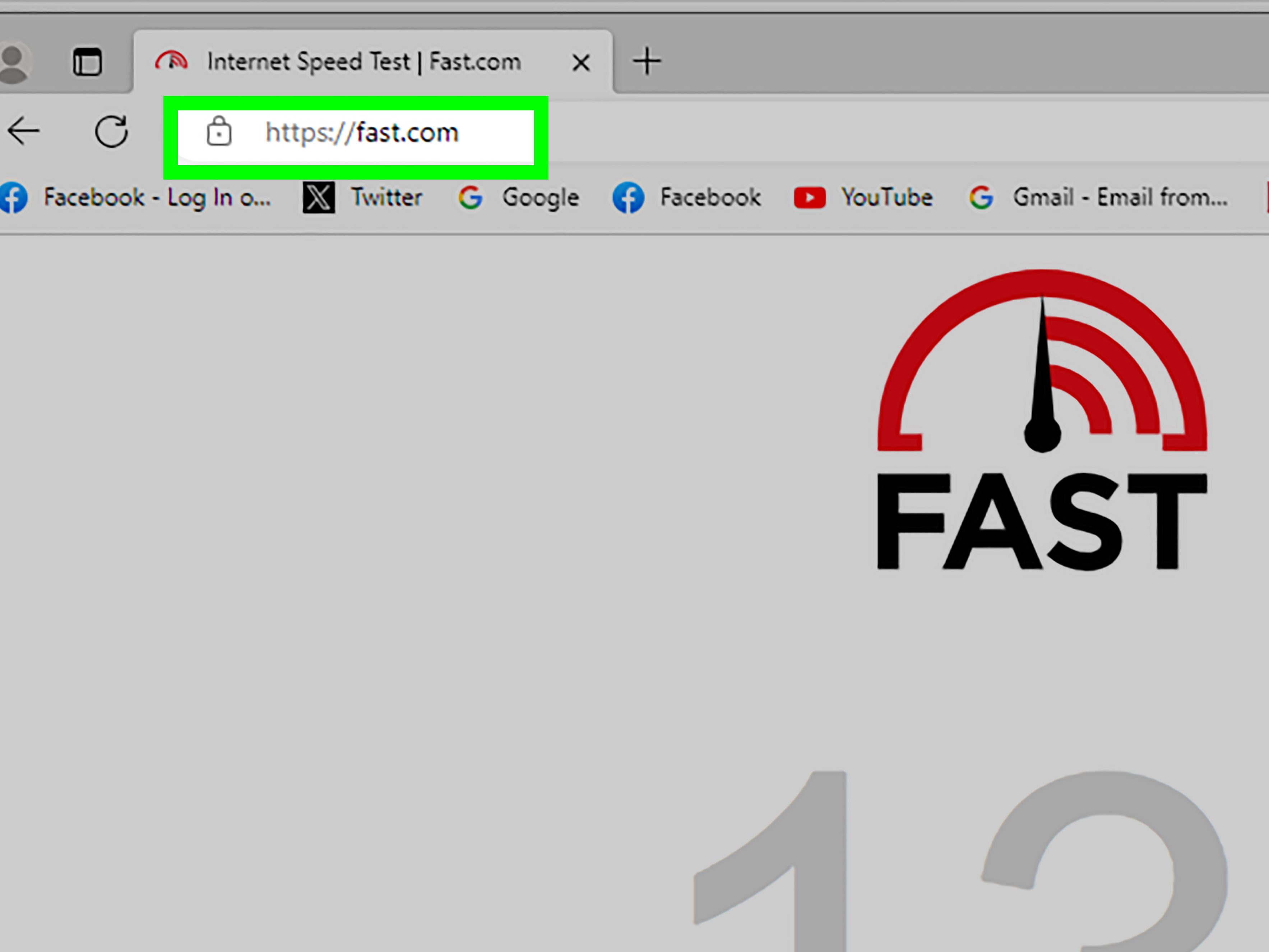
Run a speed test before blaming Steam. If your speed test shows far lower speeds than your internet plan, the issue may be your connection, router, Wi-Fi signal, or ISP. If the speed test looks normal but Steam is slow, focus on Steam settings, download region, cache, disk performance, and background apps.
Also remember that Steam displays download speed in bytes per second, while internet plans are usually advertised in bits per second. One byte equals eight bits. That means a 100 Mbps internet plan will not show 100 MB/s in Steam. Under perfect conditions, it would top out around 12.5 MB/s before overhead. This little math trap has caused many gamers unnecessary emotional damage.
Common Mistakes That Do Not Really Help
Not every “speed up Steam” trick is worth your time. Be careful with third-party download boosters, random registry edits, sketchy DNS claims, and apps that promise miraculous gaming performance. At best, they may do nothing. At worst, they may install junk, break settings, or introduce security risks.
Changing DNS can sometimes improve how quickly a service resolves a server address, but it usually does not transform actual Steam download throughput. If your downloads are slow because of Wi-Fi, server congestion, disk bottlenecks, or bandwidth limits, DNS is not the main fix.
The safest approach is to adjust built-in Steam, Windows, router, and storage settings first. Simple beats suspicious.
Real-World Experience: What Usually Works Best
In real life, the best fix depends on the bottleneck. When Steam downloads are slow but everything else online feels fast, the first thing I check is the download region. It takes less than a minute and can produce an immediate improvement. I have seen downloads jump noticeably after switching from a crowded local server to a nearby alternative. It feels like changing checkout lanes at the grocery store and suddenly realizing the person ahead of you is not buying 900 coupons’ worth of soup.
The next big win is removing bandwidth limits. Many users forget they once limited Steam to keep Netflix smooth, survive a video meeting, or avoid upsetting everyone else on the home network. Weeks later, they wonder why a 60 GB game is moving like it has stage fright. Checking the Steam download limit should be part of every troubleshooting routine.
For desktop PCs, Ethernet is the boring champion. It is not flashy. It does not have RGB lights. It simply works. Wi-Fi can be excellent, especially with modern routers, but a wired connection often wins for large downloads because it avoids interference and signal drops. If your PC is far from the router, even a temporary Ethernet cable across the hallway can help test whether Wi-Fi is the issue. Just do not create a tripwire unless you want your download to end with a family lawsuit.
Another experience-based lesson: Steam download speed dropping to 0 MB/s does not always mean the internet failed. Steam may be unpacking files or writing to disk. This is common during updates for large games. If disk usage is high in Task Manager while network usage is low, your storage drive may be the bottleneck. Moving the game to an SSD can make updates feel much less dramatic.
Background apps are also sneaky. OneDrive uploading a big folder, Windows pulling updates, another launcher patching a game, or someone streaming 4K video can all affect Steam. Before downloading a huge game, I like to close other launchers, pause cloud sync, and give Steam the network equivalent of a private buffet.
Finally, be realistic. If your internet plan is 50 Mbps, Steam cannot consistently download at 80 MB/s no matter how many settings you change. The goal is to make Steam use your available speed properly, not bend physics into a pretzel. If your speed test is consistently much lower than your plan, focus on your router, Wi-Fi placement, modem, cables, or ISP. If your internet is fine but Steam is slow, focus on Steam region, cache, bandwidth limits, drive speed, and background software.
The best troubleshooting strategy is simple: change one thing at a time, test again, and keep the fixes that actually help. That way you do not end up with 27 random settings changed and no idea which one saved the day. Gaming should involve boss fights, not detective work in your network adapter settings.
Conclusion
Learning how to make Steam download faster is mostly about removing bottlenecks. Start with Steam’s own settings: change the download region, remove speed limits, and clear the download cache. Then look outside Steam: use Ethernet, pause background apps, manage Windows Delivery Optimization, restart your router, download during quieter hours, and make sure your games are installing to a healthy, fast drive.
You do not need risky software or complicated hacks. Most slow Steam download problems can be improved with practical settings and basic network hygiene. And once your download finally speeds up, you can return to the important work: spending 40 minutes customizing graphics settings before playing for 12 minutes and going to bed.