There are two kinds of Mac users: people who keep a clean desktop with three tasteful folders, and people whose desktop looks like a digital garage sale after a thunderstorm. Whichever group you belong to, there comes a moment when you need to see the desktop fast. Maybe you want to grab a screenshot, drag a file into an email, open a folder, check a widget, or simply escape the jungle of overlapping browser windows before your brain starts buffering.
The good news is that macOS gives you several quick ways to show the desktop without closing, minimizing, or rearranging every open app. In fact, the Mac’s “Show Desktop” feature is built into Mission Control, keyboard shortcuts, trackpad gestures, and Hot Corners. Newer macOS versions also let you click the wallpaper to move windows out of the way, which is either brilliant or deeply suspicious depending on how often you accidentally click empty space.
This guide explains the three fastest and most practical ways to show the desktop on a Mac: keyboard shortcuts, the trackpad gesture, and Hot Corners or wallpaper click. You’ll also learn when each method works best, how to customize it, and how to avoid the common “Why did all my windows fly away?” panic moment.
Quick Answer: The 3 Fastest Ways to Show Desktop on Mac
If you just need the shortcuts and not the full tour, here they are:
- Keyboard shortcut: Press Command + Mission Control, Fn + F11, or Fn + H, depending on your Mac and keyboard settings.
- Trackpad gesture: Spread your thumb and three fingers apart on the trackpad.
- Hot Corners or wallpaper click: Set a screen corner to Desktop, or use the macOS option that reveals the desktop when you click the wallpaper.
All three methods move your open windows aside temporarily. They do not quit apps, delete files, or permanently minimize everything. Press the shortcut again, reverse the gesture, or click back into an app, and your windows return like nothing happened. Very dramatic, very Mac.
Method 1: Use a Keyboard Shortcut to Show the Desktop
The fastest method for many users is the keyboard shortcut. It is ideal when your hands are already on the keyboard, you are writing, coding, researching, editing photos, or pretending to organize your life in a spreadsheet.
Use Command + Mission Control
On many Macs, the Mission Control key is located on the top row of the keyboard and usually looks like a small icon with multiple rectangles. It is often on the F3 key. To show the desktop, press:
Command + Mission Control
In everyday terms, this is often the same as pressing Command + F3. When you use it, macOS slides your open windows outward so you can access your desktop files, folders, screenshots, drives, or widgets. Press the same shortcut again to bring your windows back.
Use Fn + F11
Another classic Mac show desktop shortcut is:
Fn + F11
This is especially useful if your Mac uses the top row for brightness, volume, keyboard backlight, and media controls. If pressing F11 alone changes volume or does nothing useful, add the Fn key. On some keyboards and macOS settings, F11 may work by itself, but Fn + F11 is the safer bet for most MacBook users.
Use Fn + H on Supported Macs
Apple also lists Fn + H as a show desktop shortcut on compatible Mac keyboards. It is easy to remember because “H” can stand for “hide the chaos.” Technically, it does not hide everything in the same way as Command + H hides an app; it triggers the desktop reveal behavior.
This is a handy option if stretching for F11 feels like finger yoga. On compact keyboards, laptops, or setups where function keys are customized, Fn + H may feel more natural.
How to Customize the Show Desktop Shortcut
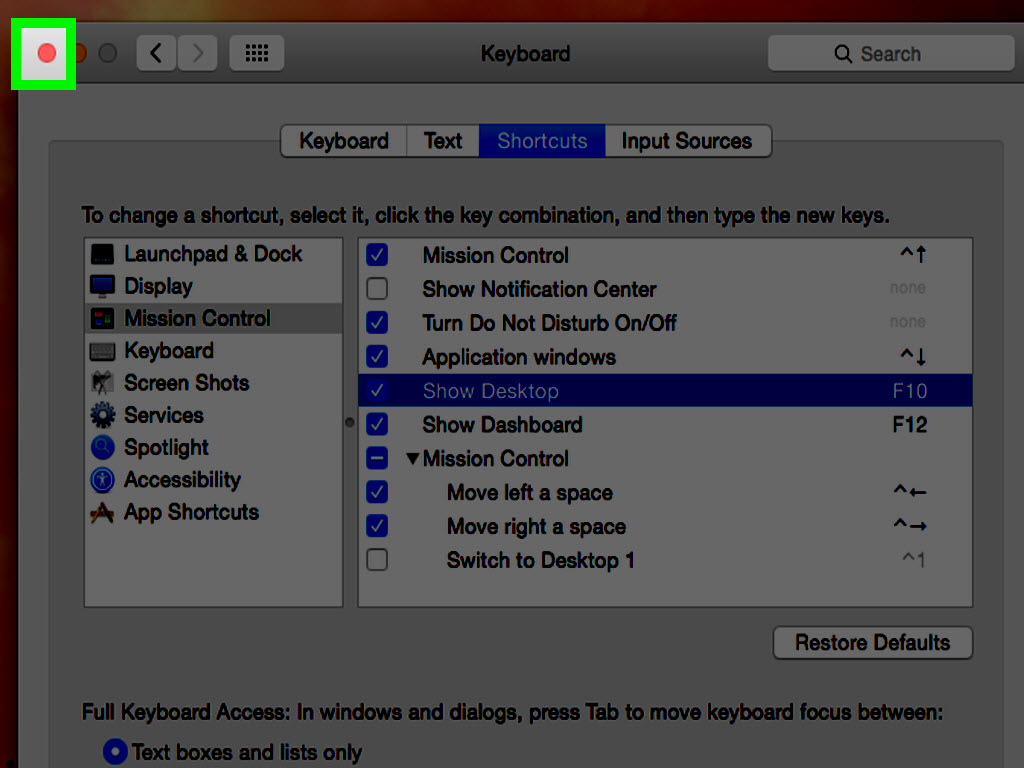
If the default shortcut feels awkward, macOS lets you adjust Mission Control keyboard shortcuts. Go to:
Apple menu > System Settings > Keyboard > Keyboard Shortcuts > Mission Control
Look for the Show Desktop option. From there, you can change the shortcut to something that fits your workflow better. This is especially useful if you switch between Windows and Mac often and keep reaching for Windows + D, only to remember that your Mac is not emotionally prepared for that command.
Best Use Cases for Keyboard Shortcuts
The keyboard method is best when speed matters. For example, say you are working in Safari with twelve tabs open, a Notes window, a Finder window, and a PDF that has somehow become the size of a garage door. You need to drag a file from the desktop into a web form. Instead of minimizing every window one by one, press the shortcut, grab the file, and return to your work.
It also works well for people who use external keyboards, large monitors, or desktop Macs. Once the shortcut becomes muscle memory, showing the desktop takes less than a second.
Method 2: Use the Trackpad Gesture
If you use a MacBook or Magic Trackpad, the trackpad gesture may be the smoothest way to show the desktop. It feels almost theatrical: your windows slide away with one gesture, as if your Mac suddenly decided to clean its room before guests arrive.
Spread Your Thumb and Three Fingers Apart
To show the desktop with a trackpad, place your thumb and three fingers close together on the trackpad, then spread them apart. This gesture pushes open windows aside and reveals the desktop.
To bring the windows back, reverse the motion by pinching your thumb and three fingers together. You can also click an app window, open a file, or use another Mission Control action to return to your workspace.
Why This Gesture Is So Useful
The trackpad gesture is excellent for visual workers. If you regularly drag images, PDFs, downloads, screenshots, and design files around, it feels more natural than reaching for a keyboard shortcut. You can move from “Where is that file?” to “There it is!” with one hand.
For example, imagine you are writing an email and need to attach a PDF sitting on your desktop. Spread your thumb and three fingers, drag the PDF into the message window, and continue. No window-minimizing marathon required. Your desktop appears only when you need it, then gets out of the way again.
How to Check or Change Trackpad Settings
If the gesture does not work, it may be turned off or changed. Open:
Apple menu > System Settings > Trackpad > More Gestures
Look for the Show Desktop gesture. Depending on your macOS version, you may be able to turn it on or off, or adjust related Mission Control gestures. While you are there, check other gestures too. Many Mac users discover useful shortcuts in this panel and then spend the next five minutes swiping around like they have unlocked a secret level.
Trackpad Gesture vs. Keyboard Shortcut
Which one is better? It depends on how you work. Keyboard shortcuts are faster for typing-heavy tasks. Trackpad gestures are better when your hand is already on the trackpad or you are dragging items. The shortcut feels precise; the gesture feels fluid.
If you are new to Mac, try both for a week. Use the keyboard shortcut when writing or browsing. Use the trackpad gesture when moving files. After a few days, one method will probably become your favorite without requiring a formal ceremony.
Method 3: Use Hot Corners or Click the Wallpaper
The third method is perfect for mouse users, external display setups, and anyone who likes shortcuts that do not require remembering key combinations. With Hot Corners, you can move your pointer to a corner of the screen to trigger an action such as showing the desktop, opening Mission Control, starting the screen saver, locking the screen, or launching Quick Note.
Set Up a Hot Corner for Show Desktop
To create a Hot Corner that shows the desktop, go to:
Apple menu > System Settings > Desktop & Dock > Hot Corners
You will see four corner menus. Choose a corner, open its menu, and select Desktop. Click Done. Now, whenever you move your pointer into that corner, macOS will move your windows aside and show the desktop.
This method is surprisingly fast because screen corners are easy to hit. You do not need pixel-perfect aim. Just throw the pointer into the corner like it owes you money, and the action triggers.
Prevent Accidental Hot Corner Activations
Hot Corners are powerful, but they can also become accidental chaos buttons. If you assign Show Desktop to the top-left corner, you may trigger it every time you aim for the Apple menu. If you assign Lock Screen to a corner without thinking, you may lock your Mac while trying to click a spreadsheet. Not ideal, unless your spreadsheet deserved it.
A smart solution is to use a modifier key. When choosing the Hot Corner action, hold a key such as Command, Option, Control, or Shift. macOS can require that key to be held while you move the pointer into the corner. For example, you could set Shift + bottom-right corner to show the desktop. That way, random pointer movements will not trigger it.
Use Click Wallpaper to Reveal Desktop
Recent macOS versions include a Desktop & Dock setting that lets you reveal the desktop by clicking the wallpaper. You can find it under:
Apple menu > System Settings > Desktop & Dock > Desktop & Stage Manager > Show Desktop
The setting may offer options such as Always on Wallpaper Click or Only in Stage Manager on Click. When enabled, clicking an empty area of the wallpaper moves windows away so you can see desktop items and widgets.
This is convenient if you like mouse-based navigation. However, if your windows keep flying away because you accidentally click the wallpaper, change the setting to only work in Stage Manager or turn it off. A feature is only helpful when it does not prank you during work hours.
Best Use Cases for Hot Corners and Wallpaper Click
Hot Corners work beautifully on large screens. If you use an iMac, Mac mini, Mac Studio, or MacBook connected to an external monitor, a Hot Corner can be faster than hunting for keys. It is also useful when using a non-Apple mouse that does not support Mac trackpad gestures.
Wallpaper click is great for people who keep current projects on the desktop. Designers, writers, students, and office workers often use the desktop as a temporary landing zone for files. Clicking the wallpaper to reveal those files feels direct and intuitive, as long as your desktop is not buried under 400 screenshots named “Screenshot 2026-05-26 at something something.”
Which Mac Show Desktop Method Should You Use?
The best method depends on your device and habits. Here is a simple way to choose:
- Use keyboard shortcuts if you type a lot, use shortcuts already, or work with an external keyboard.
- Use the trackpad gesture if you are on a MacBook or Magic Trackpad and often drag files between windows.
- Use Hot Corners or wallpaper click if you prefer mouse movement, use large displays, or want a no-keyboard shortcut.
There is no rule saying you must pick only one. In fact, the best Mac workflows often combine all three. Use Command + Mission Control when typing, use the trackpad gesture when dragging files, and use a Hot Corner when browsing with one hand on the mouse. Your Mac does not mind. It has seen worse.
Common Problems and Quick Fixes
The F11 Shortcut Changes Volume Instead
If F11 controls volume or another media function, press Fn + F11. You can also check your function key behavior in System Settings. Some users prefer function keys to work as standard F1, F2, and F3 keys; others prefer brightness and volume controls. There is no wrong choice, only the one that causes less sighing.
The Trackpad Gesture Does Not Work
Go to System Settings > Trackpad > More Gestures and make sure the Show Desktop gesture is enabled. If you are using a mouse instead of a trackpad, this gesture will not be available. In that case, use a keyboard shortcut or Hot Corner.
Clicking the Wallpaper Keeps Moving My Windows
Open System Settings > Desktop & Dock and look for the Show Desktop or wallpaper-click setting. Change it from always active to a more limited option, such as only in Stage Manager, if available. This is one of those settings that some users love and others disable within six minutes.
Show Desktop Is Not the Same as Minimize All
On Windows, users often think of “Show Desktop” as minimizing everything. On macOS, showing the desktop usually moves windows aside temporarily. Your apps remain open, your windows keep their places, and your workspace returns when you reverse the action. This is actually better for many workflows because you do not have to rebuild your window layout afterward.
Experience Notes: What Works Best in Real Mac Workflows
In daily Mac use, the best “show desktop” method often depends less on the feature itself and more on the moment. When you are typing, the keyboard shortcut feels unbeatable. Your fingers are already near Command, and pressing Command + Mission Control quickly becomes automatic. It is especially useful during writing sessions, research projects, and school assignments where you may have Safari, Pages, Notes, Finder, and Preview open at the same time. Instead of breaking concentration to manually move windows, one shortcut clears the view just long enough to grab what you need.
The trackpad gesture feels better when the task is physical and visual. Dragging a screenshot into a chat, moving a downloaded PDF into a folder, or dropping an image into a presentation all feel smoother with the thumb-and-three-fingers spread. It is one of those gestures that may feel awkward the first few times, but once it clicks, it becomes almost invisible. You stop thinking “I need to show the desktop” and simply do the motion. That is the sweet spot of good interface design: the feature disappears into the habit.
Hot Corners are more personal. Some users swear by them; others trigger them accidentally and immediately declare war on corners as a concept. The trick is to assign Show Desktop to a corner you do not hit often by mistake. The bottom-right corner is a popular choice because it is easy to reach but less likely to interfere with the Apple menu or browser tabs. Adding a modifier key makes it even better. For instance, holding Shift while moving the pointer to the corner gives you speed without turning your screen edge into a trapdoor.
For people working on external monitors, Hot Corners can feel faster than keyboard shortcuts. A wide display creates more pointer travel, but screen corners are still easy targets. If your right hand is already on a mouse, flicking to a corner is effortless. This setup works well for designers, video editors, spreadsheet-heavy office workers, and anyone who uses the desktop as a temporary file shelf.
The wallpaper-click feature is the most modern-feeling option. It makes the desktop behave like a real surface: click the empty space, and the clutter gets out of the way. However, it can be annoying if you often click around to focus Finder or deselect items. If you find yourself muttering “Why did my windows vanish again?” more than once a day, adjust the setting. Productivity features should reduce friction, not create tiny jump scares.
The most practical approach is to build a small system. Use the keyboard shortcut for quick checks, the trackpad gesture for dragging files, and Hot Corners for mouse-based work. Keep fewer permanent files on the desktop if possible, and use folders like “Today,” “Projects,” or “To File” to prevent the desktop from becoming a museum of unfinished decisions. Showing the desktop quickly is useful; finding the thing you revealed is even better.
Conclusion
Learning how to quickly show the desktop on a Mac is a small skill with a surprisingly big payoff. Instead of minimizing windows one at a time or digging through Finder every time you need a file, you can reveal the desktop instantly with a shortcut, gesture, Hot Corner, or wallpaper click.
For most users, the easiest place to start is Command + Mission Control or Fn + F11. MacBook users should also learn the thumb-and-three-fingers trackpad gesture because it is fast, elegant, and excellent for dragging files. If you use a mouse or external monitor, set up a Hot Corner for Desktop and consider adding a modifier key to prevent accidental activations.
The Mac desktop is not just a background image. It is a quick-access workspace, a temporary file shelf, and occasionally a messy reminder that screenshots multiply when unsupervised. With these three methods, you can reach it in seconds and get back to work without losing your window layout or your patience.