Read receipts in Microsoft Teams can be helpful, awkward, or wildly accusatory depending on the message, the sender, and whether you opened it while holding a sandwich. This guide explains how to turn off read receipts on Teams, what the setting actually does, why it may be missing, and how to manage your privacy without accidentally becoming the office ghost.
What Are Read Receipts in Microsoft Teams?
Read receipts in Microsoft Teams are small status indicators that show when someone has seen a chat message. In a one-on-one chat, Teams may show a “Seen” confirmation after the recipient opens the conversation. In smaller group chats, Teams can also show a “Read by” list, letting the sender know who has viewed the message.
In theory, this is a beautiful productivity feature. It removes the mystery from workplace communication. Your manager sends, “Can you review this?” You read it. They know you read it. Everyone moves forward. Birds sing. Spreadsheets align themselves.
In real life, read receipts can also create pressure. Maybe you opened a message during lunch, in a meeting, or while mentally negotiating with your coffee. You saw the message, but you were not ready to respond. The sender sees “Seen,” and now the chat bubble has emotional weight. That is why many users search for how to turn off read receipts on Teams.
Quick Answer: How to Turn Off Read Receipts on Teams
The fastest way to disable read receipts in Microsoft Teams on desktop or web is:
- Open Microsoft Teams.
- Select Settings and more, usually shown as three dots near your profile picture.
- Choose Settings.
- Go to Chats and channels.
- Find Read receipts.
- Toggle the setting Off.
That is the quick version. If your Teams screen looks slightly different, do not panic. Microsoft Teams settings can vary depending on whether you use classic Teams, new Teams, Teams Free, mobile Teams, a work account, a school account, or an organization managed by an IT department that believes every toggle should be a tiny treasure hunt.
How to Turn Off Read Receipts in Microsoft Teams on Desktop
For New Microsoft Teams
In the newer Microsoft Teams interface, the read receipts option is commonly located under Settings > Chats and channels. Follow these steps:
- Launch the Teams app on Windows or Mac.
- Click the three-dot menu next to your profile picture.
- Select Settings.
- Choose Chats and channels from the left-side menu.
- Scroll until you find Read receipts.
- Switch the toggle off.
Once turned off, other people should no longer receive a read confirmation when you open their chat messages. You can still read messages, reply to messages, react with emojis, and continue your normal Teams life. The only difference is that your reading activity becomes less visible.
For Classic Teams or Older Layouts
Some users may still see the older navigation path:
- Open Teams.
- Select your profile picture or the three-dot menu.
- Choose Settings.
- Go to Privacy.
- Turn Read receipts off.
If you have read several guides and each one mentions a different menu, that is because Teams has changed its interface over time. The feature is the same; the drawer where Microsoft hides it has simply moved around the digital kitchen.
How to Turn Off Read Receipts on Teams Mobile
The mobile version of Microsoft Teams can show slightly different labels depending on your device and account type. On iPhone or Android, try this:
- Open the Microsoft Teams app.
- Tap your profile picture.
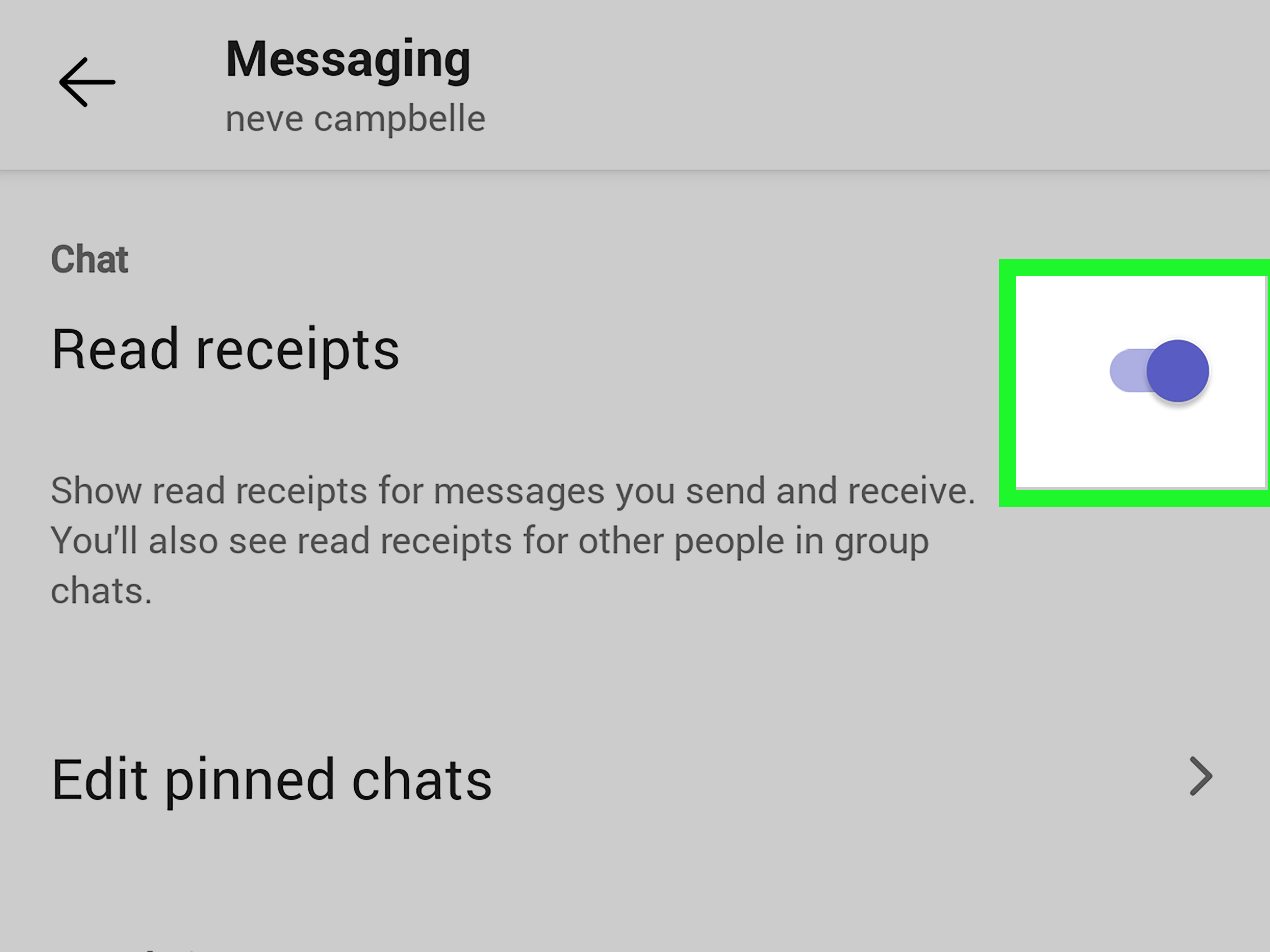
- Tap Settings.
- Look for General, Messaging, or a similar chat-related section.
- Find Read receipts.
- Turn the toggle off.
For Microsoft Teams Free or personal Teams accounts, the setting may appear under Messaging on mobile and under Privacy on desktop. For work and school accounts, the setting can be influenced by your organization’s admin policies.
One useful mobile detail: if you switch between organizations inside the Teams mobile app, the read receipt setting may apply separately to each organization. That means you may need to check the setting for each account or tenant you use.
Why You Might Want to Disable Teams Read Receipts
1. You Want Time to Think Before Replying
Not every message deserves an instant answer. Some require research, emotional maturity, or at least one more sip of coffee. Turning off read receipts gives you room to process a message without broadcasting that you have already seen it.
2. You Work Across Time Zones
Remote teams often include people in different states, countries, and sleep schedules. If someone sends you a Teams message at 9:00 p.m. and you glance at it before bed, a read receipt may make it look like you are available. You may not be available. You may be horizontal, wearing socks of questionable dignity.
3. You Prefer Better Boundaries
Work chat can quietly train people to expect instant responses. Disabling Microsoft Teams read receipts helps reduce the feeling that every message is a live negotiation. You can still be responsive without being constantly visible.
4. You Manage Sensitive Conversations
Human resources, legal, management, healthcare, education, and client-service roles often involve messages that need careful handling. Read receipts can add unnecessary pressure or create confusion about whether someone is actively working on an issue.
5. You Simply Like Privacy
You do not need a dramatic reason. Privacy is a valid preference. Turning off read receipts in Teams is like closing the door before a meeting. It is not suspicious; it is civilized.
What Happens After You Turn Off Read Receipts?
After you disable read receipts, Teams should stop sending “Seen” confirmations to other users when you read their chat messages. However, this does not make you invisible in every possible way. Your presence status may still show whether you are available, busy, in a meeting, away, or offline. If you reply, react, or type in the chat, the other person will still know you are active.
Turning off read receipts does not delete old messages. It does not block people. It does not hide your online status. It simply prevents Teams from confirming that you opened and read a specific chat message.
Also, read receipts generally require the feature to be enabled by the people involved. If someone else has read receipts turned off, you may not see when they read your messages either. In other words, Teams read receipts are a two-way social contract, not a surveillance laser from space.
Why Is the Read Receipts Option Missing?
If you cannot find the read receipts setting in Microsoft Teams, there are several likely reasons.
Your Organization Controls the Setting
For work and school accounts, Teams administrators can control read receipts through messaging policies. The admin can make read receipts user-controlled, turned on for everyone, or turned off for everyone. If your organization has forced read receipts on, you may not be able to disable them yourself.
You Are Looking in the Wrong Settings Area
Depending on your Teams version, the setting may appear under Chats and channels, Privacy, General, or Messaging. Try searching settings or checking nearby chat-related sections.
You Are Using a Different Account Type
Teams for work, Teams for school, Teams Free, and Teams personal accounts do not always organize settings in the exact same way. If you use more than one account, check each one separately.
Your App Needs an Update
If your Teams app is outdated, settings may not match current instructions. Update Teams, restart the app, and check again. If the setting is still missing, your admin policy is the most likely explanation.
Do Read Receipts Work in Teams Channels?
Read receipts are mainly designed for one-on-one chats and smaller group chats. They are not meant to work the same way in standard Teams channel conversations. Channels are built for broader team communication, and showing who read every channel message would be messy, noisy, and possibly terrifying in a team with hundreds of members.
In a group chat, Teams can show who has read a message when the group is small enough. For larger conversations, read receipt behavior may be limited. If you are trying to confirm that everyone saw an important update, a better method is to ask for a reply, use an announcement, schedule a meeting, pin the message, or create a task. Do not rely on read receipts as your only proof of awareness.
What Counts as “Read” in Microsoft Teams?
A message usually counts as read when the recipient is active in the chat window and opens the conversation. However, simply seeing a preview in a notification banner or Activity feed may not trigger a read receipt. This matters because someone may have noticed your message without Teams marking it as seen.
That little difference can prevent a lot of unnecessary drama. If a coworker has not triggered a read receipt, it does not always mean they ignored you. They may have seen a notification, planned to respond later, and then been pulled into a meeting with the emotional texture of wet cardboard.
How to Check Who Read Your Message in a Group Chat
If read receipts are enabled and the group chat is supported, you can often check who has read your message:
- Go to the group chat.
- Find the message you sent.
- Select More options beside the message.
- Choose Read by.
Teams will show a list of people who have read the message, assuming the feature is available and those users have read receipts enabled. This can be useful for small project teams, deadline reminders, and “Please review before the client call” messages. Use it wisely. Nobody likes a chat detective with too much free time.
Best Practices for Using Teams Without Read Receipt Anxiety
Set Expectations With Your Team
The best solution is not always a setting. Sometimes it is a conversation. Teams should agree on response expectations. For example, urgent issues might require a call or a tagged message, while normal chat messages can wait a few hours.
Use Status Messages
If you are focusing, traveling, in training, or unavailable, set a status message. A simple “Heads down on a deadline until 2 p.m.” can prevent people from assuming you are ignoring them.
Use Reactions for Lightweight Acknowledgment
If you leave read receipts on but dislike typing full replies, reactions can help. A thumbs-up or checkmark can say, “I saw this,” without launching a five-paragraph opera.
Turn Off Notifications Strategically
Read receipts are only one part of Teams sanity. You can also manage notifications, mute noisy chats, hide low-priority conversations, and adjust your presence. A calmer Teams setup is possible. It just takes more than yelling “Why are there 47 pings?” into the void.
Troubleshooting: Read Receipts Still Showing After You Turn Them Off
If people still see that you have read their messages after you turned off read receipts, try these steps:
- Confirm the toggle is off in the correct Teams account.
- Check whether you are signed into multiple organizations.
- Restart Teams completely.
- Update the Teams app.
- Try Teams on the web to compare settings.
- Ask your IT administrator whether read receipts are forced on by policy.
If you are using a company or school account, the admin policy is especially important. Users can only control read receipts when the organization allows user control. If the policy is locked, your toggle may be missing or ineffective.
Read Receipts vs. Presence Status: Know the Difference
Read receipts and presence status are related to visibility, but they are not the same thing. Read receipts show whether a specific message has been read. Presence status shows your general availability, such as Available, Busy, Do Not Disturb, Be Right Back, Away, or Offline.
You can turn off read receipts and still appear online. You can appear busy and still read messages. You can be away while your laptop is open and your cat is walking across the keyboard composing a surprisingly assertive reply. Teams presence is helpful, but it is not a perfect measure of human attention.
Should You Turn Off Read Receipts on Teams?
You should turn off read receipts if the feature creates pressure, interrupts your workflow, or makes you feel watched. You should leave them on if your team relies on quick acknowledgment, works in fast-moving operations, or values transparent message visibility.
For many people, the best answer is context. A customer-support team may benefit from read receipts. A creative team doing deep work may hate them. A manager may appreciate knowing that a deadline message was seen. An employee may prefer not to look like they are ignoring someone just because they opened a message between meetings.
The setting is not morally good or bad. It is just a tool. Like calendar reminders, reply-all, and the office microwave, it can improve life or ruin the afternoon depending on how people use it.
Experience Notes: What It Feels Like to Turn Off Teams Read Receipts
Turning off read receipts in Microsoft Teams sounds like a small technical adjustment, but in daily work it can feel surprisingly freeing. The biggest change is psychological. You no longer feel that every opened message starts a countdown timer. That alone can make Teams feel less like a productivity tool with a tiny courtroom attached.
Imagine starting your morning with twelve unread chats. One is from your manager, three are from coworkers, two are from project channels, and one is from someone who writes “quick question” before requesting a complete business transformation by Friday. With read receipts on, opening those messages can feel like making a public commitment. With read receipts off, you can scan, prioritize, and respond in a sensible order.
In my experience, the most useful benefit is better attention management. You can open a message, understand the request, gather the information needed, and reply when you actually have a useful answer. That is better than firing back “Sure, checking” to every message simply because Teams told the sender you saw it. The world has enough vague acknowledgments. We do not need to manufacture more of them.
Another practical advantage is fewer unnecessary follow-up pings. When read receipts are on, some people interpret “Seen” as “I am actively working on this right now.” That may not be true. You might have opened the message while switching between meetings, riding in an elevator, or looking for the one document named “final_final_revised_REAL_final.docx.” Turning off receipts reduces that false signal.
That said, disabling read receipts is not a substitute for communication. If a message is urgent, respond when you can. If you need time, say so. A simple “I saw this and will reply after my 2 p.m. meeting” is still better than silence. The goal is not to become mysterious. The goal is to avoid letting software design decide your response rhythm.
For teams with healthy norms, read receipts may not be a problem at all. Some groups use them lightly and never weaponize the “Seen” label. In that environment, leaving them on can be fine. But in high-pressure workplaces, or in teams where every chat feels like a pop quiz, turning them off can restore a little breathing room.
The best approach is to combine the setting with clear habits. Use status messages when you are unavailable. Reply quickly to truly urgent messages. Mute distracting chats. Mark important messages as unread if you need to return later. And remember that Teams is a communication tool, not a lie detector wearing a purple logo.
Ultimately, learning how to turn off read receipts on Teams is about control. You are deciding how much of your attention should be visible to others. That small privacy choice can help you work more calmly, answer more thoughtfully, and stop treating every chat notification like a tiny digital doorbell you must sprint to answer.
Conclusion
Turning off read receipts on Teams is quick once you know where to look. On most newer desktop and web versions, go to Settings > Chats and channels and switch Read receipts off. On older versions, personal accounts, or mobile apps, check Privacy, General, or Messaging. If the option is missing, your organization may control it through Teams admin policies.
Read receipts can be useful for confirming that messages were seen, especially in small group chats. But they can also add pressure, blur boundaries, and make normal work communication feel more urgent than it really is. Disabling them gives you more privacy and more room to respond thoughtfully. And honestly, any setting that helps reduce workplace chat anxiety deserves at least a polite nod.