Few document problems are as quietly annoying as a PDF with the wrong page numbers. Page 1 starts on the cover. The table of contents says Chapter 1 begins on page 7, but your PDF viewer insists it is page 11. You deleted two blank pages, and now the footer numbers look like they were assigned by a squirrel with a calculator. The good news: you do not need to rebuild the whole document from scratch.
In this guide, you will learn how to renumber a PDF in two practical ways: by editing the visible page numbers printed on the page, and by changing the PDF’s internal page labels so the navigation bar matches the document structure. These two methods solve different problems, and understanding the difference will save you from clicking every menu in your PDF editor while muttering things your keyboard does not deserve.
Whether you are fixing a business report, legal filing, eBook, school handout, scanned packet, proposal, or combined PDF, the steps below will help you edit PDF page numbers cleanly, professionally, and without turning your document into a numbering crime scene.
First, Know What “Renumber a PDF” Really Means
Before you start editing, pause for one tiny but important PDF truth: there are usually two kinds of page numbers in a PDF.
1. Visible page numbers
These are the numbers you see printed on the actual page, usually in the header or footer. For example, a page may show “Page 4 of 22” at the bottom center. These numbers are part of the page design. If they are wrong, missing, or outdated, you need to add, replace, or remove page numbers using a header and footer tool, page number tool, or PDF editor.
2. Internal page labels
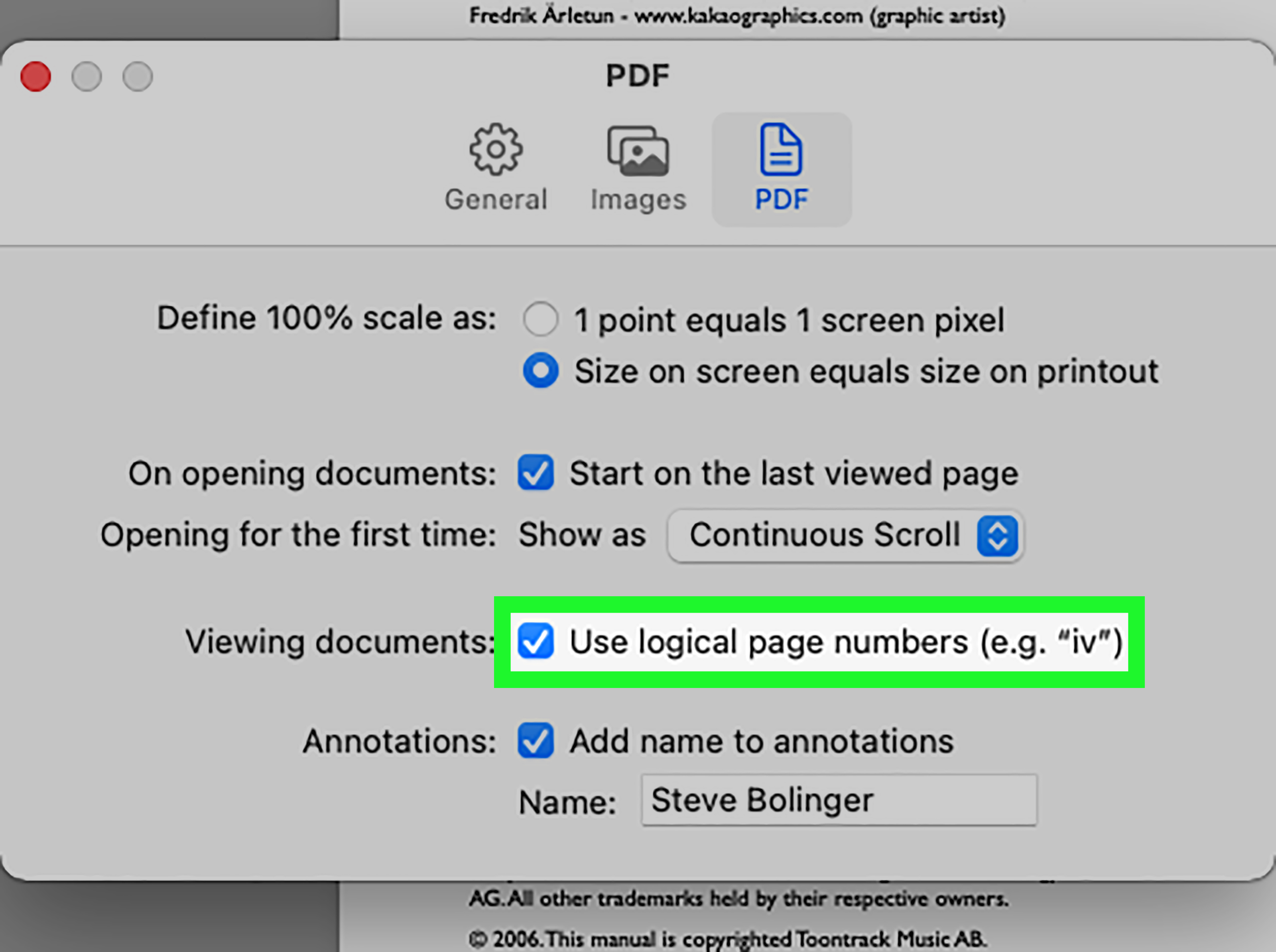
These are the page numbers displayed by your PDF viewer in the navigation box or thumbnails panel. They help readers jump to a specific page. For example, a document may have a cover page, then Roman numerals for the introduction, then standard numbers starting at the first chapter. In that case, the fifth physical page of the PDF might correctly appear as page “1” in the navigation bar.
This is why a PDF can look correct on the page but still show confusing numbers in the viewer. It is also why renumbering a PDF sometimes feels like fixing two clocks in the same room: one on the wall, one on your phone, and both are judging you.
Method 1: Edit the Visible Page Numbers in the PDF
Use this method when the page numbers printed on the PDF pages are wrong, missing, duplicated, or placed in the wrong spot. This is the most common fix for reports, contracts, manuals, worksheets, portfolios, and merged documents.
Best for:
- Adding page numbers to a PDF that has none
- Replacing old page numbers after deleting or inserting pages
- Starting numbering after a cover page or table of contents
- Changing the position, font, size, or style of page numbers
- Creating formats like “Page 1 of 12” or “1 / 12”
How to Renumber Visible PDF Pages in Adobe Acrobat
Adobe Acrobat is one of the most reliable tools for this job because it treats page numbers as part of headers and footers. The exact menu names may vary slightly depending on your Acrobat version, but the workflow is generally simple.
- Open your PDF in Adobe Acrobat.
- Choose Edit PDF or go to the editing tools area.
- Select Header & Footer, then choose Add.
- If old headers or footers already exist, choose the option to update or replace them.
- Click the header or footer position where you want the page number to appear, such as bottom center or bottom right.
- Choose Insert Page Number or open the page number and date format options.
- Set the number style, starting number, font, size, and page range.
- Preview the result before applying it.
- Save a new copy of the PDF.
Here is a practical example. Suppose your PDF has a cover page and a table of contents, but you want the first page of the actual report to show “Page 1.” In the page range settings, apply numbering only from the report’s first content page onward. Then set the starting number to 1. The cover and table of contents stay clean, and the main document begins exactly where readers expect.
How to Renumber a PDF with Other PDF Editors
You do not have to use Acrobat. Many PDF editors offer similar page numbering tools. Foxit PDF Editor, Nitro PDF Pro, PDF-XChange Editor, Kofax Power PDF, PDFsam Enhanced, Soda PDF, DocHub, Smallpdf, Sejda, and iLovePDF all provide ways to add page numbers or headers and footers. The buttons may wear different outfits, but the concept is almost always the same:
- Upload or open the PDF.
- Find the page number, header/footer, organize, or edit tool.
- Select the page number position.
- Choose the page range.
- Set the starting number.
- Customize font, size, color, margin, or format if available.
- Apply the numbering and save the file.
Online tools are handy when you need a fast fix and do not want to install software. For non-sensitive documents, they can be a convenient option. For contracts, financial records, legal filings, medical documents, private business files, or anything with personal information, use a trusted desktop PDF editor instead. Convenience is wonderful, but privacy is also wonderful. Ideally, you should have both.
What If the Old Page Numbers Are Still There?
This is where PDFs get spicy. If the old page numbers were added as editable headers or footers, you can usually remove or replace them. But if the numbers are part of a scanned image or flattened PDF, they may not behave like normal editable text. In that case, you have a few options:
- Crop them out: If the old numbers are near the edge, cropping may hide them.
- Cover them with a white box: Some editors let you place a white rectangle over the old number and add a new one on top.
- Use OCR and editing tools: Optical character recognition may help convert scanned content into editable text, though results vary.
- Return to the original file: If you still have the Word, InDesign, Google Docs, or source file, renumber there and export a fresh PDF.
Whenever possible, edit page numbers in the original document before exporting to PDF. A PDF is excellent for sharing and preserving layout, but it is not always the friendliest place to make structural edits. Think of it like a baked cake. You can still decorate it, slice it, and write “Happy Birthday” on top, but changing the vanilla layer to chocolate after baking is going to involve drama.
Method 2: Change PDF Page Labels for Correct Navigation
Use this method when the page numbers displayed in the PDF viewer do not match the document’s real numbering. This does not necessarily change the visible numbers printed on the page. Instead, it changes the logical page labels used by PDF readers, thumbnails, page navigation boxes, and sometimes accessibility tools.
Best for:
- Making the PDF navigation bar match the printed page numbers
- Starting page 1 after a cover page, title page, or table of contents
- Using Roman numerals for front matter, such as i, ii, iii
- Adding chapter prefixes, such as A-1, A-2 or 1-1, 1-2
- Preparing long PDFs, court documents, manuals, books, or academic files
How to Renumber PDF Page Labels in Adobe Acrobat
In Acrobat, page labels are usually managed through the Organize Pages area. Here is a clean workflow:
- Open the PDF in Adobe Acrobat.
- Select Organize Pages.
- Open the Page Labels or numbering options.
- Choose the page range you want to renumber.
- Select whether to begin a new section or continue from a previous section.
- Choose a numbering style, such as Arabic numbers, Roman numerals, or letters.
- Enter the starting number.
- Add a prefix if needed, such as “A-” for appendix pages.
- Apply the changes and check the navigation bar or thumbnails panel.
For example, imagine a 40-page PDF with a cover page, three pages of front matter, and then the main report. You might label the cover with no number, label the front matter as i, ii, iii, and start the main content at page 1. Now when someone types “12” into the PDF page navigation box, they can reach the document’s page 12 instead of the twelfth physical sheet in the file.
Why Page Labels Matter
Page labels are especially important in professional documents because people often refer to page numbers during reviews, meetings, legal discussions, academic citations, and technical support. If the printed number says page 15 but the PDF viewer calls it page 19, confusion arrives wearing tap shoes.
Correct page labels also improve usability. Readers can jump to the right place faster, reviewers can comment more accurately, and anyone using the PDF for reference will have a much better time. For long documents, this is not just a cosmetic improvement. It is a navigation upgrade.
Visible Page Numbers vs. Page Labels: Which One Should You Fix?
Choose based on the problem you see:
| Problem | Best Fix |
|---|---|
| The number printed on the page is wrong. | Edit visible page numbers with a header/footer or page number tool. |
| The PDF viewer shows the wrong page number. | Edit the PDF page labels. |
| The cover page should not be numbered. | Set a page range for visible numbers and adjust page labels. |
| The introduction should use Roman numerals. | Use page labels for Roman numerals, and visible numbering if needed. |
| You deleted or inserted pages and everything shifted. | Update visible numbers, then check internal page labels. |
For the most polished result, fix both. Make the printed numbers look right on the page, then make the PDF viewer navigation match those numbers. Your readers may never notice the extra care, but they will notice if you do not do it.
Common PDF Renumbering Mistakes to Avoid
Mistake 1: Renumbering Before the Document Is Final
Do not renumber a PDF while pages are still being added, removed, merged, or rearranged. Finish the structure first, then number the pages. Otherwise, you are basically labeling moving boxes while someone is still packing the truck.
Mistake 2: Forgetting the Cover Page
Many documents have a cover page that should not display a page number. If your main content needs to start at page 1, set your numbering range carefully. Do not let the cover steal page 1. It already gets to be the cover; that is enough attention.
Mistake 3: Ignoring Front Matter
Books, manuals, proposals, and academic papers often use Roman numerals for front matter. If your title page, abstract, preface, or table of contents comes before the main content, consider labeling those pages separately.
Mistake 4: Using Online Tools for Sensitive PDFs
Online PDF tools are convenient, but they are not always the best choice for confidential files. If the PDF contains private, legal, medical, tax, financial, employment, or client information, use desktop software or an approved company tool.
Mistake 5: Saving Over the Only Copy
Always save a backup before renumbering. PDF edits can be difficult to reverse, especially if headers, footers, OCR, compression, or flattening are involved. A backup copy is boring until the exact second it becomes heroic.
Practical Examples of Renumbering a PDF
Example 1: A Business Report with a Cover Page
Your PDF has 18 pages. The first page is a cover, and the report begins on the second physical page. You want the report page to show “Page 1.” In your PDF editor, add visible page numbers only from page 2 through page 18. Set the starting number to 1. Then update page labels so the cover is unnumbered and the second physical page is labeled 1.
Example 2: A Manual with Roman Numerals
Your manual includes a title page, copyright page, and table of contents before the actual instructions. You can label those front pages i, ii, iii, then start the first instruction page at 1. This makes the PDF easier to search, cite, print, and discuss.
Example 3: A Merged PDF Packet
You combine five PDFs into one packet, but each file already has its own page numbers. Now the final PDF has duplicate pages labeled 1, 2, and 3 in several places. The cleanest fix is to remove or cover the old visible numbers, apply one continuous numbering sequence across the complete packet, and update page labels to match.
Quick Checklist Before You Save
- Check whether the visible page numbers are correct.
- Check whether the PDF viewer page labels match the document.
- Confirm the cover page is handled correctly.
- Confirm front matter uses the right format.
- Preview the first five pages and last five pages.
- Search or jump to a few page numbers to test navigation.
- Save a new copy with a clear file name.
A good file name might be Annual-Report-2026-renumbered.pdf or Client-Proposal-final-page-numbers.pdf. Avoid names like final-final-real-final-v7-use-this-one.pdf, unless you enjoy future archaeology.
of Real-World Experience: What Actually Works Best
After working with many PDFs, the biggest lesson is that renumbering is easy only when you know what kind of numbering problem you have. People often open a PDF editor, see the wrong number in the viewer, and immediately try to edit the text on the page. That can waste a lot of time. If the printed page already looks right, the problem is probably page labels, not visible page numbers. On the other hand, if the footer itself says the wrong number, changing page labels will not fix the printed document. The fastest path is always diagnosis first, clicking second.
For short PDFs, online tools can be surprisingly useful. If you have a simple flyer, class handout, checklist, or public brochure, uploading the file to a page numbering tool and choosing bottom-center numbering may be all you need. The process is quick, and the output is usually good enough for everyday sharing. However, once a PDF becomes formal, confidential, or complicated, a full PDF editor is worth it. Desktop tools give you better control over page ranges, margins, headers, footers, font choices, and numbering sections.
The most common messy situation is a merged PDF. Someone combines a cover letter, invoice, appendix, scanned form, and report into one file, then realizes every section has its own numbering. In that case, the best workflow is to clean the structure first. Delete blanks, rotate sideways pages, reorder everything, and only then renumber. If you renumber first and reorganize later, the document will punish you with fresh chaos.
Another experience-based tip: always inspect page numbers at different zoom levels. A number that looks perfectly placed at 100% may sit too close to the edge when printed. Bottom-right numbering can also collide with footnotes, signatures, stamps, form fields, or existing footer text. Bottom-center is usually the safest position for simple documents, while bottom-right often looks more formal for reports and legal-style files. If the document uses facing pages, check left and right pages separately so the numbers do not look lopsided.
For scanned PDFs, be patient. Scans are basically images wrapped in a PDF container. The page number you see may not be editable text at all. In those cases, covering old numbers with a white box and adding new numbers may work, but it should be done carefully. If the page background is not pure white, the cover-up box may look obvious. Cropping can help, but it may also remove important margins or notes. When quality matters, going back to the original source file is usually the cleanest solution.
Finally, the professional move is to test the PDF like a reader. Open it in a PDF viewer, jump to page 1, jump to the last page, check the table of contents, and print a sample page if the file will be printed. A well-renumbered PDF feels invisible. Nobody compliments the page numbers, and that is exactly the goal. The reader simply moves through the document without confusion, which means the numbering did its quiet little job perfectly.
Conclusion
Renumbering a PDF is simple once you separate the two jobs: editing the visible page numbers and correcting the internal page labels. If the numbers printed on the page are wrong, use a header/footer or page number tool. If the PDF viewer navigation is wrong, update the page labels. For polished documents, do both so the file looks right, prints right, and navigates right.
The best workflow is simple: organize the PDF first, renumber second, review third, and save a backup every time. That way, your PDF will not only look professional but also behave professionally. And honestly, that is more than we can say for many file names sitting in everyone’s Downloads folder.
Note: Tool names and menu paths can vary by PDF editor version, but the core process is the same: choose the page range, set the starting number, apply the correct style, and verify the result before publishing.