Buying a screen should be simple: see a big number, buy the big number, enjoy the big number. Unfortunately, displays have turned this into a small geometry quiz. A 34-inch ultrawide can be shorter than a 32-inch TV. A 27-inch monitor can have less workspace than another 27-inch monitor. And a “55-inch class” television may not measure exactly 55 inches across its glowing diagonal.
The good news is that measuring screen size is not difficult once you know what the numbers actually mean. This guide explains how to measure a TV, monitor, laptop, tablet, or phone screen; calculate width, height, and viewing area; understand aspect ratio; compare resolutions; and avoid purchasing a beautiful display that turns out to fit your wall about as well as a refrigerator fits in a mailbox.
What Does Screen Size Actually Mean?
When a manufacturer says a display is 24 inches, 55 inches, or 6.1 inches, it usually refers to the diagonal length of the active screen, measured from one visible corner to the opposite visible corner. It does not mean the width of the screen, the height of the screen, or the size of the entire device with its bezels, stand, speakers, and other decorative furniture. Dell, LG, Apple, and other manufacturers list display size this way in their product specifications.
That diagonal number is useful, but it does not tell the entire story. Two screens can share the same diagonal measurement while having very different dimensions. A 27-inch 16:9 monitor is fairly wide and short. A 27-inch 16:10 monitor is a little narrower but taller. A 27-inch square-ish industrial display would look entirely different again, because geometry enjoys making shopping more interesting than it needs to be.
For televisions, pay attention to labels such as “55-inch class.” This is a size category, not always a promise that the viewable diagonal is exactly 55.0 inches. Best Buy notes that a 55-inch class TV may have an actual diagonal slightly below that number, so the manufacturer’s specification sheet remains the final authority for exact dimensions.
How to Measure a Screen Size Correctly
Measuring a screen takes about thirty seconds, one tape measure, and enough restraint not to include the bezel just because it looks shiny.
Step 1: Measure Only the Active Display Area
Place the tape measure at one visible corner of the lit display area. Stretch it diagonally to the opposite visible corner. Do not measure from the outer edge of the frame unless you are checking whether the entire device will fit in a cabinet, on a desk, or on a wall mount.
Step 2: Record the Diagonal in Inches
The diagonal measurement is the advertised screen size. If your tape measure shows 23.8 inches, the product may be marketed as a 24-inch monitor. If it shows about 54.5 inches, it may be sold as a 55-inch class TV.
Step 3: Measure the Physical Width and Height
Measure the active screen from left to right for width and from top to bottom for height. These numbers matter when comparing displays with different shapes. They also matter when you are trying to decide whether a monitor arm will leave room for your coffee, keyboard, and emotional support snack.
Step 4: Measure the Entire Device Separately
For furniture, wall niches, desk shelves, and TV consoles, measure the full outer width, outer height, and depth. Include the stand if the display will sit on furniture. A screen can fit perfectly in theory while its stand extends several inches farther than your cabinet expected. Retailer and manufacturer specification pages normally list these exterior dimensions separately from the display’s diagonal size.
Step 5: Check the Aspect Ratio
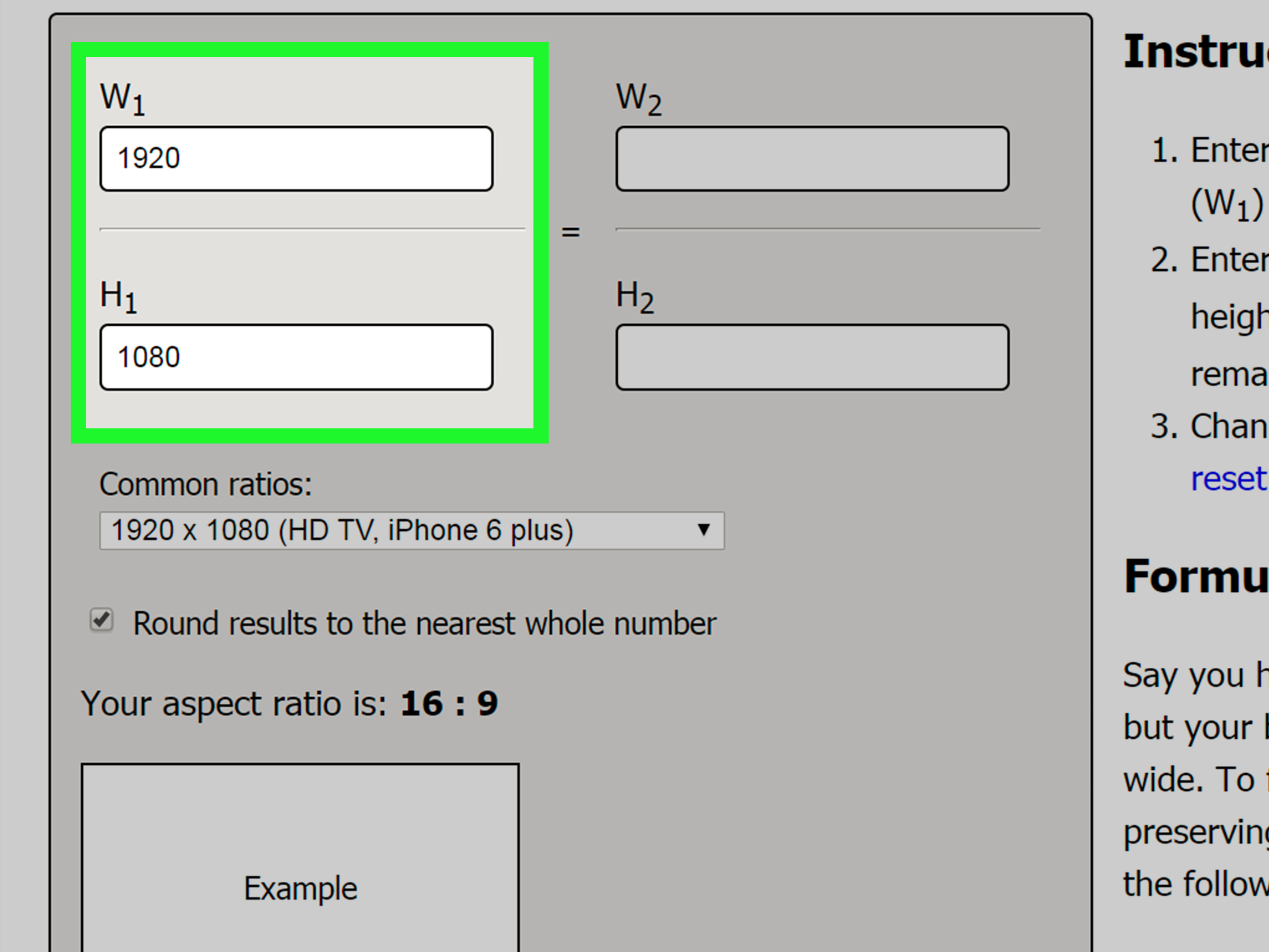
Write down the aspect ratio shown in the specifications. Common examples include 16:9, 16:10, 4:3, 21:9, and 32:9. This ratio tells you how wide the screen is relative to its height.
The Formula for Screen Width, Height, and Area
Once you know a screen’s diagonal and aspect ratio, you can calculate its dimensions. Let:
- D = diagonal size
- a = width part of the aspect ratio
- b = height part of the aspect ratio
The formulas are:
Screen width = D × a ÷ √(a² + b²)
Screen height = D × b ÷ √(a² + b²)
Screen area = width × height
For a 16:9 screen, use 16 for the width value and 9 for the height value. For a 16:10 display, use 16 and 10. The math may look stern, but it is simply the Pythagorean theorem wearing a blazer.
Example: A 55-Inch 16:9 TV
A 55-inch television with a 16:9 aspect ratio has approximate active-screen dimensions of:
- Width: 47.94 inches
- Height: 26.96 inches
- Viewing area: 1,292.58 square inches
That explains why a 55-inch TV is nowhere near 55 inches wide. The 55-inch number runs from corner to corner, not from one side of your wall to the other.
Example: A 65-Inch 16:9 TV
A 65-inch 16:9 TV measures approximately 56.65 inches wide and 31.87 inches high, creating about 1,805.34 square inches of screen area.
Notice what happened: the diagonal increased by about 18%, from 55 inches to 65 inches. The viewing area increased by nearly 40%. This is why a 65-inch TV often feels dramatically larger than a 55-inch model, even though the diagonal difference sounds modest when you say it out loud.
Screen Area Matters More Than Most Shoppers Realize
Diagonal size is easy to advertise, but screen area often provides a better comparison. A larger diagonal does not always mean a taller or more useful display. Shape changes the equation.
| Display Type | Diagonal | Aspect Ratio | Approx. Width | Approx. Height | Approx. Area |
|---|---|---|---|---|---|
| Standard monitor | 27 inches | 16:9 | 23.53 inches | 13.24 inches | 311.50 sq. in. |
| Taller productivity monitor | 27 inches | 16:10 | 22.90 inches | 14.31 inches | 327.64 sq. in. |
| Large standard monitor | 32 inches | 16:9 | 27.89 inches | 15.69 inches | 437.55 sq. in. |
| 34-inch ultrawide | 34 inches | 3440×1440, about 2.39:1 | 31.36 inches | 13.13 inches | 411.76 sq. in. |
The table reveals an important surprise: a 34-inch ultrawide monitor can be much wider than a 32-inch 16:9 monitor while being shorter vertically. That can be wonderful for timelines, spreadsheets, video editing, coding, and side-by-side windows. It may be less wonderful for people who prefer extra vertical room for documents, web pages, or portraits.
Understanding Aspect Ratio
An aspect ratio compares a screen’s width to its height. It is not a measurement in inches. Think of it as the screen’s silhouette.
16:9: The Modern Default
The 16:9 aspect ratio is the most common shape for TVs, mainstream monitors, laptops, streaming video, and gaming content. Typical 16:9 resolutions include 1920×1080, 2560×1440, and 3840×2160. HP and Microsoft both identify these resolutions as familiar examples of modern display formats.
For movies, games, and general use, 16:9 is a comfortable all-purpose shape. It is basically the Swiss Army knife of screen proportions, except it cannot open a bottle of sparkling water after a long workday.
16:10: More Vertical Workspace
A 16:10 screen is slightly taller than a 16:9 display with the same diagonal. This format is common on many productivity-focused laptops and some professional monitors. Acer, for example, lists 16:10 laptop panels with 1920×1200 resolution, which provides more vertical pixels than 1920×1080.
That extra height can be useful for writing, browsing, programming, documents, and spreadsheets. It does not sound dramatic until you spend a day scrolling less often. Then 16:10 begins to feel like the screen quietly packed you an extra sandwich.
21:9 and Ultrawide Screens
Ultrawide monitors are often labeled 21:9, although many popular resolutions are not mathematically exact 21:9. For example, 3440×1440 works out to roughly 2.39:1. The label still communicates the big idea: more horizontal space than a standard 16:9 display.
Lenovo notes that 21:9 displays provide additional horizontal workspace compared with 16:9 monitors, while ViewSonic’s ultrawide monitors emphasize side-by-side windows and broader desktop space.
Ultrawides are excellent for multitasking, cinematic games, editing timelines, financial dashboards, and pretending you are operating a small mission-control station from your home office.
32:9: The Double-Monitor Look Without the Middle Bezel
A 32:9 display is extremely wide. It often resembles two 16:9 monitors placed side by side, except without a bezel running through the center like a tiny visual toll booth. Acer describes 32:9 displays as offering a broad, immersive field of view, especially in curved configurations.
4:3 and 5:4: Older, Specialized, and Still Alive
Older monitors often used 4:3 or 5:4 aspect ratios. These screens remain useful for legacy business software, industrial systems, point-of-sale machines, medical equipment, and applications designed around more vertical shapes. ViewSonic still sells monitors designed specifically for 5:4 workflows, proving that old screen shapes do not disappear; they simply get jobs in places with more barcode scanners.
Resolution Is Not the Same as Screen Size
Screen size tells you the physical dimensions of the display. Resolution tells you how many pixels it contains. They are related, but they are not the same thing.
For example:
- Full HD: 1920×1080 pixels
- QHD: 2560×1440 pixels
- 4K UHD: 3840×2160 pixels
Microsoft explains that resolution measures the number of pixels on the display, while physical screen size is measured diagonally. A 4K display has far more pixels than a 1080p display, but a 4K screen can be physically small, large, or enormous enough to make your desk reconsider its career choices.
A 4K UHD display contains four times as many pixels as a 1080p display because 3840×2160 equals four times the total pixel count of 1920×1080. More pixels can create sharper text, smoother edges, and more detailed images, especially when the screen is large or viewed from close range.
How to Calculate Pixel Density (PPI)
Pixel density is measured in pixels per inch, or PPI. It tells you how tightly pixels are packed into the screen.
PPI = √(horizontal pixels² + vertical pixels²) ÷ screen diagonal in inches
Here are several useful comparisons:
| Resolution | Screen Size | Approx. Pixel Density |
|---|---|---|
| 1920×1080 | 24 inches | 91.8 PPI |
| 1920×1080 | 27 inches | 81.6 PPI |
| 2560×1440 | 27 inches | 108.8 PPI |
| 3840×2160 | 27 inches | 163.2 PPI |
| 3840×2160 | 32 inches | 137.7 PPI |
This is why a 27-inch 1080p monitor may look less crisp than a 27-inch 1440p or 4K monitor. The physical screen is the same size, but its pixels are spread farther apart. DisplayPort’s review of a 31.5-inch 4K monitor, for example, identifies a density of about 138 PPI, illustrating how diagonal size and resolution combine to determine sharpness.
Pixel density is especially important for close-up devices such as monitors, laptops, tablets, and phones. Apple’s iPhone specifications, for instance, list both diagonal display size and pixel density because both measurements shape the viewing experience.
Why Native Resolution Matters
Every LCD, OLED, Mini LED, and similar fixed-pixel display has a native resolution: the exact number of physical pixels built into the panel. For the clearest image, use that native resolution whenever possible.
Microsoft recommends using a monitor’s native or recommended resolution. Lower resolutions can still work, but the display may need to scale the image, which can reduce sharpness or make text and graphics look slightly soft.
In plain English: sending 1080p to a 4K monitor is not always a disaster, but it is a little like printing a beautiful photograph and then viewing it through a frosted shower door. The pixels are there. They are simply not being used as elegantly as they could be.
How Aspect Ratio Affects Movies, Games, and Video
Aspect ratio affects how content fills the screen. A 16:9 YouTube video fits naturally on a 16:9 monitor. A very wide movie may show black bars at the top and bottom. A vertical video on a desktop screen may show empty space on the sides. That is not necessarily a defect; it is the display preserving the original shape of the content instead of stretching actors into cheerful funhouse mirrors.
YouTube states that 16:9 is its standard computer-video aspect ratio and that the player adapts to videos with different shapes. When the video and screen ratios differ, padding or black bars may appear to preserve the image without distortion.
Measuring TVs, Monitors, Laptops, Phones, and Tablets
TVs
Measure the active panel diagonally for screen size. Measure the full outer width, height, and depth for placement. For wall mounting, also confirm the VESA pattern, mount weight limit, cable clearance, and the television’s total depth once mounted.
Computer Monitors
For monitors, check diagonal size, aspect ratio, resolution, PPI, stand footprint, adjustability, and viewing distance. Dell’s monitor specifications show why all of these numbers matter together: a model may list a 27-inch diagonal, 16:9 ratio, 1920×1080 resolution, and a specific pixel density.
Laptops
Laptop screen size is measured diagonally, but laptop body size is not the same as display size. A 14-inch 16:10 laptop may provide more vertical workspace than a larger 15.6-inch 16:9 laptop, while still occupying less space in a backpack.
Phones and Tablets
Phone displays are also advertised by diagonal size, but rounded corners, camera cutouts, slim bezels, and unusual aspect ratios can make two phones with the same listed size feel very different in the hand. Compare width, height, resolution, and PPI rather than treating the diagonal number as the whole story.
Common Screen Measurement Mistakes
- Measuring the bezel: Screen size usually refers to the viewable display, not the frame.
- Assuming inches mean width: A 65-inch TV is not 65 inches wide.
- Ignoring the stand: A TV may fit between two shelves but fail because the feet are wider than expected.
- Comparing diagonals without aspect ratios: A 34-inch ultrawide and a 34-inch 16:9 TV are shaped very differently.
- Confusing resolution with physical size: A 4K 27-inch display and a 4K 65-inch TV have the same pixel count but very different pixel density.
- Forgetting viewing distance: A large TV that looks glorious from the couch can feel overwhelming from two feet away at a desk.
Practical Experience: Lessons That Survive the Tape Measure
The first real-world lesson in measuring screens is that diagonals are excellent at selling displays and terrible at explaining furniture. People often buy a television after seeing the diagonal size, then discover the actual width when the delivery box arrives looking like it has its own zip code. A 65-inch 16:9 TV is roughly 56.65 inches wide before you account for its bezel. Add a frame, a stand, and a little breathing room for cables, and the wall niche that seemed generous can suddenly become a very expensive game of Tetris.
The second lesson is that monitor height is often more important than monitor width. A 34-inch ultrawide sounds larger than a 32-inch standard monitor, and in one way it absolutely is: it delivers a much wider desktop. But its height can be close to that of a 27-inch 16:9 display. This surprises people who expected the ultrawide to feel gigantic in every direction. It feels gigantic horizontally, which is fantastic for side-by-side documents, editing timelines, and spreadsheets with enough columns to require a passport. It may not feel much taller for reading long articles or working with portrait photos.
A third practical lesson involves laptops. A 14-inch 16:10 laptop can feel more spacious for work than a 15.6-inch 16:9 model, even though the 15.6-inch screen sounds noticeably larger. The taller aspect ratio provides additional room for browser tabs, document toolbars, code editors, and long pages. On a plane, in a coffee shop, or at a crowded kitchen table, that extra vertical space can matter more than a slightly wider panel.
Resolution creates another familiar surprise. A 27-inch 1080p monitor can be perfectly usable for everyday browsing, office work, and casual entertainment. Yet when someone places it beside a 27-inch 1440p or 4K monitor, text often looks softer and edges become easier to notice. The difference is not imaginary; the same physical panel size is distributing fewer pixels over the same area. For people who spend long hours reading spreadsheets, editing text, or working with detailed images, pixel density can be just as meaningful as screen size.
Finally, real setups teach the value of measuring twice before ordering once. Measure the active display if you want to compare viewing area. Measure the outside dimensions if you want the device to fit. Measure your desk depth if you are choosing a large monitor. Measure your seating distance if you are choosing a television. Then check the manufacturer’s specification sheet, because product photography is talented at making everything look compact, elegant, and somehow only six inches wide.
In the end, the best screen is not simply the one with the biggest diagonal. It is the one with the right physical dimensions, aspect ratio, resolution, pixel density, viewing distance, and workspace for the way you actually use it. Geometry may not be glamorous, but it is far cheaper than returning a television that has become a permanent resident of your hallway.
Conclusion
To measure screen size correctly, start with the active display’s diagonal measurement, then look beyond the advertised inches. Calculate or check the physical width and height, compare viewing area, confirm the aspect ratio, and consider resolution and pixel density. A larger diagonal can mean a larger screen, but it can also mean a wider screen, a taller screen, a sharper screen, or simply a display that demands a larger desk.
Note: Calculated dimensions are approximate and assume a rectangular active display area. Always verify the manufacturer’s listed viewable area, outer dimensions, stand footprint, and mounting requirements before buying. Rounded corners, curved panels, and “class” labels can create small differences between the advertised size and the exact visible measurement.