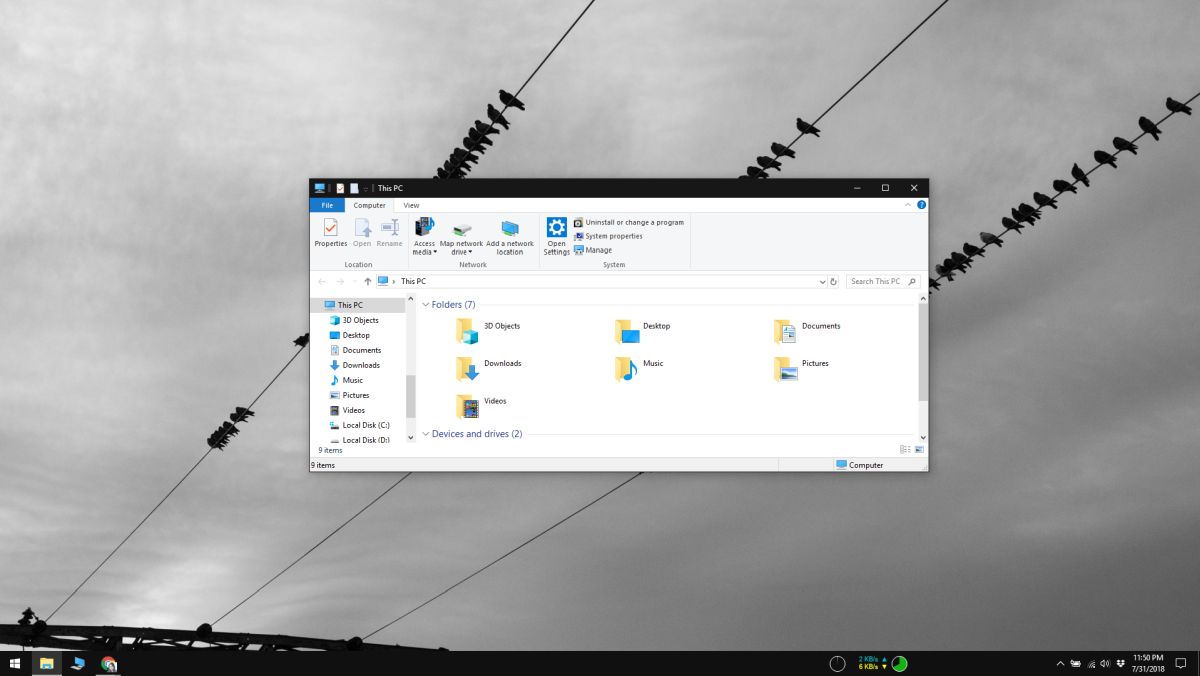
Windows 10 is a little funny about color. It happily offers dark mode, lets you tweak an accent color, and then acts surprised when you ask for one simple thing: a true black look that actually feels black. Instead, you often get charcoal, smoky gray, or that mysterious slightly-brown shade that makes your taskbar look like it drank too much coffee.
The good news is that you can get much closer to a true black accent color on Windows 10. The less-good news is that Microsoft never made this as straightforward as clicking a giant button labeled Make Everything Deliciously Black. To get the darkest possible result, you need the right mix of Windows color mode, accent color settings, transparency controls, and, in some cases, accessibility themes.
This guide breaks it all down in plain English. No fluff, no weird filler, and no ritual chanting at your monitor required.
What “True Black Accent Color” Actually Means on Windows 10
Before changing settings, it helps to define the target. When most people search for true black accent color on Windows 10, they usually mean one of these things:
- A black or nearly black taskbar
- Black Start menu and Action Center surfaces
- Dark or black title bars and window borders
- A cleaner overall Windows 10 dark theme without gray haze or transparency
Here’s the catch: Windows 10 separates dark mode from accent color. Dark mode controls the overall mood of the interface. Accent color controls the splash of color that can appear on certain surfaces like title bars, Start, the taskbar, and the Action Center. So if you want a true black look, you’re not just choosing a color. You’re telling Windows where that color should appear and what visual effects should stop getting in the way.
Can Windows 10 Natively Give You a Pure Black Accent?
Sort of.
Windows 10 can get very close to true black natively, especially on the taskbar and Start menu, but not every part of the operating system obeys the same rulebook. Some surfaces use Windows-controlled neutral dark tones rather than a literal pure black value. That means your result may look black in one area and dark gray in another.
So the honest answer is this: Windows 10 can produce a black-heavy visual style, but it does not always apply a perfect #000000 look everywhere through standard accent settings alone.
If your goal is a practical, attractive, almost-black setup, the built-in settings are usually enough. If your goal is “I want my Windows 10 desktop to look like it was forged in a black hole,” you may need to use contrast themes or advanced tweaks.
Method 1: Use Custom Mode the Right Way
This is the best starting point for most users who want a darker Windows 10 accent color without turning the whole interface into an accessibility project.
Step-by-Step
- Right-click your desktop and choose Personalize.
- Click Colors in the left sidebar.
- Under Choose your color, select Custom.
- Set Choose your default Windows mode to Dark.
- Set Choose your default app mode to Dark if you want the fullest dark look.
- Under Choose your accent color, turn off anything automatic and pick a very dark custom shade.
- Turn on Show accent color on Start, taskbar, and action center.
- Turn on Title bars and window borders if you want the effect there too.
If you skip the Dark or Custom mode step, Windows 10 may gray out part of the accent color controls. That’s one of the most common reasons people think the feature is broken when it’s really just being classic Windows: technically available, emotionally unavailable.
Method 2: Turn Off Transparency Effects
If your taskbar looks smoky instead of black, transparency is probably the culprit.
Windows 10 uses transparency effects to add acrylic blur and depth to surfaces like the Start menu and taskbar. It sounds fancy, and sometimes it looks nice. But if you want the darkest possible Windows 10 taskbar color, transparency often gets in the way by letting wallpaper tones bleed through. That can make your “black” look gray, blue, brown, or slightly haunted.
How to Do It
- Go to Settings > Personalization > Colors.
- Scroll down to Transparency effects.
- Switch it Off.
This one change can make a huge difference. The taskbar becomes more solid, the Start menu looks denser, and the whole interface feels less washed out. If you have a colorful wallpaper, turning transparency off is practically mandatory for a true-black-ish look.
Method 3: Pick the Right Accent Color Surfaces
Not every Windows surface needs accent color. In fact, applying the accent everywhere can make the interface look less black overall.
If your real goal is a black taskbar on Windows 10, you may want to be selective:
- Turn on accent color for Start, taskbar, and action center if you want those areas darker and more unified.
- Leave title bars off if the custom accent you choose makes windows look less elegant.
- Turn title bars on only if you specifically want darker borders and you like the extra contrast.
There is no law requiring every title bar to dress like your taskbar. Windows 10 personalization looks best when you treat it like decorating a room, not painting the entire house with one bucket.
Method 4: Use a Very Dark Custom Accent Color
Windows 10 gives you a palette of preset accent colors, but presets are often a little too lively for people chasing a stealthy black desktop. A custom color works better.
Choose the darkest neutral option available in the color picker. In many setups, a very deep charcoal or near-black gives better results than forcing absolute black, because the interface keeps better contrast with icons, outlines, and text. In other words, the best-looking “true black accent color” is sometimes a color that is technically not 100% black but visually reads that way.
This is especially true on displays where pure black can make edges disappear or create a flatter, harsher look. Ironically, chasing black too aggressively can make Windows look less polished, not more.
Method 5: Try High Contrast Black for the Darkest Built-In Result
If the normal Windows 10 color settings still look too gray, there is a heavier-duty option: High Contrast Black.
This is not the same thing as the regular dark theme. It is an accessibility-oriented theme designed for stronger separation between text and interface elements. That means it can deliver a much darker experience, but it also changes the visual language of Windows more dramatically.
How to Turn It On
- Open Settings.
- Go to Ease of Access or Accessibility, depending on your Windows 10 version.
- Open High contrast.
- Select High Contrast Black.
- Apply the theme.
This is the closest built-in option to a truly black interface across more areas of the system. The tradeoff is that it can make Windows look more utilitarian than stylish. Think less “modern premium desktop” and more “I have defeated glare and I regret nothing.”
Why Your “Black” Still Looks Gray, Brown, or Blue
If you followed the steps and still don’t have the look you expected, one of these is usually responsible:
1. Transparency Is Still On
This is the biggest offender. It lets wallpaper tones influence the taskbar and Start menu.
2. Accent Color Is Set to Automatic
When Windows chooses the accent from your background, it often selects something stylish instead of something dark. Stylish is cute. Stylish is not black.
3. You’re in Light Mode
Windows 10 restricts some accent color options when the system is set to Light mode. If the controls are grayed out or barely do anything, switch to Dark or Custom with Windows mode set to Dark.
4. Your Wallpaper Is Influencing the Perception
Even when settings are correct, a bright wallpaper can make nearby dark surfaces appear lighter. If you want the deepest visual result, pair your setup with a darker background.
5. Some Elements Use System Neutrals
This is the part that frustrates perfectionists. Windows uses built-in neutral dark values for readability and contrast in many places, so not every panel or border will become a literal black square just because you want one. Microsoft tends to prioritize legibility over giving every user their own bat cave.
Advanced Option: Registry Tweaks and Third-Party Tools
Yes, there are older registry tweaks and customization utilities floating around the internet that promise true black title bars, blacker taskbars, or more control over where accent color appears. Some power users have used these successfully, especially for title bar behavior.
But there’s a reason these tricks live in “advanced” territory:
- Behavior can vary by Windows 10 build
- An update may undo the tweak
- Some hacks affect only one surface, not the entire interface
- You can make your desktop look weird faster than you can say “Why is File Explorer angry?”
If you go down this road, create a restore point first and back up the relevant registry keys. For most people, the built-in dark mode, manual accent color, and disabled transparency combination is the smarter and safer solution.
Best Settings Combo for a Near-True Black Look
If you want the quickest practical formula, use this setup:
- Choose your color: Custom
- Default Windows mode: Dark
- Default app mode: Dark
- Accent color: Manual, very dark neutral
- Show accent color on Start, taskbar, and action center: On
- Show accent color on title bars and window borders: Optional
- Transparency effects: Off
- Wallpaper: Dark or muted
If that still isn’t black enough, try High Contrast Black and decide whether the stronger accessibility styling works for you.
Real-World Experiences With a True-Black-Style Windows 10 Setup
Once people switch to a darker Windows 10 setup, the first thing they usually notice is how much calmer the desktop feels. Bright white interfaces are fine at noon in a sunny office, but at night they can feel like your monitor is trying to interrogate you. A near-black taskbar and darker windows reduce that visual punch. The desktop fades into the background, and your apps become the stars of the show instead of the operating system constantly yelling, “Look at me! I’m a panel!”
Another common experience is that a true-black-style setup makes the computer feel more organized, even if nothing about the workflow actually changed. A darker taskbar tends to make icons stand out better, especially if you keep the desktop fairly clean. People often report that pinned apps are easier to scan quickly, and that the overall workspace feels more focused. It is a small design change, but small design changes add up when you stare at the same screen for hours every day.
That said, many users also discover that “true black” is not always the aesthetic slam dunk they imagined. On some monitors, especially older or lower-quality panels, pure black and very dark gray can blend together in a way that makes borders harder to spot. Title bars can lose definition. Window edges become subtle to the point of invisibility. In those cases, a rich charcoal accent often looks better than absolute black. It still feels dark and modern, but it gives the interface just enough separation to remain easy to use.
There is also the wallpaper factor. Plenty of people think their settings failed when the real problem is that they are using a bright blue beach wallpaper behind a translucent taskbar. That combination can make even a carefully chosen accent color look dusty or tinted. The moment transparency is disabled and the wallpaper is swapped for something darker, the whole setup suddenly looks intentional instead of confused. It is one of those classic Windows moments where the fix is simple, but only after you know where Microsoft hid the switch.
Users who try High Contrast Black often have mixed experiences. Some love it because it finally delivers the strong black surfaces they wanted in the first place. Others switch back after a day because it changes too much of the visual style. Menus, buttons, and text can look sharper and more severe. It is fantastic if your top priority is clarity and darkness. It is less fantastic if you wanted a sleek designer vibe and got something that feels more like mission control.
Productivity-wise, a darker setup can be especially nice for writing, coding, casual browsing, and media use. Many people say it reduces the feeling of eye fatigue in dim rooms, though personal preference and screen quality matter a lot. On the flip side, some users still prefer lighter app windows for spreadsheets, document editing, or detailed office work. That is where Windows 10’s Custom mode can help, because you can keep the Windows shell dark while making app behavior work better for your daily habits.
In real life, the best experience usually comes from aiming for balanced black, not obsessive black. Turn off transparency, use Dark mode, pick a deep manual accent color, and stop just short of making every interface element disappear into a void. You want your Windows 10 desktop to look clean, modern, and comfortably dark, not like it is actively trying to hide from you.
Final Thoughts
If you want to get a true black accent color on Windows 10, the smartest approach is to combine Custom mode, Dark Windows mode, a manual dark accent color, and disabled transparency effects. That setup delivers the darkest practical result for most people while keeping the system attractive and easy to use.
If regular dark mode still looks too gray, High Contrast Black is the strongest built-in alternative. And if you are tempted by registry hacks, proceed carefully and only after backing up your system. Windows 10 personalization can absolutely look sharp, but it also has a long and proud tradition of making simple cosmetic changes feel like side quests.
Still, once you get the settings dialed in, the result is worth it: a cleaner desktop, a moodier interface, and a PC that finally looks like it has its life together.