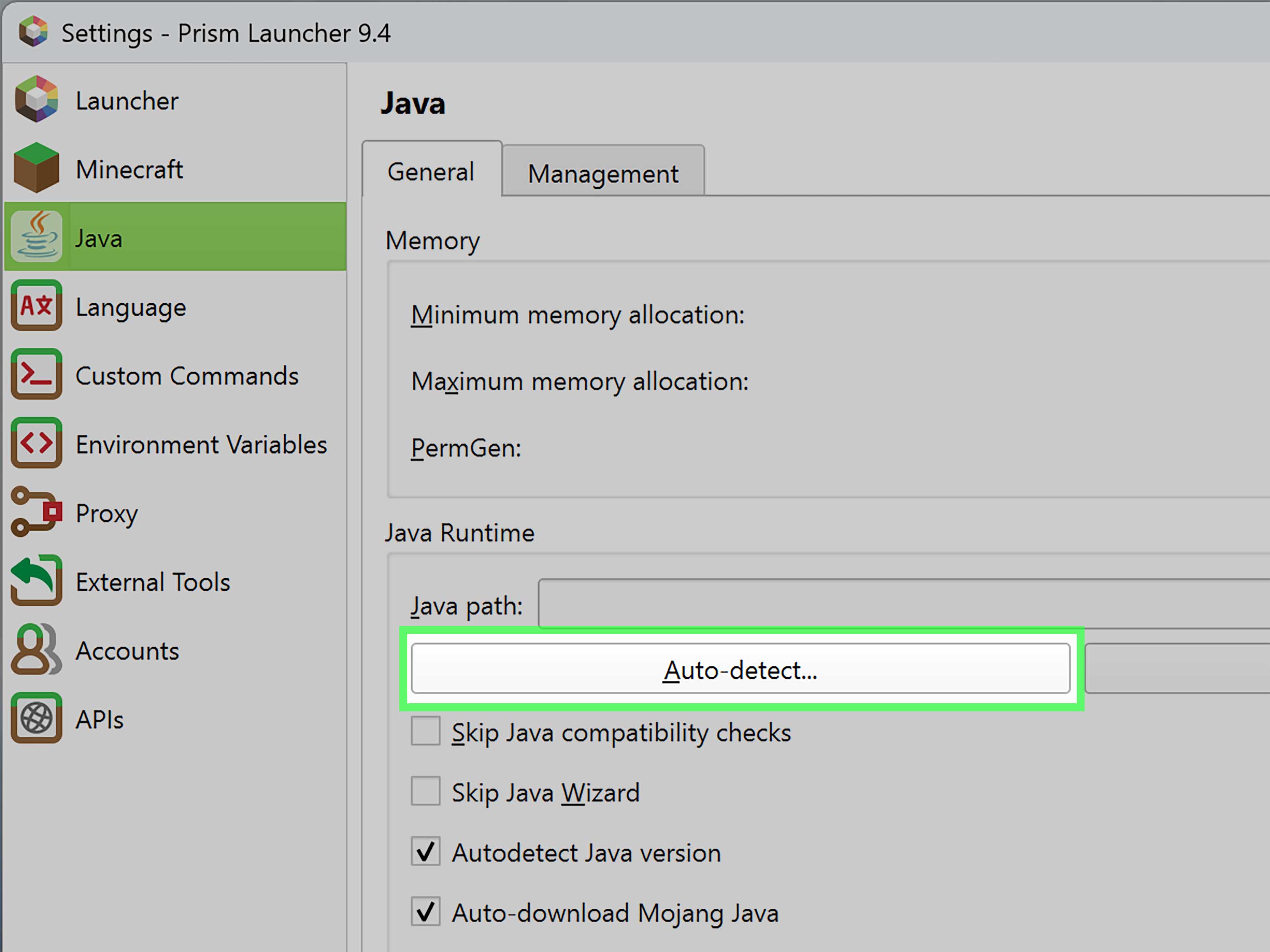
The "Could Not Create the Java Virtual Machine" error has a talent for appearing at the worst possible moment. You double-click a game, development tool, server, or Java application, and instead of getting useful software, you receive a tiny dialog box announcing that the JVM has given up before breakfast.
The good news is that this message rarely means Java is permanently broken. It usually means the Java launcher encountered an invalid option, an impossible memory request, a mismatched installation, or a configuration file left behind by another Java version. In other words, Java has not exploded. It has merely found a setting it refuses to negotiate with.
This guide explains how to identify the exact cause, repair Java memory settings, remove obsolete JVM arguments, correct environment variables, and resolve Java version conflicts on Windows, macOS, and Linux.
What Does the Error Mean?
The Java Virtual Machine, or JVM, is the runtime environment that executes Java applications. Before an application can open, the Java launcher must initialize the JVM, reserve memory, load required components, and process every startup option it receives.
If one of those steps fails, Java may display messages such as:
That final message is generic. The line immediately above it is usually far more useful. It may identify an unrecognized option, an invalid heap size, an unsupported feature, or another specific startup failure. Oracle’s Java documentation demonstrates that even one value outside an option’s permitted range can stop the JVM from launching.
Common causes at a glance
| What You See | Likely Cause | Best First Fix |
|---|---|---|
| Invalid maximum heap size | The -Xmx value is too large or incorrectly written |
Reduce or correct the memory value |
| Unrecognized VM option | An obsolete, misspelled, or incompatible JVM argument | Remove the named option |
| Error appears in every Java application | A global Java environment variable is injecting bad options | Inspect Java-related environment variables |
| Application worked before a Java update | The program and Java version are incompatible | Install a supported JDK or update the application |
| Java command points to an unexpected folder | Incorrect JAVA_HOME or PATH |
Repair the installation paths |
1. Read the Complete Error Before Changing Anything
Do not focus only on the dramatic final sentence. Open Command Prompt, PowerShell, Terminal, or the application’s log file and look for the first meaningful error.
Start by running:
If Java starts normally and prints a version number, the system-wide Java installation probably works. The problem is more likely inside the affected application’s launcher, shortcut, configuration file, or custom JVM arguments.
If java -version produces the same JVM error, investigate global environment variables, memory options, and the Java installation itself.
On Windows, also run:
On macOS or Linux, use:
These commands reveal which executable is actually being launched. Multiple results can expose an old Java installation quietly hiding earlier in your PATH.
2. Correct Invalid Java Memory Settings
Memory arguments are among the most frequent causes of the Could Not Create the Java Virtual Machine error. Java commonly uses these two options:
-Xmssets the initial Java heap size.-Xmxsets the maximum Java heap size.
Oracle documents both options as controls for the Java heap. It also warns that the JVM consumes additional memory beyond the configured heap, so the maximum heap should not consume all available physical RAM.
Check the syntax
A valid setting looks like this:
Common mistakes include:
The usual format has no equals sign or space. Use m for megabytes or g for gigabytes.
Reduce an unrealistic heap request
If an application requests -Xmx8g on a computer with 8 GB of total RAM, Java may be unable to reserve enough memory after Windows, background programs, native JVM memory, graphics software, and your collection of 37 browser tabs claim their portions.
Try a conservative test value:
If the application starts, increase the maximum gradually only when its workload requires more memory.
Check for 32-bit Java
A 32-bit Java runtime has a much smaller usable address space than a 64-bit runtime. Assigning several gigabytes of heap to 32-bit Java can fail even when the computer has plenty of installed RAM.
Run java -version and look for wording such as 64-Bit Server VM. If you have a 64-bit operating system and a memory-intensive application, install a matching 64-bit JDK or JRE.
3. Remove Invalid or Obsolete JVM Options
Java startup options are not universal across every version, vendor, or virtual machine. An argument accepted by one Java release may be renamed, restricted, ignored, or removed in another.
For example, older configuration files may still contain PermGen options such as:
Permanent generation memory was removed in Java 8, making those options obsolete for modern runtimes. Eclipse documentation likewise notes that Java 8 no longer has a separate permanent generation space.
Other failures can come from misspelled arguments, unsupported garbage collectors, copied tuning advice for a different JVM, or values outside an allowed range.
Use a simple isolation test
- Make a backup of the application’s JVM configuration file.
- Remove custom
-Xand-XXoptions temporarily. - Keep only essential settings, such as a modest
-Xmxvalue. - Start the application again.
- Add required options back one at a time.
When Java prints Unrecognized VM option or Improperly specified VM option, remove or correct the exact option named in that line. Do not reinstall your entire operating system because one hyphen developed an attitude.
4. Inspect Global Java Environment Variables
A JVM option does not have to appear in the application’s shortcut or configuration file. Java can receive arguments from environment variables, including:
JDK_JAVA_OPTIONSJAVA_TOOL_OPTIONS_JAVA_OPTIONS
Oracle states that JDK_JAVA_OPTIONS prepends its contents to the Java launcher’s command line. Oracle also documents JAVA_TOOL_OPTIONS as a way to augment JVM startup settings, while Microsoft’s Java tooling recognizes these variables across supported Java versions.
This is useful for administrators and diagnostic tools, but troublesome when an old memory setting affects every Java program on the machine.
Check variables on Windows
In Command Prompt, run:
In PowerShell, run:
You can also search for Edit the system environment variables, open Environment Variables, and inspect both the user and system sections.
Check variables on macOS or Linux
If one contains a suspicious argument such as an enormous -Xmx value or an unsupported -XX flag, remove the variable or correct its contents. Open a new terminal window or restart the application afterward.
5. Repair JAVA_HOME and PATH
JAVA_HOME should point to the main JDK directory, not directly to java.exe and usually not to the bin folder.
A typical Windows value is:
Your PATH can then include:
Apache Maven requires either a correctly configured JAVA_HOME or a working Java executable on PATH. Red Hat and Adoptium installation documentation similarly recommends adding the JDK’s bin directory to PATH and setting JAVA_HOME when applications rely on it.
Common path mistakes
JAVA_HOMEpoints to a deleted Java folder.JAVA_HOMEpoints to...\bin\java.exe.- An older Java
bindirectory appears first inPATH. - The application expects a JDK but receives a limited or incomplete runtime.
- A manually moved JDK is missing files referenced by registry entries or launchers.
Verify the repaired paths
Close all terminal windows, open a new one, and run:
If both commands report the expected version, the basic JDK path is working.
6. Fix the Application’s Own JVM Configuration
Many Java applications store startup options separately from system-wide Java settings. Search the application directory and user configuration folders for files ending in:
.ini.vmoptions.conf.properties.bator.cmd.sh
Eclipse
Eclipse normally reads JVM arguments from eclipse.ini. Arguments after -vmargs are passed to Java, while Eclipse-specific launcher arguments belong before that line. Incorrect ordering or obsolete options can prevent startup. Eclipse also warns that another Java installation can alter the system path and cause Eclipse to launch with a different JVM.
A minimal example might resemble:
IntelliJ IDEA and other JetBrains tools
JetBrains applications can use custom .vmoptions files that override defaults. JetBrains recommends editing these through the application’s custom VM options command when the IDE can open, or repairing the custom file manually when it cannot.
Gradle and Maven
Gradle JVM arguments may appear in gradle.properties:
Maven arguments may be stored in MAVEN_OPTS, .mvn/jvm.config, shell profiles, or build scripts.
Also verify that the build tool supports the installed Java version. Current Gradle releases publish a JVM compatibility matrix because the version used to run Gradle is not automatically interchangeable with every JDK release.
7. Install a Compatible Java Version
Some programs require a particular Java generation. A legacy application may depend on Java 8 or 11, while a newer development tool may require Java 17 or later. Installing the newest JDK does not magically make every older launcher understand it.
Check the application’s official system requirements. Then choose one of these approaches:
- Update the application so it supports your installed Java version.
- Install the Java version required by the application.
- Configure the application to use its bundled runtime.
- Use a toolchain or per-application Java path instead of changing the entire system.
Oracle’s migration documentation also identifies removed mechanisms, including legacy extension and endorsed-directory configurations, that can trigger JVM creation errors after upgrading from JDK 8 to later releases.
8. Reinstall Java Cleanly When Necessary
If java -version fails after you remove custom arguments and repair the paths, the installation may be incomplete or corrupted.
- Record which Java version your application requires.
- Uninstall damaged or obsolete Java installations.
- Restart the computer if files were locked.
- Install the correct architecture and Java version from a trusted distributor.
- Enable installer options that configure
PATHandJAVA_HOME, when available. - Run
java -versionbefore reopening the application.
Java.com recommends removing nonworking installations before reinstalling and provides tools for identifying outdated Windows installations. Adoptium’s Windows installer can also add Java to PATH during setup.
9. Use a Clean-Launch Troubleshooting Method
When the cause remains unclear, reduce the startup process to the smallest possible configuration:
- Confirm that
java -versionworks. - Temporarily clear global Java option variables.
- Back up the application’s JVM configuration.
- Remove all optional memory, debugging, agent, and garbage-collection flags.
- Start with a moderate heap such as
-Xmx1024m. - Launch the application directly from a terminal to capture the complete error.
- Restore one custom option at a time until the failure returns.
This method is not glamorous, but neither is searching random forums for seven hours and eventually discovering that -Xmx4GB should have been -Xmx4g.
Platform-Specific Checks
Windows
- Use
where javato find competing installations. - Inspect user and system environment variables.
- Confirm that the application and Java architecture are compatible.
- Check shortcuts, batch files, registry-dependent launchers, and application-specific configuration directories.
- Open Command Prompt from the application folder and launch it there to capture hidden console output.
macOS
Use these commands to inspect installed JDKs and the active runtime:
Shell configuration files such as ~/.zshrc, ~/.bash_profile, and ~/.profile may override JAVA_HOME or inject Java options.
Linux
Check the selected Java executable:
On distributions that support alternatives, inspect the active selection:
Also review service definitions, container limits, shell profiles, and startup scripts. A server launched by systemd may use different environment variables from those visible in your interactive terminal.
Frequently Asked Questions
Does this error always mean the computer lacks RAM?
No. Insufficient memory is only one possible cause. The same message can result from invalid JVM arguments, unsupported options, incorrect paths, a damaged installation, or a Java version mismatch.
Should I increase the Xmx value?
Only when the application starts successfully but later reports java.lang.OutOfMemoryError. If Java cannot create the JVM at all, an oversized -Xmx value may be the problem, so reducing it is often the better test.
Is "Java heap space" the same error?
Not exactly. A Java heap space error usually occurs after the JVM has started and the running application cannot allocate another object. The JVM creation error occurs earlier, during startup.
Can multiple Java versions remain installed?
Yes, especially for development work, but they must be managed carefully. Each application should point to the intended runtime, and JAVA_HOME and PATH should not accidentally select an incompatible installation.
Will reinstalling Java always fix the problem?
No. Reinstallation will not repair a bad -Xmx value inside eclipse.ini, a broken JAVA_TOOL_OPTIONS variable, or an application that does not support your Java version. Diagnose the startup arguments first.
Practical Experiences: What These JVM Failures Look Like in Real Life
Experience 1: The memory upgrade that prevented startup
One of the most common scenarios begins with good intentions. A user reads that a heavily modified Java game or data-processing tool performs better with more memory. The computer has 8 GB of RAM, so the launcher is changed from -Xmx2g to -Xmx8g. On the next launch, Java immediately reports that it could not create the virtual machine.
The mistake is assuming that installed RAM and safely available JVM heap are the same number. They are not. The operating system, browser, graphics driver, antivirus software, native JVM components, and other processes all require memory. The JVM also uses memory outside the Java heap.
Reducing the maximum to -Xmx4g may solve the problem on an otherwise lightly loaded 8 GB computer, although -Xmx2g or -Xmx3g can provide more breathing room. The practical lesson is to increase memory gradually and test after each change. Bigger is not automatically faster, especially when “bigger” prevents the program from existing.
Experience 2: A hidden environment variable broke every Java program
Another frustrating case occurs when an application installer, corporate management tool, profiler, or old troubleshooting guide creates _JAVA_OPTIONS or JAVA_TOOL_OPTIONS. Months later, the user updates Java, and an option stored in that variable is no longer supported.
Suddenly Eclipse, a game launcher, a database utility, and a command-line application all fail. Reinstalling each program changes nothing because the invalid argument is injected globally whenever a JVM starts.
The clue is consistency: unrelated Java applications produce nearly identical startup errors. Running java -version may also print a line such as Picked up JAVA_TOOL_OPTIONS before the failure.
Removing the obsolete value from the Windows Environment Variables panel, shell profile, service configuration, or container settings restores Java everywhere at once. This is why a system-wide test should come before application-specific surgery. When five lamps stop working simultaneously, inspect the breaker before replacing five bulbs.
Experience 3: Eclipse opened with the wrong Java installation
A developer may install a new JDK for one project without realizing that the installer has modified PATH. The next time Eclipse starts, its launcher discovers a different JVM from the one previously used. An old eclipse.ini file may contain tuning options that the new JVM rejects, or the Eclipse release itself may not support that Java version.
The most reliable repair is to make the Java selection explicit. Eclipse supports a -vm entry that can point to the intended Java executable. After that, obsolete arguments below -vmargs can be removed and the heap can be set to a reasonable value.
This experience teaches an important distinction: installing Java correctly does not guarantee that every Java program will select the correct installation. Launchers, build tools, services, terminal sessions, and graphical applications may each resolve Java differently.
Experience 4: The copied optimization flag that was never needed
Java users often copy long strings of “performance” arguments from tutorials, old forum posts, server templates, or someone’s aggressively optimized gaming setup. The list may include a garbage collector unavailable in the installed JDK, an option intended for another JVM vendor, or a flag removed years ago.
The application then fails before it can run, even though the original default configuration worked perfectly. The solution is usually to return to a minimal setup and add only options that solve a measured problem.
A small configuration is easier to understand, upgrade, and troubleshoot. Start with the application vendor’s defaults, set only the memory the workload genuinely needs, and document every additional JVM argument. Future you will be grateful, particularly when present you has forgotten why -XX flags were sprinkled through three different configuration files.
Conclusion
The "Could Not Create the Java Virtual Machine" error is usually a configuration problem rather than a catastrophic Java failure. Begin with the line above the generic error, confirm that java -version works, and identify which Java executable is actually running.
Next, correct malformed or oversized -Xmx and -Xms values, remove unsupported JVM arguments, inspect global Java option variables, and repair JAVA_HOME and PATH. When only one application fails, check its private .ini, .vmoptions, properties file, shortcut, or startup script. Reinstall Java only after configuration issues and compatibility requirements have been checked.
A methodical approach beats random reinstallations. Java is usually telling you what went wrong; it just tends to place the useful clue one line before the sentence everyone Googles.