Digital Wellbeing is one of those Android features that sounds noble, helpful, and slightly judgmental all at once. It tells you how much time you spend on Instagram, how often you unlock your phone, which apps hijack your attention, and whether your bedtime routine is more “calm evening” or “doomscrolling Olympics.” For many people, it is useful. For others, it feels like a tiny digital supervisor living inside the Settings app.
If you are searching for how to disable Digital Wellbeing on Android, you probably want one of three things: stop Android from tracking your app usage, remove Digital Wellbeing from sight, or turn off specific features like App Timers, Focus Mode, Bedtime Mode, or parental controls. The important thing to know upfront is this: on many Android phones, Digital Wellbeing is a system feature, so you may not be able to fully uninstall it like a normal app. However, you can usually turn off usage access, clear its data, disable its tools, hide its icon, or disable the app where your device allows it.
This guide walks you through the easiest methods for Google Pixel, Samsung Galaxy, Motorola, OnePlus, and most modern Android phones. The exact wording may vary because Android manufacturers love renaming menu items the way coffee shops rename “large” to “venti,” but the core steps are very similar.
What Is Digital Wellbeing on Android?
Digital Wellbeing is Android’s built-in screen time and phone usage dashboard. It can show your screen time, app usage, unlock count, notification count, and activity patterns. Depending on your phone, it may also include App Timers, Focus Mode, Bedtime Mode, Do Not Disturb scheduling, Heads Up reminders, parental controls, and related tools designed to help you use your phone more intentionally.
Google designed Digital Wellbeing to help users build healthier phone habits. App Timers can limit social media use. Focus Mode can temporarily pause distracting apps. Bedtime Mode can dim the screen, switch to grayscale, and silence notifications. Parental controls may connect with Google Family Link so parents can manage a child’s screen time and app access.
That all sounds useful, and for many people it is. But not everyone wants a screen time dashboard. Some users dislike the constant tracking. Others find the feature unnecessary, buggy, duplicated by a third-party app, or simply annoying. Maybe you already know you spent four hours on YouTube yesterday and do not need Android to present the evidence like a courtroom exhibit.
Can You Completely Uninstall Digital Wellbeing?
Usually, no. On many Android devices, Digital Wellbeing is installed as a system app or integrated into the Settings app. That means the standard “Uninstall” button may not appear. On some phones, you may see options such as Disable, Force stop, Uninstall updates, or Clear data. On other phones, those options may be grayed out.
The practical answer is that most users should disable Digital Wellbeing by turning off its Usage Access. Usage Access is the special permission that allows the feature to read app usage statistics, screen time, and related activity. Once that permission is removed, Digital Wellbeing loses much of its tracking power. The app may still exist on your phone, but its dashboard becomes far less useful because it can no longer collect the same usage data.
If you want a safe, reversible method, start with Usage Access. It does not require rooting your phone, using ADB commands, or doing anything dramatic enough to make your warranty sweat.
Method 1: Turn Off Digital Wellbeing Usage Access
This is the best method for most Android users. It prevents Digital Wellbeing from collecting daily device usage data while keeping your phone stable.
Steps for Most Android Phones
- Open the Settings app.
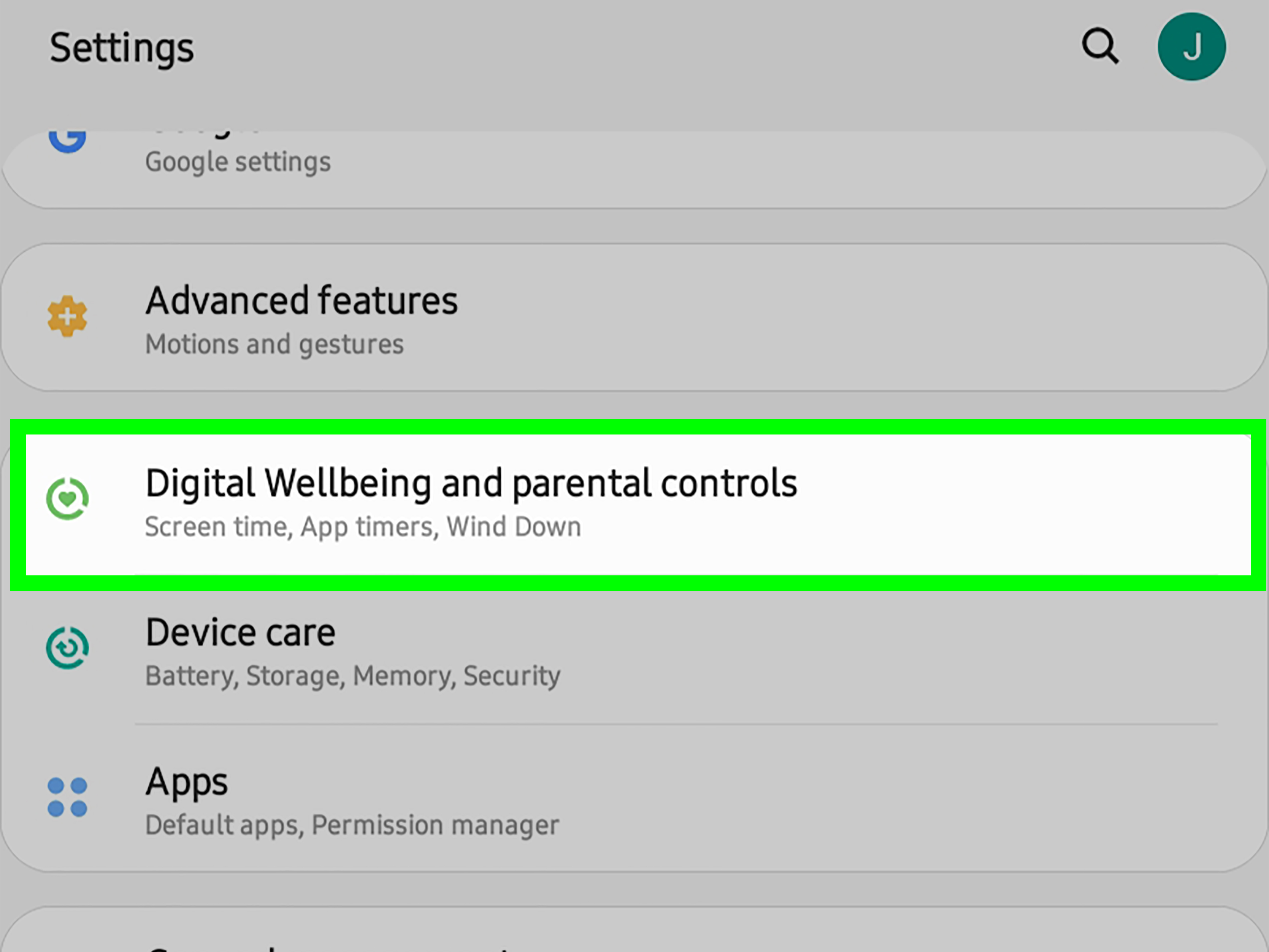
- Tap Digital Wellbeing & parental controls.
- Tap the three-dot menu in the top-right corner, if available.
- Select Manage your data, Settings, or Usage access.
- Find Daily device usage or Digital Wellbeing.
- Turn off the toggle for usage access.
- Confirm your choice when Android warns you that some features may stop working.
After this, the Digital Wellbeing dashboard may stop updating correctly. App timers, screen time reports, unlock counts, and notification tracking may be limited or unavailable. That is the point. You have basically told the dashboard, “Thank you for your service, but please stop watching me open the same app fifteen times before breakfast.”
Alternative Path Through Special App Access
If you cannot find the option inside Digital Wellbeing, use Android’s Special App Access menu:
- Open Settings.
- Tap Apps.
- Tap Special app access. On some devices, this is under Privacy, Security & privacy, or the three-dot menu.
- Tap Usage access or Apps with usage access.
- Select Digital Wellbeing.
- Turn off Permit usage access or Allow usage access.
This route works well on many Android phones because Usage Access is a system-level permission. Even when manufacturers move Digital Wellbeing settings around, the Usage Access permission usually remains searchable.
Method 2: Clear Digital Wellbeing Data
If you want to reset the dashboard and remove existing screen time history stored locally by the app, you can clear its app data. This does not always delete every related system record, but it can reset Digital Wellbeing’s visible dashboard, preferences, timers, and saved settings.
How to Clear the Data
- Open Settings.
- Tap Apps or Apps & notifications.
- Tap See all apps, if needed.
- Tap the three-dot menu and choose Show system, if Digital Wellbeing is hidden.
- Select Digital Wellbeing.
- Tap Storage & cache.
- Tap Clear storage or Clear data.
- Confirm the action.
Clearing data is helpful if Digital Wellbeing is showing incorrect numbers, if old App Timers keep returning, or if you want to start fresh. For best results, clear data after turning off Usage Access. Otherwise, the dashboard may begin collecting new information again.
Method 3: Disable Digital Wellbeing App Timers
If your main problem is that apps keep locking you out after a time limit, you do not need to disable the entire feature. You can simply remove App Timers.
Remove App Timers
- Open Settings.
- Tap Digital Wellbeing & parental controls.
- Tap the dashboard or the app list.
- Select the app with a timer.
- Tap the timer icon or existing limit.
- Choose Delete timer, No timer, or set the limit to none.
On Samsung Galaxy phones, you may see an App timers section directly under Digital Wellbeing and parental controls. Tap it, choose the app, and remove or adjust the timer. On Motorola and other near-stock Android phones, the path is usually closer to Google’s version.
This is the cleanest option if you still like seeing screen time stats but do not want Android to lock you out of TikTok right when the recipe video finally gets to the actual recipe.
Method 4: Turn Off Focus Mode
Focus Mode pauses selected apps and blocks their notifications. It is great when you are studying, working, or pretending you are not checking fantasy football during a meeting. But if it turns on automatically, it can feel like your phone suddenly developed strict office hours.
Turn Off Focus Mode Now
- Open Settings.
- Tap Digital Wellbeing & parental controls.
- Tap Focus Mode.
- Tap Turn off now.
Remove the Focus Mode Schedule
- Go to Settings.
- Open Digital Wellbeing & parental controls.
- Tap Focus Mode.
- Find the schedule section.
- Tap the trash icon, remove the schedule, or turn off scheduled activation.
If Focus Mode keeps coming back, check Quick Settings too. Swipe down from the top of the screen and look for a Focus Mode tile. Long-pressing the tile can take you directly to its settings.
Method 5: Turn Off Bedtime Mode
Bedtime Mode can silence notifications, dim your wallpaper, switch the screen to grayscale, and activate Do Not Disturb. It is helpful if you are trying to sleep. It is less helpful when your phone turns gray at 9:30 p.m. and you feel like you are texting from a 1940s documentary.
Disable Bedtime Mode
- Open Settings.
- Tap Digital Wellbeing & parental controls.
- Tap Bedtime Mode.
- Turn off the schedule.
- Disable related options such as grayscale, Do Not Disturb, dim wallpaper, or screen dimming.
On some Android phones, Bedtime Mode may also appear under Clock, Modes and Routines, or Do Not Disturb schedules. If your phone still goes quiet or gray at night after disabling Bedtime Mode, check those areas too.
Method 6: Hide Digital Wellbeing From the App List
Some Android phones let you show Digital Wellbeing as an app icon in the app drawer. If you only want to remove the icon, you can hide it without disabling the entire feature.
- Open Settings.
- Tap Digital Wellbeing & parental controls.
- Tap the three-dot menu.
- Look for Show icon in the app list or Show Digital Wellbeing on Apps screen.
- Turn it off.
This does not stop tracking by itself. It only removes the shortcut. Think of it as putting Digital Wellbeing in the junk drawer, not throwing it out of the house.
Method 7: Disable the Digital Wellbeing App If Your Phone Allows It
Some Android phones allow Digital Wellbeing to be disabled like other preinstalled apps. Others do not. If the Disable button is available, this can remove the app from your launcher and stop it from running normally.
Try Disabling It Through Settings
- Open Settings.
- Tap Apps.
- Tap See all apps.
- Tap the three-dot menu and choose Show system, if needed.
- Select Digital Wellbeing.
- Tap Disable, if the option is available.
- Confirm your choice.
If Disable is grayed out, your phone manufacturer does not allow you to disable it through normal settings. In that case, use the safer approach: turn off Usage Access, clear data, remove timers, and disable schedules.
How to Disable Digital Wellbeing on Samsung Galaxy
Samsung Galaxy phones use Android, but Samsung’s One UI changes the layout. Digital Wellbeing is usually easy to find.
- Open Settings.
- Tap Digital Wellbeing and parental controls.
- Open App timers to remove limits.
- Open Focus mode or related modes to turn off app pausing.
- Use the Settings search bar and search for Usage access.
- Tap Digital Wellbeing and turn off its usage access, if available.
Samsung may also have Modes and Routines, which can overlap with Digital Wellbeing features. If your phone changes behavior automatically at certain times, check Settings > Modes and Routines for sleep, work, driving, or custom routines.
How to Disable Digital Wellbeing on Google Pixel
On Pixel phones, Digital Wellbeing is closely tied to Google’s stock Android experience. You may not be able to remove it completely, but you can stop usage tracking.
- Open Settings.
- Tap Digital Wellbeing & parental controls.
- Tap the three-dot menu.
- Tap Manage your data.
- Turn off Daily device usage, if shown.
- Alternatively, search Settings for Usage access and revoke access for Digital Wellbeing.
Pixel users should also check Bedtime Mode, Focus Mode, and Do Not Disturb schedules if the phone keeps silencing notifications or changing display behavior.
How to Disable Digital Wellbeing on Motorola and OnePlus
Motorola phones often follow a near-stock Android layout. Go to Settings > Digital Wellbeing & parental controls, then remove App Timers, turn off Focus Mode, and search for Usage Access to revoke tracking permission.
OnePlus phones may include Digital Wellbeing plus OnePlus-specific features such as Zen Mode. If your phone is being locked down by Zen Mode, disabling Digital Wellbeing alone may not help. Open the Zen Mode app or OnePlus wellness settings and turn off schedules or reminders there. Zen Mode is separate from standard Android App Timers, so treat it as its own feature.
What About Parental Controls?
If your phone is managed with Google Family Link, school management software, work profile policies, or carrier controls, you may not be able to disable certain settings yourself. Parental controls are designed to require the parent or guardian account. Work and school devices may be controlled by an administrator.
If this is your own device and you are the adult account holder, open Settings > Digital Wellbeing & parental controls and review the parental controls section. If the phone is supervised, you may need to use the parent account or remove supervision through the proper Google account process. Do not try to bypass restrictions on a device that belongs to a school, workplace, parent, or organization. Besides being a bad idea, it may create account, policy, or security problems.
Does Disabling Digital Wellbeing Improve Battery Life?
Some users report that disabling Usage Access for Digital Wellbeing improves performance or battery life, especially on older devices. The logic is simple: if a feature is constantly monitoring app usage, notifications, and unlock data, turning off that monitoring could reduce background work. However, on modern phones, the difference may be small or unnoticeable.
If your phone feels slow or drains battery quickly, disabling Digital Wellbeing may be worth testing, but do not treat it as a miracle cure. Battery drain can also come from weak signal, high brightness, background apps, location services, old batteries, gaming, video calls, sync problems, or that one weather app behaving like it owns the place.
Will Turning Off Digital Wellbeing Delete My Apps?
No. Disabling Digital Wellbeing or revoking its Usage Access does not delete your apps, photos, messages, contacts, or files. It only affects Digital Wellbeing features such as screen time tracking, app timers, focus controls, and dashboard reporting.
If you clear Digital Wellbeing data, your Digital Wellbeing preferences may reset. That can remove saved timers, schedules, and visible dashboard history. Your installed apps remain installed.
Troubleshooting: Digital Wellbeing Keeps Coming Back
If Digital Wellbeing appears to re-enable itself, check these possibilities:
- System updates: Android updates may restore default system app behavior.
- Google Play updates: Digital Wellbeing may update through the Play Store.
- Parental controls: Family Link may keep screen time tools active.
- Samsung Modes and Routines: A routine may be enabling focus, sleep, or Do Not Disturb settings.
- Work profile rules: Managed devices may enforce usage or restriction policies.
- Multiple wellness tools: OnePlus Zen Mode, Samsung routines, Clock bedtime settings, and Do Not Disturb schedules may overlap.
The easiest fix is to search your Settings app for the exact behavior you want to stop. Search terms like Usage access, Focus Mode, Bedtime Mode, App timers, Do Not Disturb, Modes, and Parental controls can save you a lot of menu-diving.
Should You Disable Digital Wellbeing?
You should disable Digital Wellbeing if you do not use it, dislike usage tracking, prefer a different productivity app, or want fewer background features running. You should keep it enabled if app timers, Focus Mode, Bedtime Mode, or screen time reports genuinely help you manage your day.
A good middle ground is to turn off only the parts you dislike. For example, keep Bedtime Mode but remove App Timers. Keep Focus Mode but disable the dashboard. Hide the icon but leave parental controls alone. Android gives you enough flexibility to avoid the all-or-nothing approach.
My Real-World Experience Disabling Digital Wellbeing on Android
After helping many Android users deal with Digital Wellbeing confusion, the biggest lesson is that most people are not actually trying to “delete” Digital Wellbeing. They are trying to stop one specific annoyance. Someone opens Instagram and gets blocked by an App Timer. Someone’s phone turns grayscale every night because Bedtime Mode is scheduled. Someone gets tired of seeing screen time numbers and feels personally attacked by a dashboard that knows too much. Someone else suspects Digital Wellbeing is slowing down an older phone and wants to reduce background activity.
In real use, turning off Usage Access is usually the most satisfying fix. It is fast, reversible, and avoids risky methods. You do not need root access. You do not need a computer. You do not need to copy mysterious commands from a forum written by a person named “KernelWizard99.” You simply remove the permission that allows Digital Wellbeing to collect usage data. After that, the feature becomes much quieter.
The second most common experience is discovering that the “Digital Wellbeing problem” is actually a schedule problem. Bedtime Mode, Focus Mode, Do Not Disturb, Samsung Modes and Routines, and OnePlus Zen Mode can all change your phone’s behavior automatically. Users often disable one feature and then wonder why the phone still silences notifications or blocks apps. The answer is usually another schedule hiding nearby. Android is powerful, but sometimes it feels like five different assistants are all trying to help at the same time while none of them attend the same meeting.
For Samsung users, the best habit is to check both Digital Wellbeing and parental controls and Modes and Routines. Samsung’s routines can trigger quiet hours, grayscale-like display changes, app restrictions, and notification behavior that feels similar to Digital Wellbeing. If you disable Digital Wellbeing but leave a Sleep routine active, your phone may still behave like it has a bedtime and a tiny pillow.
For Pixel users, the process is usually simpler. Google keeps Digital Wellbeing close to stock Android, so the main controls are in predictable places. The only frustration is that full removal is rarely available. Pixel owners who want the dashboard gone should revoke usage access, clear data, and hide the icon if the shortcut is enabled.
For older Android phones, some users do notice smoother performance after limiting Digital Wellbeing. It is not guaranteed, but it is reasonable to test. The safest experiment is simple: turn off Usage Access, restart the phone, and use it normally for a few days. Watch battery life, app launch speed, and general responsiveness. If nothing changes, you can leave it off for privacy reasons or turn it back on if you miss the features.
Personally, the best approach is not to treat Digital Wellbeing as good or bad. It is a tool. If it helps you stop opening short-video apps every twelve seconds, fantastic. If it makes your phone feel naggy, disable it. If you only like the sleep features, keep those and remove the timers. The goal is not to make your phone “healthier” according to a dashboard. The goal is to make your phone serve you better.
One final practical tip: before disabling everything, write down any useful settings you may want later. If you have a carefully built Focus Mode schedule for work, clearing data may erase it. If you use Bedtime Mode only on weekdays, note the schedule first. That way, if you decide Digital Wellbeing was not the villain after all, you can rebuild your setup quickly without playing Settings-menu detective for half an afternoon.
Conclusion
Disabling Digital Wellbeing on Android is usually less about uninstalling the app and more about turning off its access, schedules, and tracking tools. The quickest and safest method is to revoke Usage Access from Digital Wellbeing. If you want a deeper reset, clear its data, delete App Timers, turn off Focus Mode, disable Bedtime Mode, and hide the app icon if your phone allows it.
Because Android varies across Pixel, Samsung, Motorola, OnePlus, and other brands, the menu names may differ slightly. Still, the core idea remains the same: remove the permission, disable the schedules, and keep only the features you actually want. Your phone should be a helpful tool, not a pocket-sized life coach with a clipboard.
Note: This article is based on current Android behavior and guidance from Android, Google Play, Google Pixel support discussions, Samsung, Motorola, OnePlus, Android Developers documentation, and reputable consumer technology references. Menu names may vary by Android version, phone brand, carrier software, and system updates.