Your browser remembers more than an elephant with unlimited cloud storage. It may keep a record of visited pages, searches, downloads, cookies, cached files, form entries, permissions, andin some casesactivity synchronized with an online account.
Deleting browsing history can protect your privacy on a shared device, remove embarrassing address-bar suggestions, resolve website glitches, and reduce the amount of old activity sitting around. However, clicking “Clear history” is not a magic invisibility button. Browser records, search-engine activity, synchronized data, downloaded files, and information held by websites may exist in different places.
This complete privacy guide explains how to delete browsing history in Chrome, Edge, Firefox, Safari, Brave, Android, iPhone, and online accounts. It also explains what each deletion option actually removes, what it leaves behind, and how to avoid accidentally vaporizing useful passwords along with last Tuesday’s questionable searches.
What Is Stored in Your Browsing History?
“Browsing history” is commonly used as a catch-all term, but browsers divide stored information into several categories. Understanding those categories helps you erase the right data without creating unnecessary inconvenience.
| Data Type | What It Contains | What Happens When Deleted |
|---|---|---|
| Browsing history | Addresses and titles of pages you visited | Visited pages disappear from the browser’s history and many address-bar suggestions |
| Cookies and site data | Login sessions, preferences, shopping carts, and tracking identifiers | You may be signed out and websites may forget your settings |
| Cached images and files | Local copies of website resources | Pages may load more slowly the first time you revisit them |
| Download history | A list of files downloaded through the browser | The list is removed, but the downloaded files generally remain on the device |
| Autofill data | Names, addresses, phone numbers, and form entries | Saved form suggestions may disappear |
| Saved passwords | Usernames and passwords stored by the browser | Saved credentials are deleted and may not be recoverable |
| Site permissions | Camera, microphone, notifications, location, and pop-up choices | Websites may ask for permission again |
Before confirming a deletion, read every selected checkbox. Browsers sometimes remember your previous choices. A routine cache cleanup can become an unexpected “Why am I logged out of everything?” festival if cookies or passwords are also selected.
How to Delete Browsing History in Google Chrome
Chrome on Windows, macOS, Linux, or ChromeOS
- Open Google Chrome.
- Select the three-dot menu in the upper-right corner.
- Choose Delete browsing data. You can also open Settings, select Privacy and security, and choose the same option.
- Select a time range, such as the last hour, the last 24 hours, or All time.
- Check Browsing history and any additional information you want removed.
- Select Delete data.
Chrome provides basic and advanced deletion controls. The advanced view may include passwords, autofill information, hosted app data, download history, and site settings. Select those categories only when you genuinely want them erased. Google’s current help documentation confirms that users can choose a time range and specific data categories rather than deleting everything indiscriminately.
Chrome on Android
- Open the Chrome app.
- Tap the three-dot menu beside the address bar.
- Tap Delete browsing data.
- Choose the desired time range.
- Select browsing history, cookies, cache, or other categories.
- Tap Delete data.
Review the duration carefully before confirming. Recent versions of Chrome for Android may initially present a short deletion period, so choose All time when your goal is a complete local cleanup.
Chrome on iPhone or iPad
- Open Chrome.
- Tap the menu button.
- Open Delete Browsing Data or navigate through Settings and Privacy.
- Select the time range and data categories.
- Confirm the deletion.
If Chrome synchronization is enabled, deleting synchronized history may affect other devices connected to the same profile. It may not, however, remove all activity saved separately in your Google Account.
How to Delete Browsing History in Microsoft Edge
Edge on a Computer
- Open Microsoft Edge.
- Select the three-dot Settings and more menu.
- Choose Settings.
- Open Privacy, search, and services.
- Find Clear browsing data and select Choose what to clear.
- Choose a time range and the categories to remove.
- Select Clear now.
You can also type edge://history/all into the address bar to review stored history. Microsoft distinguishes between data saved locally on a device and information associated with a Microsoft account in the cloud. Clearing one location does not necessarily clear the other.
Edge on Android or iPhone
- Open the Edge app.
- Tap the menu button.
- Select Settings, followed by Privacy or Privacy and security.
- Tap Clear browsing data.
- Select the data types and tap Clear.
Edge mobile can also be configured to clear selected browsing data when you exit the browser. This is useful on shared devices, although regularly deleting cookies means regularly signing in again. Your password manager may begin to feel like your closest coworker.
Automatically Delete Edge Data When Closing
On the desktop version, return to Privacy, search, and services, locate the browsing-data controls, and choose what Edge should clear whenever the browser closes. Microsoft also allows cookies and other site information to be deleted on exit. Be aware that this can sign you out of most websites.
How to Clear Browsing History in Mozilla Firefox
Firefox on Windows, Mac, or Linux
- Open Firefox.
- Select the three-line menu.
- Choose History.
- Select Clear Recent History.
- Choose a time range.
- Select browsing and download history, cookies, cache, active logins, form history, or other categories.
- Confirm the deletion.
Firefox also supports the familiar keyboard shortcut Ctrl + Shift + Delete on Windows and Linux. Mozilla’s official instructions allow users to choose both the time period and the types of information removed.
Delete Firefox History Automatically
Open Settings, select Privacy & Security, and find the History section. Firefox can use custom history settings and clear selected information when the browser closes. This setup is convenient for privacy-conscious users, but deleting cookies on every exit will also remove many login sessions.
Firefox on iPhone or iPad
Open the Firefox menu and select History to remove individual entries. For broader deletion, open Settings, find Data Management, and select the private data or website information you want to clear. Mozilla notes that deleting an individual history entry does not necessarily remove the site’s stored data or login information.
How to Delete Safari History
Safari on a Mac
- Open Safari.
- Select History from the menu bar.
- Choose Clear History.
- Select how far back you want to clear.
- Confirm the action.
Apple explains that clearing Safari history removes visited-page records, recent searches, frequently visited sites, page icons, and the browser’s download list. The files you downloaded are not removed from the Mac merely because the list was cleared.
Remove Cookies Without Deleting All Safari History
On a Mac, open Safari > Settings > Privacy, then select Manage Website Data. You can remove data for one website or clear all stored website information. This targeted approach is helpful when one stubborn site is malfunctioning but you do not want to erase your entire browsing timeline.
Safari on iPhone or iPad
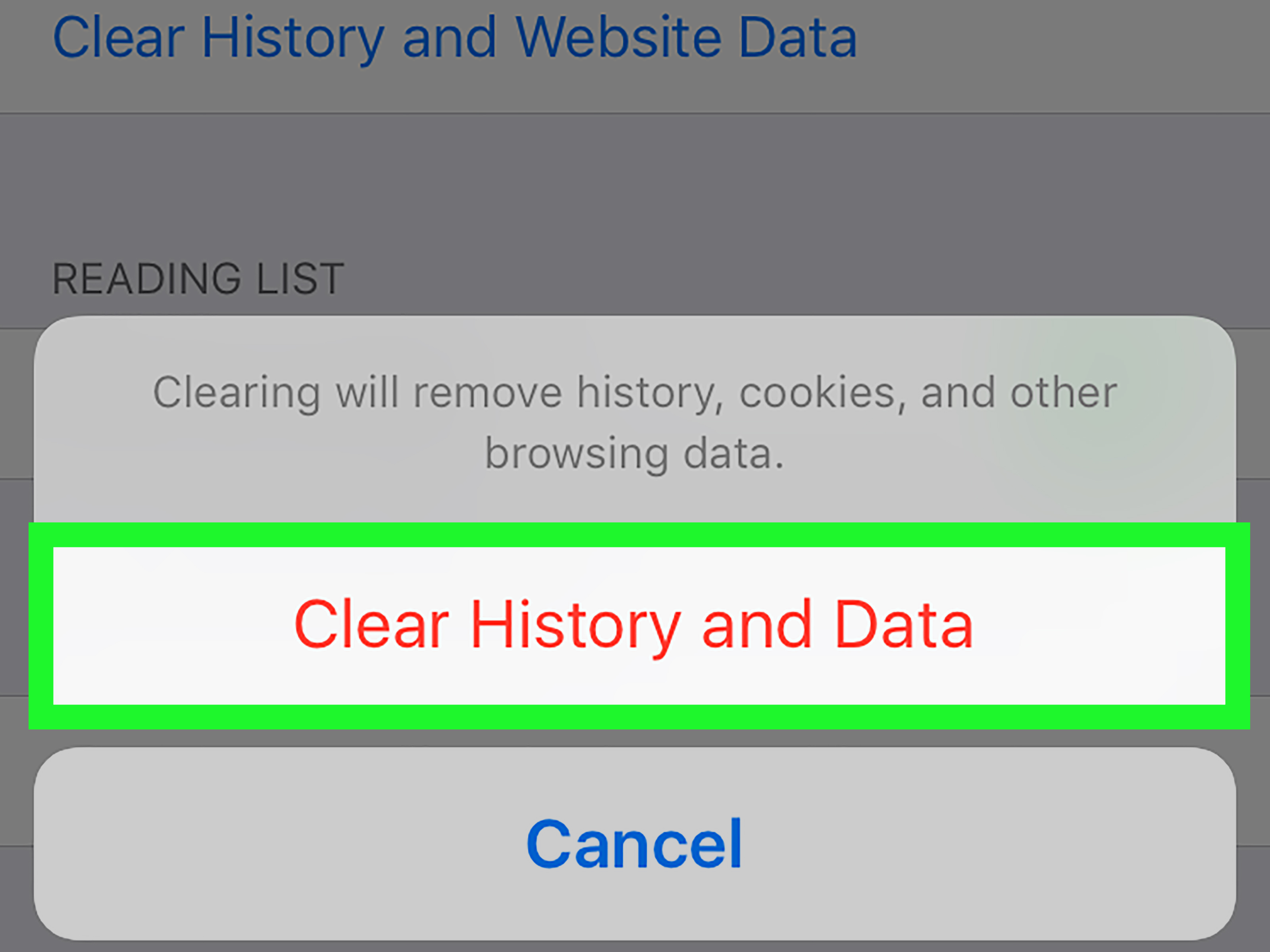
- Open the device’s Settings app.
- Tap Apps, then select Safari.
- Tap Clear History and Website Data.
- Choose the available timeframe or profile options.
- Confirm the deletion.
Depending on the operating-system version, Safari history can also be cleared from the History panel inside the Safari app. Apple’s January 2026 guidance places the full history-and-website-data control under Settings > Apps > Safari.
If the clearing option is unavailable, Screen Time restrictions or the absence of stored data may be responsible. Also remember that Safari history synchronization through iCloud can affect browsing records on other signed-in Apple devices.
How to Delete Browsing Data in Brave
- Open Brave.
- Select the main menu and open Settings.
- Navigate to Privacy and security.
- Select Delete browsing data.
- Choose a time range and the information to remove.
- Select Clear data.
Brave also provides controls for deleting individual cookies, removing all website data, and clearing selected categories when the browser exits. Users who only want to remove cookies should deselect history and cached files before confirming.
Delete Search History Stored in Your Online Accounts
Clearing browser history removes information held by the browser or synchronized browser profile. It may not erase searches and activity stored by Google, Microsoft, or another online service while you were signed in.
Delete Google Search and Account Activity
- Open your Google Account or Google My Activity.
- Navigate to Data & privacy or History settings.
- Review Web & App Activity and related history categories.
- Delete one item, a custom date range, filtered results, or all available activity.
- Consider enabling automatic deletion for future activity.
Google notes that activity can be stored in more than one service. For example, location-related information may be managed separately from general Web & App Activity. Google also allows users to turn off saving or choose automatic deletion intervals.
Delete Microsoft and Bing Search Activity
Sign in to the Microsoft privacy dashboard to review and clear search or browsing activity associated with your account. Microsoft emphasizes that information shown in the privacy dashboard is separate from browsing history stored locally in Edge. For a thorough cleanup, check both locations.
What Deleting Browser History Does Not Remove
A local browser cleanup is valuable, but it has limits. It generally does not erase:
- Files already downloaded to your computer or phone
- Bookmarks and reading-list items unless separately selected
- Messages, purchases, posts, or searches stored inside website accounts
- Records held by an employer, school, network operator, or online service
- Backups or logs maintained under a service’s retention policy
- Malware, spyware, or unwanted browser extensions
- Information another person has already copied, shared, or captured
The Federal Trade Commission explains that private browsing modes may remove local history after a session but do not prevent websites from observing online activity. Clearing history afterward has a similar boundary: it changes what remains in your browser, not what every outside organization may have recorded.
Is Incognito or Private Browsing Enough?
Private browsing is useful when you do not want a browser to preserve ordinary history, cookies, and form entries after closing the private session. It is particularly practical when checking email on a borrowed computer, comparing travel prices without mixing sessions, or signing in to a second account.
It does not make you anonymous. Websites can still receive information required to deliver their pages, and activity performed while signed into an account can still be associated with that account. Private mode is best understood as “leave fewer traces on this device,” not “activate digital invisibility cloak.” The FTC specifically warns that private browsing does not stop websites from seeing online activity.
When Should You Clear Cookies, Cache, or History?
Clear Only the Cache When a Page Looks Broken
Cached files improve speed, but an outdated copy can cause missing images, broken layouts, or old content. Clear cached images and files while leaving cookies untouched when you want to troubleshoot without signing out of every account.
Clear Cookies When Login or Preference Problems Persist
Delete cookies when a website repeatedly redirects you, remembers the wrong account, displays an outdated shopping cart, or behaves differently from a private window. Start by removing data for the affected site rather than clearing every cookie in the browser.
Clear History for Local Privacy
Delete browsing history before returning a borrowed device, sharing a profile, handing a computer to a technician, or disposing of old equipment. For a device you are selling, use the operating system’s full reset process instead of relying solely on browser deletion.
Clear Saved Passwords Only With a Backup Plan
Do not delete saved passwords as part of a routine cleanup unless the credentials are safely stored elsewhere. Confirm that password synchronization is working or export credentials through an approved method before removing the only copy.
A Practical Browser Privacy Routine
- Every week: Review downloads, remove unwanted extensions, and delete data for malfunctioning websites.
- Every month: Review browsing history, cookies, notification permissions, camera access, microphone access, and saved payment methods.
- Every few months: Review Google, Microsoft, and other account-level activity controls.
- Before sharing a device: Sign out of accounts, clear relevant browser data, and use a separate operating-system profile whenever possible.
- Before selling a device: Back up important information, sign out of services, disable synchronization, remove accounts, and perform a secure factory reset.
NIST recommends reducing the scope or retention of browsing history when old information is no longer needed. A consistent deletion routine is more effective than waiting until years of digital clutter have accumulated into an archaeological site.
Common Problems After Clearing Browsing Data
You Were Signed Out of Websites
Cookies often hold login sessions. Sign in again, and avoid selecting cookies during future cache-only cleanups.
Websites Load Slowly
The cache has to be rebuilt. Performance should improve after the browser downloads fresh copies of frequently used resources.
Old Suggestions Still Appear
The suggestion may come from a bookmark, search-engine history, synchronized account activity, an open tab, or autofill data rather than ordinary browsing history. Check each category separately.
History Returned on Another Device
Synchronization may have restored information from another signed-in device, or the deletion may have applied only to the current profile. Review synchronization settings and repeat the cleanup for the correct account.
The Website Still Knows Who You Are
You may still be signed in through a different browser profile, device account, passwordless login, or app session. Deleting browser history alone does not delete a website account or information stored on that website’s servers.
Real-World Experiences: What a Complete Privacy Cleanup Feels Like
A common browser-cleanup experience begins with a simple goal: remove one awkward search suggestion before somebody else uses the laptop. The user opens the history menu, sees several years of pages, and decides that selecting All time feels wonderfully decisive. Then comes the checkbox screen.
Browsing history? Certainly. Cache? Why not? Cookies? Those sound suspicious. Passwords? The browser has already selected somethingsurely it knows what it is doing.
Thirty seconds later, the address bar is clean, but the user has been signed out of email, banking, streaming services, project-management tools, online stores, and the recipe website that guards a basic pancake formula like a state secret. If saved passwords were deleted too, the cleanup becomes a password-reset marathon.
The lesson from this experience is not that browsing data should never be cleared. It is that privacy controls work best when each category is treated as a separate tool. Browsing history controls the local list of visited pages. Cookies manage sessions and preferences. Cache files help websites load. Password storage handles credentials. Selecting everything is appropriate before securely resetting a device, but it is excessive when one website merely displays an outdated logo.
Another typical experience involves troubleshooting. A website refuses to open, repeatedly redirects to the login page, or shows an ancient version of an account dashboard. The first instinct is often to delete all browser data. A more efficient approach is to open a private window. If the site works there, a cookie, cached file, extension, or stored permission is probably involved. Removing data for that one domain can solve the problem without disturbing every other login.
Shared computers create a different privacy challenge. A person may clear browser history after using a family computer but forget that the search engine was signed into a personal account. The browser’s local history disappears, yet recent searches still appear in account activity on a phone. A complete cleanup requires checking both the browser and the online account. This two-location concept is one of the most important ideas in digital privacy.
Synchronization produces another surprise. Someone deletes Chrome or Edge history on a laptop, opens a second device, and sees related activity or suggestions still present. The issue is not necessarily that deletion failed. The data may belong to another profile, remain in an online activity dashboard, or be stored as a bookmark, open tab, or search suggestion. Privacy cleanup is less like emptying one trash can and more like checking several rooms for coffee cups after a large meeting.
The smoothest experience comes from using a deliberate sequence. First, decide whether the objective is privacy, troubleshooting, account cleanup, or device disposal. Second, choose the narrowest data category that achieves that objective. Third, verify that important passwords and bookmarks are backed up. Fourth, check synchronization and account-level history. Finally, reopen the browser and confirm that the intended information is gone.
Users who adopt this approach usually spend less time signing back into services and more time enjoying the actual benefit: a cleaner browser, fewer stale suggestions, better control over local data, and a clearer understanding of where online activity lives. It is not glamorous, but neither is finding a three-year-old search for “Can raccoons hold grudges?” during a work presentation.
Conclusion
Learning how to delete browsing history is a useful first step toward better online privacy. Chrome, Edge, Firefox, Safari, Brave, Android, and iPhone all provide controls for clearing visited pages, cookies, cached files, downloads, form data, and other stored information.
The most important strategy is to delete intentionally. Clear the cache for display problems, remove cookies for login issues, erase history for local privacy, and review online account activity when searches or visits were synchronized. Private browsing can reduce local traces, but it does not erase information already sent to websites or services.
A thoughtful cleanup protects privacy without turning your next browsing session into an exhausting tour of forgotten passwords. Read the checkboxes, verify the time range, inspect synchronized accounts, and let the correct delete buttonnot the biggest onedo the work.