You’ve got an iPhone. You’ve got a Chromecast (or a TV with Google Cast built in). You’ve got Google Chrome. And you’ve got a dream: “Let me fling this webpage onto my TV like I’m conducting an orchestra.”
Here’s the plot twist: casting from Chrome on an iPhone isn’t the same thing as casting from Chrome on a computer. On desktop Chrome, you can cast a tab, your whole desktop, or a specific video. On iPhone, casting is usually done through Google Cast-enabled apps (YouTube, Google Photos, Google TV, Spotify, etc.). That doesn’t mean your Chrome + Chromecast dream is deadit just means it needs a smarter route. Preferably one that doesn’t involve yelling at your router.
The Quick Reality Check (So You Don’t Chase the Wrong Button)
If you’re trying to “connect Google Chrome to Chromecast on iPhone” to cast a random website exactly like you would on a laptop, you may notice something missing: a big friendly Cast option inside Chrome’s menu. That’s because, on iOS, casting is typically handled by apps that have the Google Cast feature built innot by the browser itself.
The practical takeaway: your best path is to set up Chromecast correctly on your iPhone, then cast content using compatible appsand use Chrome as the “finder” (searching, opening links, and handing off to an app that can cast).
What You Need Before You Start
- A Chromecast or Cast-capable TV plugged into HDMI and powered on.
- Your iPhone connected to Wi-Fi (ideally the same network your Chromecast will use).
- The Google Home app installed (this is the setup and control hub for Chromecast).
- Bluetooth enabled (used during setup/discovery).
- Local Network permission enabled for the apps you’re casting from (iOS privacy setting that often causes “Why can’t it see my TV?” moments).
Step 1: Set Up Chromecast on iPhone (The Non-Negotiable Foundation)
Before Chrome, YouTube, or anything else can “see” your Chromecast, the device must be set up in the Google Home app. If you’ve already done this and everything works, you can skip ahead. If not, buckle upit’s quick.
1) Plug in and power up
- Connect Chromecast to your TV’s HDMI port.
- Connect the power cable (don’t rely on a weak TV USB port unless you enjoy random disconnects).
- Switch your TV to the correct HDMI input and wait for the setup screen.
2) Give Google Home the permissions it needs
On iPhone, permissions can be the difference between “Setup in 3 minutes” and “Why is my TV invisible like a ghost?”
- Open Settings on iPhone.
- Turn on Bluetooth.
- Go to Privacy & Security > Local Network and ensure Google Home is allowed.
3) Set up in Google Home
- Open the Google Home app.
- Sign in to your Google account (if prompted).
- Follow the on-screen prompt to set up the detected Chromecast device.
- Select your home Wi-Fi network and finish pairing.
Once this step is done, your Chromecast is officially part of your home ecosystem. Now your iPhone can control itassuming it can actually find it, which brings us to the fun part.
Step 2: Cast the Smart Way on iPhone (Use Cast-Enabled Apps)
On iPhone, casting is most reliable when you use apps that have the Google Cast feature built in. These apps show a Cast icon (it looks like a tiny TV with Wi-Fi waves) somewhere near the top of the screen or inside a player.
Example A: Cast YouTube from iPhone to Chromecast
- Open the YouTube app.
- Make sure your iPhone is on the same Wi-Fi as the Chromecast.
- Tap the Cast icon.
- Select your Chromecast / TV.
- Play a videoyour phone becomes the remote.
This is the “it just works” experience most people expect. It’s also the reason many folks think they’re casting “from Chrome” when they’re actually casting from an app that supports Google Cast.
Example B: Cast Google Photos to your TV (Great for slideshows)
- Open Google Photos.
- Pick a photo, video, or album.
- Tap Cast and choose your device.
- Swipe through photos on your phone while they appear on the TV.
Example C: Cast from Google TV (Purchased/rented movies & shows)
- Open the Google TV app.
- Go to your library (Movies/TV).
- Tap the Cast icon, choose your Chromecast, then press play.
For music, apps like Spotify, YouTube Music, and other Cast-supported players can usually send audio to your Chromecast device the same waytap Cast, choose device, play.
So Where Does Chrome Fit In?
Chrome on iPhone is still usefulit’s just not typically the “casting engine.” Think of Chrome as your:
- Discovery tool (finding content, links, articles, and videos)
- Hand-off tool (opening the content in a Cast-enabled app)
- Backup plan tool (when a site doesn’t have a great app, you try alternative methods)
The best Chrome-to-Chromecast move: “Open in App”
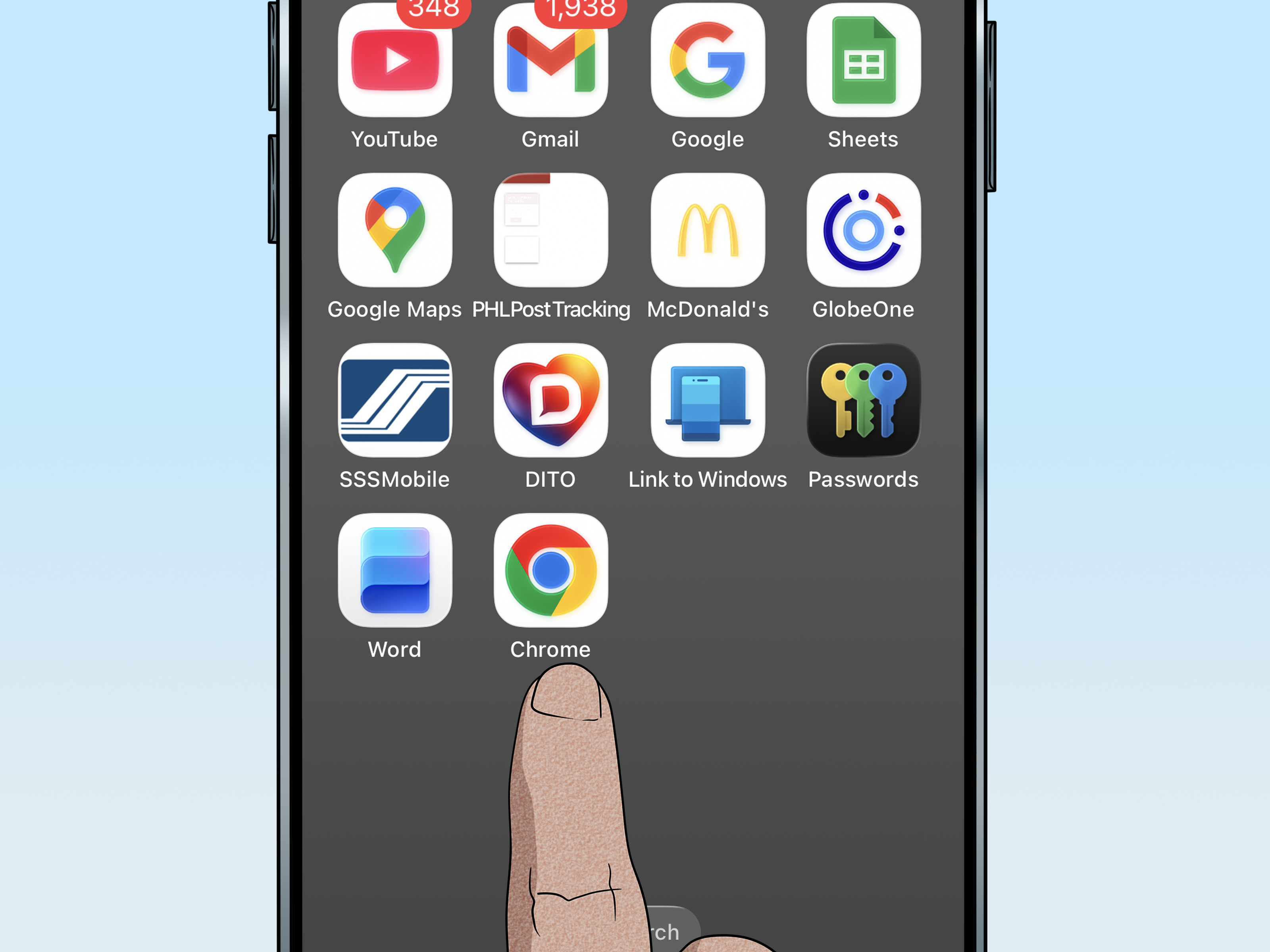
Here’s a real-life example: you search in Chrome for a YouTube video, open it, then tap Open in YouTube. Once you’re inside the YouTube app, you cast normally. Same idea for other services: if the service has an iOS app with casting, that app is your casting “bridge.”
Step 3: “Cast a Website from Chrome on iPhone” Workarounds (When You Really Mean the Browser)
If what you truly want is “I’m on a random website in Chrome and I want that on the TV,” you have three realistic options:
Option 1: Use a Cast-enabled app instead of the website
Many “web experiences” are better in apps anyway (streaming, sports, music, photo galleries). If there’s a native iOS app that supports casting, it’s the most stable method. You’ll get:
- Smoother playback
- Better controls
- Fewer “why is it buffering like a slideshow?” surprises
Option 2: Use a web-video casting app (for sites with embedded players)
Some third-party iOS apps can detect a video playing on a webpage and send that stream to Chromecast. These can work well for certain sites and local media, but results vary depending on the video format, DRM, and the website. Translation: great for some things, useless for others, and occasionally… weird.
Pro tip: if a site uses heavy DRM (common with major streaming services), a web-video caster usually can’t legally or technically extract it. In those cases, use the official app or watch directly on a Chromecast/Google TV interface.
Option 3: Skip phone casting entirelyuse the TV’s app
If you have a Chromecast with Google TV (or a smart TV with Google TV / Android TV), the simplest option is sometimes: install the streaming app on the TV and watch directly. Your iPhone becomes a remote (or you use the physical remote), and you avoid the browser-to-TV gymnastics altogether.
Troubleshooting: When Your Chromecast Is “Missing” (But It’s Literally Right There)
Fix 1: Check iPhone Local Network permission
If an app doesn’t have Local Network access, it may not discover your Chromecast. Go to: Settings > Privacy & Security > Local Network and enable access for the app you’re using (Google Home, YouTube, etc.).
Fix 2: Confirm both devices are on the same Wi-Fi
This is the #1 cause. Your phone might be on “MyWiFi_5G” while your Chromecast is on “MyWiFi” (or vice versa). Same house, different networks, zero friendship.
Fix 3: Turn off VPNs and Private Relay (temporarily)
Some VPNs and privacy relays can interfere with local device discovery. If your Cast icon disappears or devices don’t show, try disabling VPN/relay briefly and test again.
Fix 4: Restart the “holy trinity”
- Restart iPhone
- Unplug Chromecast power for 10 seconds, plug back in
- Restart your router (last resort, but effective)
Fix 5: Watch out for “AP Isolation” or guest networks
Some routers separate devices so they can’t see each other (common on guest Wi-Fi). If your iPhone and Chromecast are on a guest network that blocks device-to-device discovery, casting may fail.
Fix 6: Update your apps and iOS
Casting support lives inside apps, and those apps change. Keep iOS and your casting apps updated. Also update Google Home if setup is flaky.
Common Questions (Answered Without Judging Your Router)
Can I mirror my iPhone screen to Chromecast?
Not natively in the same straightforward way you can mirror to Apple TV via AirPlay. Some third-party apps attempt iPhone-to-Chromecast mirroring, but performance can vary (latency, audio sync, resolution). For presentations or casual viewing, it can be “good enough.” For gaming, it can be “why is my jump happening two seconds later?”
Why does the Cast button show in some apps but not others?
Because Google Cast is implemented app-by-app. If the developer added Cast support (and it’s functioning properly), you’ll see the Cast icon. If not, you won’t. It’s not you. It’s… them.
Does Netflix still cast from iPhone?
Netflix casting behavior has changed in recent months/years and may depend on device models, app versions, and plan/device support. If Netflix casting isn’t showing, try using the Netflix app directly on your TV/Google TV interface as the most reliable method.
Pro Tips for a Smoother “Chrome-to-TV” Life
- Prefer official apps (YouTube, Google Photos, Google TV, etc.) when you canless drama.
- Use strong Wi-Fi; weak signal = buffering + rage-refreshing.
- Keep Local Network enabled for casting apps; iOS privacy settings are powerful (and sometimes annoying).
- Use the TV interface for big services if phone casting is unreliableespecially when apps change their casting support.
- When a webpage won’t cast, look for the content in a Cast-enabled app or consider a web-video casting tool for non-DRM video.
Conclusion: The Best Way to “Connect Chrome to Chromecast” on iPhone
If you came here expecting a magical “Cast Tab” button inside Chrome on iPhone, you’re not alone. The best strategy is to set up Chromecast with Google Home, then cast from Cast-enabled apps (YouTube, Google Photos, Google TV, music apps, and other supported services).
Use Chrome as your launchpad: find the content, then hand it off to the app that can actually do the casting. It’s less “wizardry” and more “know which button lives where”but once you’ve got it, it’s delightfully easy.
Real-World Experiences: What Usually Happens When People Try This (And What They Learn)
Most people’s first “Chrome to Chromecast on iPhone” attempt starts the same way: they’re already holding their phone, already browsing in Chrome, and they assume the TV is just one button away. Then they open Chrome’s menu and discover… nothing. No Cast. No “send to TV.” Just a quiet moment of disbelief, followed by the universal troubleshooting ritual: tapping random icons like they’re trying to unlock a hidden level in a video game.
The next stage is usually app hopping. Someone opens YouTube and suddenlyboomthere’s the Cast icon. That’s when it clicks: on iPhone, casting lives in the app, not the browser. From there, people get fast at the “Chrome as a launcher” workflow. They search in Chrome, open a link, then tap “Open in App” whenever it’s available. It feels a little like taking a connecting flight instead of going direct, but it’s reliableand reliability is the whole point of a couch-based entertainment system.
Another common experience is the Invisible Chromecast Problem. The TV is on, Chromecast is plugged in, and the phone is on Wi-Fi… but the device list is empty. This is where iPhone users learn about iOS privacy settings the hard way. Local Network permission is a frequent “aha” moment: once it’s enabled for Google Home (and sometimes the casting app), devices suddenly appear like they were just waiting for you to stop being suspicious.
People also discover the “same Wi-Fi” rule isn’t as obvious as it sounds. Many routers broadcast multiple networks (2.4 GHz and 5 GHz, guest networks, mesh nodes with different names). A phone can quietly switch networks without permission, especially if it thinks it’s being helpful. Meanwhile, Chromecast stays loyal to the network you set it up on. When casting fails, the fix is often boring: put both devices on the exact same SSID, then try again. Boring fixes are the best fixes because they work and don’t require a spiritual journey.
Then there’s the “I want the whole webpage on the TV” crowdusually for live sports stats, recipes, shopping comparisons, or a group planning session where everyone’s yelling “scroll down!” In those cases, people experiment with web-video casting apps and learn an important lesson: some sites play nicely, and some don’t. Non-DRM videos may cast fine, while major subscription services often require the official app or the TV’s native app. Over time, most users end up with a personal rule of thumb: if it’s a big-name streaming service, use the official app; if it’s a random embedded player, a web-video casting tool might help; and if it’s a presentation or document, mirroring might workbut expectations should be set somewhere between “okay” and “cinematic masterpiece.”
Finally, real life adds one more twist: services change. Casting features can appear, disappear, or behave differently after updates. The experience that worked perfectly last year can suddenly become “why is the Cast icon missing today?” The best long-term strategy people adopt is simple: keep Google Home and your casting apps updated, know where Local Network settings live, and remember that the most stable viewing experience is often the one where the TV (or Google TV interface) runs the app directly. In other words: let your phone be a remote when it wants to beand let your TV be a TV when it’s better at the job.