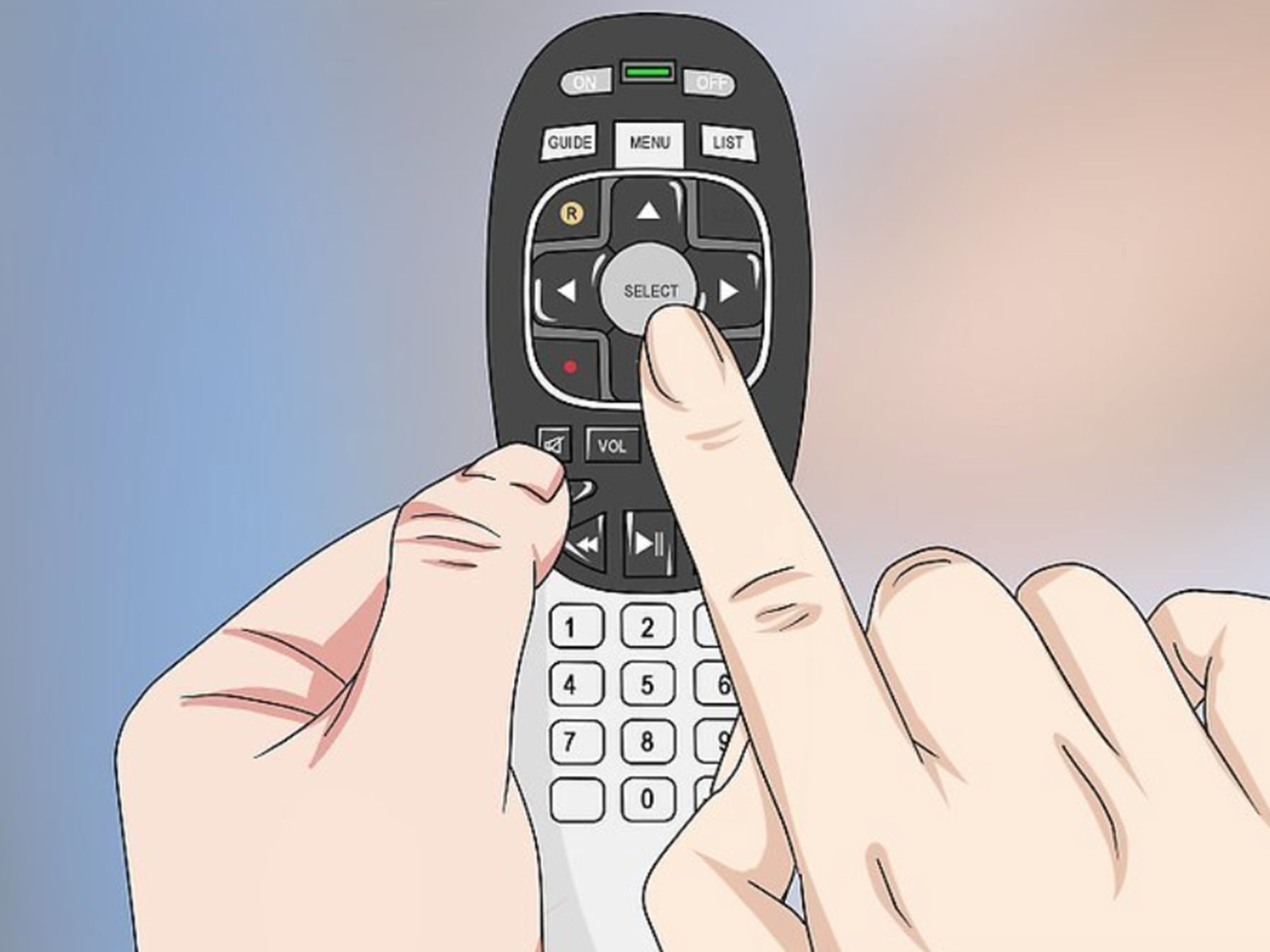
Connecting a Panasonic TV to WiFi should be one of those “press a few buttons and enjoy a movie” moments. But sometimes your TV, router, password, and remote control decide to form a tiny committee and make things interesting. The good news: in most cases, getting a Panasonic Smart TV online is simple once you know where the right network settings live.
This guide explains how to connect a Panasonic TV to WiFi using the standard menu method, WPS, manual network setup, and troubleshooting steps for common problems like wrong passwords, weak signals, missing WiFi networks, and apps that refuse to load. Whether you have a Panasonic VIERA model, a newer Panasonic OLED TV, or an older WiFi-capable model with an adapter, the process is similar: choose your network, enter the correct password, test the connection, and start streaming.
Before we begin, grab three things: your Panasonic remote, your WiFi network name, and your WiFi password. If your password is written on a sticker under the router, now is the moment to crawl behind the furniture like a determined home-network archaeologist.
Before You Connect: Check These Basics First
Before opening the TV menu, make sure your home network is ready. Your Panasonic TV needs a working broadband internet connection, a wireless router, and a WiFi signal strong enough to reach the television. If your phone or laptop cannot connect to WiFi in the same room, the TV probably will not perform magic either.
Confirm Your Panasonic TV Supports WiFi
Many Panasonic Smart TVs include built-in wireless LAN, which means they can connect directly to your router without extra accessories. Some older Panasonic VIERA models may require a compatible wireless LAN adapter. If your TV menu includes options such as “Network,” “Network Connection,” “Wireless,” “WiFi,” or “Easy Network Setting,” your model likely supports wireless setup.
If the TV does not show wireless options, check the owner’s manual for your exact model. Some older units support internet features only through Ethernet or through a specific Panasonic-compatible USB WiFi adapter.
Know Your WiFi Network Name and Password
Your network name is also called the SSID. It is the name that appears when you search for WiFi on your phone, tablet, or computer. Your password may also be called a network key, wireless key, passphrase, or security key. Panasonic TVs treat WiFi passwords as case-sensitive, so “MovieNight2026” and “movienight2026” are not the same thing.
Before typing the password on the TV, check for common mistakes: uppercase letters, lowercase letters, zeros versus the letter O, ones versus lowercase L, and extra spaces. A single wrong character can turn your relaxing evening into a technical support side quest.
Place the Router and TV Wisely
WiFi signals can weaken when they pass through thick walls, metal cabinets, large appliances, aquariums, and other electronics. For the best Panasonic TV WiFi connection, place your router in an open area, not buried behind a stack of old mail and mystery cables. If the TV is far from the router, consider moving the router, adding a mesh WiFi node, or using Ethernet if possible.
How to Connect a Panasonic TV to WiFi Using the Menu
The exact wording can vary by model, but the standard Panasonic WiFi setup usually follows the same path. Use this method first because it works for most Panasonic VIERA and Panasonic Smart TV models.
Step 1: Press the Menu or Home Button
Turn on your Panasonic TV and press the Menu or Home button on the remote. On some newer models, you may see a home screen with apps and settings. On older VIERA models, you may go straight into the classic settings menu.
Step 2: Go to Network Settings
Use the arrow buttons on your remote to find Network. Press OK. Then choose an option such as Network Connection, Network Setup, Easy Network Setting, or Wireless Setup. Panasonic has used slightly different menu labels across different model years, but the goal is the same: open the screen where the TV searches for available networks.
Step 3: Choose Wireless or WiFi
If the TV asks whether you want a wired or wireless connection, choose Wireless or WiFi. If an Ethernet cable is plugged into the TV, some models may prioritize the wired connection. Unplug the Ethernet cable if you want to force wireless setup.
Step 4: Select Your WiFi Network
The TV should scan for nearby wireless networks. When the list appears, highlight your home WiFi network name and press OK. If you live in an apartment building, you may see a long list of networks with names like “NETGEAR-42,” “PrettyFlyForAWiFi,” and “FBI Surveillance Van.” Choose your own network only.
Step 5: Enter the WiFi Password
Use the remote to type your WiFi password. This is the step where patience becomes a superpower. Use the on-screen keyboard carefully, and remember that the password is case-sensitive. Some Panasonic remotes use colored buttons to switch between uppercase, lowercase, numbers, or symbols. If your password includes special characters, look for a symbol keyboard option.
After entering the password, select OK, Next, or Done, depending on your model.
Step 6: Let the TV Test the Connection
Your Panasonic TV should attempt to connect to the wireless network. It may display messages such as “Connecting,” “Please wait,” or “Checking network status.” When the connection succeeds, you should see a success message or a network status screen showing that the TV is connected to the local network and the internet.
Press Return or Exit to leave the menu. Then open an app such as YouTube, Netflix, Prime Video, or your TV’s app store to confirm that internet features work properly.
How to Connect a Panasonic TV to WiFi Using WPS
Some Panasonic TVs and routers support WPS, which stands for Wi-Fi Protected Setup. WPS lets you connect without typing the WiFi password. It is convenient, especially when your password looks like it was generated by a raccoon walking across a keyboard.
Using WPS Push Button
To use WPS push button setup, open the TV’s Network or Wireless Setup menu and select WPS Push Button if available. Then press the WPS button on your router. The TV and router should communicate automatically and create the connection.
WPS buttons are often located on the back or side of the router. Some modern routers control WPS through a mobile app instead of a physical button. If you cannot find WPS, check the router’s label, app, or web admin page.
Using WPS PIN
Some Panasonic models offer WPS PIN setup. In this method, the TV displays a PIN code, and you enter that PIN into the router’s settings page. This option is less common for everyday users because it requires access to the router’s admin interface.
If you are not comfortable changing router settings, the regular password method is usually easier and safer.
Manual WiFi Setup for Panasonic TVs
If your Panasonic TV cannot automatically connect, you may be able to enter network details manually. Manual setup can help when the network name is hidden, the router uses unusual security settings, or the automatic scan fails.
When Manual Setup Helps
Manual setup may be useful if your WiFi network does not appear in the list, your router hides the SSID, or your TV keeps failing at the authentication step. You may need to enter the SSID, security type, encryption type, IP settings, DNS settings, and gateway information.
What Information You May Need
For most homes, automatic IP settings should work. Your router normally assigns an IP address to the TV using DHCP. If you choose manual IP settings, make sure the TV’s IP address is in the same range as your router and does not duplicate another device.
For example, if your router address is 192.168.1.1, your TV might use something like 192.168.1.50, with a subnet mask of 255.255.255.0 and gateway 192.168.1.1. However, router settings vary, so do not copy these numbers blindly. Use your actual network configuration.
If apps open slowly or the TV connects to the router but not the internet, changing DNS settings can sometimes help. Common public DNS options include Google DNS and Cloudflare DNS, but many users can simply leave DNS on automatic.
What to Do If Your Panasonic TV Cannot Find WiFi
If the TV does not show your WiFi network, do not panic. The network may be hidden, out of range, on an unsupported band, or temporarily confused. Yes, electronics get confused too; they just express it with error codes instead of sighing dramatically.
Move the Router or TV Closer
Distance matters. If the router is on the opposite side of the house, the signal may be too weak for stable streaming. Try moving the router closer to the TV or temporarily moving the TV closer to the router for testing. If the TV connects when nearby, the problem is coverage, not the TV.
Check 2.4 GHz and 5 GHz Compatibility
Older Panasonic TVs may work best with 2.4 GHz WiFi. Some models support 5 GHz, and newer models may support additional bands, but older VIERA units often rely on 2.4 GHz. If your router combines 2.4 GHz and 5 GHz under one network name, try separating the bands temporarily and connecting the TV to the 2.4 GHz network.
The 2.4 GHz band usually reaches farther, while 5 GHz is often faster at shorter distances. For a TV across the house, 2.4 GHz can sometimes be the more reliable choice.
Restart the TV and Router
A simple restart fixes more technology problems than anyone wants to admit. Turn off the TV, unplug it from the wall for about a minute, and restart your router. After the router fully comes back online, plug the TV in again and try connecting.
This clears temporary network glitches and forces the devices to create a fresh connection.
What to Do If the Password Does Not Work
If the TV says the password is wrong, start with the obvious: type it again slowly. WiFi passwords are case-sensitive, and TV remote keyboards are not exactly designed for speed typing. If your password has special symbols, double-check that you selected the correct symbol from the on-screen keyboard.
Test the Password on Another Device
Forget the network on your phone or laptop, then reconnect using the same password. If the other device connects, the password is correct and the issue is likely with the TV entry, security type, or router compatibility.
Check Router Security Settings
Most home networks should use WPA2 or WPA3 security. Very old settings such as WEP are outdated and should be avoided. If your Panasonic TV is older and cannot connect to a WPA3-only network, set the router to WPA2/WPA3 mixed mode if available. This allows newer devices to use stronger security while giving older devices a compatible path.
Avoid Connecting to Networks You Do Not Own
Your TV may display nearby networks belonging to neighbors, businesses, or public hotspots. Do not attempt to connect to a network unless you have permission to use it. Besides being a bad idea, unauthorized network access can create privacy and legal problems.
What to Do If the TV Connects but Apps Do Not Work
Sometimes the TV connects to WiFi but streaming apps still fail. This usually means the TV can reach the router but has trouble reaching the internet, Panasonic services, or a specific app provider.
Run a Network Status Test
Open the Panasonic TV’s Network Status or Connection Test screen. Depending on the model, the TV may check the local network, IP address, internet connection, and connection to Panasonic services. If the local network passes but internet fails, the issue is likely with the router, modem, DNS, or internet service provider.
Update the TV Software
Smart TV apps depend on software updates. If your Panasonic TV is connected but apps are buggy, check for firmware or system updates in the settings menu. On some older models, updates may also be possible by USB if the TV cannot update online.
Check Whether the App Still Supports Your TV
Older Smart TVs sometimes lose support for certain apps over time. If one app fails but others work, the problem may not be your WiFi. The app provider may have changed requirements, retired support for older TV software, or temporarily experienced an outage.
Ethernet vs WiFi: Which Is Better for a Panasonic TV?
WiFi is convenient, but Ethernet is often more stable. If your router is near the Panasonic TV, connecting with a LAN cable can reduce buffering, improve reliability, and avoid interference from microwaves, Bluetooth devices, and crowded wireless channels.
Use WiFi when the router is far away or running a cable is impractical. Use Ethernet when you want the most reliable connection for 4K streaming, live sports, cloud gaming, or anything where buffering feels personally offensive.
Best Router Settings for Panasonic TV WiFi
Router settings can make a big difference. For most Panasonic TVs, the best setup is a stable network name, WPA2 or WPA2/WPA3 security, DHCP enabled, and a clear signal path between the router and TV.
Use a Simple Network Name
Avoid extremely long SSIDs or names filled with unusual symbols. A simple name such as “SmithHomeWiFi” is easier for older TVs to display and easier for humans to select. You do not need to make your network name boring, but if your TV cannot see “💥Dragon_Castle_5G!!!💥,” try something simpler.
Keep Router Firmware Updated
Router firmware updates can improve stability, security, and device compatibility. Many modern routers update through a mobile app. If your Panasonic TV drops WiFi frequently while other devices work fine, a router firmware update may help.
Consider a Guest Network Carefully
A guest network can keep smart devices separate from personal computers and phones, which can be useful for home security. However, some guest networks block device-to-device communication. If you want to cast from your phone to the TV, both devices may need to be on the same main network.
Common Panasonic TV WiFi Problems and Fast Fixes
Problem: The TV Does Not Show My Network
Restart the router, move the router closer, check whether the network is hidden, and try enabling 2.4 GHz. If your router uses one combined network name for all bands, try separating 2.4 GHz and 5 GHz temporarily.
Problem: The TV Says the Password Is Incorrect
Re-enter the password carefully, check uppercase and lowercase letters, test the password on another device, and confirm your router security mode. If the router is set to WPA3-only, try WPA2/WPA3 mixed mode for older Panasonic TVs.
Problem: WiFi Connects but Streaming Buffers
Move the router closer, reduce interference, restart the router, use a less crowded WiFi channel, or connect by Ethernet. Buffering is often caused by weak signal strength, congestion, or slow internet speed rather than the TV itself.
Problem: The TV Disconnects Randomly
Check signal strength, router firmware, and power-saving settings. If the TV is far from the router, a mesh WiFi system or Ethernet connection may solve the problem. Also keep the TV away from devices that create wireless interference.
Problem: The TV Connects to WiFi but Has No Internet
Restart the modem and router, test another device, run the TV’s connection test, and check DNS settings. If every device has no internet, call your internet provider. If only the TV has trouble, reset its network settings and reconnect.
Security Tips When Connecting a Panasonic TV to WiFi
Smart TVs are part of your home network, so treat them like connected devices, not just screens with excellent snack-time entertainment value.
Use a Strong WiFi Password
Choose a strong password that is not easy to guess. Avoid using your address, phone number, pet name, or “password123,” which is less a password and more an invitation.
Use WPA2 or WPA3
Use WPA2 or WPA3 encryption on your router whenever possible. These security standards are far better than older WEP security. If you have older devices, WPA2/WPA3 mixed mode can provide compatibility while keeping your network reasonably secure.
Update Devices Regularly
Keep your router, TV, streaming apps, and connected devices updated. Updates often include bug fixes, performance improvements, and security patches.
Real-World Experience: What Actually Works Best
After setting up many Smart TVs, one lesson stands out: the problem is not always the TV. In fact, the router is often the sneaky culprit. A Panasonic TV may look like it is being stubborn, but it is usually reacting to a weak signal, incompatible security mode, crowded WiFi band, or a password typo entered with the enthusiasm of a tired thumb.
One common experience is the “it works on my phone” trap. A phone has a modern WiFi chip, better roaming behavior, and a screen that makes password entry easy. A TV may be less forgiving, especially if it is an older model. So when a phone connects but the TV does not, that does not automatically mean the TV is broken. It may simply need 2.4 GHz WiFi, a clearer signal, or a simpler router setting.
Another practical tip: do not mount the TV, shove the router into a cabinet, and then expect perfect wireless performance. Streaming video needs consistent bandwidth. A weak signal can still show as “connected,” but apps may buffer, thumbnails may load slowly, and 4K video may drop to lower quality. If your Panasonic TV is used mainly for streaming, the best upgrade may not be a new TV. It may be a better router position, a mesh node near the entertainment center, or a simple Ethernet cable.
Password entry is another real-world headache. Panasonic remote controls are reliable, but typing a long WiFi password with arrow keys is nobody’s idea of a weekend hobby. If setup fails repeatedly, write the password in large text on paper and enter it character by character. Pay special attention to capital letters and symbols. If the password is extremely complex, consider temporarily changing it to a strong but easier-to-type phrase, then reconnecting your devices.
For older Panasonic VIERA TVs, 2.4 GHz is often the safest bet. Many older models were designed when 2.4 GHz was the normal home WiFi standard. If your router uses smart band steering, the TV may struggle to choose the correct band. Creating separate names such as “HomeWiFi_2G” and “HomeWiFi_5G” can make setup easier. Connect the TV to the 2.4 GHz network first. Once it works, you can experiment with 5 GHz if your model supports it.
Finally, Ethernet remains the quiet champion. It is not glamorous, and nobody brags about a cable at dinner, but it works. If your Panasonic TV sits near the router, connect a LAN cable and enjoy fewer dropouts. WiFi is wonderful for convenience; Ethernet is wonderful when you want the movie to play without your TV pausing at the exact moment the villain explains the plot.
Conclusion
Learning how to connect a Panasonic TV to WiFi is mostly about following the right menu path and avoiding small mistakes. Press Menu or Home, open Network, choose Network Connection or Easy Network Setting, select your WiFi network, enter the password carefully, and confirm the connection status. If something goes wrong, restart the TV and router, check the password, use 2.4 GHz for older models, update software, and consider Ethernet for the most stable connection.
A connected Panasonic TV unlocks streaming apps, software updates, online services, and a much better living-room experience. Once your TV is online, the hardest part is no longer WiFi setup. It is choosing what to watch without scrolling for 37 minutes.