If your computer has started acting like it drank three espressos and forgot how to open a browser tab, a reset might be the fix. And if you are selling, donating, recycling, or handing that machine to someone else, a simple reset may not be enough. That is where things get interesting. There is a big difference between refreshing a sluggish computer, factory resetting a laptop, and permanently wiping all data so your files do not come back like a sequel nobody asked for.
This guide breaks down what each option actually does, how to reset a Windows PC, Mac, or Chromebook, and when you need a deeper wipe for sensitive information. We will also cover SSDs, hard drives, encryption, common mistakes, and a few real-world experiences that show why this topic matters more than most people think. Because nothing says “oops” quite like selling an old laptop with your tax returns still living rent-free on the drive.
What Does It Mean to Reset a Computer?
When people say they want to “reset” a computer, they usually mean one of three things:
- Reset while keeping personal files: useful for troubleshooting software problems without deleting documents, photos, and personal folders.
- Factory reset or remove everything: reinstalls the operating system and removes accounts, apps, settings, and local files.
- Permanent data wipe: a deeper sanitization step designed to make data recovery much harder, or in high-sensitivity cases, practically infeasible.
Those are not the same thing, and treating them like twins is how people accidentally keep private data on devices they thought were spotless. For everyday home use, a standard factory reset is often enough. For highly sensitive data, like financial records, medical files, legal documents, trade secrets, or company-owned devices, you may need a more advanced wipe method or even physical destruction of the drive.
Factory Reset vs. Permanent Data Wipe
Factory reset
A factory reset generally removes your accounts, apps, and personal files, then reinstalls the operating system. It is ideal when your goal is to fix software issues, prepare a device for casual resale, or start fresh.
Permanent wipe
A permanent wipe goes beyond “make it look empty.” It is about data sanitization. On some devices, that means using a secure erase or crypto erase process. On others, it may mean resetting an encrypted device and removing the encryption keys. In the most sensitive cases, it can mean destroying the drive altogether.
Here is the plain-English version: if you are giving your old family laptop to your cousin who mostly wants to watch sports and lose at spreadsheet budgeting, a standard factory reset with the right wipe option is often fine. If that machine held confidential business files, client records, or anything you would not want recovered by a determined stranger, you should think in terms of sanitization, not just resetting.
Before You Reset Any Computer
Before you click anything dramatic, do these steps first. Seriously. Future-you would like a word.
1. Back up what matters
Save your photos, documents, browser exports, password vault backups, app data, software license keys, and anything else you would cry over later. Use an external drive, cloud storage, or both. If your desktop folders are syncing to OneDrive, iCloud, or Google Drive, confirm what is local and what is already in the cloud.
2. Sign out of accounts
Log out of email, cloud storage, browser profiles, messaging apps, and subscription software. On Apple devices, turn off Find My and remove Activation Lock before selling. On Chromebooks, check the owner account situation. On Windows, if the PC is managed by work or school, do not freestyle a wipe without talking to IT first.
3. Save recovery information
If device encryption is enabled, store your recovery key somewhere safe before resetting. This is especially important on Windows systems using BitLocker or device encryption. Nothing spices up a Saturday like being locked out of your own computer because you forgot the one 48-digit number that mattered.
4. Disconnect extras
Remove external drives, memory cards, USB dongles, and anything else you do not want included in the reset process. If you are keeping Bluetooth accessories, unpair them when appropriate.
5. Decide your actual goal
Ask yourself one question: Am I fixing the computer, or am I getting rid of it? If you are keeping it, you may not need the most aggressive wipe. If it is leaving your possession, privacy should move to the top of the priority list.
How to Reset a Windows PC
If you are using Windows 11 or Windows 10, the built-in reset feature is the easiest starting point.
Option 1: Keep my files
Choose this when the computer is buggy, bloated, or just generally behaving like it resents you. Windows reinstalls itself, removes apps and settings, but keeps personal files. This is the “I want a cleaner computer, not a breakup” option.
Option 2: Remove everything
Choose this when you want a true fresh start or plan to sell, donate, or recycle the computer. This removes personal files, apps, and settings.
Use the cleaning option if the computer is leaving your hands
During the Windows reset process, look for the option to clean the drive. This generally takes longer, but it makes file recovery harder than a quick delete-and-reinstall process. That said, consumer reset tools are not the same as formal government-grade or industry-grade sanitization.
Cloud download vs. local reinstall
Cloud download grabs a fresh copy of Windows online and is useful if system files are damaged. Local reinstall uses files already on the PC and is usually faster if your internet connection is slow. Neither option changes the privacy goal by itself. The important choice is whether you keep files or remove everything, and whether you clean the drive.
Quick Windows steps
- Open Settings.
- Go to System > Recovery.
- Click Reset PC.
- Choose Keep my files or Remove everything.
- Pick Cloud download or Local reinstall.
- Review additional settings, especially any option to clean the drive.
- Confirm and let Windows finish the process.
Some manufacturers like Dell, HP, and Acer also provide recovery tools or factory-image utilities. Those can be useful if you want to restore the machine closer to its original out-of-box setup, complete with preinstalled apps you may or may not miss.
How to Reset a Mac
Modern Macs have made this much easier than it used to be. If your Mac supports Erase All Content and Settings, use it. It is the cleanest, least headache-inducing route for most people.
If your Mac supports Erase All Content and Settings
On supported Macs, go to System Settings > General > Transfer or Reset, then choose Erase All Content and Settings. On older Monterey setups, the wording may appear in System Preferences instead.
Before you erase a Mac for sale or donation
- Back up the Mac if you need the data.
- Turn off Find My.
- Make sure Activation Lock is removed.
- Sign out of Apple services when necessary on older systems.
- If your Mac is older and does not support the modern erase tool, use macOS Recovery, Disk Utility, and reinstall macOS.
If you forget the Find My or Activation Lock step, the next owner may be greeted by an Apple account screen that turns your generous donation into a small electronic hostage situation.
How to Reset a Chromebook
Chromebooks use a process commonly called Powerwash. Yes, it sounds like something you would use on a muddy deck. No, it will not blast grime off your patio.
A Powerwash factory reset erases user data stored locally on the Chromebook, including files in the Downloads folder. Files already synced to Google Drive or saved on external storage stay where they are.
Basic Chromebook reset steps
- Sign out of the Chromebook.
- Press Ctrl + Alt + Shift + r.
- Select Restart.
- Choose Powerwash, then continue.
- Set up the device again with the Google account that should become the owner account.
If the Chromebook belongs to a school or workplace, do not assume you can wipe it and call it a day. Managed devices often require administrator action and re-enrollment.
How to Permanently Wipe All Data
Now for the part people really mean when they say, “I want this thing scrubbed clean.” Permanent wiping depends on the kind of drive inside your computer and how sensitive the data is.
For everyday consumers
If your goal is normal resale, donation, or recycling, a practical approach is:
- Make sure the device is encrypted, or has been using full-disk encryption.
- Back up your files.
- Sign out of accounts and remove locks.
- Use the built-in factory reset or erase tool.
- Choose the deeper cleaning option when available.
That is usually enough for a regular handoff. For many people, this is the sweet spot between security and sanity.
For sensitive data
If the computer stored confidential records or high-risk personal data, step up your approach. Standards bodies distinguish between methods like clear, purge, and destroy. In practice, that means the right answer may be:
- Secure erase: often available through SSD vendor tools.
- Crypto erase: removing encryption keys so the encrypted data becomes unreadable.
- Physical destruction: best for drives you do not plan to reuse and data you never want recovered.
Why SSDs are different from hard drives
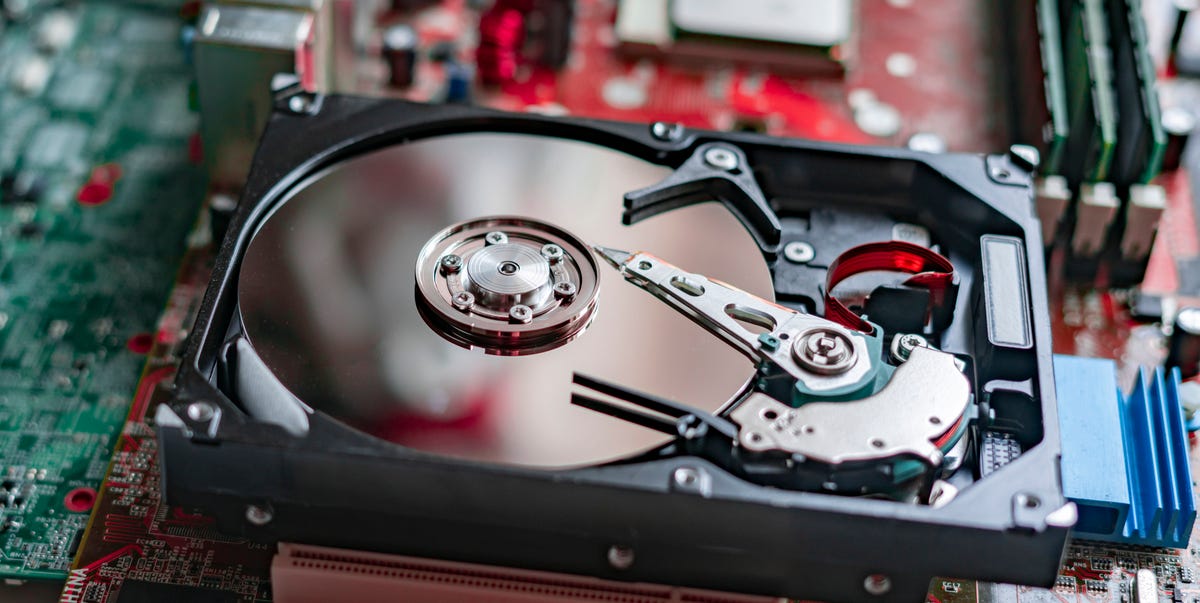
Old advice about overwriting a drive again and again came from the hard-drive era. Modern SSDs behave differently because of wear leveling, spare cells, and controller behavior. Translation: repeatedly overwriting an SSD is not always the clever security trick people think it is. For some SSD scenarios, vendor secure erase or PSID revert tools are a better match than old-school “write zeros to it twelve times and hope for the best” folklore.
Vendor tools you may hear about
Some SSD makers provide their own secure erase utilities. Intel has secure erase guidance for supported drives, and Samsung includes secure erase and PSID revert features in its storage software. These are more advanced than a standard OS reset and are usually best used by people who understand exactly which drive is being wiped. Because yes, selecting the wrong drive is one of those mistakes you only make once.
When Should You Destroy the Drive Instead?
Sometimes the smartest move is not to reset the computer at all. If the drive is damaged, the system will not boot, or the data is highly sensitive, physical destruction may be safer than trying to sanitize a failing device. This is also common in organizations with stricter policies for legal, healthcare, finance, or government-adjacent information.
If you destroy a drive, recycle the device responsibly. Computers contain materials that should not just be tossed in the trash like expired takeout containers and bad decisions.
Common Mistakes People Make When Resetting a Computer
- They skip the backup. Then they remember the family photos after the reset starts.
- They choose “Keep my files” before selling the computer. That is not a privacy plan.
- They forget cloud accounts. Sign out, disable locks, and unlink the device from the account when needed.
- They ignore encryption recovery keys. Especially on Windows.
- They assume deleting files is the same as wiping data. It is not.
- They treat SSDs like old hard drives. Different storage, different best practices.
- They reset a managed work or school device without approval. That can create technical and policy problems fast.
Which Method Should You Choose?
Choose a basic reset if:
- You are keeping the computer.
- You want to fix performance or software issues.
- You still need your files on the machine.
Choose remove everything or factory reset if:
- You are donating, selling, or giving away the computer.
- You want a clean start.
- You want local accounts, apps, and personal files removed.
Choose secure erase, crypto erase, or destruction if:
- The data is sensitive or regulated.
- You do not trust a consumer reset alone.
- The drive is being retired permanently.
Real-World Experiences: What Resetting a Computer Actually Feels Like
In real life, resetting a computer is rarely just a technical task. It is usually tied to a bigger moment: moving to a new machine, cleaning up after a security scare, getting a child ready for school, donating electronics, or trying to rescue a laptop that has become painfully slow. That is why people tend to underestimate the emotional side of it. A reset sounds simple until you realize your browser still knows every password you have saved since 2018 and your Downloads folder looks like a digital junk drawer with receipts, contracts, screenshots, and three mystery PDFs.
One very common experience is the “I thought everything was in the cloud” mistake. Someone starts a factory reset on a Windows laptop, feeling confident because they use OneDrive, only to remember halfway through that not every folder was syncing. Their desktop might be backed up, but an old project folder on the second drive is not. Suddenly, what was supposed to be a fresh start turns into a frantic scavenger hunt through backups, USB sticks, and old email attachments. The lesson is boring but powerful: check what is actually backed up, not what you assume is backed up.
Another frequent scenario happens when a person sells a Mac and forgets to turn off Find My. The Mac is wiped, the buyer takes it home, and then comes the awkward message: “Hi, I cannot use the computer because it is still linked to your Apple account.” That moment is the tech equivalent of mailing someone a locked suitcase and forgetting to include the key. The computer may be erased, but ownership protection still blocks setup. It is fixable, but it adds unnecessary drama to what should have been a smooth handoff.
Chromebooks have their own flavor of surprise. People often reset them and then panic because local files are gone, especially anything sitting in Downloads. Meanwhile, the files that were properly synced to Google Drive are perfectly fine. So the experience becomes a strange blend of “everything is ruined” and “actually, maybe not.” Chromebooks are great at cloud-first simplicity, but they are not mind readers. If a file lived only on the device, a Powerwash is not going to tuck it safely into the cloud out of kindness.
Then there is the security-minded crowd, the folks who hear “factory reset” and immediately picture forensic experts in dark rooms recovering their spreadsheets. Sometimes that fear is overblown, but sometimes it is reasonable. If a laptop held sensitive business data or deeply private information, a deeper sanitization method can provide real peace of mind. In those cases, the best experience is often the one that feels slightly overprepared: backup complete, accounts removed, encryption handled, reset performed, and if necessary, the drive retired for good. Sleep is much better when you are not wondering whether your old SSD is out there living a second life with your documents still hiding in it.
The big takeaway from all these experiences is simple: resetting a computer is not hard, but doing it well takes intention. The people who have the smoothest experience are not necessarily the most technical. They are the ones who slow down, make a checklist, verify their backup, and choose the reset method that matches their goal. Fancy jargon helps less than good habits. And honestly, that might be the most useful tech lesson of all.
Final Thoughts
If you only remember one thing from this guide, make it this: resetting a computer and permanently wiping data are related, but they are not identical. A quick reset is perfect for troubleshooting. A factory reset is usually the right move before resale or donation. A true sanitization method is what you want when the data is highly sensitive and the stakes are higher.
Take a few extra minutes to back up your files, sign out of accounts, remove locks, save recovery keys, and choose the right wipe method for your device. It is not glamorous, but neither is discovering that your “empty” computer still had your personal life tucked inside it like a digital attic.