“`
Note: Discord updates its mobile interface often, so button placement may look slightly different on iPhone and Android. This guide reflects the current practical workflow for favoriting, viewing, sending, and troubleshooting GIFs on Discord mobile.
Introduction: Because the Perfect GIF Should Not Disappear Into the Meme Abyss
There are ordinary replies, and then there are GIF replies. A plain “lol” is fine, but a perfectly timed reaction GIF can do the emotional heavy lifting of an entire paragraph. Discord understands this, which is why its mobile app includes a built-in GIF picker, a Favorites section, search categories, and quick ways to send animated reactions in servers, group chats, and direct messages.
The tricky part? Favoriting GIFs on Discord mobile can feel a little mysterious. Some users see the star button right away. Others tap around the GIF picker like they are solving a tiny escape room. And because Discord frequently refreshes its mobile design, older guides may say that GIF favoriting only works on desktop, while newer app versions may show a favorite button directly on mobile.
This guide explains how to favorite GIFs on Discord mobile step by step, how to access your saved GIFs, what to do if the star icon does not appear, and how to keep your GIF collection useful instead of turning it into a digital junk drawer full of dancing raccoons and confused cartoon cats.
What Does “Favorite GIFs on Discord Mobile” Mean?
Favoriting a GIF on Discord means saving it to your personal Favorites area inside the GIF picker. Instead of searching for the same reaction every time someone says something ridiculous, you can open your saved GIFs and send it again quickly. It is like bookmarking a meme, except with more emotional accuracy and fewer browser tabs.
Discord’s GIF picker lets users search for animated GIFs, browse trending categories, and send GIFs directly in chat. On mobile, the GIF picker is usually accessed through the smiley-face emoji icon near the message box. Once you open the GIF tab, you can search by keyword, browse categories, tap a GIF to send it, or use the favorite option when available.
Before You Start: Update the Discord Mobile App
Before trying to favorite GIFs, update Discord from the App Store or Google Play Store. This matters because the mobile GIF interface has changed over time. Some older versions allowed users to view favorite GIFs but not add new ones from mobile. Newer builds may include a favorite button or a long-press option depending on your device, account, and app rollout.
Quick checklist before favoriting GIFs
- Use the latest Discord app version.
- Log into the same Discord account you use on desktop.
- Check both Wi-Fi and mobile data if GIFs are slow to load.
- Make sure GIF autoplay is not blocked by Reduced Motion settings.
- Try the same action in a direct message and a server channel.
If your friend has the favorite button and you do not, do not panic. Discord sometimes rolls out interface changes gradually. Yes, it is annoying. No, yelling at your phone will not unlock the button faster, though we respect the passion.
How to Favorite GIFs on Discord Mobile: Step-by-Step
Step 1: Open Discord on Your Phone
Launch the Discord app on your iPhone or Android device. Make sure you are signed into the account where you want the GIF saved. Favorites are connected to your Discord experience, so using the right account is important, especially if you manage multiple accounts for gaming, work, community moderation, or secret meme research.
Step 2: Open a Server Channel or Direct Message
Go to any text channel, group chat, or direct message where you can type. You do not need to actually send a message yet. The goal is simply to open the message composer so Discord shows the expression tools.
Step 3: Tap the Message Box
Tap inside the chat box at the bottom of the screen. This brings up the keyboard and the row of icons used for emoji, stickers, GIFs, attachments, and other chat tools. On some versions of the app, the icon layout may shift depending on screen size or device orientation.
Step 4: Tap the Emoji or Smiley Icon
Look for the smiley-face icon near the message box. Tap it to open Discord’s expression picker. This is where Discord usually groups emoji, stickers, and GIFs. If you are used to desktop Discord, mobile may feel more compact, but the core idea is the same: open the picker, choose the type of reaction, and send chaos responsibly.
Step 5: Switch to the GIF Tab
Inside the expression picker, tap the GIF tab. You should see GIF categories, trending GIFs, and a search bar. You can search for terms like “laughing,” “facepalm,” “excited,” “nope,” “crying,” “victory,” or “cat typing.” The more specific your search, the better your odds of finding the exact emotional seasoning your conversation needs.
Step 6: Find the GIF You Want to Save
Scroll through the results or type a keyword into the search field. When you find a GIF worth saving, pause before tapping it. In many cases, tapping a GIF sends it immediately. If your goal is to favorite it first, you may need to open a preview, tap the GIF, or long-press it depending on your current Discord mobile layout.
Step 7: Tap the GIF Preview or Long-Press the GIF
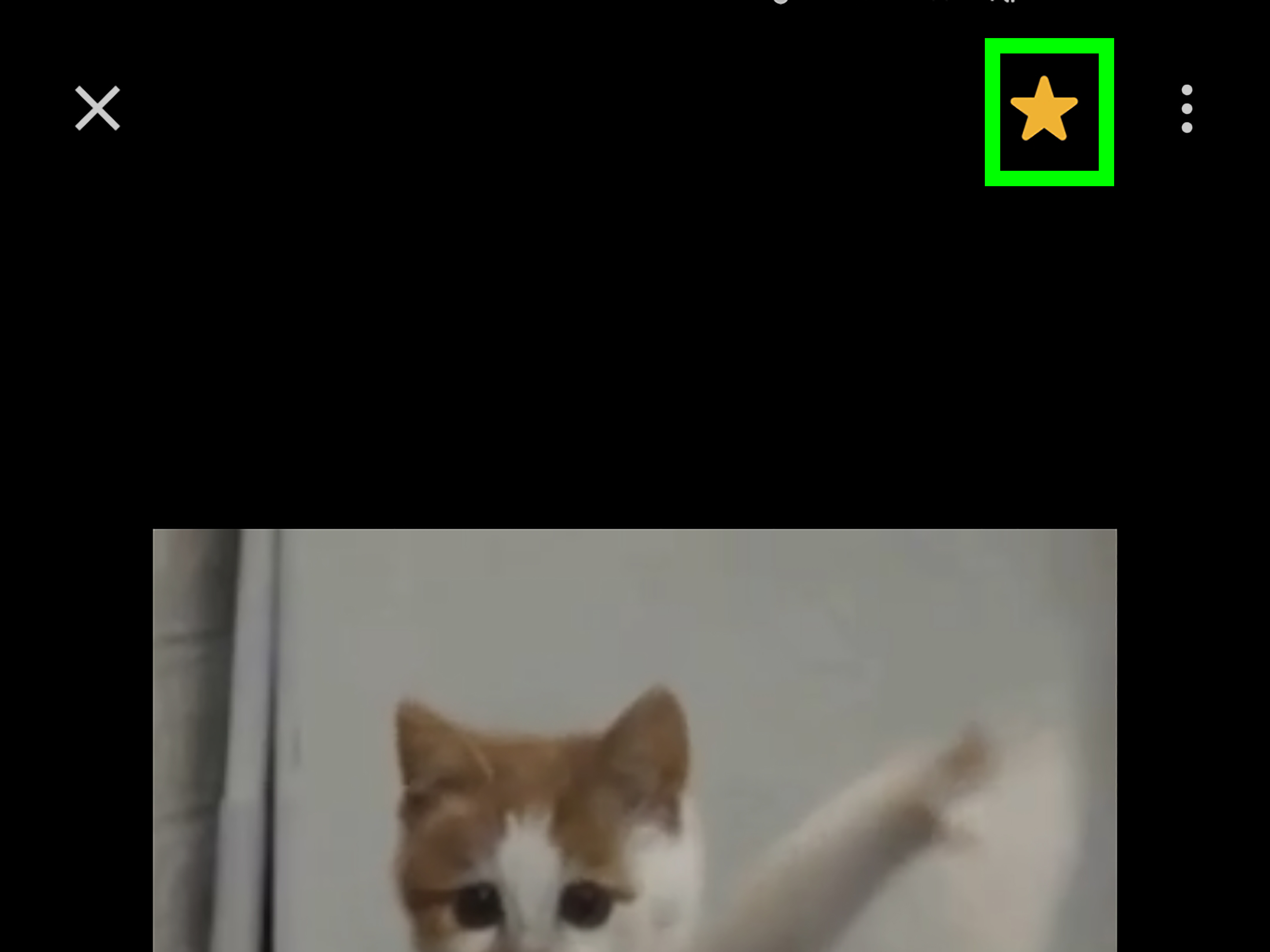
On many current mobile builds, tapping a GIF preview may open a larger view where a star icon appears near the top corner. On other builds, long-pressing the GIF can open additional options. Look for a star, favorite, or save-style button. If you see a star icon, that is the magic button. Tap it. Congratulations: your GIF has been promoted from “random internet animation” to “trusted emotional weapon.”
Step 8: Confirm the Star Is Filled
Discord typically uses a star-style indicator for GIF favorites. An unfilled star means the GIF is not saved. A filled or highlighted star means the GIF has been added to your Favorites. If you tap the star again, it may remove the GIF from Favorites, so avoid double-tapping unless you enjoy undoing your own victories.
How to Favorite a GIF Someone Already Sent in Chat
Sometimes the best GIFs are not found through search. They arrive in chat, dropped by a friend with suspiciously excellent timing. If someone posts a GIF you want to save, try this method:
- Find the GIF message in the Discord mobile chat.
- Tap the GIF to open it in a larger view.
- Look for the star icon near the top corner.
- Tap the star to add the GIF to your Favorites.
- Return to chat and continue pretending you discovered it yourself.
If tapping does not show the star, try long-pressing the GIF. If neither action works, your mobile app version may not currently support adding GIF favorites from that location. In that case, use the desktop or browser version as a fallback, then check your Favorites folder on mobile afterward.
How to View Favorite GIFs on Discord Mobile
Once you have saved a few GIFs, you can access them from the mobile GIF picker. Open a text channel or DM, tap the message box, tap the emoji icon, switch to the GIF tab, and look for a Favorites section. It is often placed near the beginning of the GIF categories.
Tap Favorites to browse your saved GIFs. Select one to send it in the conversation. If your Favorites folder is large, you may need to scroll carefully because mobile GIF previews can take a moment to load, especially on slower connections. Nothing humbles a person faster than waiting for a “perfect timing” GIF to load after the perfect timing has already left the building.
How to Unfavorite GIFs on Discord Mobile
Not every GIF ages gracefully. Maybe you saved a dramatic movie reaction for one joke and now it haunts your Favorites folder forever. To remove a GIF from Favorites, open the Favorites section, tap or preview the GIF, and tap the filled star again. When the star becomes unfilled, the GIF is no longer saved.
If you cannot remove it from mobile, try using Discord on desktop or in a browser. Desktop often gives more visible controls when hovering over GIFs. After cleaning up your collection on desktop, reopen Discord mobile and check whether the Favorites folder reflects the change.
Why Can’t I Favorite GIFs on Discord Mobile?
If you do not see a favorite button, several things could be happening. Discord’s interface changes often, and mobile features may not appear identically for every user. The feature may also depend on whether you are interacting with a GIF from the picker, a GIF already posted in chat, or a GIF uploaded as a file.
Possible reasons the favorite button is missing
- Your Discord app is outdated.
- The feature has not rolled out to your account or device yet.
- You are tapping a GIF that was uploaded as a file instead of selected from the GIF picker.
- The GIF preview is failing to load correctly.
- Your app cache or network connection is causing the picker to behave poorly.
- Reduced Motion or autoplay settings are affecting how GIFs display.
The simplest fix is to update Discord, fully close the app, reopen it, and test the GIF picker again. If the button still does not appear, try favoriting the GIF from Discord desktop. Then return to mobile and check whether it appears in your Favorites section.
Troubleshooting: GIF Favorites Not Loading on Mobile
Sometimes the Favorites folder appears, but the GIFs load as gray boxes, blank tiles, or frozen previews. This is usually a loading, cache, or app performance issue rather than proof that your memes have abandoned you.
Try these fixes
- Switch networks: Move from mobile data to Wi-Fi, or from Wi-Fi to mobile data.
- Restart Discord: Fully close and reopen the app.
- Update the app: Install the newest version from your app store.
- Restart your phone: Boring advice, surprisingly effective.
- Reduce the collection size: Too many favorites can make the folder slower to load.
- Check autoplay settings: Make sure GIFs are allowed to play automatically when possible.
- Disable Reduced Motion if appropriate: Reduced Motion can override GIF autoplay settings in Discord.
On iOS and Android, Discord includes a Reduced Motion setting under Appearance. When enabled, it can disable automatic GIF playback and animated emoji behavior. This is helpful for accessibility and comfort, but if you want GIFs to animate normally, review that setting along with Text & Images settings.
Best Practices for Managing Favorite GIFs
Favoriting every funny GIF may feel powerful at first, but after a few weeks your Favorites folder can become a museum of jokes you no longer understand. The best approach is to save GIFs you actually reuse.
Build a useful GIF collection
Think in categories even if Discord does not give you folder tools. Save a few reaction GIFs for common situations: laughing, approval, disbelief, celebration, awkward silence, dramatic exit, and “I have no idea what is happening but I support you.” This gives you a flexible set without turning your Favorites tab into a scrolling endurance test.
Avoid saving duplicate reactions
If you already have five “shocked Pikachu” style GIFs, you probably do not need a sixth unless it is truly elite. Duplicate GIFs make it harder to find the one you want when a conversation is moving quickly.
Remove broken or slow-loading GIFs
If a GIF constantly refuses to load, remove it and search for a similar one. Some GIF sources or embeds may become unreliable over time. A favorite GIF that never loads is not a favorite; it is a tiny loading-screen villain.
Desktop vs. Mobile: Which Is Better for GIF Favorites?
Discord desktop and browser versions generally offer more precise GIF controls because there is more screen space. Hovering over a GIF often reveals the favorite star quickly. Mobile, however, is more convenient for everyday chat because your phone is usually where quick conversations happen.
The best workflow is to use both. Save and organize GIFs on desktop when possible, then use your Favorites folder on mobile for fast replies. If mobile favoriting works on your app version, great. If it does not, desktop becomes your backup GIF warehouse.
Specific Example: Saving a Funny Reaction GIF
Imagine your friend posts, “I only opened Discord for five minutes,” followed by twenty-seven messages in three channels. You search the GIF picker for “sure Jan,” “side eye,” or “laughing.” You find the perfect GIF: someone staring into the camera with Olympic-level disbelief.
Instead of sending it once and losing it forever, tap or long-press the GIF, hit the star icon, and save it. Later, when another friend says, “This will be a quick meeting,” you open the GIF tab, tap Favorites, and send the same reaction in seconds. That is the beauty of Discord GIF favorites: emotional efficiency.
Privacy and Etiquette: Use GIFs Like a Good Internet Citizen
GIFs are fun, but context matters. A GIF that is hilarious in a private group chat may feel confusing or annoying in a serious community server. Before sending a favorite GIF, consider the channel topic, server rules, and conversation tone. Moderators may remove spammy, flashing, inappropriate, or off-topic GIFs.
Also remember that some users disable autoplay for comfort, accessibility, or battery life. Avoid rapid-fire GIF spam, especially in large servers. One great GIF is comedy. Ten GIFs in a row is a cry for moderation.
Conclusion: Save the GIF, Save the Moment
Learning how to favorite GIFs on Discord mobile makes conversations faster, funnier, and more expressive. The basic process is simple: open Discord, go to a chat, tap the emoji icon, switch to GIFs, find a GIF, open its preview or long-press it, and tap the star icon when available. After that, your saved GIF should appear in the Favorites section of the GIF picker.
If the star does not show up, update the app, restart Discord, test another GIF, or use desktop as a fallback. Discord’s mobile interface changes frequently, so a little flexibility helps. Once your Favorites folder is working, keep it tidy. Save your best reactions, remove broken ones, and avoid building a GIF collection so large it needs its own librarian.
Real-World Experience: What It Feels Like to Use Favorite GIFs on Discord Mobile
Using favorite GIFs on Discord mobile sounds like a small feature until you actually rely on it during a fast-moving conversation. Anyone who has spent time in an active server knows the rhythm: someone says something dramatic, five people start typing, one person posts a meme, and suddenly the window for the perfect reaction is about three seconds wide. If you have to search from scratch, the moment may vanish before your GIF even loads.
That is where Favorites becomes genuinely useful. The best experience is when you build a small collection of reliable reactions. For example, keep one GIF for laughter, one for confusion, one for “absolutely not,” one for celebration, and one for polite emotional damage. When the conversation turns chaotic, you do not need to search “man blinking confused” for the seventeenth time. You just open Favorites and send the reaction like a seasoned professional.
On mobile, the biggest advantage is speed. You are probably using Discord while commuting, relaxing on the couch, gaming away from your desk, or checking messages between tasks. A saved GIF collection lets you respond with personality without typing a full message. It also helps in communities where inside jokes matter. If your server has a legendary GIF that appears every time someone forgets to unmute, saving it keeps the tradition alive.
The main frustration is inconsistency. Some users see the star icon immediately, while others need to tap, preview, long-press, or switch devices. This can make the feature feel hidden. The practical solution is to experiment with both tapping and long-pressing. If you still cannot favorite from mobile, save GIFs on desktop and use them from mobile later. It is not elegant, but it works, and Discord users are nothing if not resourceful.
Another experience-based tip is to clean your Favorites folder regularly. A giant GIF library feels impressive until you are scrolling through old reactions while the chat has already moved from jokes to dinner plans. Keep your collection lean. If a GIF no longer makes sense, remove it. If two GIFs communicate the same thing, keep the stronger one. Think of it like curating a playlist, except every song is a looping clip of someone dramatically falling into a chair.
Finally, remember that GIFs work best when they match the room. In a close friend group, a chaotic GIF may be perfect. In a professional community or support server, a calmer reaction may land better. Favorite GIFs are not just shortcuts; they are part of your Discord voice. Choose them well, use them at the right moment, and your mobile replies will feel faster, funnier, and far more memorable.