Few modern frustrations are as tiny yet dramatic as tapping “Get,” “Install,” or “Download” and watching absolutely nothing happen. The button spins. The progress bar freezes. Your phone looks innocent, like it has never betrayed anyone in its life. Meanwhile, you are standing there wondering, “Why can’t I download apps?”
The good news: most app download problems are not mysterious digital curses. They usually come from everyday issues such as weak internet, low storage, outdated software, a stuck app store cache, account problems, payment verification, parental controls, device compatibility, or temporary store outages. In other words, your device probably does not hate you. It may simply need a little housekeeping, a restart, or a firm but respectful conversation with its settings menu.
This guide walks through the most common reasons apps will not download on iPhone, iPad, Android, Samsung Galaxy phones, Windows PCs, and other app-store-based devices. You will also find practical examples, a step-by-step troubleshooting checklist, and a longer real-world experience section at the end to help you diagnose the problem without turning your device into a very expensive paperweight.
Why Can’t I Download Apps? The Most Common Causes
When an app refuses to download, the cause usually falls into one of several buckets. Think of these as the usual suspects in a tiny courtroom where the defendant is a frozen progress circle.
1. Your Internet Connection Is Weak or Unstable
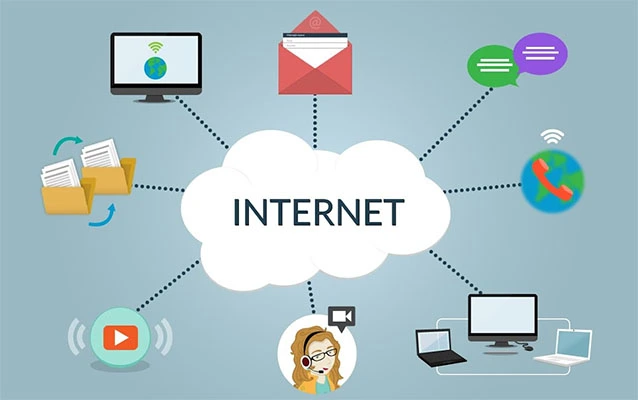
Apps need a steady connection to download. A weak Wi-Fi signal, overloaded public network, disabled mobile data, or flaky router can interrupt the process. Sometimes your device says it is connected, but the connection is about as useful as a screen door on a submarine.
Try opening a website or streaming a short video. If other online activities are slow, the app store is probably not the villain. Switch from Wi-Fi to mobile data, or from mobile data to Wi-Fi. If you are on public Wi-Fi at school, a hotel, airport, library, or café, the network may block app-store traffic or require you to accept a sign-in page first.
2. Your Device Does Not Have Enough Storage
Apps are often larger than they look. A game may show one size in the store but need extra room to unpack files, install updates, and store temporary data. If your phone has only a few hundred megabytes left, even a small app may fail.
On iPhone or iPad, check Settings > General > iPhone Storage or iPad Storage. On Android, look under Settings > Storage. On Windows, check Settings > System > Storage. Delete unused apps, old downloads, duplicate videos, and giant chat attachments. Your camera roll may be beautiful, but 417 nearly identical photos of lunch are not helping your download queue.
3. The App Store Cache Is Stuck
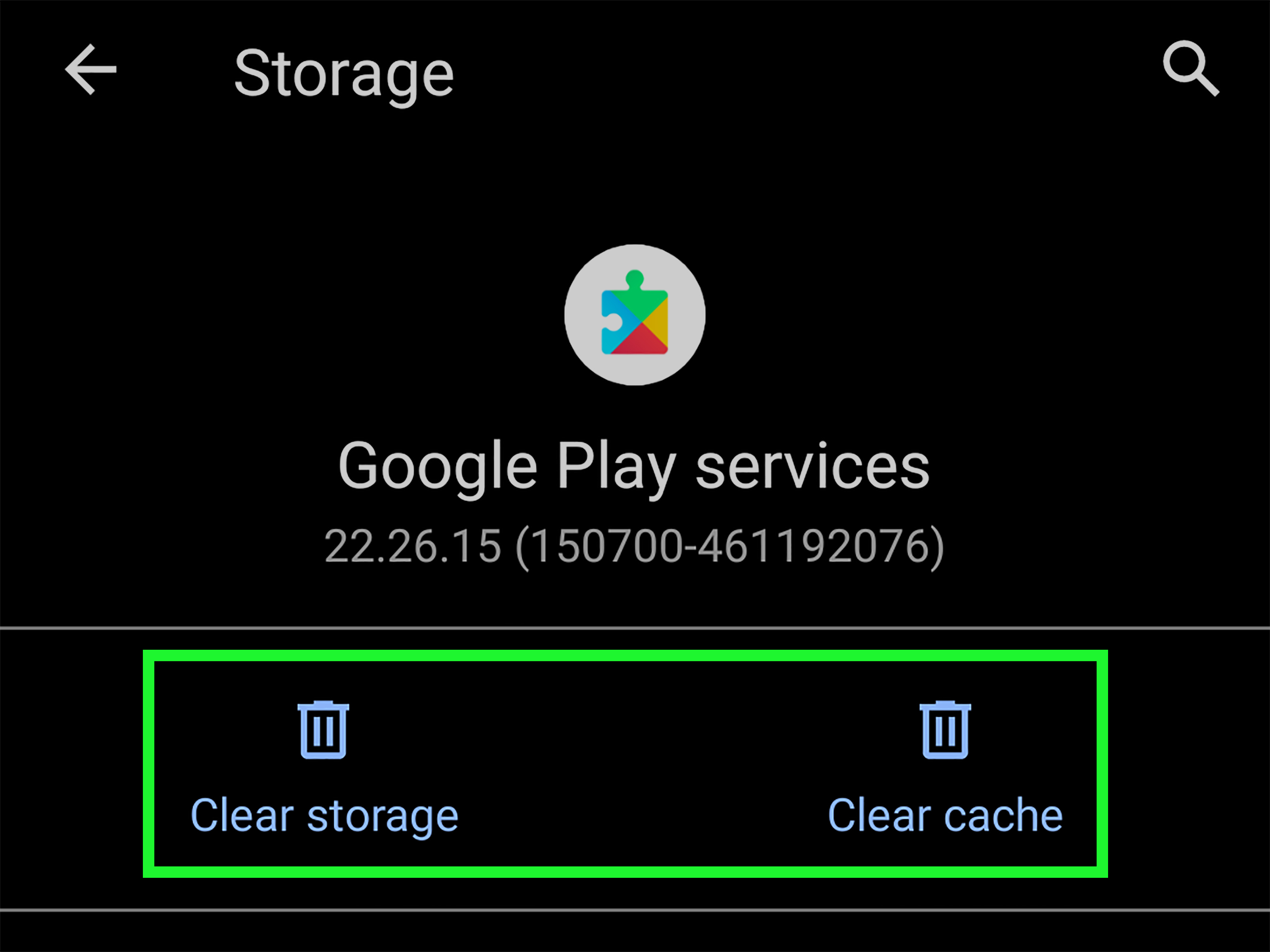
On Android, the Google Play Store and Google Play Services rely on cached data to work smoothly. Cache is supposed to speed things up, but when it becomes corrupted or outdated, downloads may get stuck on “Pending,” “Installing,” or “Waiting.” Clearing the Play Store cache and data often fixes download problems.
On Samsung devices, the Galaxy Store can have similar issues. Clearing the Galaxy Store cache and data may help when apps refuse to download or update. This does not delete your personal photos or messages, but it may reset some app-store preferences.
4. Your Account Needs Attention
App stores connect downloads to your Apple ID, Google Account, Microsoft account, Amazon account, or Samsung account. If you are signed out, using the wrong account, have a verification issue, or recently changed your password, downloads can fail.
On iPhone, Apple may require a valid payment method even for some free app downloads, especially if there is a billing issue with a previous purchase. On Google Play, account sync issues can also stop downloads. On Windows, Microsoft Store downloads may fail if the account session is stale or the Store app needs repair.
5. Restrictions, Screen Time, or Family Settings Are Blocking Downloads
Sometimes the app store is working perfectly; it is simply obeying restrictions. iPhone and iPad have Screen Time settings that can restrict app installs, purchases, content ratings, and built-in features. Android devices may use Family Link or managed profiles. School, work, and family-managed devices may also block certain downloads.
If a device is managed by a parent, guardian, school, or employer, do not try to bypass those restrictions. Ask the person who manages the device to review the settings with you. It is less dramatic than a secret settings mission, and it keeps your account and device safer.
6. The App Is Not Compatible With Your Device
Some apps require a newer operating system, specific hardware, a certain country or region, or a certified device. If your phone is older, heavily customized, rooted, running outdated software, or missing required services, the store may hide the app or show a compatibility message.
For example, a new video editing app might require a recent Android version and enough RAM. A banking app may refuse to install on unsupported or modified devices for security reasons. A game may require graphics features your device does not have. The app is not being rude; it is just picky.
7. The App Store or Download Server Is Temporarily Down
Sometimes the issue is not your phone, your Wi-Fi, or your storage. App stores and cloud services can have outages. If many people online are reporting the same issue at the same time, the best fix may be to wait and try again later. Before you delete half your phone, check the store’s system status page or official support channels.
Quick Fixes to Try First
Before diving into advanced settings, start with the simple steps. They solve more problems than they have any right to solve.
Restart Your Device
A restart clears temporary glitches, refreshes network connections, and gives your device a clean start. It sounds too easy, but it works often enough that tech support teams keep recommending it. Power the device off completely, wait a few seconds, turn it back on, then try the download again.
Pause and Resume the Download
If an app is stuck on “Waiting” or “Pending,” pause it and start it again. On iPhone, touch and hold the app icon and look for options such as pause, resume, or prioritize download. On Android, cancel the download in Google Play, close the Play Store, reopen it, and try again.
Check Wi-Fi and Mobile Data
Turn Wi-Fi off and back on. Try another network. Restart your router if you control it. If you are using mobile data, confirm that the app store is allowed to use cellular data. Some devices restrict large downloads on mobile data to protect your plan, which is polite but occasionally annoying.
Free Up Storage Space
Give your device breathing room. Delete unused apps, remove old downloads, clear offline videos, and move photos to cloud storage or a computer. As a rule of thumb, try to keep several gigabytes free, especially before installing large games, system updates, or productivity apps.
Update Your Operating System
Old system software can create app compatibility issues. On iPhone or iPad, check Settings > General > Software Update. On Android, check Settings > System > Software Update, although the exact path varies by brand. On Windows, go to Settings > Windows Update.
How to Fix App Download Problems on iPhone and iPad
If your iPhone or iPad will not download apps from the App Store, follow this checklist.
Check Your Apple ID and Payment Method
Open the App Store and make sure you are signed in with the correct Apple ID. If you see a message about billing, verification, or a previous purchase, update your payment method. Even free downloads may be blocked when an account has unresolved payment verification.
Prioritize or Restart the Download
If the app appears on the Home Screen but is stuck, touch and hold the icon. Choose Prioritize Download if available. You can also pause and resume the download. If that fails, delete the partially downloaded app and try again from the App Store.
Check Date, Time, and App Store Connection
Incorrect date and time settings can interfere with secure connections. Go to Settings > General > Date & Time and enable automatic time if possible. Also confirm that your device can connect to Apple services by opening the App Store, searching for another app, or checking Apple’s system status page.
Review Screen Time Settings
Go to Settings > Screen Time > Content & Privacy Restrictions. If app installs are blocked or app ratings are limited, downloads may not work. If the device is managed by Family Sharing, a parent or guardian may need to approve changes.
How to Fix App Download Problems on Android
Android app issues can vary because different brands customize their devices, but the core steps are similar.
Clear Google Play Store Cache and Data
Open Settings > Apps > Google Play Store > Storage & cache. Tap Clear cache. If downloads still fail, tap Clear storage or Clear data. Then reopen Google Play, agree to any prompts, and try the download again.
Clear Google Play Services Cache
Google Play Services helps apps install, update, authenticate, and communicate with your Google account. If it is stuck, Play Store downloads can fail. Go to Settings > Apps > Google Play Services > Storage & cache, then clear the cache. Restart your phone afterward.
Check Download Manager
Some Android phones include a system app called Download Manager. If it is disabled, app downloads may fail. In Settings > Apps, show system apps, find Download Manager, and make sure it is enabled. Force stop it if necessary, then restart the device.
Check Device Compatibility
If Google Play says an app is not compatible, check whether your Android version is current. Also confirm that your device is certified for Google Play. Very old devices, unofficial ROMs, or uncertified models may not support certain apps.
How to Fix App Download Problems on Samsung Galaxy Devices
Samsung Galaxy phones can download apps through Google Play and, for some apps, the Galaxy Store. If one store fails, the other may still work depending on the app.
Clear Galaxy Store Cache and Data
Open Settings > Apps > Galaxy Store > Storage. Tap Clear cache, then try again. If needed, tap Clear data. Reopen Galaxy Store and sign in again if prompted.
Update Samsung System Apps
Some Samsung features depend on updated system apps and services. Open the Galaxy Store, tap the menu, and check for updates. Then open Google Play and update Google Play Services if an update is available.
How to Fix Microsoft Store App Download Issues on Windows
If apps will not download from the Microsoft Store, start by updating Windows. Go to Settings > Windows Update and install available updates. Then close and reopen the Microsoft Store.
If that does not work, sign out of the Store and sign back in. Check that your Microsoft account is active and that your payment information is current if the app is paid. You can also repair or reset the Microsoft Store from Settings > Apps > Installed apps > Microsoft Store > Advanced options.
What If Only One App Will Not Download?
If every app downloads except one, the problem is probably specific to that app. It may be unavailable in your region, temporarily removed, incompatible with your operating system, restricted by age rating, or no longer supported by the developer.
Check the app’s listing carefully. Look for system requirements, supported countries, recent reviews, and update history. If the app was recently pulled from the store, do not hunt for random copies from suspicious websites. Unofficial downloads may contain malware, trackers, or modified code. The safer move is to wait for the developer to fix the issue or choose a trusted alternative from the official store.
Security Warning: Be Careful With Third-Party Downloads
When an app store blocks a download, it can be tempting to search the web for an installer file. Be careful. Official app stores are not perfect, but they provide review systems, update channels, developer information, and removal tools when something goes wrong.
Third-party app files can be risky, especially when they promise paid apps for free, modified games, cracked subscriptions, or “special versions” of popular apps. Those downloads may steal data, display aggressive ads, collect personal information, or damage device performance. If an app is important, download it from the official App Store, Google Play, Microsoft Store, Galaxy Store, or the developer’s verified website when appropriate.
Advanced Troubleshooting Checklist
If the basic steps did not work, try this deeper checklist:
- Restart the device and router.
- Switch between Wi-Fi and mobile data.
- Check available storage and free up several gigabytes.
- Update the operating system.
- Update the app store itself, if possible.
- Clear app-store cache and data on Android or Samsung devices.
- Sign out and sign back into the app store account.
- Check payment method, billing messages, and account verification.
- Review Screen Time, Family Link, school, work, or administrator restrictions.
- Check whether the app is compatible with your device and region.
- Look for official outage reports or system status notices.
- Contact device support or the app developer if the issue continues.
Specific Error Examples and What They Usually Mean
“Pending” or “Waiting”
This often points to a stuck download queue, weak connection, Play Store cache issue, or another app updating in the background. Cancel the download, clear the store cache if you are on Android, restart the device, and try again.
“Verification Required”
On iPhone or iPad, this usually means your Apple ID needs payment or account verification. Check your payment method and billing details.
“Not Enough Storage”
Your device needs more free space. Delete unused apps, clear downloads, remove offline videos, and restart before trying again.
“Your Device Isn’t Compatible With This Version”
The app may require a newer operating system, specific hardware, or a certified device. Update your system if possible. If the device is too old, you may need an older supported app version, a web version, or a different device.
Real-World Experience: What App Download Problems Usually Feel Like
Most people do not notice app-store problems until they need an app immediately. That is what makes the issue so irritating. Nobody calmly downloads a parking app three days early while sipping tea. No, the download fails when you are standing beside a parking meter, the sun is roasting your forehead, and the app icon is stuck at 3% like it has chosen early retirement.
One common experience is the “almost full phone” situation. The device says you still have some storage, so you assume everything is fine. But app installation needs temporary space, not just the final app size. A person may delete one small app and wonder why nothing changes. Then they remove a few large videos, clear old message attachments, restart the phone, and suddenly the app downloads normally. The lesson is simple: storage problems often need a bigger cleanup than expected.
Another familiar scenario is public Wi-Fi. A user connects at an airport or hotel, opens the app store, and the download spins forever. The missing step is often the network login page. The phone says Wi-Fi is connected, but the internet is not fully available until the user opens a browser and accepts the terms. It is the digital version of a locked door with a tiny sign that says, “Please jiggle handle first.”
On Android, the classic headache is the endless “Pending” message. Users may try the same download ten times, which feels productive but mostly teaches the progress bar that it can hurt your feelings. Clearing the Google Play Store cache, checking Google Play Services, restarting the phone, and making sure Download Manager is enabled often solves the problem. It is not glamorous, but neither is flossing, and both prevent bigger pain later.
On iPhone, account verification can surprise people. A free app refuses to download, and the user thinks, “Why does a free app care about my payment method?” Usually, the issue is not the free app itself but the Apple ID needing verification or having a previous billing problem. Once the account is updated, downloads often return to normal.
Family and school-managed devices create another real-world wrinkle. A student may think the App Store or Google Play is broken because certain apps will not appear or install. In reality, Screen Time, Family Link, device management, or content ratings may be doing exactly what they were set up to do. The fix is not a sneaky workaround. The right fix is to ask the parent, guardian, teacher, or administrator to review the restriction. That conversation may be less exciting than hacking the Matrix, but it is safer and usually faster.
Finally, some app problems are simply not yours to fix. If a developer removes an app, if the app is not available in your region, if the store is having an outage, or if the app no longer supports your device, no amount of button tapping will change reality. That is when patience, official support pages, and trusted alternatives become your best friends.
The biggest takeaway from real-world troubleshooting is to move in order: connection, storage, restart, updates, account, restrictions, compatibility, and outage checks. Randomly changing every setting at once can create more confusion. A calm checklist beats panic-tapping every time.
Conclusion
If you are asking, “Why can’t I download apps?” the answer is usually practical, not mysterious. Start with your internet connection and storage. Restart the device. Update your software. Clear app-store cache on Android or Samsung devices. Check your account, payment method, restrictions, and app compatibility. If only one app refuses to install, review its requirements and availability. If everyone is having the same issue, the app store may be temporarily down.
Most app download issues can be fixed in a few careful steps. The secret is not to panic, not to download suspicious installers, and not to assume your device has developed a personal grudge. It is probably just asking for storage, updates, or a clean restart in the most dramatic way possible.