Few modern problems feel as dramatic as settling into the couch, opening Netflix, choosing the perfect show, and then watching your Roku TV toss you back to the home screen like a bouncer at a very picky nightclub. If Netflix keeps crashing on your Roku TV, freezes on the logo, shows a black screen, buffers endlessly, or closes right after launch, don’t panic. In most cases, the fix is not a new TV, a new Netflix account, or a ceremonial sacrifice of your remote control.
The problem usually comes down to one of a few boring-but-fixable causes: temporary app data, outdated Roku software, a weak Wi-Fi signal, a glitchy Netflix installation, network congestion, orin rare casesan older Roku model or TV that no longer plays nicely with the latest streaming requirements. The good news? You can troubleshoot most Netflix Roku TV crashes in under 20 minutes.
This guide walks you through seven practical fixes, starting with the easiest and safest steps before moving toward the “fine, let’s reset this thing” options. Keep your remote nearby, take a deep breath, and let’s get Netflix behaving again before your popcorn loses its crunch.
Why Does Netflix Keep Crashing on Roku TV?
When Netflix crashes on Roku TV, the app may close suddenly, freeze during playback, get stuck on the loading screen, or return you to the Roku home screen. Sometimes the issue happens only with Netflix. Other times, multiple apps begin acting strange, which points more toward your Roku system, memory, Wi-Fi, or internet connection.
Common reasons include:
- Netflix app data needs to be refreshed.
- Your Roku TV or Roku streaming device needs a system restart.
- The Netflix channel is outdated or corrupted.
- Roku OS needs a software update.
- Your Wi-Fi signal is weak, crowded, or unstable.
- Your router or modem needs a restart.
- The Netflix service is temporarily having problems.
- Your device is older and may not support the latest Netflix app requirements.
Before you try all seven fixes, do one quick test: open another streaming app, such as YouTube, Hulu, Prime Video, Disney+, or The Roku Channel. If only Netflix crashes, focus on Netflix-specific fixes like updating, removing, and reinstalling the app. If several apps crash or buffer, focus on Roku system updates, Wi-Fi, router restarts, and device performance.
1. Restart Your Roku TV the Right Way
This sounds too simple, but restarting your Roku TV is often the fastest fix for Netflix crashing. And no, pressing the power button on the remote is not always the same as a full restart. Many Roku TVs enter standby mode instead of fully refreshing the system. That means the same temporary glitch can sit there like a raccoon in your attic, causing trouble every time Netflix opens.
How to restart Roku TV from Settings
- Press the Home button on your Roku remote.
- Go to Settings.
- Select System.
- Choose Power. If you do not see Power, skip to the next step.
- Select System restart.
- Choose Restart.
After the Roku TV restarts, open Netflix again and test the same show or movie that was crashing. If Netflix now works normally, the issue was likely temporary system data, memory buildup, or a small software hiccup.
Power-cycle method
If the Settings menu is frozen or sluggish, unplug the Roku TV from the wall outlet. Wait at least 15 to 30 seconds, then plug it back in. This forces the device to fully power down and reload. It is the streaming-device equivalent of taking a nap and waking up less cranky.
2. Check Whether Netflix Is Down
Before you spend your evening blaming your Roku TV, check whether Netflix itself is having an outage. Streaming services occasionally run into temporary interruptions, especially during major live events, popular releases, or heavy traffic periods. If Netflix is down, no amount of button pressing will fix it. That is not troubleshooting; that is remote-control cardio.
Go to Netflix’s official service status page or check trusted outage trackers to see whether other users are reporting problems. You can also test Netflix on another device, such as your phone, laptop, tablet, or another smart TV. If Netflix fails everywhere, the problem is probably on Netflix’s side or your internet connection. If Netflix works on your phone but crashes only on Roku, continue with the fixes below.
Quick test
- If Netflix works on other devices: your Roku TV or Netflix app is likely the issue.
- If Netflix fails on all devices: check your internet connection or Netflix service status.
- If other Roku apps also fail: troubleshoot Roku, Wi-Fi, or router problems.
3. Update Roku Software and the Netflix App
Netflix and Roku both update their software to improve performance, fix bugs, support new features, and keep up with security requirements. If your Roku TV has not updated in a while, Netflix may crash because the app and operating system are no longer speaking the same language. Imagine one person texting in English and the other replying in printer noises. That is basically outdated software.
How to update Roku TV
- Press Home on your Roku remote.
- Go to Settings.
- Select System.
- Choose Software update.
- Select Check now.
If Roku finds an update, allow it to install completely. Your TV may restart during the process. Once the update finishes, open Netflix again and test playback.
How to check for a Netflix app update
- Press Home.
- Highlight the Netflix app.
- Press the Star (*) button on your remote.
- Select Check for updates, if the option appears.
If the Netflix app keeps crashing right after launch, a software update may be enough to stop the problem. This is especially important if the issue started after a Roku OS update, a Netflix interface change, or a long period when your TV was not connected to the internet.
4. Remove and Reinstall Netflix on Roku
If restarting and updating do not help, remove Netflix and reinstall it. This is one of the best fixes when Netflix keeps crashing on Roku TV but other apps work fine. Reinstalling the app clears out corrupted channel data and gives Roku a fresh copy of Netflix.
How to remove Netflix from Roku TV
- Press Home on the Roku remote.
- Highlight the Netflix app.
- Press the Star (*) button.
- Select Remove app or Remove channel.
- Confirm your choice.
Restart before reinstalling
Do not skip this step. After removing Netflix, restart your Roku TV before reinstalling it. This helps clear leftover temporary data. Go to Settings > System > Power > System restart, or unplug the TV for 15 to 30 seconds.
How to reinstall Netflix
- Press Home.
- Go to Streaming Store.
- Search for Netflix.
- Select Add app or Add channel.
- Open Netflix and sign in again.
Reinstalling Netflix is especially helpful when the app opens to a black screen, crashes after the logo, freezes during browsing, or closes only when loading a specific profile. Yes, you will need to sign back in. No, this is not Roku being dramatic. It is part of getting a clean installation.
5. Fix Your Wi-Fi and Internet Connection
A weak or unstable internet connection can make Netflix crash, freeze, buffer, or fail to load properly on Roku TV. Even if your phone says Wi-Fi is “fine,” your Roku TV may be sitting in a dead zone behind a cabinet, under the TV, next to a wall, or surrounded by enough interference to make your router question its life choices.
Run a Roku network check
- Press Home.
- Go to Settings.
- Select Network.
- Choose Check connection.
Roku will test whether it can connect to your wireless network and reach the internet. If the test fails, reconnect to Wi-Fi, confirm your password, and make sure you selected the correct network.
Check your Netflix speed
Netflix recommends stable internet speeds based on video quality. As a practical rule, aim for at least 3 Mbps for HD, 5 Mbps for full HD, and 15 Mbps or higher for 4K UHD streaming. If several people are gaming, downloading files, video chatting, and streaming at the same time, you may need more bandwidth than the minimum.
Improve Roku Wi-Fi signal
- Move your router closer to the Roku TV.
- Keep the router off the floor and away from walls or cabinets.
- Move cordless phones, baby monitors, and microwaves away from the router.
- Use the 5 GHz Wi-Fi band if your router and Roku support it.
- Reduce other devices streaming or downloading during Netflix playback.
- Use Ethernet if your Roku TV or Roku device supports it.
Also restart your router and modem. Unplug them from power, wait 10 to 30 seconds, plug the modem back in first, then the router, and give everything a few minutes to reconnect. This simple step fixes a surprising number of Netflix crashes, especially when the app fails during loading or playback.
6. Reset the Roku Network Connection
If Netflix still crashes after you restart the router and improve Wi-Fi, reset the Roku network connection. This is useful when your Roku TV shows a connection but behaves as if the internet is powered by a tired hamster. A network reset clears saved network settings and lets you reconnect from scratch.
How to reset Roku network connection
- Press Home.
- Go to Settings.
- Select System.
- Choose Advanced system settings.
- Select Network connection reset.
- Choose Reset connection.
Your Roku TV will restart. After that, reconnect to Wi-Fi using your network name and password. Then open Netflix and test playback again.
This fix is especially helpful when Netflix crashes after buffering, loads thumbnails slowly, loses connection mid-show, or works at random times of day. If your evening streaming fails but morning streaming works, network congestion may be part of the problem. Your router might be fine; your household may simply be hosting an accidental bandwidth festival.
7. Factory Reset Roku TV as a Last Resort
A factory reset should not be your first move. It erases settings, removes apps, signs you out of accounts, and returns your Roku TV to a fresh setup state. In other words, it is the “move out and start over” option. But if Netflix keeps crashing after every other fix, a factory reset can clear deep system corruption or stubborn software issues.
Before you factory reset
- Make sure you know your Roku account email and password.
- Confirm your Wi-Fi name and password.
- Write down any important app logins.
- Check whether other apps are also crashing.
- Try removing and reinstalling Netflix first.
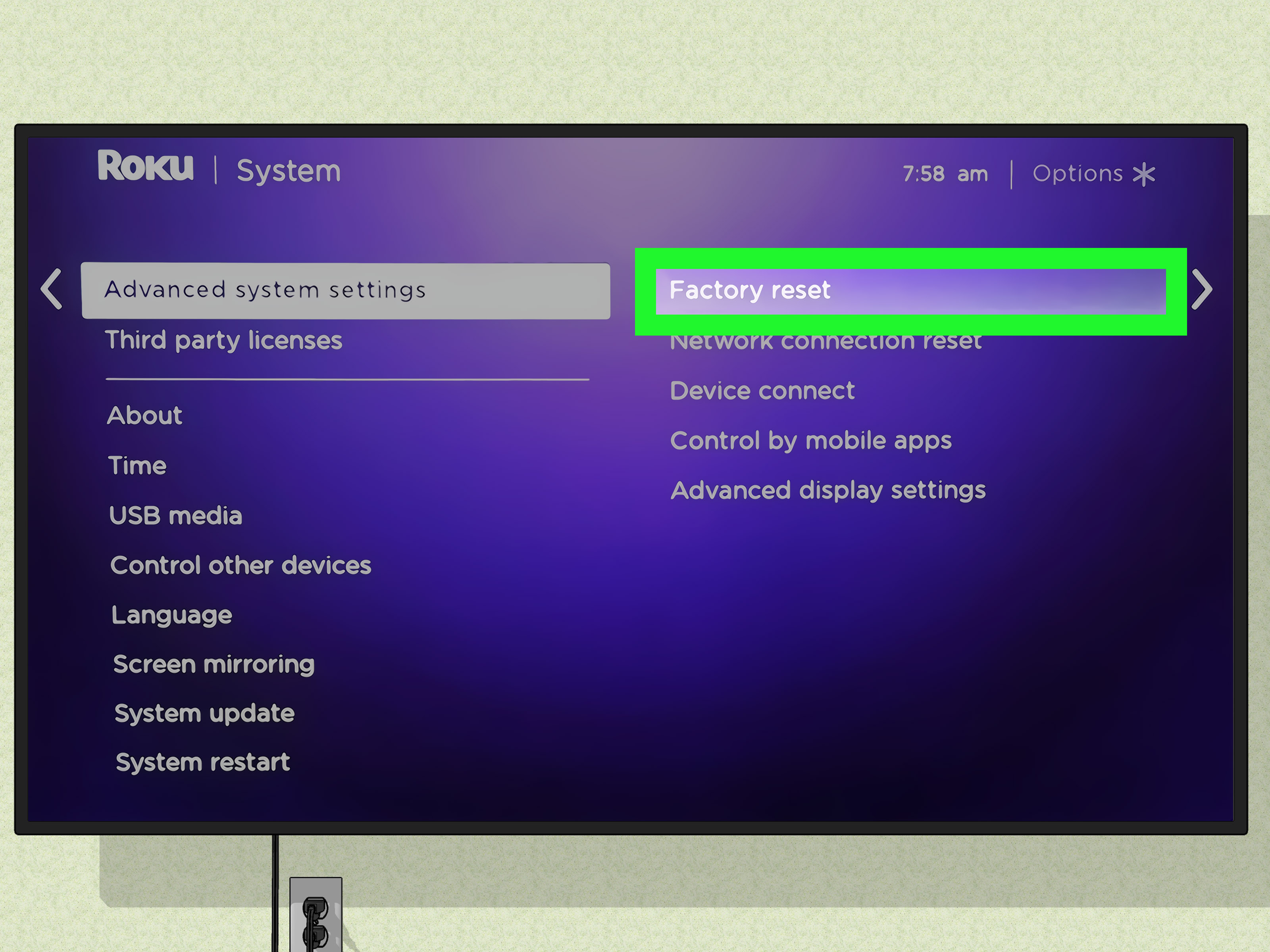
How to factory reset Roku TV
- Press Home.
- Go to Settings.
- Select System.
- Choose Advanced system settings.
- Select Factory reset.
- For Roku TV, choose Factory reset everything.
- Follow the on-screen instructions.
After setup, install Netflix again and test it before adding every other app back. If Netflix works after a factory reset, the issue was likely related to system data, app conflicts, network settings, or corrupted software.
What If Netflix Says It Is No Longer Available on This Device?
If you see a message saying Netflix is no longer available on your device, the issue may not be a simple crash. Some older streaming devices eventually lose support because they cannot meet newer app, security, codec, or system requirements. In that case, restarting and reinstalling may not solve the problem.
If your Roku TV is still generally functional, check for a Roku system update first. If no update is available and Netflix continues to show an unsupported-device message, your easiest fix may be using a newer streaming stick, streaming box, game console, or another supported device connected through HDMI. That is usually cheaper than replacing the entire TV.
Extra Tips to Stop Netflix From Crashing Again
Once Netflix works, a little prevention can save you from repeating the same troubleshooting dance next weekend.
- Restart your Roku TV once every week or two if you stream heavily.
- Keep Roku OS updated.
- Remove apps you never use to free up system resources.
- Keep your router in an open, central location.
- Restart your router occasionally, especially after outages.
- Use 5 GHz Wi-Fi or Ethernet for better streaming stability.
- Check Netflix service status before doing major troubleshooting.
If Netflix only crashes during 4K playback, try lowering the playback quality temporarily. 4K streaming needs more bandwidth and a steadier connection than HD. If HD works smoothly but 4K crashes or buffers, the app may not be the villain. Your Wi-Fi may simply be gasping under the weight of all those glorious pixels.
When to Contact Roku, Netflix, or Your Internet Provider
Contact Netflix support if Netflix crashes on multiple devices, your account shows unusual errors, or the app displays a specific Netflix error code. Contact Roku support if several apps crash, your Roku TV freezes outside Netflix, or system updates fail repeatedly. Contact your internet provider if network speed is far lower than expected, your connection drops frequently, or your Roku works better on a phone hotspot than on your home Wi-Fi.
When you contact support, be specific. Say what model of Roku TV or Roku device you have, whether the crash happens at launch or during playback, whether other apps work, and what steps you already tried. This saves time and prevents the classic support-loop experience where everyone asks you to restart the device you have already restarted six times with growing emotional intensity.
Real-World Experience: What Usually Works When Netflix Keeps Crashing on Roku TV
In real homes, Netflix crashing on Roku TV rarely feels like a neat technical issue. It usually happens at the worst possible moment: halfway through a season finale, during family movie night, or right after someone proudly announces, “I finally found something everyone will watch.” Then Netflix crashes, the room goes silent, and suddenly the remote becomes the most important object in the house.
From practical troubleshooting experience, the first thing that works most often is a proper restart. Many people turn the TV off with the remote and assume they restarted it, but Roku TV may simply go into standby. A full system restart or unplugging the TV for half a minute clears temporary memory and often brings Netflix back immediately. It feels almost too easy, which is probably why people skip it. But simple fixes are simple for a reason.
The second most reliable fix is removing and reinstalling Netflix. When only Netflix crashes while other apps work, the app data is often the problem. Reinstalling gives the app a fresh start, and restarting Roku between removal and reinstallation improves the chances of success. Think of it like cleaning the kitchen before cooking again. You could cook around the mess, but why live dangerously?
Wi-Fi issues are another sneaky cause. A Roku TV in a bedroom, basement, garage, or far corner of the house may show connected status but still receive a weak or unstable signal. This can cause Netflix to freeze, crash after loading, or buffer until everyone forgets what they were watching. Moving the router, switching to 5 GHz Wi-Fi, reducing other connected devices, or using Ethernet can make Netflix feel brand-new.
Another pattern: crashes often begin after updates. Sometimes Roku updates, Netflix updates, or both, and the first few launches become unstable. Checking for updates manually helps because one update may need another update to clean things up. Technology is wonderful, but occasionally it behaves like a group project where nobody read the instructions.
Factory reset is the fix people dread, and rightly so. It takes time, removes apps, and forces you to sign in again. But for Roku TVs that crash across multiple apps, freeze on menus, or refuse to behave after every normal fix, a factory reset can be the clean slate that finally works. Save it for last, but do not fear it when the symptoms point to a deeper system problem.
The biggest lesson is to troubleshoot in order: restart Roku, check Netflix status, update software, reinstall Netflix, test Wi-Fi, reset the network, and only then factory reset. This saves time and avoids unnecessary frustration. Most Netflix Roku TV crashes are fixable without buying anything. And when you finally get back to your show, the victory feels oddly satisfyinglike defeating a tiny invisible goblin living inside your television.
Conclusion
If Netflix keeps crashing on your Roku TV, start with the easy fixes first: restart Roku, check Netflix service status, update the system, remove and reinstall Netflix, and test your Wi-Fi. Most crashes come from temporary data, outdated software, unstable internet, or a corrupted app installation. If the problem continues across multiple apps, reset your network connection or consider a factory reset as a final step.
The key is not to randomly press buttons until the remote begs for mercy. Work through the causes one by one. In many cases, Netflix will be back before your snacks are gone. And if your Roku device is too old to support Netflix properly, using a newer streaming device may be the most practical solution.