Deleting your browser history can feel a little like tossing your house keys into the ocean and then remembering your wallet is still inside. One minute you are doing a digital clean-up, the next you are staring at a blank history page thinking, “Wait, what was that website called?” The good news: depending on your browser, device, sync settings, and backups, there are several practical ways to recover deleted browser historyor at least reconstruct the trail well enough to find what you need.
This guide explains five realistic ways to recover deleted history from your browser, including Google account activity, synced browser data, system backups, DNS cache clues, and browser profile files. It focuses on common browsers such as Google Chrome, Microsoft Edge, Mozilla Firefox, and Safari. It also keeps things legal, ethical, and sensible: only recover browsing history from your own device or an account you are authorized to manage. Digital snooping is not “tech support”; it is a shortcut to trouble wearing a fake mustache.
Before You Start: What “Deleted Browser History” Really Means
Browser history is not always stored in one single place. Your browser may keep a local record on your computer, phone, or tablet. It may also sync activity through a Google, Microsoft, Apple, or Firefox account. Some information may remain in backups, cached files, DNS records, bookmarks, downloads, open tabs, or cloud activity pages.
However, recovery is not guaranteed. If history was deleted from all synced devices, cloud activity was also erased, no backup exists, and the storage space has been overwritten, there may be nothing useful left to recover. Private browsing modes such as Incognito, InPrivate, and Private Browsing are also designed not to save normal local history after the session ends. In plain English: if the browser never kept the receipt, you cannot ask it to print another one.
1. Check Google My Activity, Microsoft Privacy Dashboard, or Synced Account Data
The fastest place to look is your synced account. This works especially well if you were signed in to Chrome with a Google account or using Microsoft Edge with sync enabled. Browser history deleted on one device may still be reflected in account activity, search history, or another synced deviceunless you deleted it everywhere.
How to Recover Chrome History with Google My Activity
If you used Chrome while signed in to Google, visit Google My Activity and review your web and app activity. This page may show Google searches, visited pages, YouTube activity, Maps searches, and other Google-related actions. It is not exactly the same as Chrome’s local history page, but it can help you rediscover websites, search terms, and timestamps.
For example, imagine you cleared Chrome history yesterday but need to find a product review you opened last week. On Google My Activity, you can search by keyword, date, or Google product. If you remember typing “best noise-canceling headphones under $200,” the activity page may point you back to the search results or the website you opened.
How to Check Microsoft Edge Synced History
Microsoft Edge can store browsing history locally, across synced devices, and in the cloud depending on your settings. Open Edge and go to Settings > Profiles > Sync to see whether history syncing is enabled. Then check History in Edge on your other devices. A laptop, desktop, or phone may still show activity that was removed from one machine.
Why This Method Works
Sync is helpful because it spreads browser data across devices and accounts. That convenience can save you after an accidental deletion. It can also erase history everywhere if you delete synced data globally, so move carefully. Before clearing anything else, check your other devices first and export or bookmark the pages you need.
2. Restore Browser History from a Backup
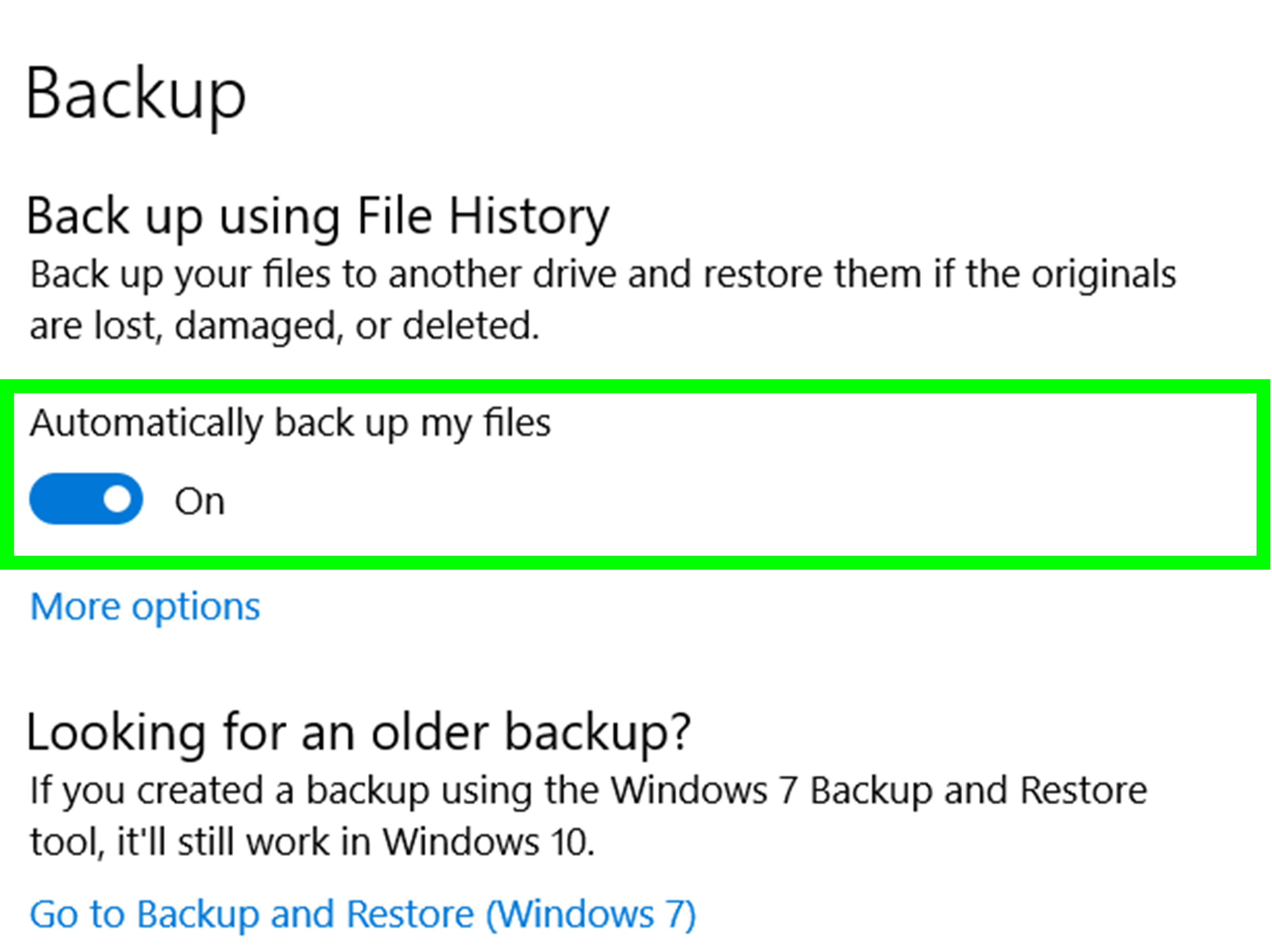
Backups are the closest thing computers have to time travel, minus the dramatic music and paradoxes. If you had Windows File History, Windows Backup, macOS Time Machine, iCloud backup, or another backup tool enabled before the history was deleted, you may be able to restore the browser profile or history database from an earlier date.
Recover Deleted Browser History on Windows
On Windows, browser data is usually stored inside your user profile folders. For Chrome and Edge, the history database is commonly located inside the browser’s user data folder. Firefox keeps browsing history and bookmarks in a profile database called places.sqlite. If Windows File History or another backup utility was enabled, you can try restoring an older version of the relevant browser profile folder.
A practical path looks like this:
- Close the browser completely.
- Open File Explorer and navigate to the browser profile folder.
- Right-click the folder or history database file.
- Select Restore previous versions, if available.
- Copy the older version somewhere safe before replacing anything.
Do not rush to overwrite your current profile. Browser profiles store more than history. They may include bookmarks, extensions, cookies, passwords, sessions, autofill data, and settings. Restoring the whole folder can bring back history, but it can also roll back newer data. The safer approach is to make a copy of the current profile first, then restore selectively.
Recover Deleted Safari History with Time Machine
On a Mac, Safari history can often be recovered from a Time Machine backup if the backup was created before the history was cleared. Safari stores history in the user Library area. With Time Machine, you can browse older versions of files and restore the Safari history database from a date when the entries still existed.
The basic idea is simple: open the Safari data location, enter Time Machine, choose a backup from before deletion, and restore the history file. In practice, you should close Safari first and avoid replacing current files until you have copied them somewhere safe. A small backup folder on your desktop can prevent a heroic rescue mission from becoming a sequel called “Oops, I Deleted More Things.”
When Backup Recovery Works Best
Backup recovery works best when you know roughly when the history was deleted. If you cleared your browser on Monday, look for a backup from Sunday or earlier. If you are not sure, restore a copy of the database file to a separate folder first and inspect it before replacing the active browser file.
3. Look for History on Another Synced Device
If you use the same browser account on multiple devices, do not panic-delete anything else. Your phone, tablet, work laptop, or old desktop may still have the browsing history you need. This is especially useful when history was deleted locally on one browser but sync had not yet updatedor when one device was offline during the deletion.
Examples by Browser
In Chrome, open the History page on your other signed-in devices. Chrome often organizes history by date and device, making it easier to pick up where you left off. In Edge, check the History panel and synced tabs. In Firefox, review history on another device connected to Firefox Sync. In Safari, check other Apple devices using the same Apple ID, especially if iCloud Safari syncing is enabled.
This method is not fancy, but it is surprisingly effective. If your desktop history is gone, your phone may still remember the page. Your phone is already keeping track of your screen time, your alarms, and that one weather search you made while pretending not to care about the forecast. It might as well help.
What to Do When You Find the Pages
Once you locate the missing pages, save them immediately. Bookmark the important URLs, copy them into a document, email them to yourself, or export the history if your browser or tool allows it. Do this before connecting the device to the internet if you suspect sync might remove the same data once it updates.
4. Use DNS Cache and Network Clues for Recent Visits
DNS cache is not a full browser history replacement, but it can provide clues about recently visited domains. DNS, short for Domain Name System, helps your computer translate website names into IP addresses. On Windows, the command ipconfig /displaydns can show entries in the DNS resolver cache.
How DNS Cache Can Help
Suppose you deleted your browser history but remember visiting a useful website earlier today. The DNS cache may still contain the domain name. It probably will not show the exact article URL, page title, or visit time, but it may reveal enough to jog your memory. For instance, it might show example.com, but not example.com/blog/the-perfect-router-guide.
How to Check DNS Cache on Windows
On Windows, open Command Prompt and type:
Review the results for recognizable domains. If the list is long, you can copy it into a text file and search for keywords. Keep expectations realistic. DNS cache entries expire, can be flushed, and may include domains loaded by ads, scripts, images, apps, or background services. In other words, not every domain in the list is a website you personally clicked. The internet is chatty, and DNS cache is the gossip column.
Limitations of DNS Recovery
DNS cache usually helps only with recent activity. Restarting the computer, flushing the DNS cache, using certain privacy tools, or waiting too long may remove useful entries. It also does not restore browser history into your browser interface. Treat it as a detective clue, not a magic undo button.
5. Inspect Browser Profile Files or Use a Reputable History Viewer
Browser history is commonly stored in local profile files. Chrome and many Chromium-based browsers use a file named History, which is an SQLite database. Firefox stores visited pages and bookmarks in places.sqlite. Safari uses a history database on macOS. If the file still exists, was partially deleted, or can be recovered from backup, a browser history viewer or SQLite tool may help you read it.
Common Browser History Storage Locations
On Windows, Chrome profile data is usually found under:
Microsoft Edge profile data is usually found under:
Firefox profiles are usually found under:
On macOS, browser profile folders are generally located inside the user Library folder. These folders may be hidden by default, so you may need Finder’s Go to Folder feature to access them.
Important Safety Tips
Always close the browser before copying or restoring profile files. Active browsers may lock databases or write new data while you are working. Make copies before making changes. Never download random “history recovery” tools from suspicious websites, especially tools that ask for administrator access, browser passwords, or payment before showing results. A deleted history problem is annoying; installing malware to solve it is like burning down the kitchen because the toaster looked at you funny.
Reputable utilities can read browser history databases and display visited URLs, titles, visit times, visit counts, and browser profile information. For advanced users, SQLite database browsers can also inspect copied history files. The key word is copied. Work on a duplicate file, not the live browser database.
What About Phone Browsers?
Recovering deleted browser history on iPhone or Android is usually harder than recovering it on a desktop computer. Mobile operating systems restrict file access, and app data may be encrypted or sandboxed. Still, you have a few options.
For Chrome on Android or iPhone
Check Google My Activity first. If Chrome sync was enabled, you may also see history or open tabs on another device. On Android, you can review Google account activity and Chrome sync settings. On iPhone, check Chrome history, Google activity, and other signed-in devices.
For Safari on iPhone or iPad
Safari history may sync through iCloud across Apple devices. If history was cleared from one device and synced, it may disappear from others too. If you have an iCloud or computer backup from before deletion, restoring the entire device backup may bring back old Safari data, but it can also roll back other phone data. That is a big hammer, so use it carefully.
What You Probably Cannot Recover
Some history is gone by design. Incognito, InPrivate, and Private Browsing modes do not save normal browser history after the session closes. They may still leave traces elsewhere, such as downloads, bookmarks, DNS records, network logs, or account activity, but your browser’s regular history page is not meant to preserve those sessions.
You also may not recover history if you used secure deletion tools, cleared synced cloud activity, erased all device backups, or waited long enough for storage to be overwritten. Browser databases change constantly. The sooner you act, the better your chances.
Best Practices to Avoid Losing Browser History Again
Once you recover what you need, set up a smarter system. Browser history is convenient, but it is not a reliable filing cabinet. If a page matters, bookmark it. If it really matters, save it in a notes app, password manager, reading list, PDF, or project document. If it matters enough that future-you will glare at present-you, back it up.
Use Bookmarks and Reading Lists
Bookmarks are still useful, even if they feel old-school. Most browsers let you organize bookmarks into folders. A simple structure such as Work, Research, Shopping, Recipes, and Read Later can save you from digging through 3,000 history entries named “Untitled.”
Turn On Sync Thoughtfully
Sync can help you recover browsing history across devices, but it also means deletion may travel across devices. Review your sync settings and decide what should be shared. You may want bookmarks synced but not history, or you may want history synced for convenience.
Keep Backups Enabled
Windows File History, Windows Backup, macOS Time Machine, and other reputable backup solutions can rescue more than browser data. They protect documents, photos, settings, and project files. Browser history may not be the main reason to maintain backups, but it is a nice bonus when you accidentally delete the one page that had the answer.
Extra Experience: Real-World Lessons from Recovering Deleted Browser History
After helping people troubleshoot missing browser history, one lesson stands out: most recoveries succeed because the user checks simple places before trying complicated tools. The person who calmly opens Google My Activity, checks another synced device, or searches bookmarks often finds what they need in ten minutes. The person who immediately downloads five mysterious “PC miracle recovery” apps usually gets a slower computer and a new appreciation for antivirus software.
A common scenario is the accidental clean-up. Someone opens Chrome or Edge, clicks “Delete browsing data,” chooses “All time,” and feels productive for about eight seconds. Then they remember a client portal, a research article, a travel itinerary, or a recipe for the soup everyone liked but nobody can spell. In that case, the best first move is not file recovery. It is memory recovery: list keywords, website names, dates, and devices used. Did you search Google? Did you open it on your phone too? Were you signed in? Those details narrow the hunt quickly.
Another practical lesson: browser history is messy. It includes redirects, login pages, repeated visits, tracking URLs, and pages with titles that look like they were assembled by a sleepy robot. When you do recover entries, expect noise. Search by domain, not just page title. If you remember visiting a page from a news site, search the domain first. If you remember a phrase from the article, search Google My Activity or your browser history for that phrase. Recovery is less like opening a neat notebook and more like cleaning out a junk drawerbut sometimes the key is right under the old batteries.
Backups are the most underrated recovery tool. Many users only discover Time Machine or File History after something goes wrong. When backups are already enabled, restoring a browser profile file from yesterday can be straightforward. When they are not enabled, recovery becomes guesswork. This is why professionals often recommend a simple backup routine: automatic local backup plus cloud backup for important files. You do not need a Hollywood-grade command center. You just need a system that runs without you remembering it every Tuesday.
It is also worth being honest about privacy. Sometimes people want to recover browser history because they are trying to monitor another adult. Do not do that without permission. Aside from the ethical problem, it can violate laws, workplace policies, relationship trust, and common decency. Recover your own data, your child’s data when appropriate and lawful, or company data when you are authorized to manage the device. “I was just curious” is not a strong legal defense, and it looks terrible in emails.
Finally, the best recovery habit is prevention. If you are researching something important, do not rely on browser history as your only breadcrumb trail. Use bookmarks, save links in a notes document, export research sources, or keep a running outline. Browser history is designed for convenience, not archiving. It is like a helpful intern with a short attention span: great when available, unreliable when the stakes are high.
Conclusion
Recovering deleted browser history is possible in many cases, but the right method depends on where the data still exists. Start with synced account activity, then check other devices, backups, DNS cache, and browser profile files. The sooner you act, the better your chances. Most importantly, protect important links before you need them again. A bookmark today can save you from a digital treasure hunt tomorrow.
Note: This article is intended for recovering your own browser history or data you are authorized to access. Do not attempt to recover or inspect someone else’s browsing activity without permission.