The PlayStation 3 may be old enough to make a teenager ask, “Wait, that plays movies too?” but this glossy black console is still a surprisingly capable home-theater machine. Long before every TV came with a row of streaming apps and a suspiciously eager recommendation algorithm, the PS3 was one of the best living-room boxes you could buy. It played Blu-ray discs, handled DVDs, streamed video, read files from USB drives, and connected to media servers. In other words, it was a game console with a secret second career as a movie-night butler.
Today, watching movies on a PlayStation 3 takes a little more know-how than it did in 2010. Some streaming services have dropped PS3 support, newer video formats may not play without conversion, and Blu-ray playback may require a system software update to renew the console’s encryption key. Still, if you own a working PS3, you have three practical ways to enjoy movies: physical discs, streaming apps, and local video files through USB or a home media server.
This guide explains each method in plain English, with specific setup steps, troubleshooting tips, and realistic expectations. No magic, no jargon fog, and no pretending the PS3 is secretly a 4K HDR beast. It is not. But for Blu-ray, DVD, HD streaming, and personal video libraries, it can still earn its shelf space.
Why Use a PlayStation 3 for Movies in 2026?
The biggest reason is simple: you may already have one. If your PS3 still powers on, reads discs, connects to your TV, and has a controller that does not drift across menus like a haunted shopping cart, it can be a handy movie player. The console supports Blu-ray Disc and DVD playback, offers HDMI output, includes a familiar media menu, and can access video files stored on compatible devices.
There are limits. The PS3 does not support 4K Ultra HD Blu-ray. It does not support modern HDR formats. Its streaming apps are aging, and some major services no longer work on the console. But if your goal is to watch a Blu-ray collection, play DVDs, stream from the few remaining supported apps, or view MP4 files from a USB drive, the PS3 remains useful.
The key is choosing the right method for the movie you want to watch. A Blu-ray disc? Use the disc drive. A movie from Prime Video or YouTube? Try the app route. A personal video file from your computer? USB or DLNA media sharing is usually the best path.
Method 1: Watch Movies on PS3 Using Blu-ray Discs and DVDs
The most reliable way to watch movies on a PlayStation 3 is still the classic way: insert a disc and let the console do its thing. The PS3 was built with a Blu-ray drive, which was one of its biggest selling points at launch. For many households, it was the first Blu-ray player they ever owned, tucked inside a gaming console that also happened to run giant fantasy RPGs and racing games.
What discs can a PS3 play?
A standard PlayStation 3 can play commercial Blu-ray movies, DVDs, AVCHD discs, and supported video files stored on compatible recordable discs such as CD-R or DVD-R. It can also play many standard DVDs, including DVD-ROM, DVD-R, DVD+R, DVD-RW, and DVD+RW, depending on how the disc was created and finalized.
For the average movie night, that means you can put in a Blu-ray or DVD, go to the Video section of the XMB menu, select the disc icon, and press X. The movie should begin just like it would on a dedicated Blu-ray player. If you have the official PS3 Blu-ray remote, congratulations: you are living the premium 2008 lifestyle. If not, a regular DualShock controller works fine, even if using shoulder buttons to navigate movie menus still feels slightly like piloting a submarine.
How to play a Blu-ray or DVD on PS3
- Turn on the PS3 and connect it to your TV using HDMI for the best picture quality.
- Insert the Blu-ray Disc or DVD into the console.
- Go to the Video column on the XMB menu.
- Select the disc icon and press X.
- Use the controller or Blu-ray remote to pause, rewind, skip chapters, change audio, or enable subtitles.
For best results, go to Settings > Display Settings > Video Output Settings and make sure the PS3 is configured for your TV. Most HDTVs should use HDMI with automatic settings. If your TV supports 1080p and your PS3 is connected by HDMI, Blu-ray playback can look excellent, especially compared with DVD. DVDs will still play, but they are lower resolution and may look softer on modern large screens.
Update your PS3 for Blu-ray playback
One issue that surprises many returning PS3 owners is the Blu-ray encryption key. Some Blu-ray movies require a renewed AACS encryption key, and Sony’s guidance is to update the PS3 system software when a disc asks for it. If your console has been living in a closet since the era of skinny jeans and plastic guitar controllers, update it before declaring the disc drive cursed.
To update through the internet, go to Settings > System Update > Update via Internet. You can also update using a USB drive if the console is not connected online. Make sure you have enough free storage space, follow the official folder structure, and do not turn off the console during the update.
Best use case for disc playback
Disc playback is best for collectors, people who own Blu-rays and DVDs, and anyone who wants a stable movie experience without depending on app support. It also avoids the “this app is no longer available on your device” message, which is the streaming world’s version of a door slamming politely in your face.
Method 2: Watch Movies on PS3 With Streaming Apps
Streaming on the PS3 is possible, but it is the method that requires the most caution. The PS3 was once a streaming champion. Netflix on PS3 was historically important, YouTube released a native PS3 app, Hulu supported older PlayStation hardware for years, and Prime Video became one of the most useful options for movie streaming on the console.
However, app support changes. Older consoles may lose access when services update security requirements, video codecs, account systems, or advertising features. As of 2026, Netflix support for PS3 has ended, and several other services that once worked on the console are no longer reliable or no longer available. Prime Video still lists PlayStation 3 as a supported console in its device documentation, with streaming quality up to HD, 5.1 surround sound support, subtitles, audio descriptions, live streaming, and ad-supported channels. YouTube also has a long-running PS3 app history, though performance and regional availability may vary.
How to find streaming apps on PS3
To check available apps, connect the PS3 to the internet and sign in to PlayStation Network. Then look under TV/Video Services or open the PlayStation Store from the console itself. Sony no longer allows PS3 purchases through the modern web or mobile store, but the console-side store has historically remained the place to access PS3 content and apps where available.
- Connect the PS3 to Wi-Fi or Ethernet.
- Sign in to PlayStation Network.
- Go to TV/Video Services or open the PlayStation Store.
- Look for apps such as Prime Video or YouTube.
- Download or launch the app, then sign in with your service account.
If you use two-step verification on your PlayStation account, you may need a device setup password instead of your normal account password. This is a common stumbling block for PS3 sign-in. It is not the console being dramatic; it is simply an older login system meeting modern account security.
Which streaming apps still make sense?
Prime Video is one of the strongest options because it still lists PS3 support. It is suitable for rented or purchased movies, included Prime titles, and some live or ad-supported content depending on your region and account. Do not expect Ultra HD or modern profiles support on PS3; this is an HD-era console, and the app experience reflects that.
YouTube can be useful for free movies, official studio uploads, rentals where supported, documentaries, trailers, and long-form video. The PS3 YouTube app was designed for TV controls and even supported smartphone pairing features, which made browsing less painful than typing with a controller. That said, the app may feel slow compared with a modern Roku, Fire TV, Apple TV, smart TV, or PS5.
Netflix is no longer a dependable PS3 option because support ended in March 2026. If Netflix is your main movie source, the practical fix is to use a modern streaming device plugged into the same TV. A cheap streaming stick will be faster, better supported, and less likely to sound like a small jet engine during a quiet romantic scene.
Troubleshooting PS3 streaming apps
If a streaming app refuses to work, try updating the PS3 system software, checking your internet connection, restarting the console, deleting and reinstalling the app, and confirming that the service still supports PS3 in your region. If the app opens but playback stutters, use a wired Ethernet connection if possible. The PS3’s Wi-Fi is old, and old Wi-Fi sometimes behaves like it is sending your movie one teaspoon at a time.
Streaming is best when you want quick access to an online library and the service still supports the console. It is not the best choice if you want every modern app, 4K quality, Dolby Vision, or a fast interface. For those needs, use a newer device.
Method 3: Watch Movies on PS3 From USB Drives or a Media Server
The third way to watch movies on a PlayStation 3 is to play local video files. This is ideal if you have home videos, downloaded personal files, ripped copies of discs you legally own where allowed, or a media library stored on a computer. The PS3 can play videos from USB mass storage devices, compatible memory cards on certain models, data discs, system storage, and DLNA media servers on the same network.
Supported PS3 video formats
The PS3 supports several video formats, including MP4 with H.264/MPEG-4 AVC video and AAC audio, MPEG-1, MPEG-2 PS, MPEG-2 TS, AVCHD files such as .m2ts and .mts, some AVI files, DivX, and WMV with VC-1 when WMA playback is enabled. That sounds generous, but there is a catch: file extensions do not tell the whole story.
For example, an MP4 file may play perfectly if it uses H.264 video and AAC audio. Another MP4 may fail if it uses an unsupported codec, unusual audio track, or incompatible profile. Likewise, an AVI file may work in one case and refuse to play in another. The container is the box; the codec is what is inside the box. The PS3 cares about both, because apparently even movie files need personality tests.
How to play movies from a USB drive
- Format your USB drive as FAT32 for best PS3 compatibility.
- Create a folder named VIDEO on the root of the drive.
- Copy your compatible movie files into the VIDEO folder.
- Plug the USB drive into the PS3.
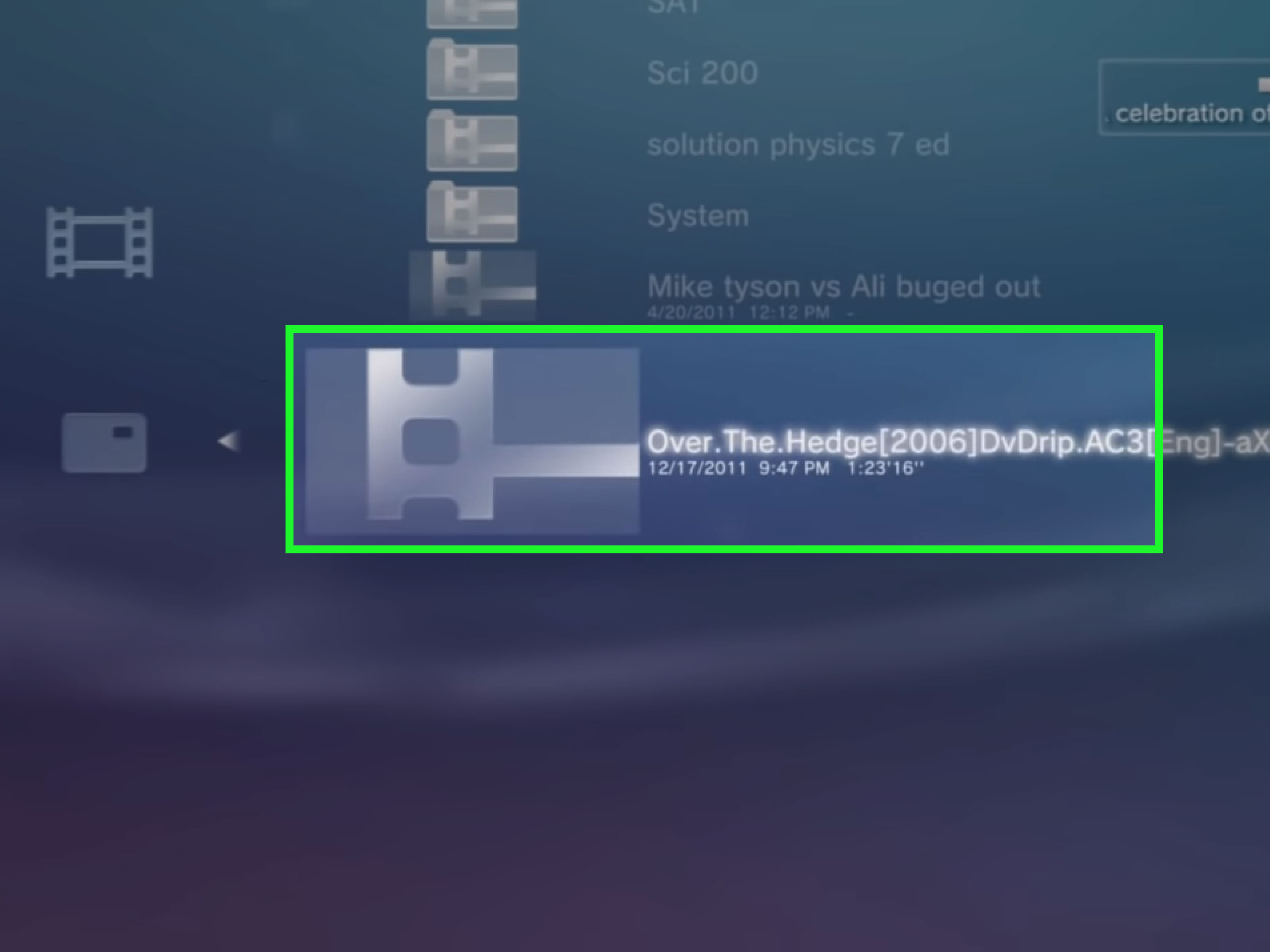
- Go to Video on the XMB menu and select the USB device.
- If files do not appear, press Triangle and choose Display All.
- Select the movie file and press X to play.
FAT32 has a file-size limit of about 4 GB, so very large HD movies may need to be compressed, split, streamed over a media server, or stored in a format the console can access another way. If you see “unsupported data,” the file probably uses a codec or audio format the PS3 does not understand. Converting the file to MP4 with H.264 video and AAC audio is often the simplest solution.
How to stream movies from a computer using DLNA
The PS3 can detect DLNA media servers on the same home network. This means you can store movies on a computer or network device and stream them to the console without copying files to a USB drive. In the PS3 menu, enable Media Server Connection under Settings > Network Settings. Then run a DLNA-compatible media server on your computer or NAS.
Older setups often used Windows Media Player sharing, PS3 Media Server, Universal Media Server, Serviio, or similar tools. A good media server can make browsing easier and may transcode unsupported files into a PS3-friendly format while streaming. Transcoding is basically real-time translation for video files: your computer says, “Don’t worry, ancient console, I’ll explain this modern file in a language you understand.”
For best performance, use Ethernet for the PS3 and the media server when possible. HD video can stutter over weak Wi-Fi, especially if the file is high bitrate. Also remember that copyright-protected files may not play through DLNA. The PS3 is flexible, but it is not a loophole machine.
Which Method Is Best?
The best method depends on your movie source. For Blu-ray and DVD collections, disc playback is the cleanest and most dependable. For online rentals or included streaming titles, Prime Video and YouTube are worth checking, but app support should be treated as temporary. For personal libraries and home videos, USB or DLNA gives you the most control, provided the files are encoded correctly.
If you want the fewest headaches, start with discs. If you want convenience, try the remaining streaming apps. If you want to use your own digital movie files, learn the PS3’s format preferences and keep a conversion tool handy. The console rewards patience. It also occasionally punishes optimism.
Common Problems and Quick Fixes
The PS3 will not play a Blu-ray movie
Update the system software first. Blu-ray playback can require a renewed encryption key. Also inspect the disc for scratches, test another Blu-ray, and make sure the drive can still read games or DVDs. If no discs work, the optical drive may be failing.
The movie file appears as unsupported data
Convert the file to MP4 with H.264 video and AAC audio. Avoid unusual codecs, high-bitrate files, unsupported subtitles, and formats such as MKV unless your media server can transcode them for PS3 playback.
The USB drive does not show my movie
Use FAT32, place files inside a VIDEO folder, and press Triangle to choose Display All. Some large USB drives, unusual partition layouts, or unsupported file systems may not work correctly with the console.
The streaming app is missing or will not sign in
Confirm the app still supports PS3 in your region. Update the system software, check PlayStation Network sign-in, and use a device setup password if your account security requires it. If the service has ended PS3 support, use a newer streaming device.
Real-World Experience: What It Is Actually Like Watching Movies on a PS3
Using a PlayStation 3 as a movie player today feels a little like driving a beloved older car. It may not have lane assist, a giant touchscreen, or seats that massage your existential dread, but it still gets you where you want to go. When the setup is right, the PS3 can deliver a cozy and surprisingly satisfying movie experience.
Disc playback is where the console feels most at home. Insert a Blu-ray, hear the drive spin up, and the whole thing has a physical charm that streaming cannot quite replace. There is no endless app row, no “because you watched half of a cooking show in 2019” recommendation, and no sudden disappearance of a movie because a licensing contract evaporated at midnight. You own the disc. The disc is there. The PS3 plays it. This is not glamorous, but it is deeply comforting.
DVDs are more nostalgic. On a modern 55-inch or 65-inch TV, a DVD can look soft, especially if you sit close. But for older movies, sitcom box sets, workout videos, concert discs, and family favorites, the PS3 does the job. The interface is simple, the controller shortcuts are easy once you remember them, and the playback controls are more than good enough. The only awkward part is using a game controller as a remote. Pressing X to select a film is fine; using shoulder buttons during a serious drama feels like you are about to parry an emotional monologue.
Streaming is more of a mixed bag. When Prime Video works, it can be convenient. You can rent a movie, watch included titles, or browse a familiar library without switching devices. YouTube is also useful, especially for free long-form content, documentaries, official channels, and movie extras. But compared with modern streaming hardware, the PS3 interface can feel slow. Typing searches with the controller is not exactly a spa day. Apps may load slowly, menus may lag, and support can change without much warning. For casual use, it is fine. For your main streaming setup, a dedicated streaming stick is usually easier.
Local files are where the PS3 becomes both impressive and picky. Playing a clean MP4 file from a USB drive feels wonderfully direct. Put the file in the VIDEO folder, plug in the drive, select it, and enjoy. But when a file fails, the console rarely explains the problem in a friendly way. It does not say, “Hello, this audio codec is incompatible.” It simply refuses, like a tiny black bouncer guarding a nightclub for video formats. Once you learn to use H.264 video with AAC audio, the success rate improves dramatically.
DLNA streaming can feel almost magical when configured well. A media server on your computer appears on the PS3, folders show up under Video, and your movie library becomes browseable from the couch. The best setups use wired networking and a media server capable of transcoding. The worst setups involve weak Wi-Fi, mystery codecs, and buffering at exactly the moment the detective reveals the killer. If your home network is stable, DLNA can be one of the PS3’s most underrated movie features.
The overall experience depends on expectations. If you expect a PS5, Apple TV, or modern smart TV interface, the PS3 will feel slow and old. If you expect a sturdy Blu-ray player with bonus streaming and local-file abilities, it can still be delightful. It is especially nice for a bedroom TV, guest room, garage setup, retro gaming corner, or anyone who wants one box for games and movies.
The best advice is to keep the console updated, use HDMI, favor discs for reliability, use Prime Video or YouTube only if they still work well for your account and region, and convert personal videos into PS3-friendly formats before movie night. Do that, and the PlayStation 3 remains more than a nostalgia machine. It becomes a practical little media hub with a loud fan, a weirdly elegant menu, and a stubborn refusal to retire.
Conclusion
There are three main ways to watch movies on a PlayStation 3: play Blu-ray discs and DVDs, use supported streaming apps, or watch local files from USB drives and media servers. Disc playback remains the most reliable method, especially if your system software is up to date. Streaming can still work through select apps such as Prime Video and YouTube, but support for older consoles is shrinking, so do not rely on the PS3 as your only streaming device. USB and DLNA playback are excellent for personal video collections, as long as your files use PS3-friendly formats like MP4 with H.264 video and AAC audio.
The PS3 is not modern, but it is not useless. Treat it as a classic HD media player, give it compatible files, keep expectations realistic, and it can still host a very respectable movie night. Add popcorn and maybe a controller with a charged battery. The popcorn is optional. The charged controller is not.
Note: This article is based on current PS3 media playback behavior, official console support information, streaming-service device support, and real-world usability as of June 2026. Streaming app availability may vary by country, account type, and future service updates.