Seeing “An unexpected error has occurred” on Roblox? Congratulations: your gaming session has been interrupted by the digital equivalent of a locked door with no sign on it. The message is vague, mildly dramatic, and not very helpful. It can appear when Roblox fails to launch, when a game refuses to load, when the website throws a server-style error, or when the app crashes before you even get to complain in chat.
The good news is that this Roblox error is usually fixable. It is often connected to server outages, unstable internet, outdated app files, browser cache problems, firewall restrictions, antivirus conflicts, blocked ports, extensions, VPNs, or corrupted Roblox installation files. In other words, Roblox is not always “broken forever.” Sometimes it just needs a gentle technical snack and a reboot.
This guide walks through 7 quick fixes for “An unexpected error has occurred on Roblox” across PC, Mac, mobile, and Xbox One. Start with the first fix and move down the list. The early steps are fast; the later ones are for when Roblox is being stubborn enough to deserve a strongly worded sticky note.
What Does “An Unexpected Error Has Occurred” Mean on Roblox?
The message usually means Roblox could not complete the action you requested. That action might be opening the app, joining an experience, loading the website, logging in, updating the player, or connecting to game servers. It is not always the same as a specific Roblox error code, but it can overlap with problems like connection failures, internal server errors, outdated client issues, or app crashes.
Think of it as Roblox saying, “Something went wrong, but I am not emotionally ready to explain.” Your job is to narrow down whether the problem is happening on Roblox’s side, your device, your browser, your network, or your installed app files.
Quick Diagnosis Before You Start
Before jumping into fixes, ask three simple questions:
- Does Roblox work on another device? If yes, the problem is probably device-specific.
- Does Roblox work on another network? If yes, your Wi-Fi, router, firewall, or ISP may be involved.
- Are many players reporting issues at the same time? If yes, Roblox servers may be the real villain.
Now let’s fix the error without sacrificing your entire evening.
1. Check Roblox Server Status First
The fastest fix is also the easiest: check whether Roblox is having a platform-wide issue. If Roblox services are down, degraded, or under maintenance, no amount of cache-clearing wizardry will make the game load. You could reinstall the app six times, restart your router, rename your computer “PleaseWork,” and still get the same error.
Roblox has several moving parts: the website, mobile app, Xbox app, player, game join service, avatar systems, marketplace, asset delivery, and creator tools. If one of these services has an outage, you may see an unexpected error when opening Roblox, joining a game, loading your avatar, or accessing your account.
What to do
- Check the official Roblox status page.
- Look for issues related to Website, Mobile App, Xbox App, Player, or Game Join.
- If there is an active incident, wait until Roblox resolves it.
- If everything is operational, continue to the next fixes.
Example: If Roblox loads the homepage but fails when you click Play, the Game Join or Player service may be affected. If the app opens but your avatar or inventory refuses to load, the issue may be with avatar or asset delivery systems.
2. Restart Roblox, Your Device, and Your Router
Yes, “turn it off and on again” sounds like advice from a tired IT wizard, but it works surprisingly often. Roblox may leave background processes running after a crash. Your router may have a stale connection. Your device may be holding onto a network state that is about as useful as a chocolate keyboard.
A full restart clears temporary memory, refreshes network connections, closes stuck Roblox processes, and gives your system a clean attempt to connect.
For PC or Mac
- Close Roblox completely.
- Open Task Manager on Windows or Activity Monitor on Mac.
- End any Roblox-related process that is still running.
- Restart your computer.
- Open Roblox again and try joining a different experience first.
For mobile
- Force close the Roblox app.
- Restart your phone or tablet.
- Reconnect to Wi-Fi or switch to mobile data for a quick test.
- Open Roblox and try again.
For Xbox One
- Quit Roblox from the Xbox dashboard.
- Restart the console.
- Restart your router if connection problems continue.
- Launch Roblox again.
If Roblox works after restarting your router, the issue was likely related to a temporary network glitch, DNS hiccup, or unstable connection. Very glamorous? No. Effective? Often, yes.
3. Clear Browser Cache, Cookies, or App Cache
Old cached files can confuse Roblox, especially if the website or app has recently updated. Cache is supposed to make things faster, but when it gets corrupted, it behaves like a helpful friend giving you directions to a restaurant that closed in 2018.
If you play Roblox through a browser, clearing cache and cookies can fix login loops, blank pages, slow loading, unexpected website errors, and failed launch attempts. If you play on Android, clearing the app cache can remove temporary files without fully uninstalling Roblox.
Chrome
- Open Chrome.
- Press Ctrl + Shift + Delete on Windows or Command + Shift + Delete on Mac.
- Select cached images/files and cookies.
- Choose a time range such as “All time.”
- Clear the data, restart Chrome, and log back into Roblox.
Microsoft Edge
- Open Edge settings.
- Go to Privacy, search, and services.
- Choose Clear browsing data.
- Select cache and cookies.
- Restart Edge and test Roblox again.
Firefox
- Open Firefox settings.
- Go to Privacy & Security.
- Find Cookies and Site Data.
- Clear cookies, site data, and cached files.
- Reload Roblox.
Safari on Mac
In Safari, remove Roblox website data or clear browsing history and website data. Be aware that clearing cookies may sign you out of websites, which is annoying but still less annoying than Roblox refusing to open.
Android app cache
- Open Settings on your Android device.
- Go to Apps.
- Select Roblox.
- Tap Storage.
- Choose Clear Cache.
Avoid clearing app data unless you are prepared to sign in again and reset some local preferences.
4. Update Roblox, Your Browser, and Your Operating System
Roblox updates frequently. If your app version is old, your browser is outdated, or your operating system is behind, Roblox may fail to launch or connect correctly. Error messages are sometimes less about mystery and more about version mismatch.
Roblox supports 64-bit Windows 10 and Windows 11 for PC installation. On Mac, Roblox requires macOS 10.13 High Sierra or higher. The Roblox website supports common browsers such as Chrome, Firefox, Edge, and Safari depending on the platform. If your device is far outside supported requirements, quick fixes may only produce quick disappointment.
Update checklist
- Update Roblox from the official app store or Roblox website.
- Update Chrome, Edge, Firefox, or Safari.
- Install pending Windows or macOS updates.
- Update graphics drivers on Windows if Roblox crashes during launch.
- Update Android or iOS if the mobile app keeps failing.
Specific example: If Roblox opens but crashes when the 3D window appears, outdated graphics drivers or unsupported graphics features may be involved. Roblox on Windows requires DirectX 10 or higher feature-level support, so very old graphics hardware can cause launch failures.
5. Allow Roblox Through Firewall or Antivirus Software
Firewalls and antivirus tools are designed to protect your device. Sometimes they get a little too enthusiastic and treat Roblox like it wandered into the network wearing a fake mustache. If Roblox cannot communicate with its servers, you may see unexpected errors, connection failures, or games that never finish loading.
This is especially common after a Roblox update, antivirus update, Windows security update, or router setting change. The solution is not to permanently turn off your protection. The safer move is to allow Roblox through your firewall or add Roblox as a permitted app in your antivirus settings.
Windows firewall fix
- Open Windows Security.
- Go to Firewall & network protection.
- Choose “Allow an app through firewall.”
- Look for Roblox or RobloxPlayerBeta.
- Allow it on private networks.
- Restart Roblox and test again.
Antivirus fix
- Open your antivirus or security software.
- Find the exclusions, exceptions, or allowed apps section.
- Add Roblox as an allowed program.
- Update the antivirus software to the latest version.
- Restart your computer.
If you are on a school, library, or office network, Roblox may be blocked by policy. Do not try to bypass rules on networks you do not manage. Test from a home network or ask the network owner for help.
6. Disable Problematic Extensions, VPNs, Proxies, and Overlays
Browser extensions and background tools can interfere with Roblox. Ad blockers, script blockers, privacy extensions, Roblox add-ons, VPNs, proxies, FPS overlays, screen recorders, and optimization tools may change how Roblox loads or connects.
This does not mean every extension is bad. It means troubleshooting is easier when Roblox runs in a clean environment. Give it the quiet room treatment.
Try a clean browser test
- Open Roblox in a private or incognito window.
- Disable extensions temporarily.
- Try a different supported browser.
- Log in and launch a simple Roblox experience.
If Roblox works in one browser but not another, your problem is probably browser-specific. Clear that browser’s cache, disable extensions, or reinstall the browser if needed.
Turn off VPN or proxy temporarily
A VPN or proxy can add extra routing steps between your device and Roblox servers. That can increase latency, cause login problems, or trigger connection errors. Turn it off temporarily and try Roblox again. If Roblox immediately works, the VPN route or proxy configuration was likely the issue.
Disable overlays
Some overlays hook into games to show FPS counters, recording menus, chat features, or performance stats. If Roblox crashes on launch, close unnecessary overlays and try again. Start with the simplest setup: Roblox, your normal internet connection, and nothing else trying to be helpful in the background.
7. Reinstall Roblox Cleanly
If none of the earlier steps work, reinstall Roblox. A clean reinstall can replace missing, outdated, or corrupted files. Roblox’s own troubleshooting guidance recommends reinstalling as an extra measure for persistent technical issues.
Do not just click install over and over like you are trying to win a carnival game. Reinstall properly.
Windows reinstall steps
- Close Roblox completely.
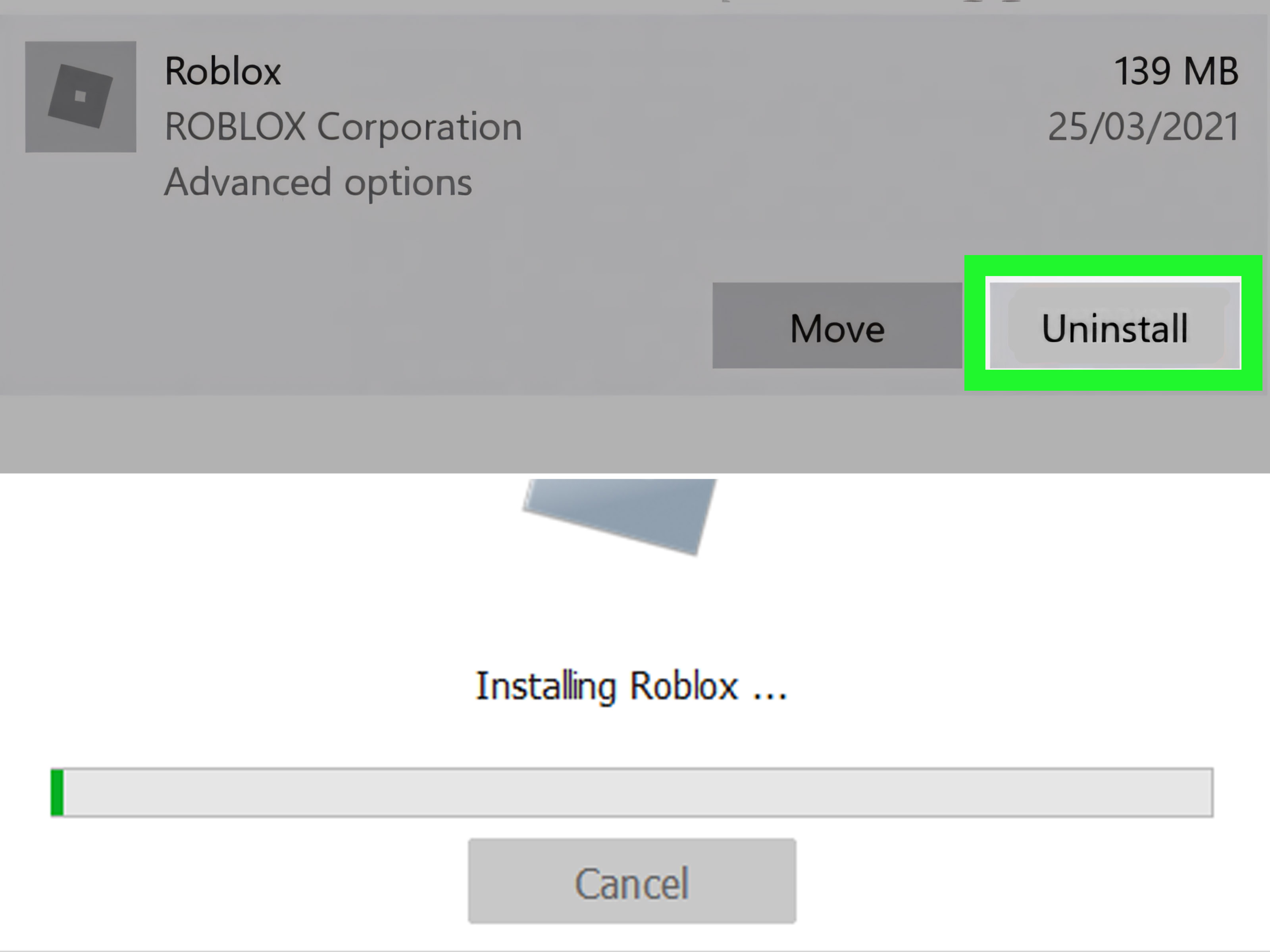
- Uninstall Roblox from Apps & Features or Control Panel.
- Restart your computer.
- Clear browser temporary files.
- Download Roblox again from the official Roblox website or Microsoft Store.
- Install it with other unnecessary apps closed.
Mac reinstall steps
- Quit Roblox.
- Open Finder and go to Applications.
- Move Roblox to Trash.
- Restart your Mac.
- Download and install Roblox again.
Mobile reinstall steps
- Delete the Roblox app.
- Restart your phone or tablet.
- Install Roblox again from the App Store or Google Play.
- Log in and test a lightweight experience first.
Xbox One reinstall steps
- Highlight Roblox on the Xbox dashboard.
- Open the manage app menu.
- Uninstall Roblox.
- Restart the console.
- Reinstall Roblox from the Microsoft Store.
If reinstalling fixes the problem, your previous Roblox installation likely had damaged files, stuck update data, or local configuration problems.
Platform-Specific Tips for Roblox Unexpected Errors
PC
On Windows, focus on firewall permissions, graphics drivers, browser cache, antivirus exclusions, and clean installation. Also make sure your device meets Roblox requirements. If your PC is very old, underpowered, or missing proper graphics support, Roblox may crash even after basic fixes.
Mac
On Mac, update macOS, clear Safari or Chrome data, reinstall Roblox, and check that security settings are not blocking the app. If Roblox fails right after an update, restart your Mac before reinstalling.
Mobile
On mobile, update Roblox, clear cache on Android, check storage space, restart the device, and reinstall the app. If you are on weak Wi-Fi, test mobile data. If you are on mobile data, test Wi-Fi. Roblox needs a stable connection, not a signal that disappears whenever someone walks near the router.
Xbox One
On Xbox One, restart the console, check Xbox network status, reinstall Roblox, and confirm that your internet connection is stable. If the Roblox Xbox app opens but experiences fail to load, the issue may be Roblox services, your network, or the specific experience.
When Should You Contact Roblox Support?
Contact Roblox Support if the unexpected error continues after you have checked server status, restarted your device, cleared cache, updated Roblox, allowed it through firewall or antivirus software, disabled conflicting tools, and reinstalled the app.
Prepare useful details before contacting support:
- Your Roblox username
- The exact error message
- Your device model
- Your operating system version
- Whether the issue happens on Wi-Fi, mobile data, or both
- The steps that trigger the error
- Any recent changes, such as a new router, antivirus update, or Roblox reinstall
The more specific you are, the easier it is to diagnose the issue. “Roblox broke” is emotionally valid, but “Roblox shows ‘An unexpected error has occurred’ when joining any experience on Windows 11 after the latest antivirus update” is much more useful.
Extra Experience Notes: What Usually Works in Real Troubleshooting
In real-world Roblox troubleshooting, the best results usually come from separating the problem into three buckets: server, network, and device. Many players jump straight to reinstalling Roblox, but that should not be the first move. If Roblox is having an outage, reinstalling does nothing except give you a fresh copy of the same problem. Always check status first, then test another device or another network.
A very common pattern is this: Roblox works on a phone using mobile data but not on the home PC using Wi-Fi. That usually points toward the home network, router, DNS, firewall, or PC security settings. Another common pattern is the opposite: Roblox works on the same Wi-Fi for one device but fails on another. That usually points to a device-specific issue such as corrupted cache, blocked app permissions, outdated software, or a bad installation.
Browser players often solve the issue by clearing cache and cookies or switching browsers. For example, if Roblox fails in Chrome but works in Edge, the Roblox account is probably fine, the servers are probably fine, and Chrome is the likely troublemaker. Extensions are sneaky here. A privacy extension or script blocker may not announce itself as the cause; it simply breaks a login page, play button, or launch request and then sits there looking innocent.
PC players should pay special attention to antivirus tools. Security programs sometimes block newly updated Roblox files because they changed recently, not because they are actually dangerous. Updating the antivirus program and adding Roblox to the allowed list is safer than disabling protection completely. If Roblox starts working only after antivirus settings are changed, that is a strong clue.
Mobile players often benefit from the boring fixes: update the app, restart the phone, clear cache on Android, free up storage, and reinstall only if needed. Storage matters more than people think. When a phone is nearly full, apps can behave strangely because they do not have enough room to update, cache, or load assets properly. Roblox experiences can be large, so a little free space can prevent a lot of digital drama.
Xbox One players should keep the process simple. Restart the console, restart the router, check whether other online games work, and reinstall Roblox if the app keeps crashing. If other online games also fail, Roblox is not the main suspect. If only Roblox fails, check Roblox status and then reinstall the app.
The biggest lesson is not to fix randomly. Test one thing, then try Roblox again. If you change ten settings at once, you may fix the error but never know what worked. That makes future troubleshooting harder. A clean, step-by-step approach saves time and prevents you from turning your device settings into a mystery soup.
Conclusion
The message “An unexpected error has occurred on Roblox” may look vague, but the fix is usually practical. Start by checking Roblox server status. Then restart your device and router, clear cache, update Roblox, allow it through firewall or antivirus tools, disable conflicting extensions or VPNs, and reinstall the app if needed.
Most Roblox unexpected errors come down to connection issues, outdated files, blocked communication, corrupted cache, or temporary platform problems. Work through the fixes in order, and you have a strong chance of getting back into Roblox without performing a full technology exorcism.
Note: This article is written as publish-ready troubleshooting content based on current official Roblox support guidance, Roblox status information, and official platform support practices for browsers, mobile devices, Windows, Mac, and Xbox.