Few tech problems are as oddly personal as your volume changing by itself. One second your music is pumping, your video sounds fine, and your meeting audio is behaving like a civilized citizen. The next second, everything gets quieter for no obvious reason, as if your phone or PC has appointed itself the neighborhood noise patrol.
If you keep asking, “Why does my volume keep going down by itself?” you are not imagining things. On both phones and PCs, automatic volume drops usually happen because of built-in safety features, Bluetooth routing issues, app conflicts, audio enhancements, communication settings, or hardware problems like dirty ports and sticky buttons. In other words, your device is not haunted. It is usually just “helping” in the most annoying way possible.
This guide breaks down the most common reasons your volume keeps lowering itself on iPhone, Android, Windows laptops, and desktop PCs. You will also learn how to fix the issue step by step, without immediately jumping to the dramatic conclusion that your device has entered its villain era.
The Short Answer
If your volume keeps going down by itself, the most likely causes are:
- Headphone safety or hearing protection features
- Bluetooth devices stealing audio output
- Attention-aware or adaptive audio settings
- Windows communication settings lowering sound during calls
- Audio enhancements or app-specific volume controls
- Recently installed apps or software conflicts
- Sticky volume buttons, bad cases, debris, or failing hardware
The fix depends on where the problem is happening: your phone speakers, your earbuds, your Bluetooth car connection, or your PC’s system audio.
Why Your Phone Volume Keeps Going Down by Itself
1. Your phone is trying to protect your ears
This is the most common reason, and honestly, it is the least dramatic. Many phones automatically lower volume in certain situations to protect hearing. If you use headphones or earbuds, the system may reduce audio when it thinks the level is too high.
On iPhone, settings related to Headphone Safety can limit loud audio. On some Samsung Galaxy phones, the volume can also drop when headphones are connected as a safety measure. So if your audio suddenly dips the moment you plug in wired or wireless headphones, your device may be doing exactly what it was designed to do.
2. iPhone attention features may be lowering alerts
If you are using an iPhone with Face ID, another sneaky cause is Attention Aware. This feature can lower the volume of some alerts when it detects that you are looking at the phone. Helpful in theory. Confusing in practice. Especially when you are half awake and convinced your ringtone has developed commitment issues.
If your alerts, notifications, or alarms seem quieter only sometimes, this setting is worth checking.
3. AirPods and smart earbuds may adjust audio automatically
Modern earbuds are no longer simple little speakers for your ears. They are tiny computers with opinions. Features like Personalized Volume, Adaptive Audio, and Conversation Awareness can change audio levels automatically depending on your environment or when you start speaking.
That means the volume may go down not because your phone is broken, but because your earbuds are trying to be clever. Clever devices are great until they out-clever your patience.
4. Bluetooth is rerouting audio somewhere else
Your phone may not actually be lowering the volume. It may be sending sound to a different device. Bluetooth speakers, car systems, smartwatches, and old earbuds can all interfere. Sometimes a phone reconnects to a paired device in the background, and suddenly your music is playing in the car outside while you sit indoors wondering why your speaker sounds weak.
This also happens when the “Media audio” setting for a paired device is enabled, or when another connected device is grabbing calls or music playback.
5. A case or stuck button may be physically pressing volume down
Sometimes the explanation is gloriously low-tech. A tight phone case, pocket pressure, dust around the button, or a slightly damaged rocker can make the Volume Down button trigger on its own. That can look like a software issue when it is really a button with a flair for sabotage.
6. A third-party app may be controlling sound
Sound equalizers, cleaning apps, gaming launchers, automation tools, accessibility utilities, and some media apps can alter volume behavior. If the issue started after installing a new app, that timing is suspicious for a reason. On Android, Safe Mode is especially useful for checking whether a downloaded app is the culprit.
Why Your PC Volume Keeps Going Down by Itself
1. Windows may be lowering sound during calls or meetings
Windows has a classic setting that can reduce other sounds when it detects communication activity. So if your PC volume drops during Zoom, Teams, Discord, or voice chat, the operating system may think it is being considerate. This is the famous Communications setting, and it has confused people for years.
If your sound dips every time a call starts, a microphone activates, or a headset connects, this should be one of the first places you check.
2. Audio enhancements may be interfering
Audio enhancements sound fancy, and sometimes they are useful. Other times, they behave like a DJ with no boundaries. They can reduce volume, distort playback, or create inconsistent sound levels across apps and devices.
If your audio seems randomly quieter after an update or after switching speakers or headphones, enhancements may be involved.
3. One app has its own volume setting
Windows lets apps use separate volume levels and even separate output devices. That means your system volume may be fine while one browser tab, game, or media app is whispering like it is sharing a secret. This is common with streaming apps, conferencing software, and headsets that create multiple audio profiles.
4. Your Bluetooth headset has multiple audio modes
Many headsets expose different profiles, such as regular stereo audio and hands-free calling audio. When Windows switches between them, sound can suddenly get quieter, flatter, or weirdly compressed. You may think the PC volume dropped, but really the device profile changed.
5. Drivers, BIOS, or sound software may be misbehaving
Outdated or incorrect audio drivers can absolutely cause volume glitches. So can BIOS issues and vendor audio software. Dell, HP, and Lenovo all point to updates, driver checks, and troubleshooting tools when sound behavior becomes inconsistent. In plain English: sometimes your PC is not moody, it is just under-maintained.
6. Ports, cables, or debris can cause false symptoms
If you use wired headphones or speakers, inspect the audio jack, USB adapter, and connectors. Dust, lint, damaged pins, and loose ports can create the illusion of dropping volume, one-sided sound, or intermittent playback. That tiny crumb in your headphone port may be acting with the confidence of a full-time system administrator.
How to Fix Volume That Keeps Going Down on a Phone
For iPhone
- Check Settings > Sounds & Haptics > Headphone Safety and review loud audio limits.
- Go to Settings > Face ID & Passcode and test whether turning off Attention Aware Features changes alert volume behavior.
- If you use AirPods, check whether Personalized Volume or Conversation Awareness is enabled.
- Turn Bluetooth off for a minute and test audio through the phone speaker only.
- Remove the phone case and test the volume buttons.
- Restart the iPhone and update iOS.
For Android
- Disconnect Bluetooth accessories and test playback from the phone speaker.
- Open Bluetooth settings and check whether the connected device has Media audio enabled or is reconnecting unexpectedly.
- If you use a Galaxy phone, test whether the issue happens only when headphones are connected.
- Remove the case and inspect the physical volume buttons.
- Restart the phone.
- Boot into Safe Mode to see whether a downloaded app is controlling volume.
- Update Android and remove any recently installed audio, automation, or utility apps.
If the problem disappears in Safe Mode, that is a giant neon sign pointing to a third-party app.
How to Fix Volume That Keeps Going Down on a PC
- Open Sound settings and confirm the correct output device is selected.
- Check the Volume Mixer to see whether one app is set lower than the rest.
- Open the old-school Sound Control Panel, go to the Communications tab, and set it to Do nothing.
- Turn off Audio Enhancements for your output device and test again.
- Try a different Default Format if the sound is unusually quiet or inconsistent.
- Reconnect or remove Bluetooth headsets, especially if they switch between stereo and hands-free modes.
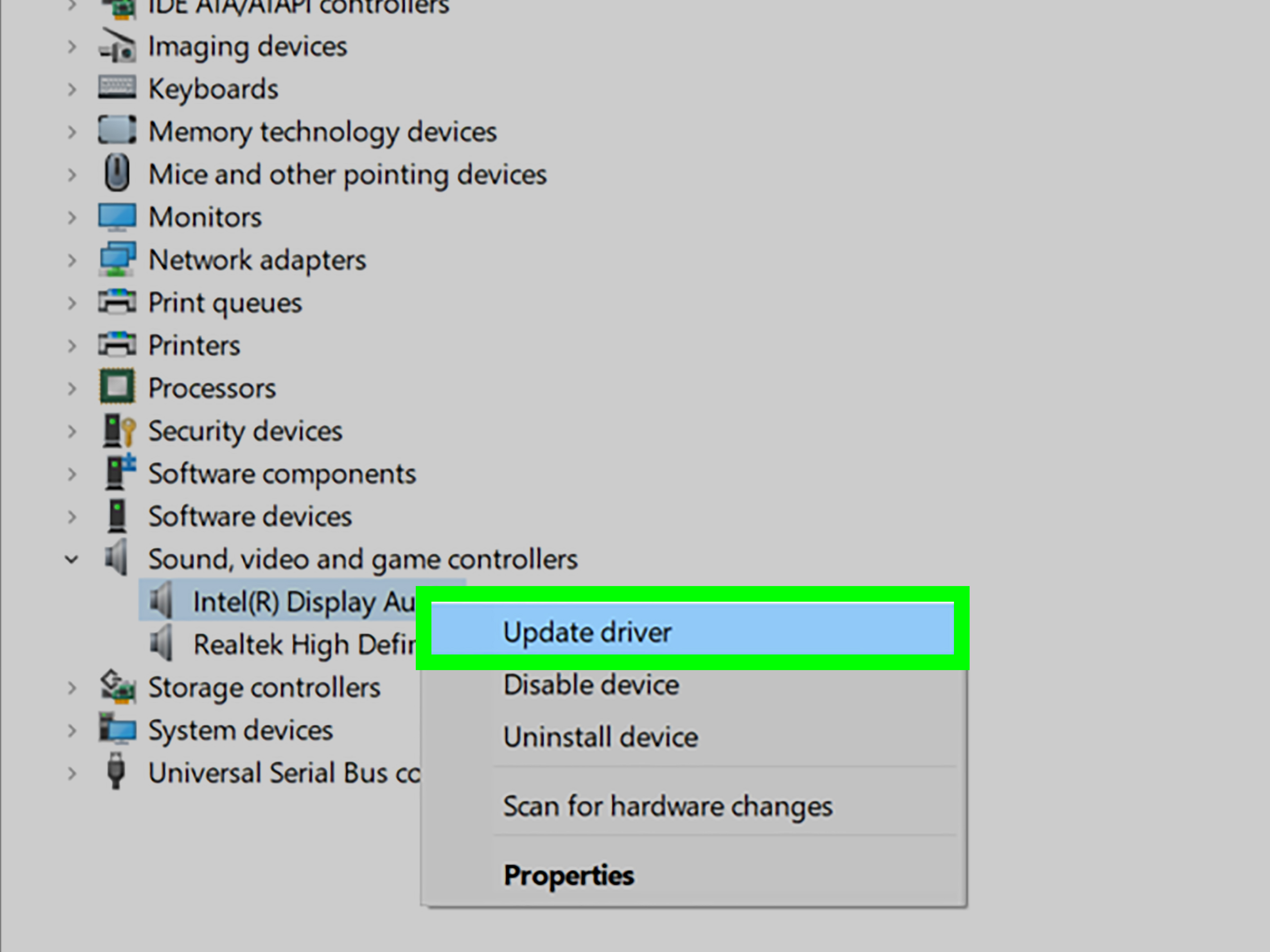
- Update your audio drivers, Windows updates, and manufacturer support software.
- Inspect the audio jack, USB dongle, cable, or adapter for dirt or damage.
- Restart the PC. Yes, this still works more often than people want to admit.
If you use a Dell, HP, or Lenovo machine, it is smart to run the vendor’s own diagnostics too. They often catch driver or firmware issues that Windows alone misses.
When It Is Probably a Hardware Problem
Software is usually the culprit, but not always. Your issue may be hardware-related if:
- The volume button feels mushy, jammed, or activates without touch
- The problem continues after a restart, update, and Safe Mode test
- Wired audio cuts in and out when the cable moves
- Only one speaker works, or sound crackles badly at all levels
- The device has recent water exposure or physical damage
At that point, cleaning, repair, or replacement is more likely than a magical hidden setting. Sadly, no menu option can fix a button that has decided to live its own life.
Final Thoughts
If your volume keeps going down by itself on a phone or PC, the good news is that the issue is usually solvable. Most cases come down to hearing-safety features, Bluetooth confusion, call-related Windows settings, audio enhancements, per-app controls, or one misbehaving app. In other words, there is usually a reason, even if your device has been acting like it is auditioning for a mystery series.
Start with the simple stuff first: disconnect accessories, inspect buttons, restart the device, and check sound settings. Then move to app conflicts, driver updates, Safe Mode, and hardware checks. With a little methodical troubleshooting, your volume can go back to staying where you left it, which is really the bare minimum we should expect from modern technology.
Common Real-Life Experiences With This Problem
One of the weirdest things about this issue is how random it feels when it happens in real life. For example, someone starts a podcast on their phone while cooking dinner, sets the volume to a comfortable level, and five minutes later the sound is noticeably lower. They assume the speaker is failing, but the real problem turns out to be Bluetooth. The phone quietly reconnected to a car parked outside, and the audio started routing there. Nothing says modern convenience quite like accidentally entertaining a steering wheel.
Another common experience happens on iPhone. A person notices that alert sounds feel inconsistent. Sometimes the ringtone is loud enough to wake the neighbors, and other times it seems oddly polite. The phone is not broken at all. Attention-aware behavior is changing how loud certain alerts sound when the device thinks the user is looking at it. That can feel mysterious until you realize your phone has become a tiny hall monitor with a front-facing camera.
Android users often describe a different pattern: the phone sounds normal on speaker, but once headphones are connected, the volume drops and never seems quite as strong as expected. That can happen because the phone is applying hearing-protection logic, especially on devices designed to reduce sudden loud output through headphones. The user thinks, “My volume is broken,” when the phone is really saying, “I am trying to keep your eardrums employed.”
On PCs, the problem often shows up during work. Someone is listening to music at a decent volume, then joins a Teams or Zoom call, and suddenly everything else gets quieter. After the meeting, audio still seems off. This makes people suspect their speakers, but Windows communication settings are frequently the actual cause. The system assumes that when a call starts, all other sounds should calm down and behave. Helpful when intentional. Maddening when you never asked for it.
Gamers run into another version of the same story. They connect a headset, launch a game, and notice that the sound becomes flatter and lower when voice chat kicks in. That is often a headset profile switch between stereo playback and hands-free communication mode. It feels like the PC chopped the volume in half for fun, but really it changed the audio path.
Then there is the sneakiest experience of all: the physical button problem. A person swears their phone is lowering volume on its own. They restart it, update it, and glare at it with increasing disappointment. Eventually they remove the case and discover the case edge has been pressing the volume rocker ever so slightly the whole time. It is a humbling moment. Technology did not fail. Plastic did.
These experiences are why volume problems feel so frustrating. The symptom looks simple, but the cause can live in hardware, software, accessories, or a single setting buried three menus deep. The trick is not guessing wildly. It is testing one variable at a time until the culprit loses its hiding place.