You subscribed to a cooking channel for one pasta recipe, followed three tech reviewers while shopping for a phone, and somehow added a creator who restores antique lawn mowers. Now you want to know which YouTube channels you actually follow. Fortunately, finding your YouTube subscriptions is much easier than explaining the lawn-mower phase.
You can view your subscriptions on a computer or through the YouTube mobile app. Both methods let you see recent uploads, open individual channels, adjust notifications, and remove subscriptions you no longer want. This guide explains the two easiest methods, clarifies the difference between free channel subscriptions and paid memberships, and offers practical ways to keep your feed useful.
What Are YouTube Subscriptions?
A YouTube subscription is a free way to follow a channel. When you select Subscribe on a creator’s channel or beneath one of its videos, future uploads from that channel become available in your Subscriptions feed. According to YouTube Help, the Home page may also display videos from subscribed channels, but it mixes them with recommendations.
That distinction matters. The Home feed is personalized by YouTube and may include trending videos, suggested creators, previously watched topics, and content from channels you follow. The Subscriptions feed concentrates on recent content published by your selected channels. It is the better destination when you want to see what your favorites have posted without asking an algorithm to read your mind before breakfast.
Subscriptions are not the same as subscribers
Your subscriptions are the channels you follow. Your subscribers are the people who follow your channel. To view your own subscriptions, use the regular YouTube website or app. Creators who want to examine recent public subscribers should use YouTube Studio instead.
Channel subscriptions are usually free
Following a channel does not create a monthly charge. YouTube Premium, YouTube TV, purchased channel memberships, and other paid services are separate products. If you are looking for recurring payments rather than followed creators, check Purchases and memberships in YouTube or the Payments and subscriptions section of your Google Account.
Before You Look for Your YouTube Subscriptions
Make sure you are signed in to the correct Google Account. Subscriptions belong to the YouTube profile or channel that created them. If you use several Google Accounts, Brand Accounts, or YouTube channel identities, switching profiles can produce a completely different subscription list.
A suspiciously empty feed often means that you opened the wrong profilenot that YouTube launched your favorite creators into digital outer space. Select your profile picture and check the displayed account name and email address before troubleshooting anything more complicated.
Way 1: View Your YouTube Subscriptions on a Computer
The desktop website provides the largest view of your subscription feed and is particularly convenient when you follow dozens or hundreds of channels. You can browse recent videos first and then open the channel-management view when you need the complete list.
Step 1: Sign in to YouTube
- Open a current web browser and visit YouTube.
- Select Sign in in the upper-right corner if necessary.
- Choose the Google Account connected to the subscriptions you want to view.
Step 2: Open the Subscriptions feed
- Look at the navigation guide on the left side of the page.
- Select Subscriptions.
- If the guide is collapsed, select the three-line menu icon in the upper-left corner to expand it.
You will arrive at a feed of recent videos from channels you follow. Newer uploads generally appear before older ones, making this page useful for catching up without wading through unrelated recommendations. You can also open the feed directly at youtube.com/feed/subscriptions after signing in.
Step 3: Display your complete channel list
On the Subscriptions page, look for Manage near the channel row or upper portion of the feed. Selecting it opens a list of subscribed channels. Depending on YouTube’s current layout, you may also see channel names in the left navigation guide and a Show more control for expanding that section.
The management view is more useful than the video feed when you are trying to answer a specific question such as, “Am I still subscribed to that woodworking channel?” It lets you scan channel names without opening every recent upload.
Step 4: Open, manage, or remove a subscription
Select a channel name or avatar to visit its page. The Subscribed button confirms that you currently follow it. Select that button and confirm Unsubscribe if you want to remove the channel.
YouTube does not normally offer an official one-click option for unsubscribing from every channel. That is probably for the best; one clumsy click should not turn ten years of carefully collected interests into a digital yard sale. Review channels individually and avoid scripts or unfamiliar browser extensions that request access to your account.
Way 2: View Your YouTube Subscriptions on Android, iPhone, or iPad
The official YouTube app is the quickest method when you are using a phone or tablet. Its Subscriptions area provides both a recent-upload feed and a channel list. The official app description also identifies Subscriptions as the place to see the latest content from favorite channels.
Step 1: Open the correct YouTube account
- Launch the YouTube app.
- Tap your profile picture or account control.
- Confirm that you are using the correct Google Account and YouTube identity.
Step 2: Tap Subscriptions
Select Subscriptions in the app’s main navigation, usually near the bottom of the screen. The page will show recent uploads, Shorts, posts, live streams, and other available content from channels you follow.
At the top, you may see a horizontal row of channel avatars. A dot beside a channel can indicate new content, while a live label identifies a channel that is currently streaming. Exact labels and positions may differ slightly across Android, iPhone, iPad, app versions, and interface tests.
Step 3: Tap All to see every channel
- Remain on the Subscriptions tab.
- Tap All beside the channel row.
- Scroll through the resulting list of subscribed channels.
- Use the available filter or drop-down control if your version of the app provides one.
This is the most direct answer to how to see all your YouTube subscriptions on mobile. The feed shows content; the All view shows the creators behind that content.
Step 4: Adjust notifications from the channel list
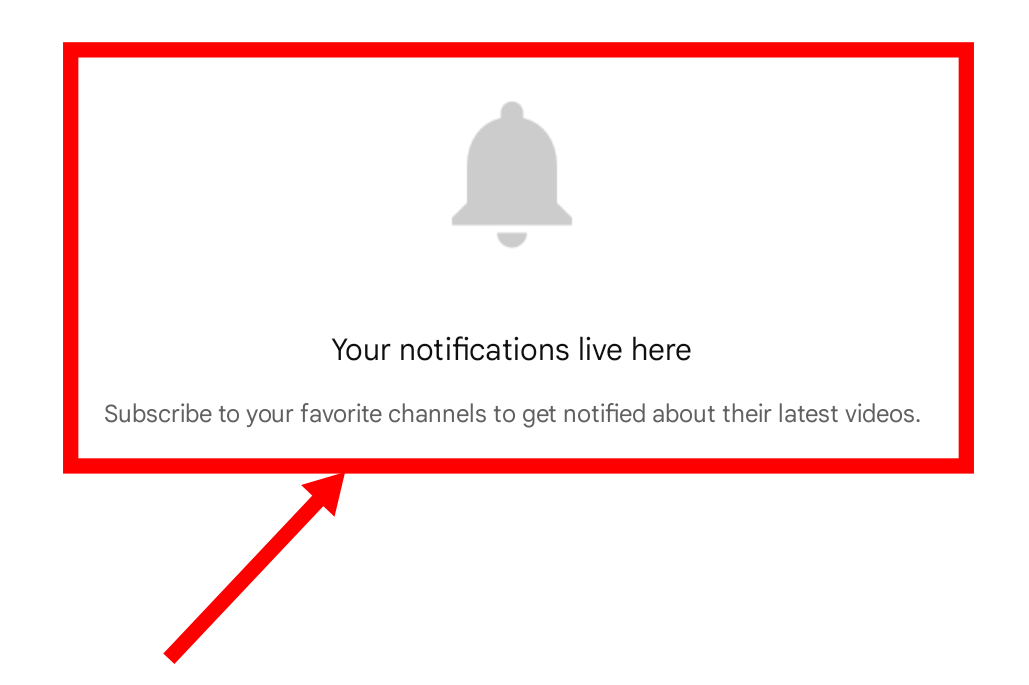
Tap the bell beside a channel to choose the available notification level. Common choices include All, Personalized, and None. Following a channel and receiving alerts from it are separate settings. You can remain subscribed while silencing notifications.
YouTube explains in its notification guidance that the Subscriptions feed and notifications serve different purposes. The feed gathers recent uploads, while notifications selectively alert you to activity. Device-level notification permissions can also override settings inside the app.
Quick Comparison of the Two Easiest Methods
| Feature | Computer | Mobile App |
|---|---|---|
| Open recent uploads | Select Subscriptions in the left guide | Tap Subscriptions in the main navigation |
| See all followed channels | Select Manage or expand the channel list | Tap All above the subscription feed |
| Best use | Auditing a large subscription list | Checking new uploads quickly |
| Manage alerts | Use the bell on a channel page | Use the bell beside a channel or on its page |
What to Do If Your YouTube Subscriptions Are Missing
Check your account or channel identity
Select your profile picture and switch accounts if needed. People who maintain personal, work, and Brand Account profiles frequently create subscriptions under different identities without realizing it.
Confirm that you are connected to the internet
An unstable connection may prevent the subscription feed from loading or refreshing. Try another network, reload the browser page, or close and reopen the app.
Update the YouTube app
An outdated mobile app may display an older layout or experience loading problems. Install updates from the Apple App Store or Google Play, then restart the application.
Clear temporary browser or app problems
On a computer, try a private browsing window or another supported browser. If the page works there, cached data, blocked cookies, or an extension may be interfering. Disable suspicious extensions, especially any that claim to automate subscriptions.
Look beyond the Home page
A channel may be absent from Home even though you still follow it. Home recommendations are personalized; they are not a complete subscription record. Open the Subscriptions feed or the full channel list before assuming a subscription disappeared.
Expect small interface differences
YouTube regularly tests navigation changes. One account may receive a new arrangement before another, even on identical phones. Focus on the labels Subscriptions, All, and Manage, while remembering that their exact placement can change.
How to Make Your YouTube Subscription List More Useful
Review subscriptions periodically
Open the full channel list every few months and remove creators you no longer watch. A smaller, more relevant list makes the Subscriptions feed easier to scan and reduces the chance that valuable uploads will be buried beneath digital cobwebs.
Reserve All notifications for priority channels
Turning on every alert for every creator can transform your phone into a pocket-sized doorbell convention. Use All for time-sensitive channels, live events, classes, or creators whose uploads you genuinely do not want to miss. Leave less important channels on Personalized or None.
Use Watch Later for individual videos
A subscription follows an entire channel. If only one video interests you, save it to Watch Later instead of subscribing automatically. This simple distinction prevents your channel list from becoming a museum of temporary curiosities.
Keep subscription privacy in mind
You can decide whether other people may see the channels you follow. On a computer, open your profile menu, select Settings, choose Privacy, and adjust Keep all my subscriptions private. YouTube provides the current steps in its subscription privacy documentation.
Frequently Asked Questions
Can I view my YouTube subscriptions without signing in?
No. Your subscriptions are connected to a Google Account and its selected YouTube identity. You must sign in to retrieve the correct list.
Can other people see which channels I subscribe to?
That depends on your privacy setting. You can keep all subscriptions private or make them public. Even when subscriptions are public, some ways of displaying them may depend on YouTube’s current channel layout.
Why am I not notified when a subscribed channel uploads?
Subscribing does not automatically guarantee an alert for every upload. Check the channel’s bell setting, YouTube’s notification preferences, and your phone or browser permissions. Videos should still appear in the Subscriptions feed even when push alerts are limited.
Can I sort my subscriptions into folders?
YouTube’s native organization controls are limited and can vary by platform. The standard channel list is designed mainly for viewing and notification management. Be cautious with third-party organizers because extensions may request access to YouTube account data.
How do I find paid YouTube subscriptions?
Open your profile menu and look for Purchases and memberships. That area covers products such as YouTube Premium and paid channel memberships. It is separate from the free Subscriptions feed discussed in this guide.
A Practical Experience: Turning a Crowded Subscription Feed Into a Useful One
Consider a viewer named Alex who has used the same YouTube account for eight years. His subscriptions began sensibly: a few music channels, two news organizations, and a creator who explained spreadsheet formulas without making them sound like ancient magic. Over time, however, every passing interest left a souvenir. Home workouts added six fitness channels. A weekend plumbing emergency added four repair experts. One ambitious attempt at learning Japanese added nine language teachers.
When Alex opened YouTube, he usually stayed on Home. He assumed it represented the creators he followed, but the page was dominated by recommendations based on recent viewing. After watching one video about restoring an old cabin, his Home feed behaved as though he had resigned from his job to become a full-time wilderness carpenter.
The first useful change was opening the actual Subscriptions feed on a computer. Immediately, the difference became clear: Home was a recommendation engine, while Subscriptions was a catch-up tool. The latter displayed recent posts from chosen channels, including several educational creators that had rarely appeared on Home.
Next, Alex opened the full channel list through Manage. Instead of unsubscribing impulsively, he used a simple test: “Have I watched or intentionally searched for this channel during the past year?” If the answer was no and the subject no longer mattered, he removed it. If the channel was useful but posted too frequently, he stayed subscribed and adjusted the bell instead.
That notification cleanup was surprisingly important. Alex had previously selected All for many channels, believing that it somehow made the subscription stronger. In reality, it merely produced more alerts. He kept All notifications for a live class, a local weather channel, and two favorite creators. Most entertainment channels moved to Personalized, while high-volume channels were set to None. Their uploads remained available in the Subscriptions feed without making his phone buzz during meetings.
On mobile, Alex developed a two-minute routine. He opened Subscriptions, scanned the latest uploads, and saved promising videos to Watch Later. When he could not remember a creator’s name, he tapped All and searched the channel list visually. Recognizing an avatar was often faster than trying to remember whether the channel used “Tech,” “Technology,” or an aggressively creative spelling of both.
The biggest lesson was that a subscription list should reflect continuing interests, not every topic that has ever crossed the screen. Subscribing thoughtfully, checking the dedicated feed, and adjusting notifications created a calmer experience without eliminating discovery. Home remained useful for surprises, but Subscriptions became the reliable place for intentional viewing.
This approach works especially well for students, researchers, hobbyists, and anyone who follows channels across unrelated subjects. The goal is not to achieve a perfectly minimalist list. It is to make sure that opening YouTube helps you find what you chose to follow before the recommendation system invites you into another three-hour investigation of how medieval drawbridges worked.
Conclusion
To view your YouTube subscriptions on a computer, sign in, select Subscriptions from the left navigation guide, and choose Manage when you want the complete channel list. On Android, iPhone, or iPad, open the app, tap Subscriptions, and then tap All.
Remember that the Subscriptions feed, notification inbox, Home recommendations, and paid memberships are separate features. Once you know which area serves which purpose, finding favorite channels becomes straightforwardand your viewing routine becomes considerably less dependent on whatever video YouTube has decided is your new personality today.
Note: YouTube tests and rolls out interface changes regularly. Button names and positions may vary slightly by device, region, account, and app version.